
A factory reset wipes your Google Pixel 10 Pro XL clean and takes it back to its out-of-the-box state. It erases all your data, accounts, and downloaded apps, leaving you with a fresh copy of Android 16. You should use this as a last resort for software problems or as essential prep before selling the phone.
Back Up Your Pixel Data First
Before you wipe anything, confirm your data is safe. Open Settings > System > Backup and make sure the Google One backup toggle is on. Hit Back up now to save your app data, call history, and settings to the cloud.
Your photos and videos should be syncing to Google Photos automatically. Open the app, tap your profile picture, and check the backup status. Once the factory reset runs, anything not backed up is gone for good.
Remove Your Google Account
If you plan to sell or trade in your Pixel 10 Pro XL, remove your Google account first. This prevents Factory Reset Protection (FRP) from locking the next person out of the device. Head to Settings > Passwords & accounts, tap your Google account, and choose Remove account.
Skip this step if you are keeping the phone. You will log back into the same account after the reset.
Factory Reset from Settings
The easiest way to reset a working Pixel 10 Pro XL is through the system settings. Go to Settings > System > Reset options > Erase all data (factory reset). You will see a summary of everything that gets deleted.
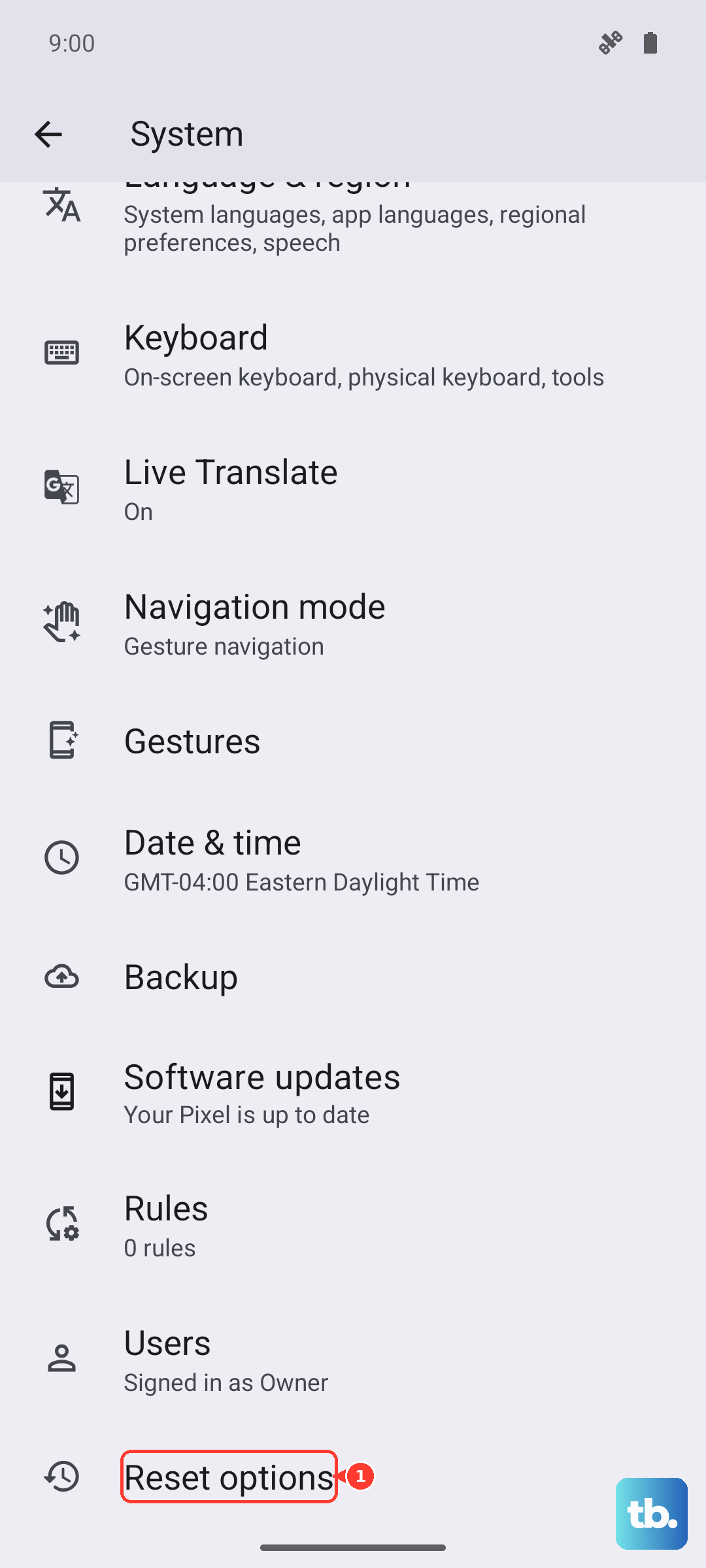
Tap Erase all data and confirm your screen lock pattern, PIN, or password. The phone immediately restarts and begins the wiping process. When it finishes, you will see the Android 16 Welcome screen.
Factory Reset Using the Buttons (Recovery)
If your Pixel is frozen or stuck in a boot loop, you need the button method. First, press and hold the Power button until the phone turns off. Give it a few seconds.
Next, press and hold Volume Down + Power until you see the bootloader screen. Use the Volume Down key to scroll to Recovery mode and press Power to select it.
When the Android robot appears with a "No command" message, press and hold the Power button, then quickly tap Volume Up. The recovery menu pops up. Scroll to Wipe data/factory reset using the volume keys and press Power to choose it. Once it finishes, select Reboot system now.
Try These Resets First
You do not always need to nuke everything. Android 16 on the Pixel 10 Pro XL includes targeted reset options that fix common annoyances without deleting your personal files. Go to Settings > System > Reset options.
You can reset Wi-Fi, mobile network, and Bluetooth to fix connection drops. You can also choose Reset app preferences to restore default app permissions without losing your data. Try these before the full factory reset.
Given the known issues with the Pixel 10 Pro XL overheating while charging, a network or app preferences reset can sometimes clear the background activity causing the heat buildup. Just keep in mind that defective charging ports require hardware service, not a software wipe.
Set Up Your Pixel After the Wipe
Once the reset finishes, your phone restarts to the setup wizard. Connect to Wi-Fi, sign into your Google account, and follow the prompts. The phone will ask if you want to restore data from a previous backup. If you backed up earlier, select that backup to bring your apps and settings back automatically.
Wireless charging requires precise alignment on the Qi2 pad, so center your phone carefully. For the fastest wired top-ups, use a 30W+ USB-C PPS charger to get the full 45W speed.
When a Factory Reset Makes Sense
Hit the reset button for persistent lag, random reboots, battery drain, or app crashes that standard troubleshooting cannot fix. It also clears up weird behavior after a major Android 16 update. If the phone overheats and shuts down even after removing the case and closing background apps, wiping the system software often resolves the underlying software conflict.