
When you tap the Settings icon on your Google Pixel 10 Pro XL and get hit with "Unfortunately, Settings has stopped working," it's maddening. You can't adjust anything. This usually points to corrupted cache files, a glitchy system service, or a software bug that needs a quick fix. Let's walk through the solutions that actually work on the Pixel 10 Pro XL running Android 16.
Force Restart Your Pixel 10 Pro XL
A standard restart often isn't enough when system apps crash. The Pixel 10 Pro XL has a specific force restart sequence that clears deeper temporary issues. Press and hold the Volume up and Power buttons simultaneously for 10 seconds, then release when the device restarts. This doesn't erase any data, and it's the first thing to try.
If the Settings app still crashes after that, move on to clearing its cached data.
Clear the Settings App Cache
Cache files help apps load faster, but they can get corrupted over time. On the Pixel 10 Pro XL, you'll find the option under Apps. Go to Settings > Apps > See all apps, then scroll down and tap Settings. Tap Storage & cache, then Clear cache. That's it.
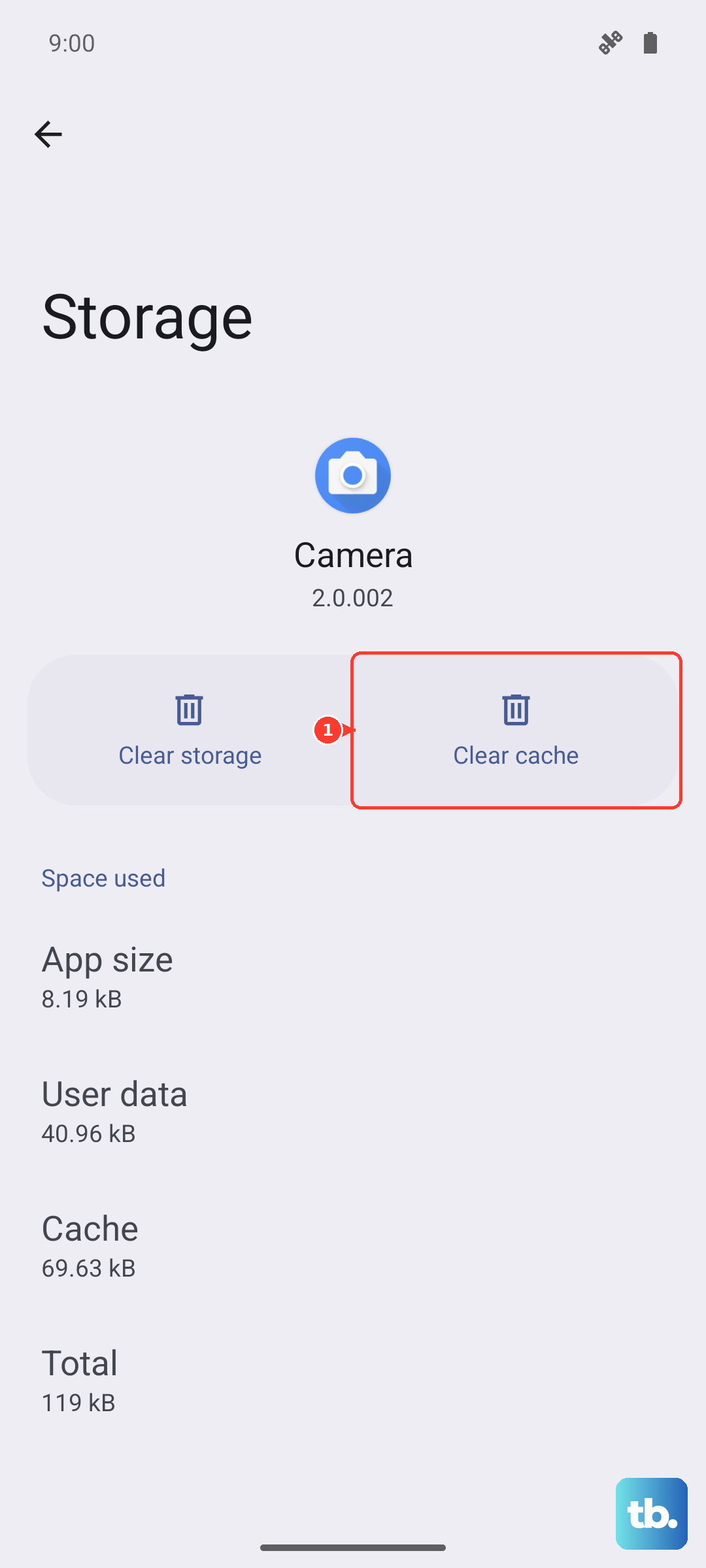
You don't need to clear data here, just the cache. Test by opening Settings again. If it still crashes, force stop the app.
Force Stop the Settings App
Force stopping kills the app's processes and lets it restart fresh. Navigate to Settings > Apps > See all apps > Settings, then tap Force stop. Confirm when prompted. After that, try opening Settings again.
This usually works if the crash was a one-time glitch. But if it happens regularly, there's likely a deeper issue with Google Play Services.
Manage Google Play Services
The Settings app relies heavily on Google Play Services. If that service has a corrupted cache or data, Settings can crash. Start by force stopping it. Go to Settings > Apps > See all apps > Google Play Services, then tap Force stop.
Next, clear its cache and data. Tap Storage & cache, then Clear cache. After that, tap Manage Storage and Clear all data. This will reset some Google account preferences, but won't delete your accounts or files. Restart your phone afterward.
Uninstall Google Play Store Updates
Sometimes a recent Play Store update introduces a conflict with system apps like Settings. To fix this, go to Settings > Apps > See all apps > Google Play Store. Tap the three-dot menu in the corner and select Uninstall updates. Confirm, then restart your device.
The next time you open the Play Store, it will update itself automatically. This step has resolved stubborn Settings crashes on many Pixel devices.
Update Your Pixel's Software
Android 16 is still relatively new on the Pixel 10 Pro XL, and early builds can have bugs that cause app crashes. Google pushes monthly security patches and bug fixes directly to your phone. Check for updates by going to Settings > System > System update and tapping Check for update. If one is available, download and install it.
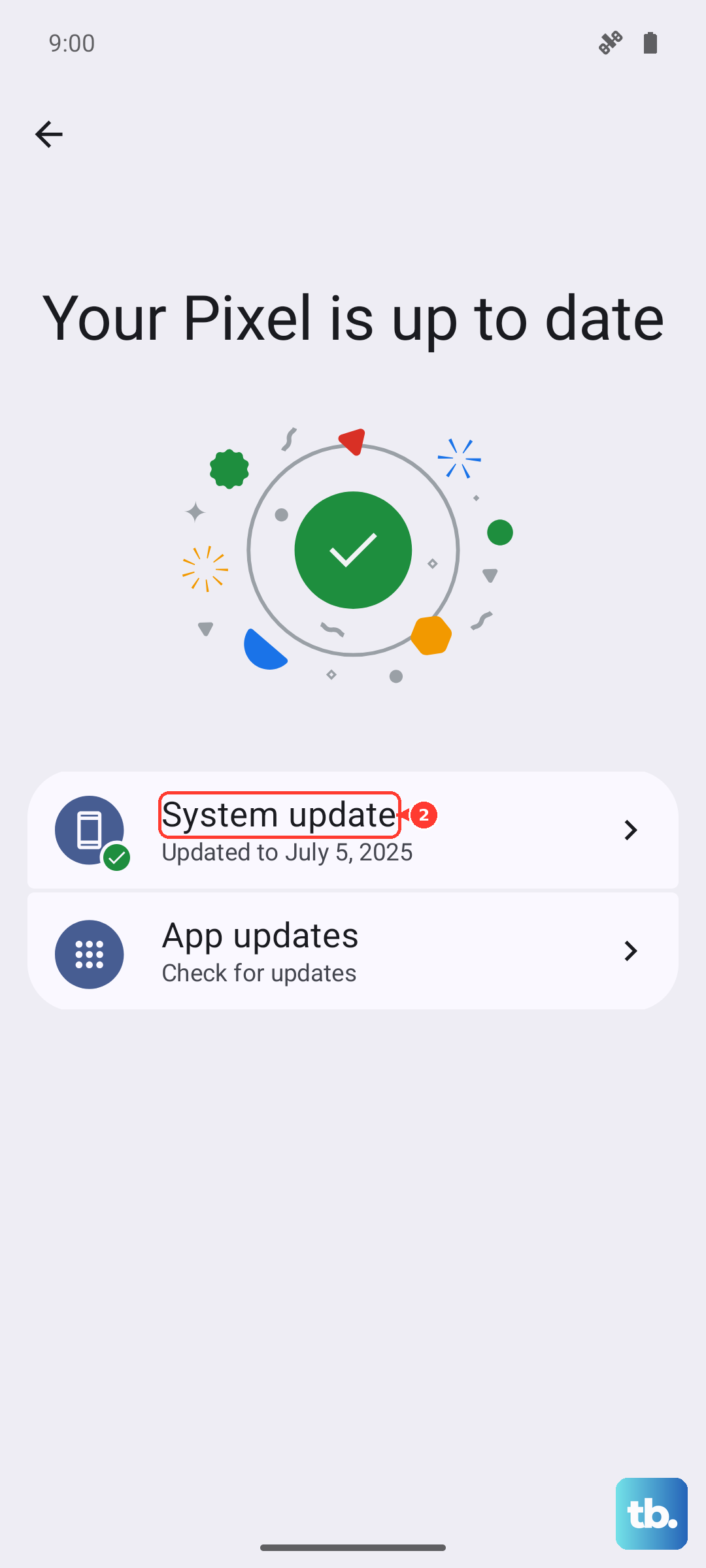
After the update completes, restart your phone and see if the Settings app behaves normally.
Factory Reset (Last Resort)
If you've tried everything and Settings still won't open, a factory reset will bring the phone back to a clean state. This erases all data, so back up your photos, contacts, and anything else important first. On the Pixel 10 Pro XL, go to Settings > System > Reset options > Erase all data (factory reset). Follow the prompts to confirm.
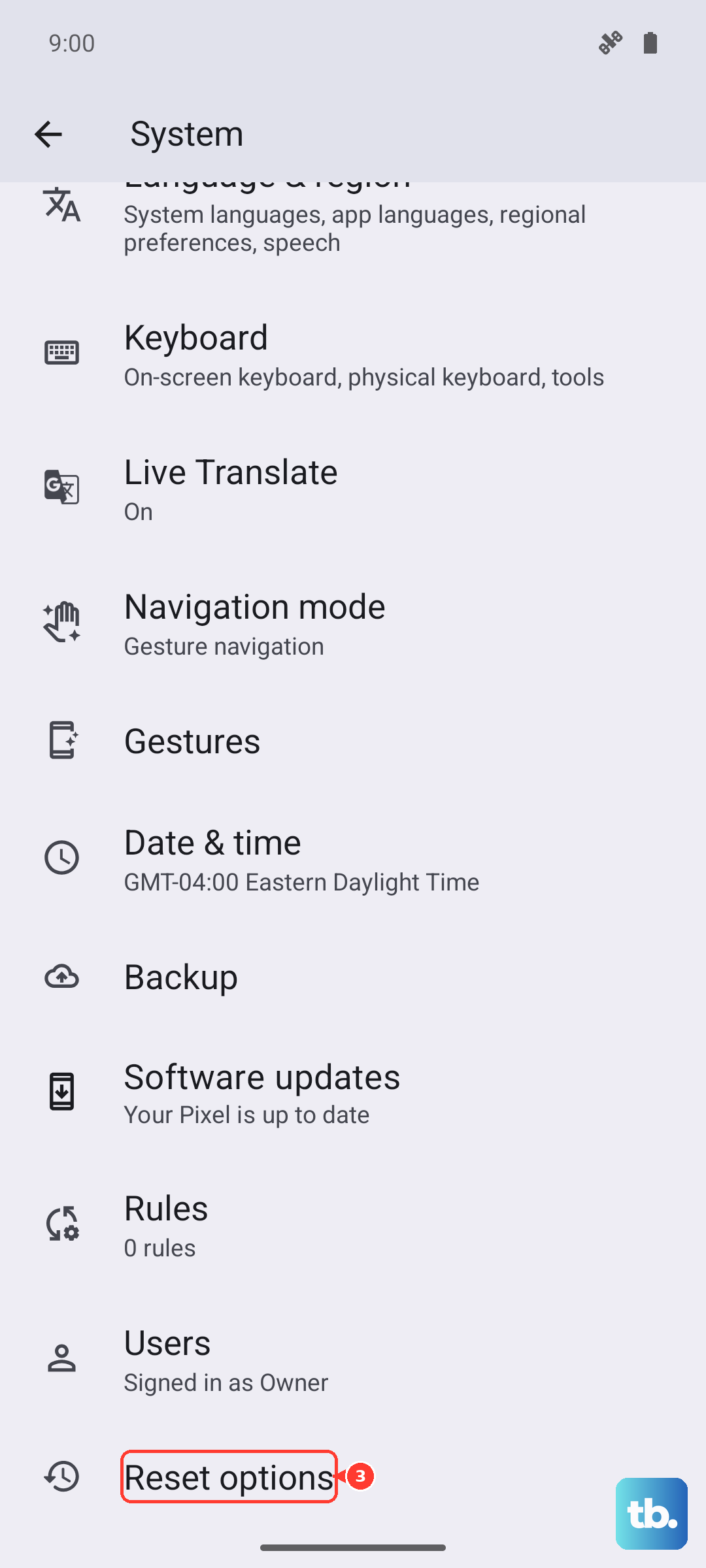
After the reset, your phone will restart with default settings. This should eliminate any persistent software corruption causing the Settings app to crash. It's a nuclear option, but it works when nothing else does.