Factory resetting your Google Pixel 10 is the most definitive way to wipe it clean. It's a complete do-over, erasing every app, photo, setting, and personal file, returning the phone to exactly how it was when you first took it out of the box. You'll want to do this before selling or trading in your device, or if you're dealing with software glitches that just won't quit.
Back Everything Up to Google First
This step is non-negotiable. Once you proceed, there's no getting your data back. Head to Settings > System > Backup on your Pixel 10. Make sure the Back up to Google Drive toggle is switched on.
Tap Back up now to force an immediate backup of your app data, call history, contacts, device settings, and SMS messages. Don't forget about your photos and videos. Open Google Photos and check that backup is complete, or manually back them up before you continue.
Remove Your Google Account
To avoid getting tripped up by Factory Reset Protection (FRP) after the wipe, you need to sign out. Go to Settings > Passwords & accounts. Tap on your primary Google account and select Remove account.
Confirm you want to remove it. This step ensures that after the reset, you can set up the phone fresh without it asking for the previous owner's credentials, which would now be yours.
Perform the Factory Reset from Settings
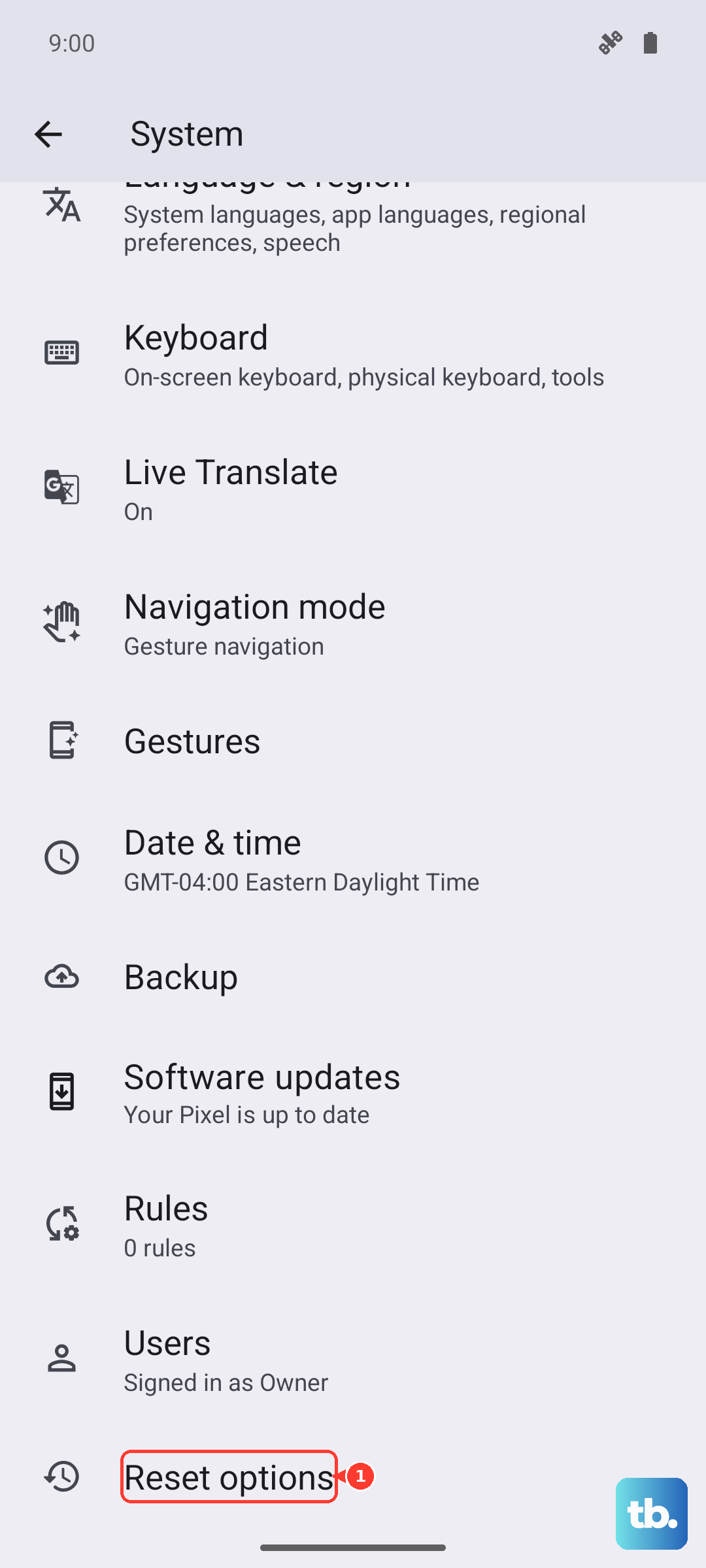
With your data safe and account removed, you're ready. Navigate to Settings > System > Reset options. On the next screen, tap Erase all data (factory reset).
You'll see a final screen detailing everything that will be deleted. If you're sure, tap Erase all data. You'll likely need to enter your device PIN, pattern, or password for a final confirmation. The phone will then restart and begin the erasure process, which can take several minutes.
Using Recovery Mode for an Unresponsive Phone
If your Pixel 10 is frozen, stuck in a boot loop, or won't start normally, you can reset it using the physical buttons. First, power the phone down completely. Once it's off, press and hold the Power button and the Volume Up button together.
Hold them until you see the Google logo, then release. You should boot into Recovery Mode. Use the volume buttons to scroll to Wipe data/factory reset and press the power button to select it. Confirm your choice on the next screen. When it's done, select Reboot system now.
Less Drastic Reset Options
A full factory reset isn't always necessary. Back in Settings > System > Reset options, you'll see other choices. Reset Wi-Fi, mobile & Bluetooth clears all your network connections, which can fix connectivity problems.
Reset app preferences reverts all your app permissions, default apps, and background restrictions without touching the apps themselves. It's a great first step for fixing misbehaving applications.
Restoring Your Pixel 10 After the Reset
Once the reset is complete, you'll be greeted by the Android setup screen. Follow the prompts to select your language and connect to Wi-Fi. When you sign back into your Google account, you'll be given the option to restore from a backup.
Choose the most recent backup you created. Your installed apps, device settings, and other saved data will begin downloading. Your photos will repopulate from Google Photos as it syncs.
I'd recommend a factory reset for persistent, unexplainable issues like severe battery drain, constant app crashes, or system lag that survives updates. It's also the only way to truly ensure your personal data is gone when passing the phone to someone else. For simpler issues, always try the smaller reset options or a system update first.