Seeing the Settings app crash on your Google Pixel 10 can stop you in your tracks. This usually happens when the app's temporary data gets corrupted or there's a conflict with a system service. Let's get it working again.
Restart Your Pixel 10
Start with a simple restart. This clears out any temporary glitches in memory that might be causing the Settings app to misbehave. Just hold down the power button and tap "Restart" from the menu that appears.
If the problem comes right back after the phone boots up, you'll need to dig a little deeper. The next few steps target the app's data directly.
Clear the Settings App Cache
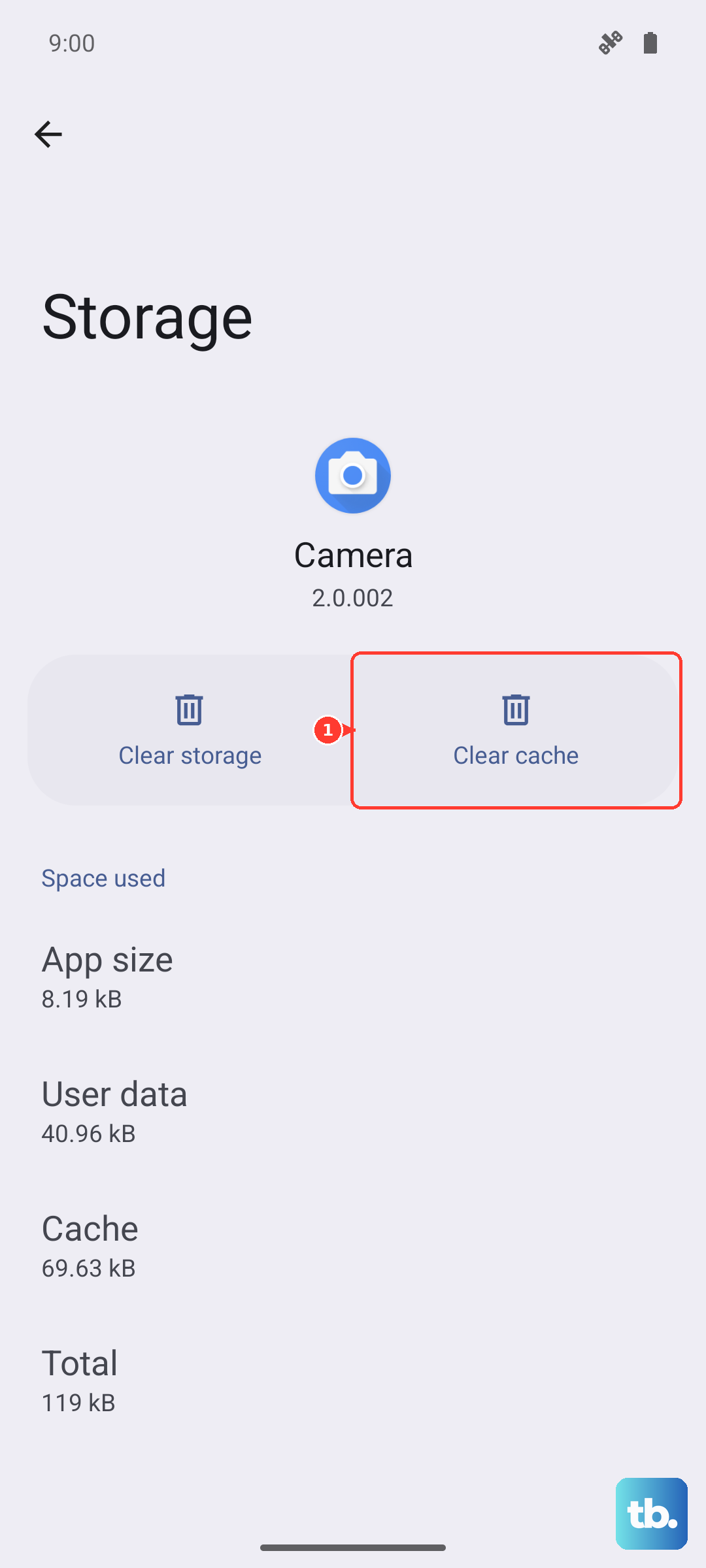
Cache files help apps load quickly, but they can become corrupted. Clearing them forces the Settings app to rebuild this data from scratch, which often fixes the crashing.
Go to Settings > Apps > See all apps. Find and tap on "Settings" in the list. Then, tap Storage & cache and hit "Clear cache." Don't clear the storage data just yet, as that resets your preferences.
Force Stop the Settings App
If the app is stuck in a bad state, forcing it to stop and restart can help. From the same Settings app info screen where you cleared the cache, you'll see a "Force stop" button.
Tap it and confirm. The app will close completely. When you open Settings again, it will start fresh. I've found this works for a lot of random app freezes on Android 15.
Check Google Play Services
Google Play Services is the backbone for many system functions, including how apps talk to each other. An issue here can definitely make the Settings app unstable.
Head back to Settings > Apps > See all apps and find "Google Play Services." Go into its Storage & cache section and clear the cache. You can also tap "Manage space" to clear all data, but this will require you to re-sign into some services.
Uninstall Google Play Store Updates
Sometimes a recent update to the Play Store itself can introduce a conflict. Rolling it back to the factory version can break that conflict cycle.
Find "Google Play Store" in your app list. Tap the three-dot menu in the top right and select Uninstall updates. Confirm, then restart your phone. The Play Store will auto-update again shortly, which often resolves the compatibility hiccup.
Update Your Pixel's Software
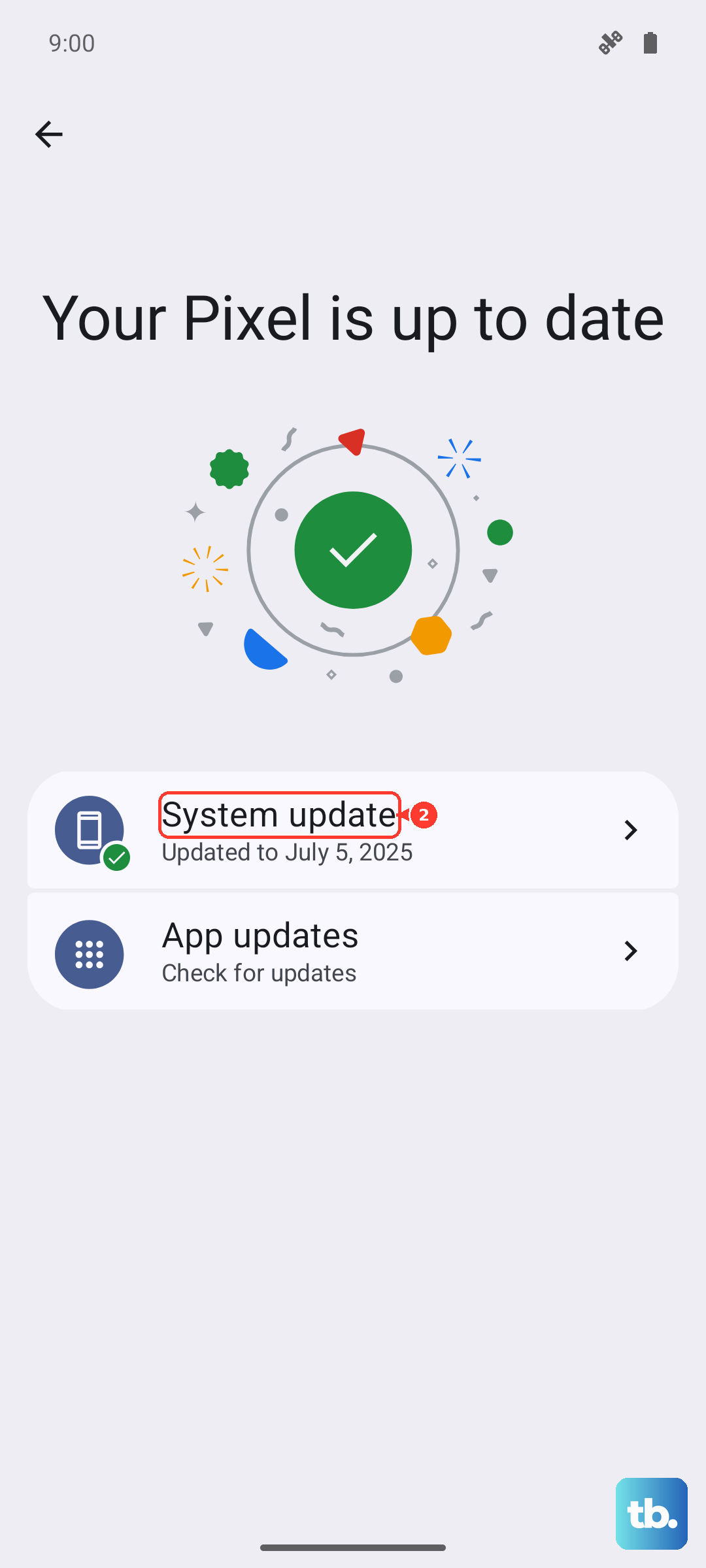
Running outdated system software is a common cause of app instability. Google frequently releases patches that fix these kinds of bugs.
Open Settings > System > System update and tap "Check for update." If an update is available, install it. Your Pixel 10 will restart as part of the process. Make sure you're connected to Wi-Fi and have sufficient battery before starting.
Boot Into Safe Mode
If Settings is still crashing, a third-party app you installed might be the culprit. Booting into Safe Mode temporarily disables all downloaded apps.
Press and hold the Power button and Volume Up button together until the power menu appears. Then, press and hold the "Power off" option on your screen. You'll get a prompt to reboot to Safe Mode. Tap it.
If Settings works perfectly in Safe Mode, you know a downloaded app is causing the problem. You'll need to uninstall apps one by one, starting with the most recently installed, to find the offender.
Reset App Preferences
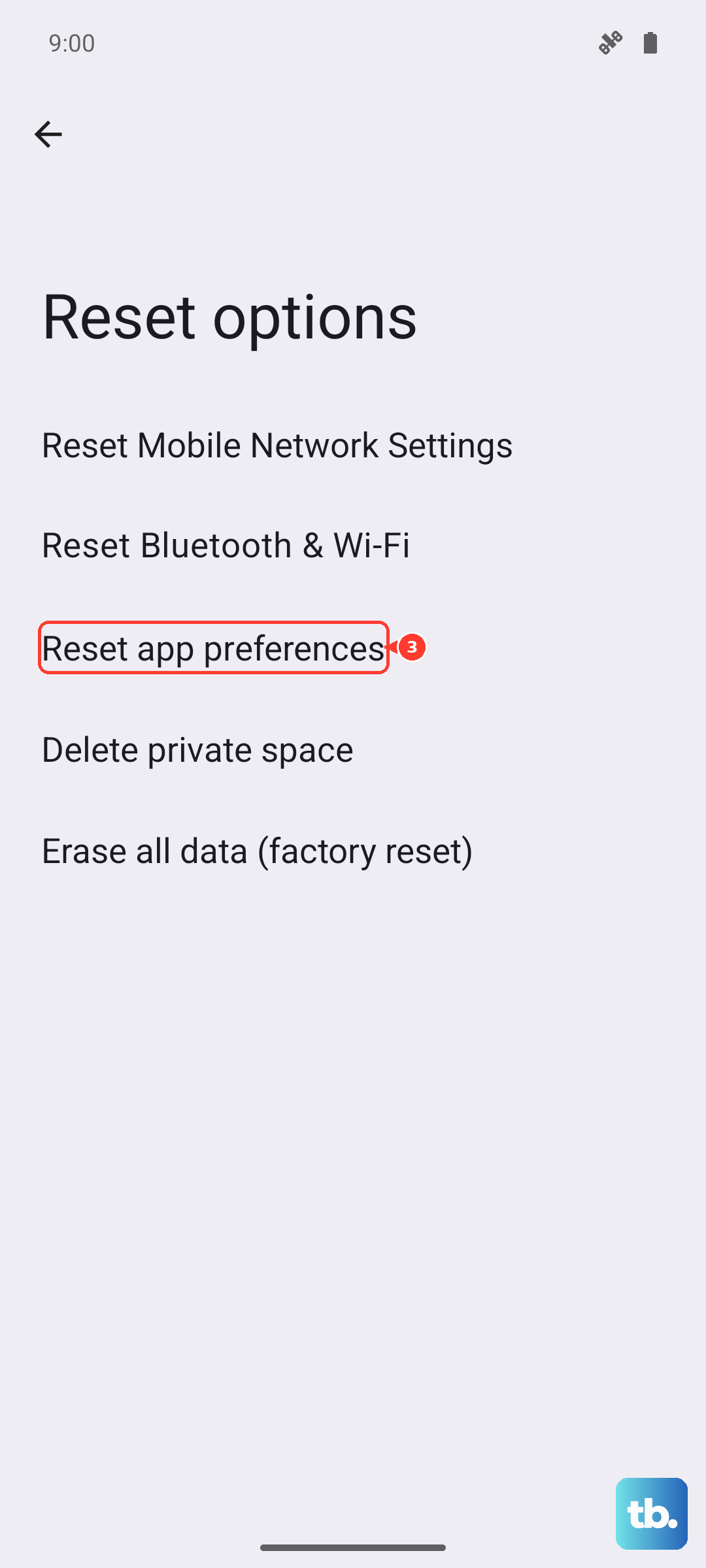
This is a less nuclear option that resets permissions, default apps, and background data restrictions without deleting any personal data. It can clear up conflicts causing system apps to fail.
Go to Settings > System > Reset options. Tap "Reset app preferences" and confirm. You'll need to re-grant permissions to apps as you use them again, but it's a quick fix that solves many weird issues.