A factory reset removes old clutter, fixes broken Windows installs, and prepares a PC for a new owner. Windows 11 puts the main reset tool in Settings, with recovery-mode and USB options ready when the desktop will not load.
Reset from Windows Settings
Open Start.
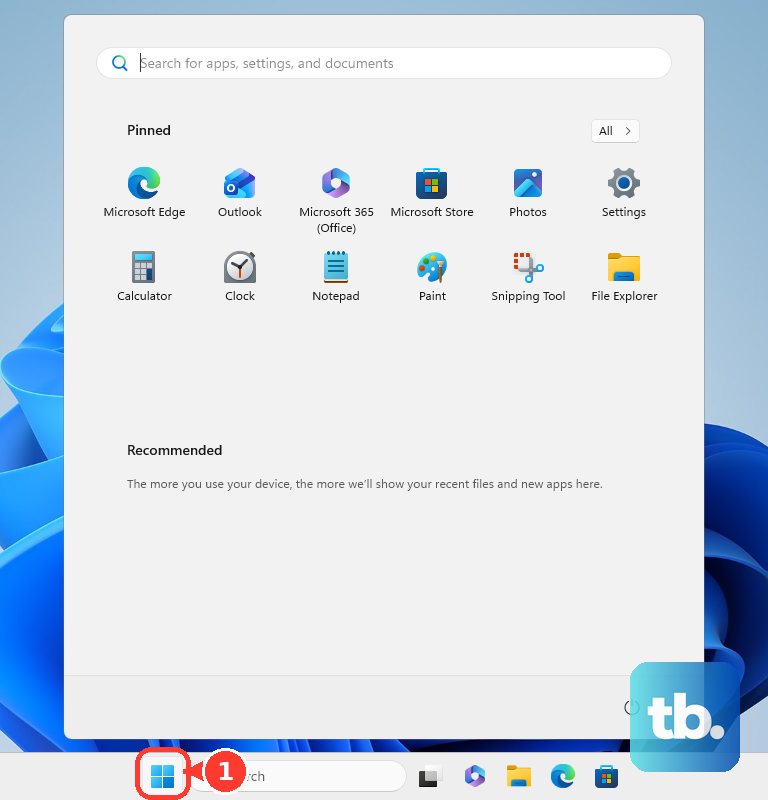
Choose Settings.
Go to System.
Open Recovery.
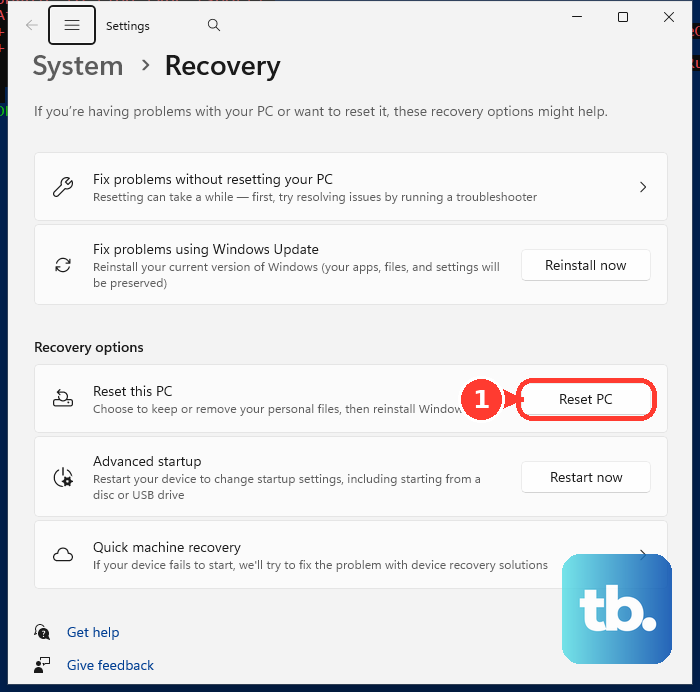
Under Recovery options, select Reset PC.
Choose Remove everything to remove your files, apps, and settings.
Select Cloud download or Local reinstall.
Follow the on-screen instructions to start the reset.
Use the drive-cleaning option before you sell or give away the PC.
Keep your files while resetting Windows
This fixes Windows system problems while keeping your personal files.
Open Start.
Choose Settings.
Go to System.
Select Recovery.
Under Recovery options, choose Reset PC.
Select Keep my files.
Choose Cloud download or Local reinstall.
Follow the prompts until Windows starts the reset.
Find Reset this PC with search
The quickest shortcut is Search. Search for Reset this PC, open the result, then choose Reset PC.
Pick Remove everything for a full wipe or Keep my files for a repair-style reset. Windows then asks for Local reinstall or Cloud download.
Select Reset when the final summary matches your choice. The PC restarts and finishes the reset from the built-in Windows recovery screen.
Restart into recovery when reset will not start
The most common cause is a broken desktop reset path while Windows still opens.
Open Start, choose Settings, then go to System and Recovery.
Under Recovery options, select Advanced startup.
Choose Restart now.
After Windows restarts into recovery mode, choose Troubleshoot.
Select Reset this PC.
Pick Keep my files or Remove everything, then follow the prompts.
Reset a PC that will not boot
When Windows will not load, use Windows Recovery Environment from the sign-in screen, lock screen, Start menu, or automatic repair.
Hold Shift while selecting Power and Restart. In recovery mode, choose Troubleshoot, then Reset this PC. Select Keep my files or Remove everything, then continue through the prompts.
If no power menu opens, start the PC and wait for the Windows or manufacturer logo. Press and hold the power button until the PC shuts down, repeat that forced shutdown process, then turn it on a third time. Open Advanced options, choose Troubleshoot, then select Reset this PC.
If this method fails, use a previously created USB recovery drive or reinstall Windows from installation media.
Recover from a USB recovery drive
The most common cause is that Windows cannot reset itself from the files already on the PC.
Boot the computer from a previously created USB recovery drive.
When Windows Recovery Environment loads, choose Recover from a drive.
Select Just remove my files for a quicker reset, or choose Fully clean the drive before the PC leaves your hands.
Choose Recover to start the process.
Create a recovery drive before trouble hits by searching Recovery Drive from Start or running recoverydrive.exe.
Reinstall Windows from installation media
Use this when Reset this PC is not enough or you want to reinstall Windows from a USB drive or DVD.
- 1.Go to Microsoft’s Download Windows 11 page, choose Create Windows 11 Installation Media, then select Download Now. This tool creates installation media only for x64 processors. On an Arm-based PC, download the Windows 11 Arm64 ISO instead.
- 2.Connect the installation media to the PC, open it in File Explorer, run setup.exe, choose Yes, then select Change what to keep.
- 3.Choose Keep nothing, then select Next and Install for an in-place reinstall that removes files, apps, and settings.
- 4.For a clean install, boot from the USB drive or DVD using the manufacturer boot menu or BIOS/UEFI boot order.
- 5.In Windows Setup, choose the language and keyboard settings, select Next, choose Install Windows 11, confirm that everything will be deleted, then follow setup.
Use your PC maker recovery tools
Some PCs include a manufacturer recovery route that restores a factory image or opens Windows Recovery Environment.
On supported Dell computers, open SupportAssist OS Recovery.
Choose Start Reset, then select Reset to factory settings.
Use Dell OS Recovery Tool to create a bootable Windows USB recovery key when you need Dell’s factory operating system image, drivers, and Dell applications.
On supported Lenovo models, power off the PC and use the Novo button or the model-specific startup method.
Choose System Recovery, then Troubleshoot, then Reset this PC.
On supported ASUS PCs, search for Reset this PC, choose Reset PC, then open Change settings.
Set Restore apps and settings which came with this PC to Yes or No, then select Reset.
On supported Surface devices, power the Surface off and insert the Surface USB recovery drive. Press and hold the volume-down button while you press and release the power button, then release volume-down when the Surface logo appears. Choose the language and keyboard layout, then select Recover from a drive, or Troubleshoot and then Recover from a drive. If you are prompted for a recovery key, select Skip this drive. Choose either Just remove my files or Fully clean the drive, then select Recover.
Use Windows Settings recovery first when your PC maker’s recovery option is not available.
Skip older reset shortcuts
Older Windows 10 guides point to Windows Security, Device performance & health, Fresh Start, Additional info, and Get started. For a current consumer reset, use Settings, System, Recovery, and Reset PC.
Older advice also points to systemreset -factoryreset from Run or Command Prompt. Microsoft’s current consumer reset path is Reset PC in Recovery.
Windows 10 support ended on October 14, 2025. Windows 11 users should follow the Windows 11 menus above.
Frequently Asked Questions
Does factory reset remove everything on a Windows PC?
Choose Remove everything to remove your files, apps, and settings. Use the drive-cleaning option when preparing the PC for sale or giveaway.
Should I choose Cloud download or Local reinstall?
Both options are built into Reset this PC. Cloud download uses Microsoft’s reset flow, while Local reinstall uses files already on the PC.
Can I reset a Windows PC without signing in?
Yes. From the sign-in or lock screen, hold Shift while selecting Power and Restart, then choose Troubleshoot and Reset this PC.
What if my work or school PC needs to be wiped?
Managed PCs use admin tools such as Intune, Windows Autopilot Reset, or organization-managed recovery. Contact your workplace or school IT team before wiping it yourself.











