
Your Xiaomi 14T Pro is a powerhouse, but even with its fast storage, temporary files and cached data can build up over time. This can slowly eat into your available space and sometimes cause apps to feel sluggish. Clearing things out is a quick way to reclaim gigabytes and keep performance snappy.
Start with the Storage Cleaner
Xiaomi's HyperOS has a great built-in tool for this. Go to Settings > Storage > Clean up. The phone will scan and show you categories like App cache, Residual files, and Duplicate files. You can review each one and tap to clear them. I'd start here, as it's the fastest way to get a significant chunk of space back.
Clear Cache for Individual Apps
For more control, or if a specific app is acting up, tackle them one by one. Head to Settings > Apps > Manage apps. Find the app you want, tap on it, and select Clear data. Here, you'll see the option to Clear cache. This removes temporary files without deleting your login info or saved data within the app itself.
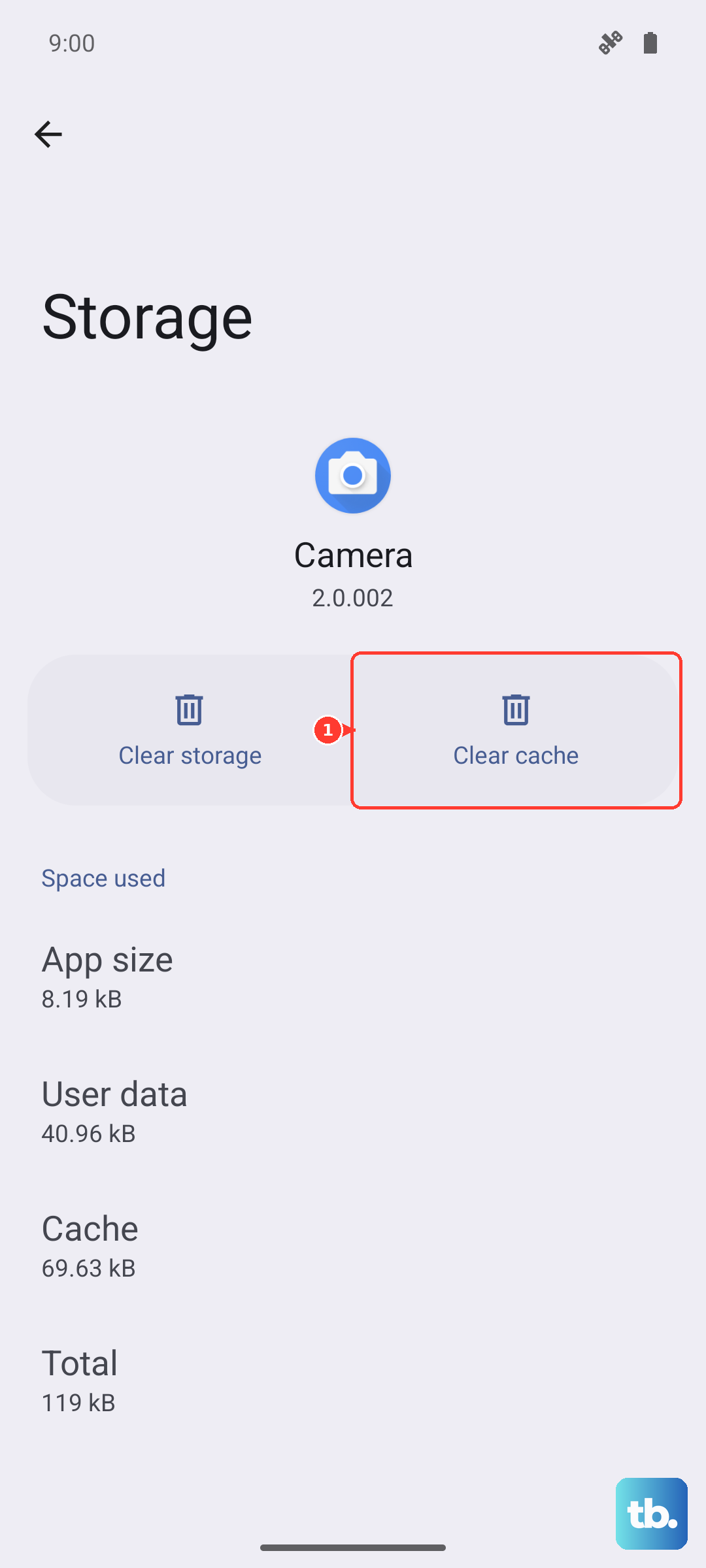
Focus on data-heavy apps like Chrome, YouTube, Instagram, TikTok, and any games you play. These are usually the biggest cache offenders.
Manage HyperOS Bloatware
Depending on your region, your 14T Pro might have come with some pre-installed apps you don't use. These can still take up space and sometimes run in the background. Go to Settings > Apps > Manage apps, find any unwanted apps, and you can usually Uninstall or Disable them. Freeing up this space is a permanent win for your storage.
Clear Your Browser Cache
If you use Chrome, open the app and tap the three dots in the top right. Go to History > Clear browsing data. Under the Basic tab, make sure Cached images and files is selected. You can choose a time range and tap Clear data. This won't log you out of your websites.
Use the Files by Google App
This is a fantastic free tool from Google that works seamlessly with Android. If it's not already on your phone, get it from the Play Store. Open the app and tap the Clean button on the bottom left. It will intelligently find junk files, duplicate photos, old screenshots, and unused apps. It's very safe and gives you a clear overview of what you can delete.
Wipe the System Cache Partition
If your phone is experiencing general lag or odd glitches, especially after a HyperOS update, clearing the system cache can help. First, power off your Xiaomi 14T Pro. Press and hold the Power and Volume Up buttons together until the Mi logo appears, then release.
Use the volume buttons to navigate to Wipe data and press the power button to select it. Then, choose Wipe cache and confirm. This only deletes system temporary files and is completely safe for your personal data. When done, select Reboot.
Review Messages and Downloads
Don't forget about your messages. Long threads full of photos, videos, and GIFs can consume a surprising amount of space. Go through your messaging app and delete old conversations. Also, check your Downloads folder by opening the Files app, clear out any old APK files, documents, or media you no longer need.
Enable Smart Photo Cleanup
Your photos and videos are likely the biggest storage hogs. Use Google Photos or Xiaomi's own Gallery app to back them up to the cloud. Once they're safely backed up, you can use the Free up space tool within these apps to remove the local copies from your phone, freeing up many gigabytes instantly.
Perform a Simple Restart
It sounds too easy, but restarting your phone clears out temporary system caches held in RAM and can resolve minor hiccups. Just press and hold the power button, then tap Restart. Making a habit of doing this once a week helps keep things running smoothly.