
When your Xiaomi 14T Pro's email stops syncing or sending, it can throw a wrench in your day. Whether you're missing work messages or personal notes, the problem usually has a fix you can handle yourself. I'd start by checking the basics before moving to more involved steps.
First, make sure you have a solid internet connection, either on Wi-Fi or mobile data. It's also worth a quick check on your email provider's status page or social media to see if there's a widespread outage. Finally, double-check that your email address and password are correct.
Restart Your Email App
A simple app restart clears out temporary glitches that can freeze email sync. Swipe up from the bottom of your screen and hold to enter the recent apps view. Find your email app, whether it's Gmail, Outlook, or the stock MIUI Email app, and swipe it up to close it completely. Wait a few seconds, then tap the app icon to reopen it.
Check Your Sync and Fetch Settings
Your phone's sync settings control how often it checks for new mail. If these are set incorrectly, emails won't arrive automatically. Open your email app's settings, look for an option like "Sync frequency" or "Check for new mail."
Set it to "Push" if available, which delivers emails instantly. If Push isn't an option, choose a frequent interval like every 15 or 30 minutes. Also, go to your phone's main Settings > Accounts & sync and make sure auto-sync data is turned on for your account.
Toggle Airplane Mode
This is a quick way to reset all your network connections at once. Swipe down from the top of your screen twice to open the full Quick Settings panel. Tap the airplane icon to enable Airplane Mode, wait about 15 seconds, then tap it again to turn it off. Your phone will reconnect to Wi-Fi and cellular, which often clears up a stuck connection.
Switch Between Wi-Fi and Mobile Data
Sometimes the issue is with one specific network. If emails aren't coming through on Wi-Fi, try turning it off and using your mobile data instead. You can do this from the Quick Settings panel by tapping the Wi-Fi icon to disable it.
If the problem happens on mobile data, go to Settings > SIM cards & mobile networks. Select your SIM and ensure mobile data is enabled. Also, check that data isn't being restricted for your email app in the data usage settings.
Verify Your Email Login Credentials
Passwords expire or get changed, especially for work accounts. Try logging into your email account through a web browser on a computer. If you can't sign in there, you'll need to reset your password through your email provider's website.
Once you have the new password, you'll need to update it on your phone. Go to Settings > Passwords & accounts, select your email account, and tap "Account sync" or "Account settings" to update the password field.
Clear the Email App's Cache and Data
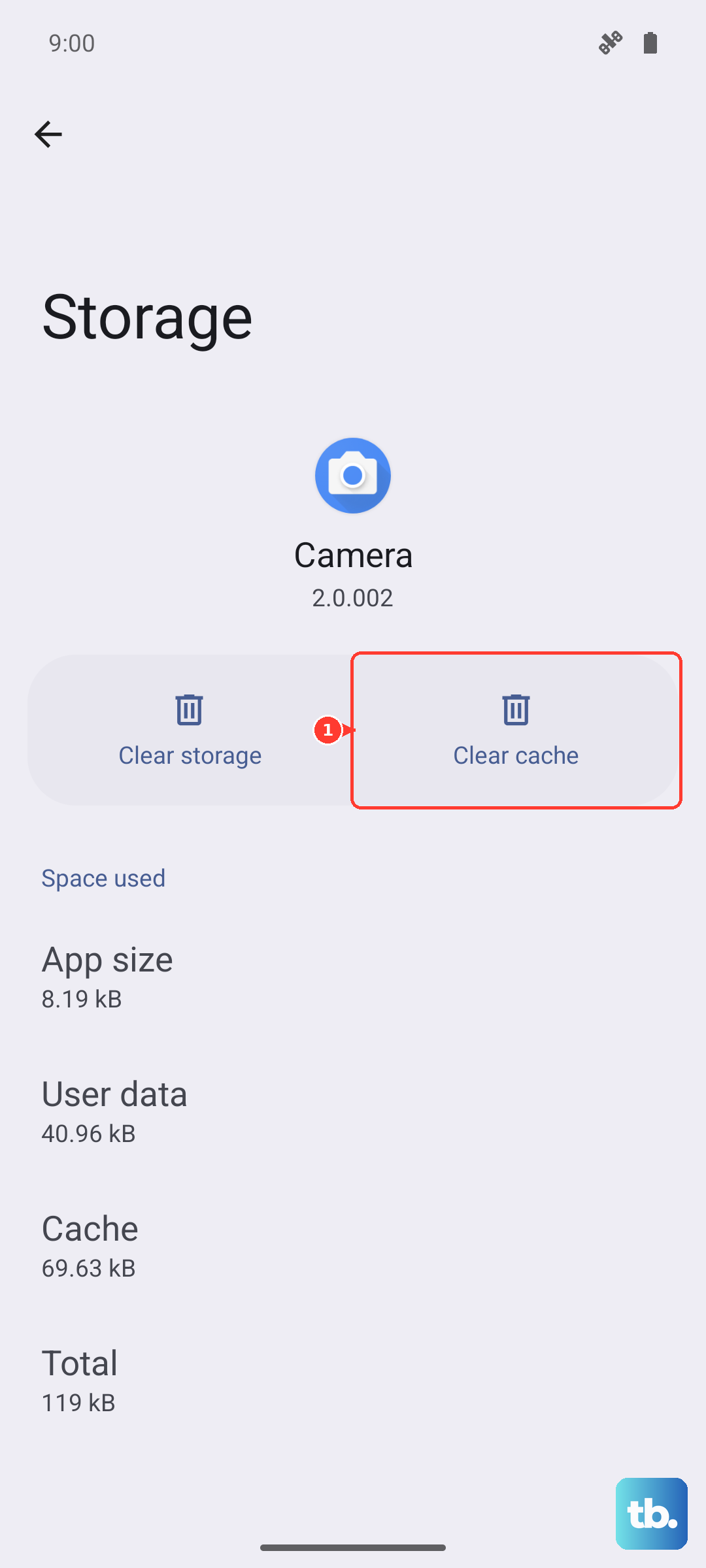
Corrupted app data can cause all sorts of problems. This won't delete your emails, as they're stored on the server, but it will reset the app's settings. Go to Settings > Apps > Manage apps and find your email app in the list.
Tap on it, then select "Clear cache" first. If the problem persists, go back and tap "Clear data" or "Clear storage." You'll need to sign back into the app afterward, but it often resolves persistent sync errors.
Check for App and System Updates
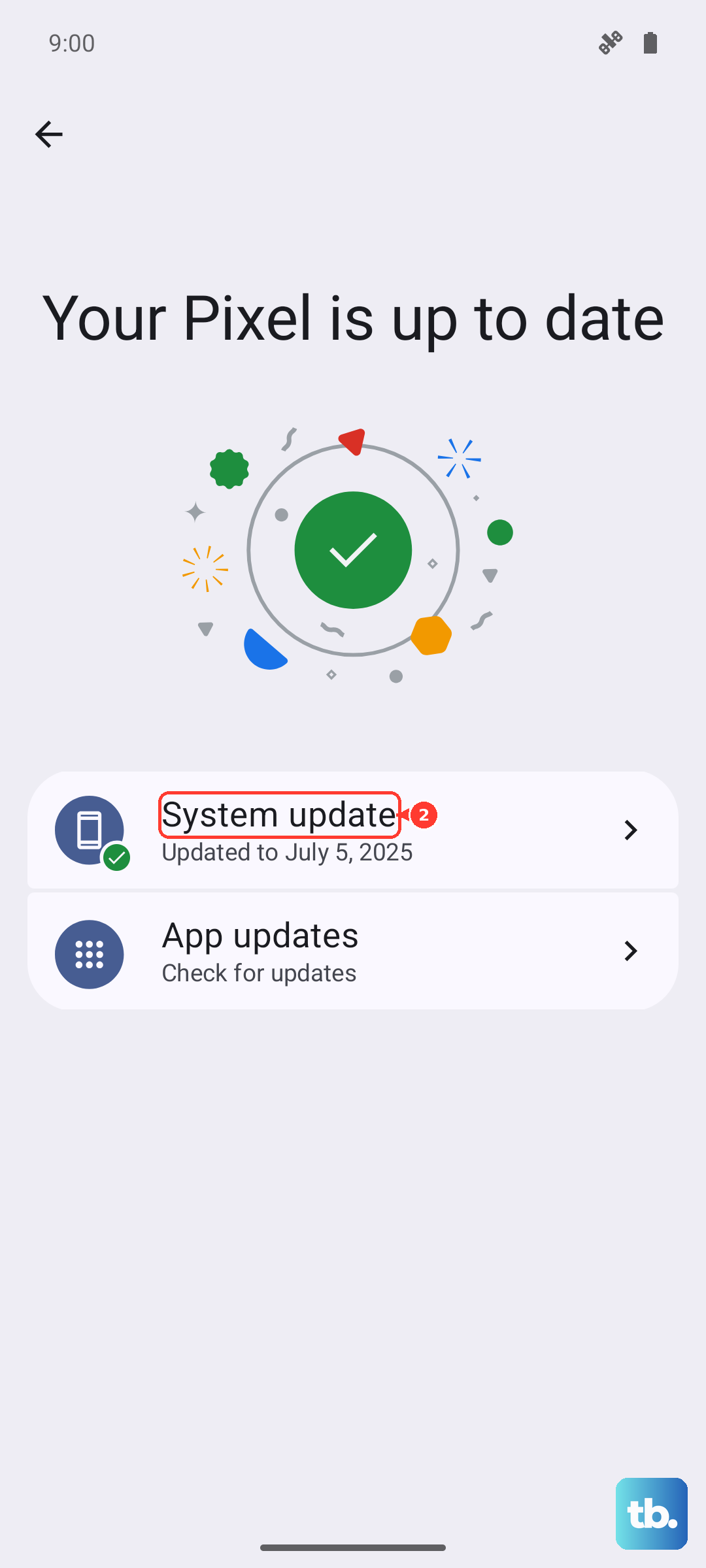
An outdated app or version of HyperOS might have a bug affecting email. Open the Google Play Store, tap your profile picture, and go to "Manage apps & device" to check for updates for your email app.
For system updates, which can include important fixes, go to Settings > About phone > HyperOS version. Tap "Check for updates" and install any available software. Make sure your phone is connected to Wi-Fi and has a good charge, as the 120W fast charging can top you up quickly if needed.
Review Notification Settings
If emails are arriving but you're not getting alerts, the notification settings might be off. Long-press on your email app's icon and tap "App info." Then, go to Notifications and make sure "Allow notifications" is enabled.
You can also check category-specific settings here to ensure new mail alerts are turned on. For broader control, go to Settings > Notifications & status bar > App notifications to manage permissions.
Disable Any Active VPN or Ad Blocker
VPNs and ad-blocking apps can sometimes interfere with the ports your email app uses to communicate. If you're using one, try temporarily disabling it. You can usually do this from the app's own interface or from the VPN section in your phone's settings.
Go to Settings > Connection & sharing > VPN to see if any VPN profiles are active and turn them off. Test your email again without the VPN to see if that was the culprit.
Ensure Background Data is Unrestricted
To save battery, Android can restrict what apps do in the background. If your email app is restricted, it won't check for new messages when you're not actively using it. Go to Settings > Apps > Manage apps and select your email app.
Tap "Battery saver" and make sure it's set to "No restrictions." This allows the app to sync in the background freely. You might also want to remove it from any battery optimization lists in your security or battery settings.
Remove and Re-add Your Email Account
This refreshes the connection between your phone and the email server. Go to Settings > Passwords & accounts. Tap on the problematic email account, then tap "Remove account" at the bottom. Confirm the removal.
To add it back, tap "Add account" on the same screen and follow the setup prompts. For work or custom accounts (IMAP/POP3), you may need the server settings from your email provider.
Check Date, Time, and Time Zone Settings
Incorrect time settings can cause certificate errors that block email sync. Go to Settings > Additional settings > Date & time. Make sure both "Use network-provided time" and "Use network-provided time zone" are switched on.
This ensures your phone's clock is always accurate, which is crucial for secure communication with email servers. If you've recently traveled, this step is especially important.
Force Restart Your Xiaomi 14T Pro
A full reboot can clear out deeper system hiccups. Simply press and hold the power button on the side of your phone for about 15 seconds. Keep holding it until you see the Xiaomi logo appear, then release.
The phone will restart. This is different from a normal reboot and can resolve issues where the system UI or background services are frozen. It's a safe step that doesn't delete any data.
Reset Your Network Settings
This is a more thorough step if you suspect a network configuration problem. It will reset Wi-Fi, mobile data, and Bluetooth settings to default. Go to Settings > Additional settings > Backup & reset.
Tap "Reset phone" and then select "Reset network settings." You'll need to re-enter Wi-Fi passwords and re-pair Bluetooth devices afterward, but it can fix stubborn connectivity issues that affect email and other apps.