
Your Samsung Galaxy A56 builds up temporary files and cached data as you use it. When storage gets low or apps start acting sluggish, clearing this cache can free up space and fix performance issues. Here's how to clean it up across different parts of your phone running One UI 7.
Clear App Cache Individually
Head to Settings > Apps. You'll see a list of all your installed apps. Tap on any one, like your browser or a social media app, to open its info page. From there, tap Storage and then tap the Clear cache button.
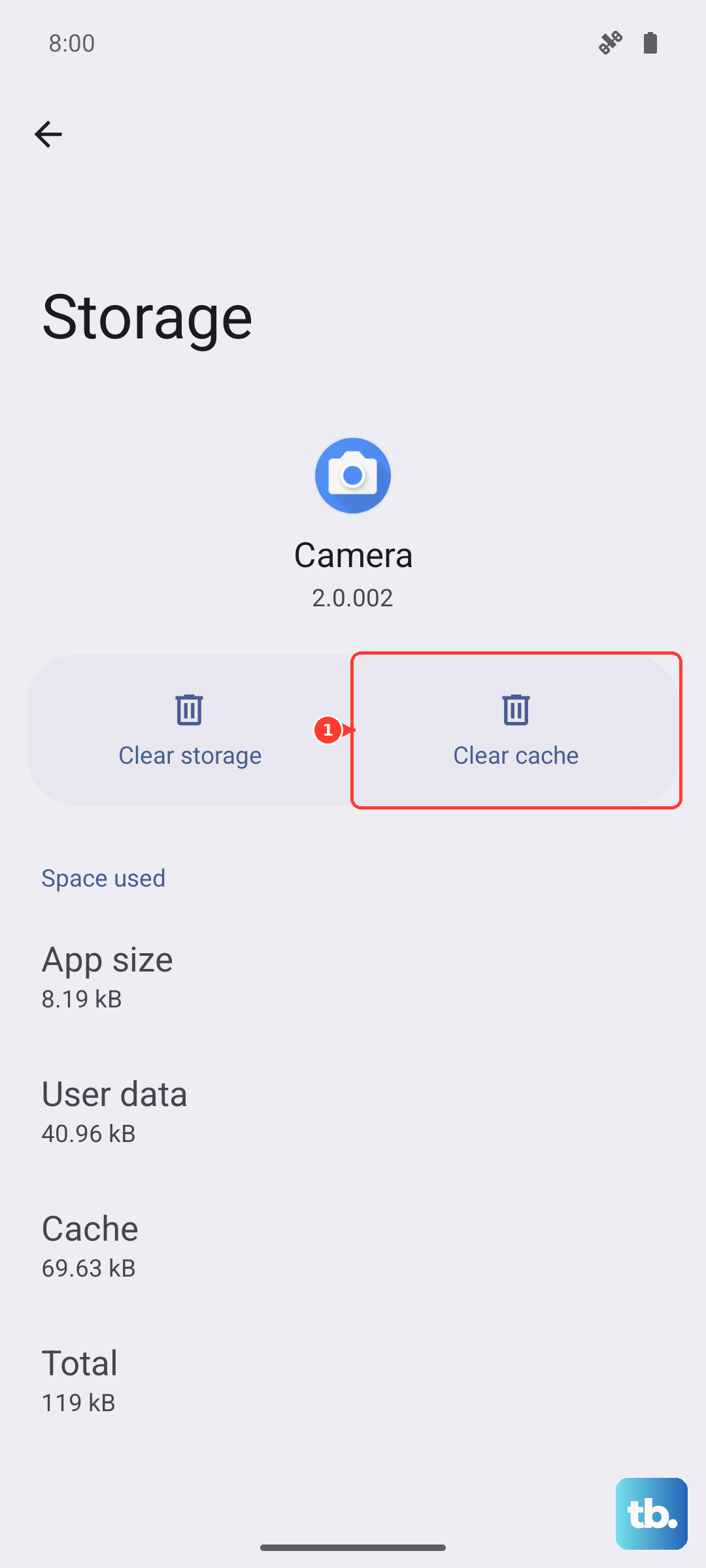
This removes the app's temporary files without touching your login info or personal data. I'd focus on apps that typically use the most storage, like Samsung Internet, Chrome, Instagram, YouTube, and games.
Use Device Care for a Quick Cleanup
Samsung's built-in tool is the fastest way to clear cache across the board. Open Settings > Battery and device care. At the bottom of the main screen, you'll see a Clean now button.
Tapping this will automatically clear cached data and temporary files from all your apps in one go. It's a great first step if you're just trying to reclaim some storage quickly.
Clear Your Browser Cache
If you use Samsung Internet, open the app and tap the menu icon (three lines). Go to Settings > Personal browsing data > Delete browsing data. Make sure Cached images and files is checked, then tap Delete data.
For Google Chrome users, the path is Menu (three dots) > Settings > Privacy and security > Clear browsing data. Select "Cached images and files" and choose your time range before clearing.
Wipe the System Cache Partition
This clears deeper, system-level cache that can cause lag or glitches, especially after a software update. First, power your Galaxy A56 off completely. Press and hold the Volume Up button and the Side key (power button) together.
When you see the Samsung logo, let go of both buttons. You'll boot into recovery mode. Use the volume buttons to highlight Wipe cache partition and press the side key to select it. Confirm the action, then select Reboot system now.
Manage Messages and Media Storage
Text threads filled with photos and videos can eat up space fast. Open your Messages app, tap the menu (three dots), and go to Settings. Look for an option like Delete old messages to automatically remove texts after a set period.
You can also go through conversations manually and delete media-heavy threads or use the Manage storage option if available in your settings to see what's taking up the most room.
Optimize with Device Care Regularly
Make a habit of visiting Settings > Battery and device care and tapping the large Optimize now button on the main screen. This runs a full check, closing background apps and clearing junk files.
Doing this once a week helps keep your A56 running smoothly. You can also tap into the Storage section here to get a detailed breakdown of what's using your space.
Set Up Automatic Cleanup
Within Settings > Battery and device care > Storage, look for an option called Clean automatically or similar. Enabling this lets your phone automatically delete temporary files and app cache when storage gets critically low.
You can also use Samsung Cloud or Google Photos to back up your pictures and videos to the cloud, then use their "Free up space" features to remove the local copies from your phone.
Restart Your Phone Weekly
A simple restart clears temporary system caches and frees up RAM. Just press and hold the Side key, then tap Restart on the screen. Wait for your phone to boot back up.
I've found this basic step fixes a lot of minor hiccups. It's a good practice to restart your Galaxy A56 at least once a week to keep things fresh.