
If your iPad's fingerprint scanner, which Apple calls Touch ID, has suddenly stopped recognizing you, it can prevent fingerprint access to your device or your favorite apps. These checks may help you fix the problem without a trip to the Apple Store. They apply to iPads with Touch ID in the Home button or top button.
Start with the simplest fix first. Grab a soft, lint-free cloth and gently wipe the Touch ID sensor, which is in the Home button or top button, depending on your iPad model. Oils, lotion, or even a bit of dirt from your finger can build up and prevent a good read.
Restart Your iPad
A restart can help when your iPad isn't working as expected. The method depends on your iPad model. For iPads without a Home button, press and hold the top button and either volume button until the Power Off slider appears. Drag the slider, then press and hold the top button until the Apple logo appears.
If your iPad has a Home button, press and hold the top button until the Power Off slider appears. Drag the slider, then press and hold the top button until the Apple logo appears. After it boots back up, enter your passcode before trying your fingerprint again.
Check for iPadOS Updates
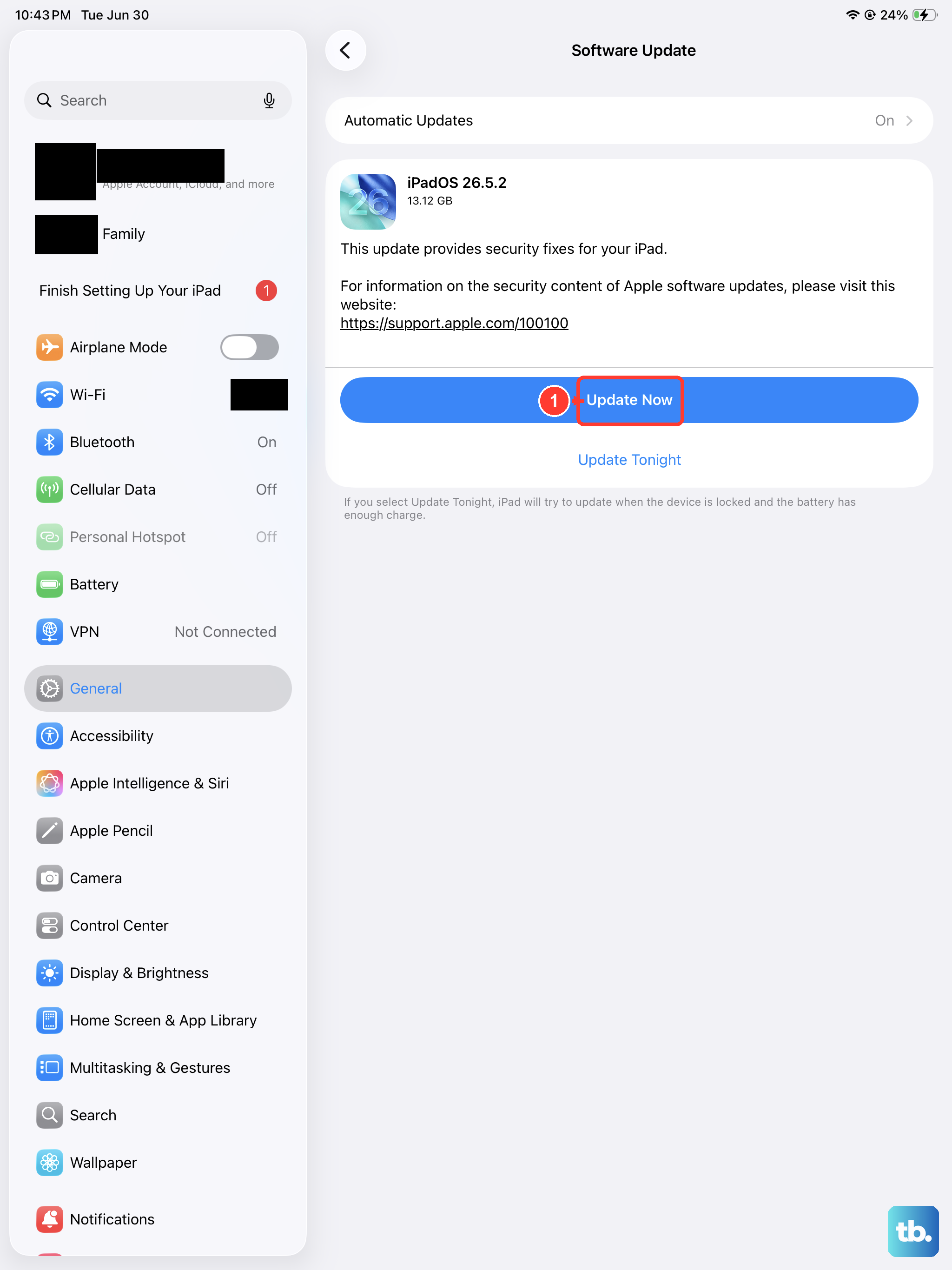
Check that your iPad is running the latest version of iPadOS. Go to Settings > General > Software Update to see if a newer version of iPadOS is available.
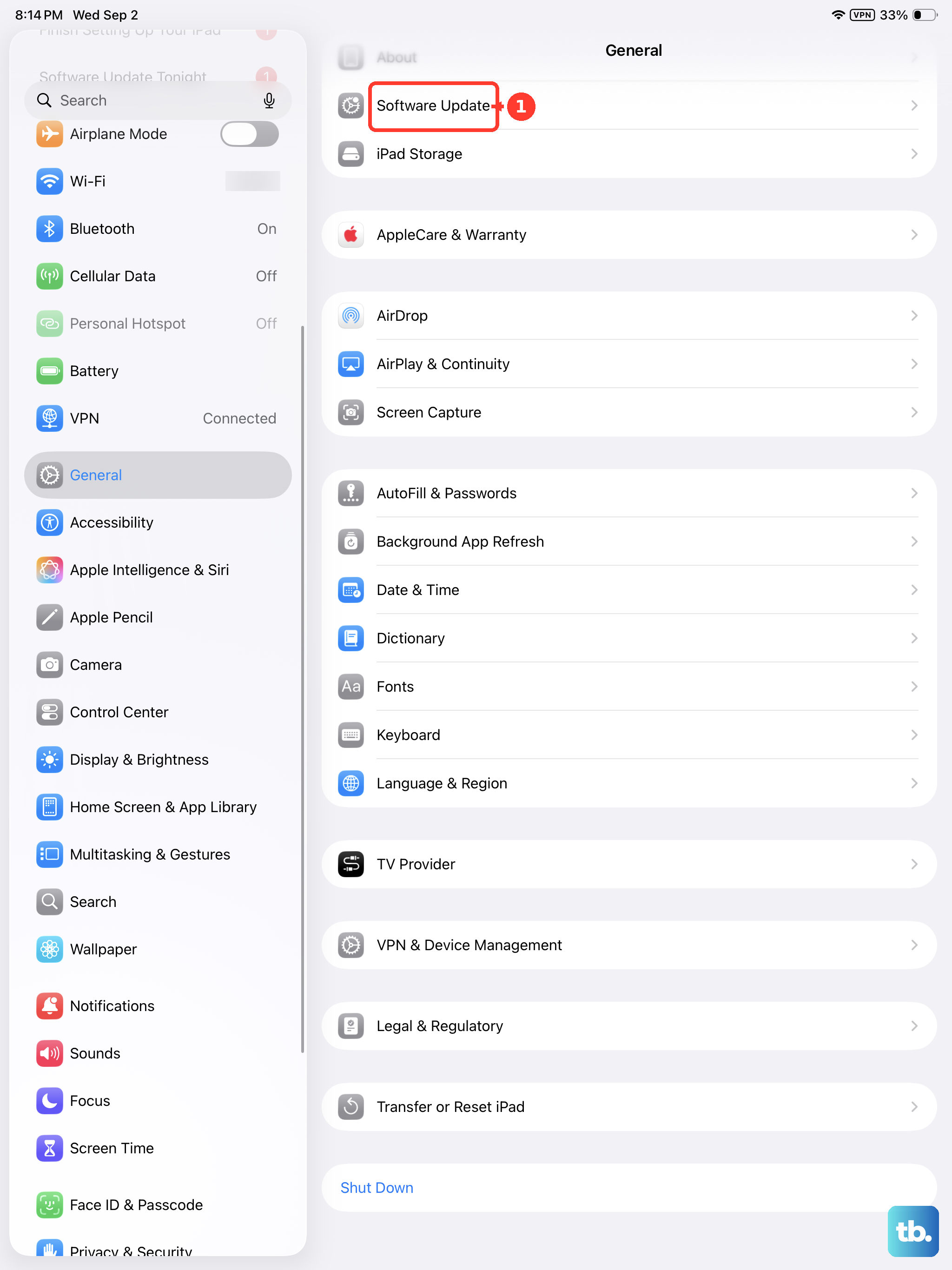
An update may help if a software issue is affecting Touch ID. Back up your iPad before updating, and make sure it is plugged in and connected to Wi-Fi. If an update is available, tap Download and Install and follow the onscreen instructions.
Re-register Your Fingerprint
If the sensor is clean and your software is up to date, the next step is to delete and re-add your fingerprint. This gives the system a fresh scan to work with. Head to Settings > Touch ID & Passcode and enter your passcode.
Tap on the fingerprint that's giving you trouble and select Delete Fingerprint. Then, tap Add a Fingerprint and follow the on-screen prompts. Make sure to move your finger around to capture the edges during enrollment.
Try a Different Finger or Angle
Fingers change slightly over time. A small cut, dry skin, or even how you place your finger can make a difference. Try registering a different finger altogether as a backup.
When you place your finger, ensure it covers the entire Touch ID sensor and touches the surrounding metal ring. Keep your finger still while Touch ID scans, and don't tap too quickly. If recognition still fails, try enrolling a different finger.
Check for Case or Screen Protector Interference
If you're using a case that has a cover for the Home button or top button, make sure it's not partially blocking the Touch ID sensor or surrounding ring. Some thicker screen protectors that extend over the button area can also cause problems.
Try removing the case or any screen protector that covers the button temporarily and see if Touch ID starts working again. If it does, you might need a different accessory.
Disable and Re-enable Touch ID for Specific Tasks
You can try toggling Touch ID off and on for the function that's failing. Go back to Settings > Touch ID & Passcode. Try turning off the toggle for iPad Unlock or iTunes & App Store, then turn it back on.
Make sure you've enrolled at least one fingerprint and that the option for the task you want to use is on. Test the function after you toggle it back on to see if it recognizes your print.
Reset All Settings
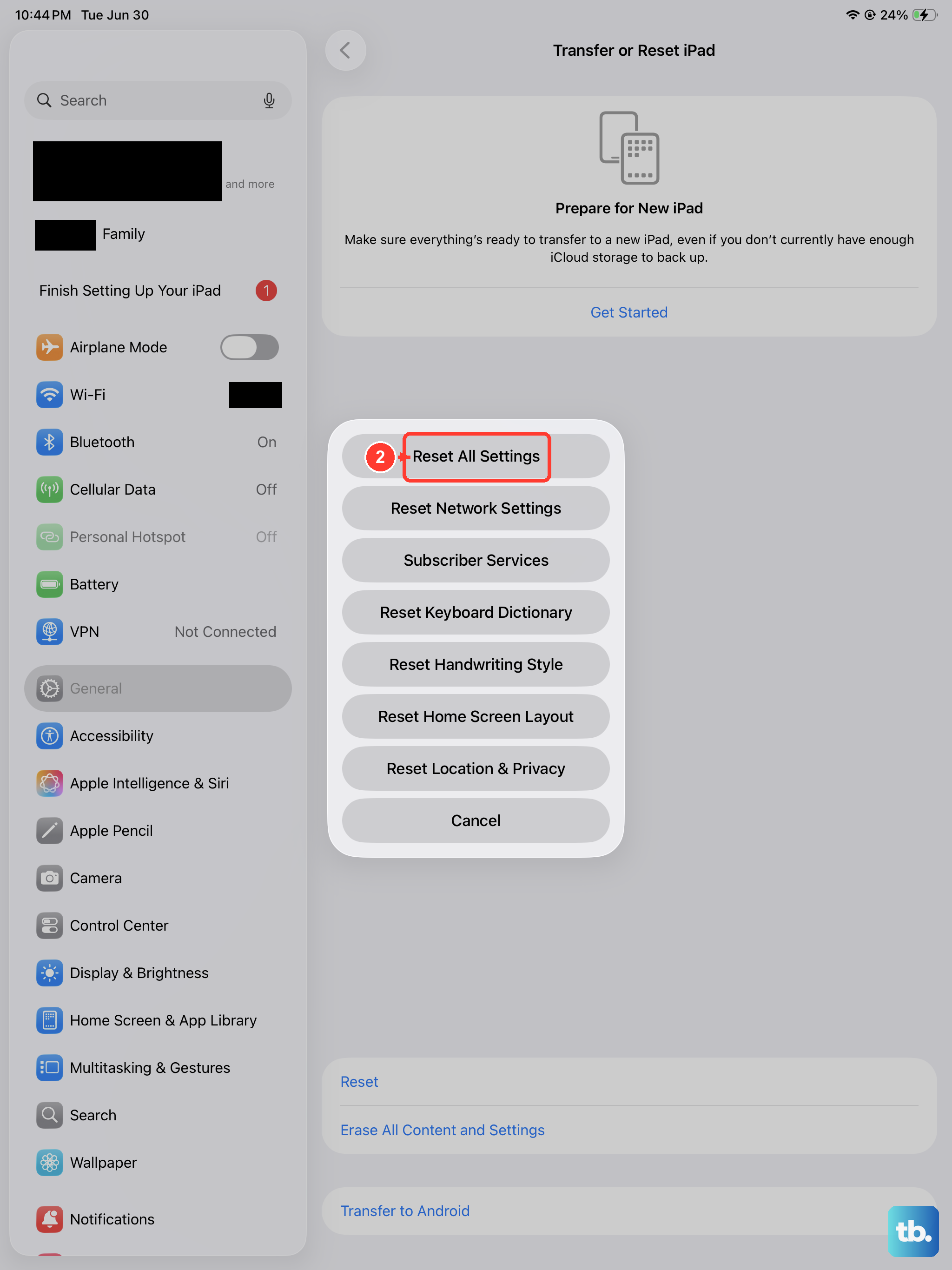
This is a more thorough step that won't delete your personal data, but it will reset all your system settings to default. Things like Wi-Fi passwords and wallpaper will be lost, but it can clear out deeper configuration conflicts.
Go to Settings > General > Transfer or Reset iPad > Reset. Then choose Reset All Settings. You'll need to re-enter your passcode and confirm. After the iPad restarts, you'll need to set up Touch ID again from scratch.
Ensure Your Fingers Are Dry
Moisture, sweat, oils, cuts, or dry skin can affect fingerprint recognition. Activities such as exercising, showering, swimming, or cooking can temporarily change how well Touch ID recognizes your finger.
If your hands are very wet, sweaty, or recently had lotion applied, dry them thoroughly before trying to use the sensor. The same goes if the sensor itself is damp.
Consider a Hardware Issue
If you've tried all the software fixes and your iPad still doesn't recognize any fingerprints, the Touch ID sensor itself might be damaged. This is more likely if the iPad has been dropped or exposed to liquid.
The Touch ID sensor is paired to the device's secure enclave. Even if the button works to wake or lock the iPad, the fingerprint scanning component can fail independently. If Touch ID still won't work, can't be set up, or is grayed out, your iPad may need service from Apple or an authorized provider.