
When your Google Pixel 9 Pro starts restarting on its own, it can be incredibly disruptive. This is often a software hiccup, a misbehaving app, or sometimes a sign of a deeper system issue. The good news is you can usually fix it yourself with a few steps.
Before you start, it's a good idea to make sure your data is backed up. You can use Google One backup or just sync your photos and files to Google Drive. This protects your stuff in case you need to do a more drastic reset later on.
Force Restart Your Pixel 9 Pro
A force restart is the quickest fix for a frozen or glitching phone. It clears the phone's temporary memory without deleting any of your personal data. For the Pixel 9 Pro, the method is straightforward.
Just press and hold the Power button on the right side of the phone. Keep holding it for at least 30 seconds, or until you see the Google logo appear on the screen and the phone begins to restart. This can often stop a random restart loop right away.
Check for Problematic Apps
A buggy or corrupted third-party app is one of the most common reasons for random restarts. Start by checking which apps you've installed or updated recently. If the restarts began after a specific app installation, that's a prime suspect.
You can boot your phone into Safe Mode to test this. This temporarily disables all downloaded apps. Press and hold the Power button, then tap and hold the "Power off" option on your screen until you see the "Reboot to safe mode" prompt. If the phone is stable in Safe Mode, you know a third-party app is the cause.
Update Apps and Android
Outdated software is a classic source of instability. Google and app developers regularly release updates to patch bugs that can cause crashes. First, update all your apps through the Google Play Store.
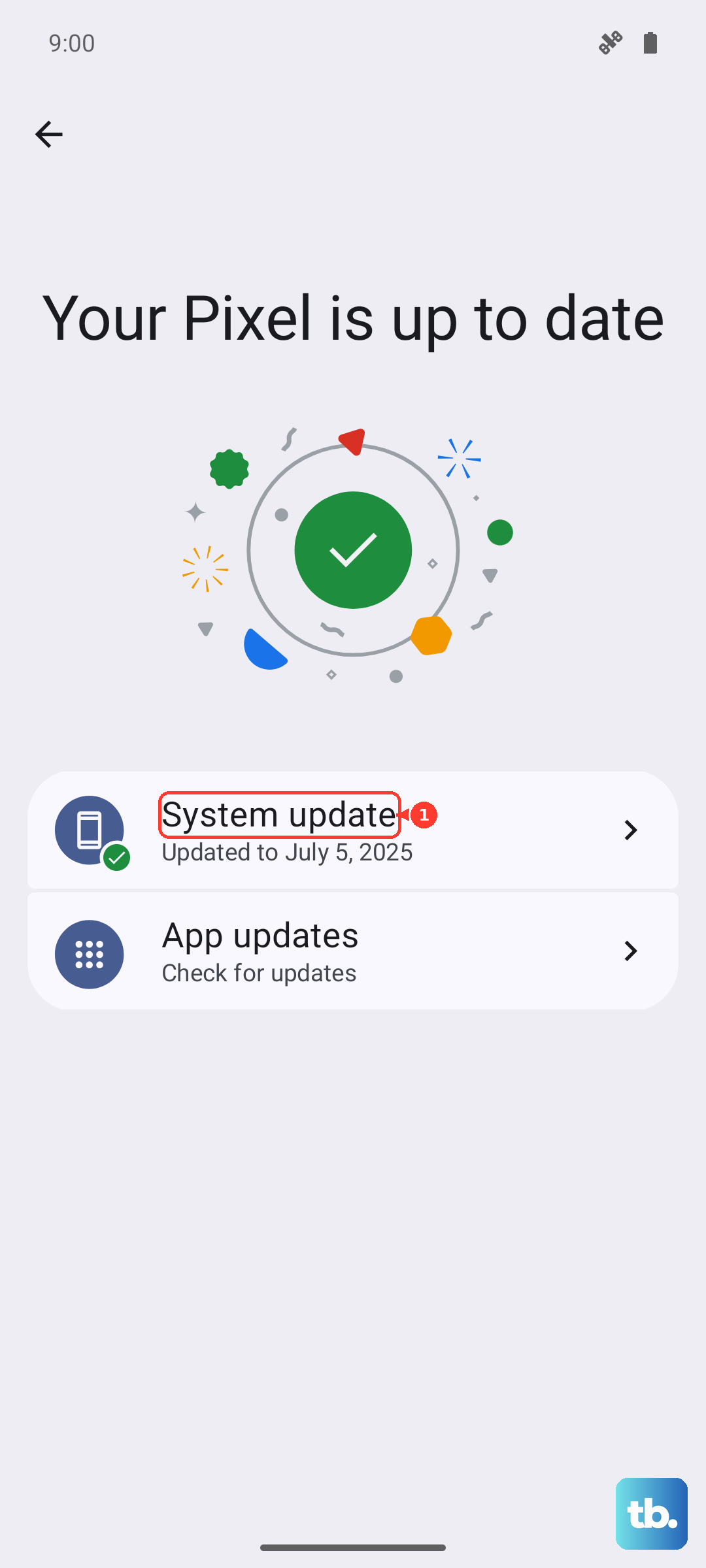
Open the Play Store, tap your profile icon, and go to Manage apps & device. Under "Updates available," tap "Update all." Next, check for a system update. Go to Settings > System > System update. Download and install any available updates, as these often contain critical stability fixes for the Tensor G4 chip and Android 15.
Review Device Diagnostics
Android keeps logs that can help pinpoint what's causing the crash. You can access a basic diagnostic menu to check for hardware issues. Open your Phone app and dial *#*#2486#*#* to enter the "Test Menu."
For more detailed software crash logs, you can enable Developer Options. Go to Settings > About phone and tap "Build number" seven times. Then, go back to Settings > System > Developer options and look at "Running services" or "Take bug report" to see what might be failing in the background.
Free Up Storage Space
When your phone's storage is critically full, the system can struggle to operate, leading to crashes and reboots. The Pixel 9 Pro has great camera features like Magic Eraser, but those high-res photos and videos can fill space fast.
Check your storage by going to Settings > Storage. Android will offer suggestions like clearing cached data or deleting large files. I'd start by using the "Free up space" tool right there in the settings. You can also offload files to Google Photos or Google Drive if you're a heavy shooter.
Reset App Preferences or Network Settings
Sometimes, incorrect app permissions or a corrupted network configuration can cause system-wide issues. You can reset these without losing your personal data. Go to Settings > System > Reset options.
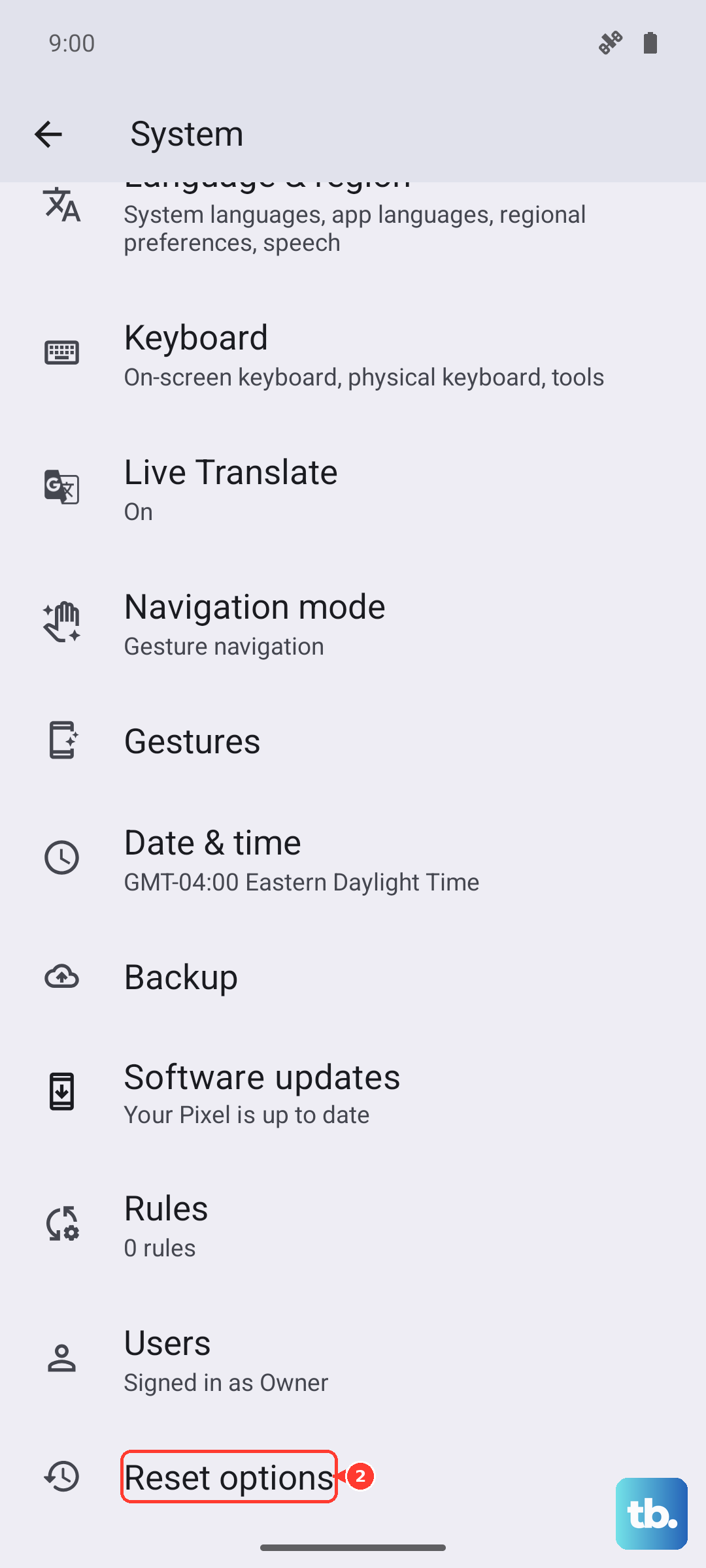
Tap "Reset app preferences." This resets permissions, notification settings, and background data restrictions for all apps. If you suspect a network issue, especially relevant with the Tensor G4's modem, you can also try "Reset Wi-Fi, mobile & Bluetooth." You'll just need to reconnect to your networks afterward.
Check for Overheating
The Pixel 9 Pro can get warm during extended use, particularly with the camera or while fast charging. If the phone gets too hot, it will automatically restart or shut down to protect its components. This is a safety feature, not necessarily a defect.
If you notice the phone is hot to the touch before it restarts, let it cool down. Remove the case, avoid using it while it's charging with the 27W adapter, and keep it out of direct sunlight. Using the official 15W Pixel Stand (2nd gen) for wireless charging can generate less heat than some third-party options.
Perform a Factory Reset
If all else fails, a factory reset will wipe the phone back to its original out-of-the-box state. This is a last resort, as it erases all your data. Make absolutely sure your backup is complete first.
Go to Settings > System > Reset options > Erase all data (factory reset). Follow the prompts to confirm. After the reset, you can choose to set up the phone as new or restore from your Google One backup. Setting it up as new, without restoring a backup, is the best way to rule out any corrupted data causing the issue.
Use Android Flash Tool for a Clean Install
If your phone is stuck in a constant restart loop and you can't access the settings menu, you'll need to use a computer to reinstall the software. This is more involved but can fix deep-seated software corruption. You'll need a USB-C cable and a computer with Chrome or Edge browser.
Visit the Android Flash Tool website on your computer. Put your Pixel 9 Pro into Bootloader mode by turning it off, then holding the Volume Down button while you press and release the Power button. Connect it to your computer, follow the web tool's instructions, and select a full "Wipe and Force Flash" to cleanly install Android 15.