
When your Google Pixel 9 Pro keeps saying "Settings keeps stopping," it's usually a temporary software hiccup. The good news is you can almost always fix it yourself without losing any data. Let's start with the quickest solution.
First, try a simple restart. Press and hold the power button on the right side of your phone, then tap "Restart" on the screen. This clears out any temporary glitches in memory that might be tripping up the Settings app. If the Settings app is still crashing after the phone comes back on, move on to the next step.
Clear the Settings App Cache
Your phone stores temporary cache files to make apps load faster, but this data can sometimes get corrupted. Clearing the cache for the Settings app itself is a safe first step that won't delete your personal information.
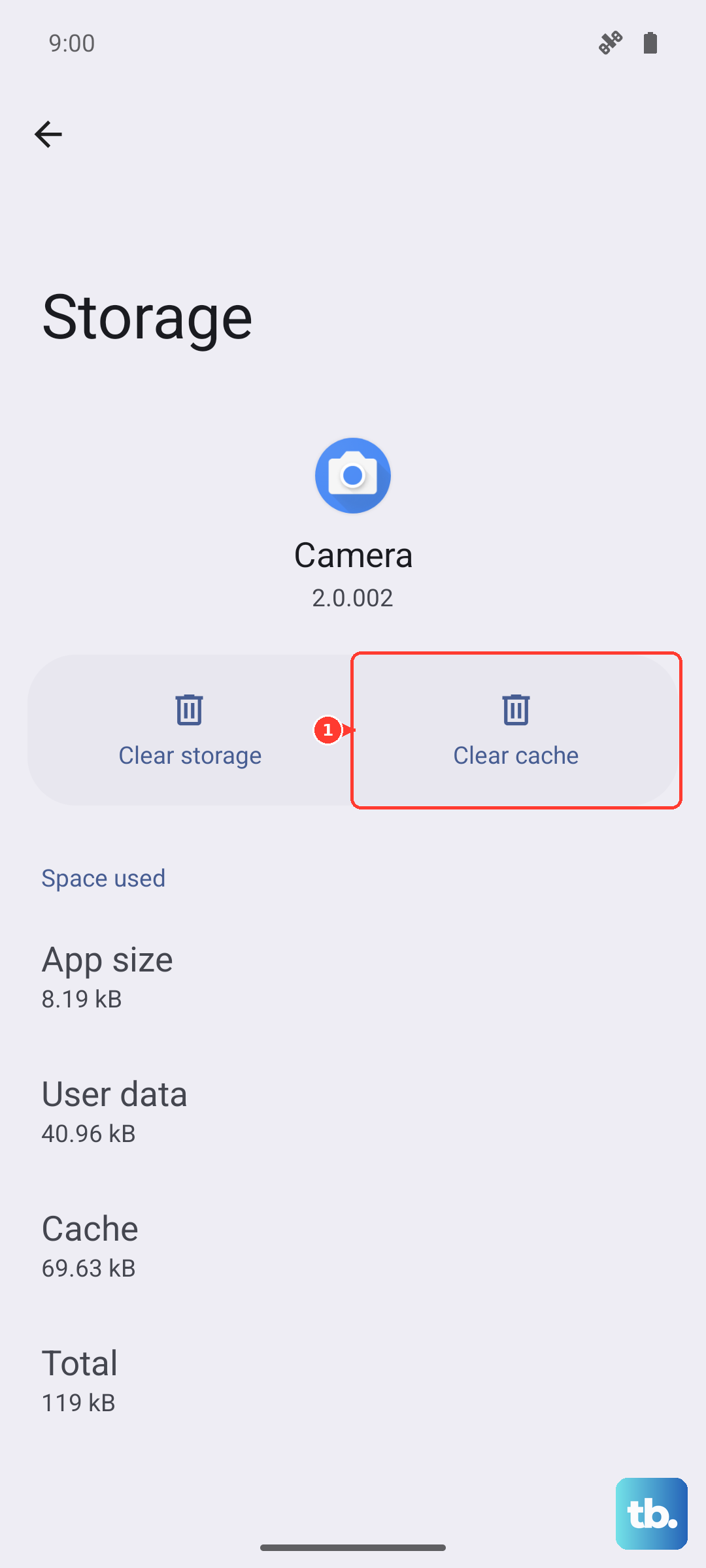
Go to Settings > Apps > See all apps. In the list, find and tap on "Settings." On the app info page, select Storage & cache, then tap Clear cache. This only takes a moment. After you do this, try opening the Settings app again to see if it runs smoothly.
Force Stop and Update the Settings App
If clearing the cache didn't help, the next move is to force stop the app. This completely shuts it down so it can start fresh. Go back to the Settings app info page (Settings > Apps > See all apps > Settings) and tap Force stop. Confirm the action if prompted.
While you're on that same app info page, scroll down and tap App details. This will open the Google Play Store page for the Android System Intelligence or related system component. Check if there's an "Update" button available. System apps on your Pixel 9 Pro receive updates through the Play Store, and installing the latest version can squash bugs causing crashes.
Check for a System Update
Google frequently releases updates for Android that fix widespread issues. A bug causing the Settings app to crash would likely be addressed in a monthly security patch or a larger platform update.
Open the Settings app (if you can) and go to System > Software update. Tap Check for update. If an update is available, connect to Wi-Fi and plug in your charger. The 27W wired charging will get your battery topped up quickly so you can install it. Let the update process complete and your phone restart.
Review Recently Installed Apps
Sometimes, a third-party app you installed can conflict with system processes. Think about any new apps you added right before the Settings app started misbehaving. You can boot your Pixel 9 Pro into Safe Mode to test this theory.
Press and hold the Power button and Volume Up button together until the power menu appears. Then, press and hold the "Power off" option on your screen. You'll see a prompt to reboot to Safe Mode, tap "OK." In Safe Mode, all downloaded apps are temporarily disabled. If the Settings app works fine here, a third-party app is the culprit. Restart your phone normally to exit Safe Mode and try uninstalling recent apps one by one.
Reset App Preferences
This is a useful middle-ground step. It resets all your app-related settings, like permissions, default apps, and background data restrictions, back to their factory defaults without deleting any app data. It can resolve conflicts without being destructive.
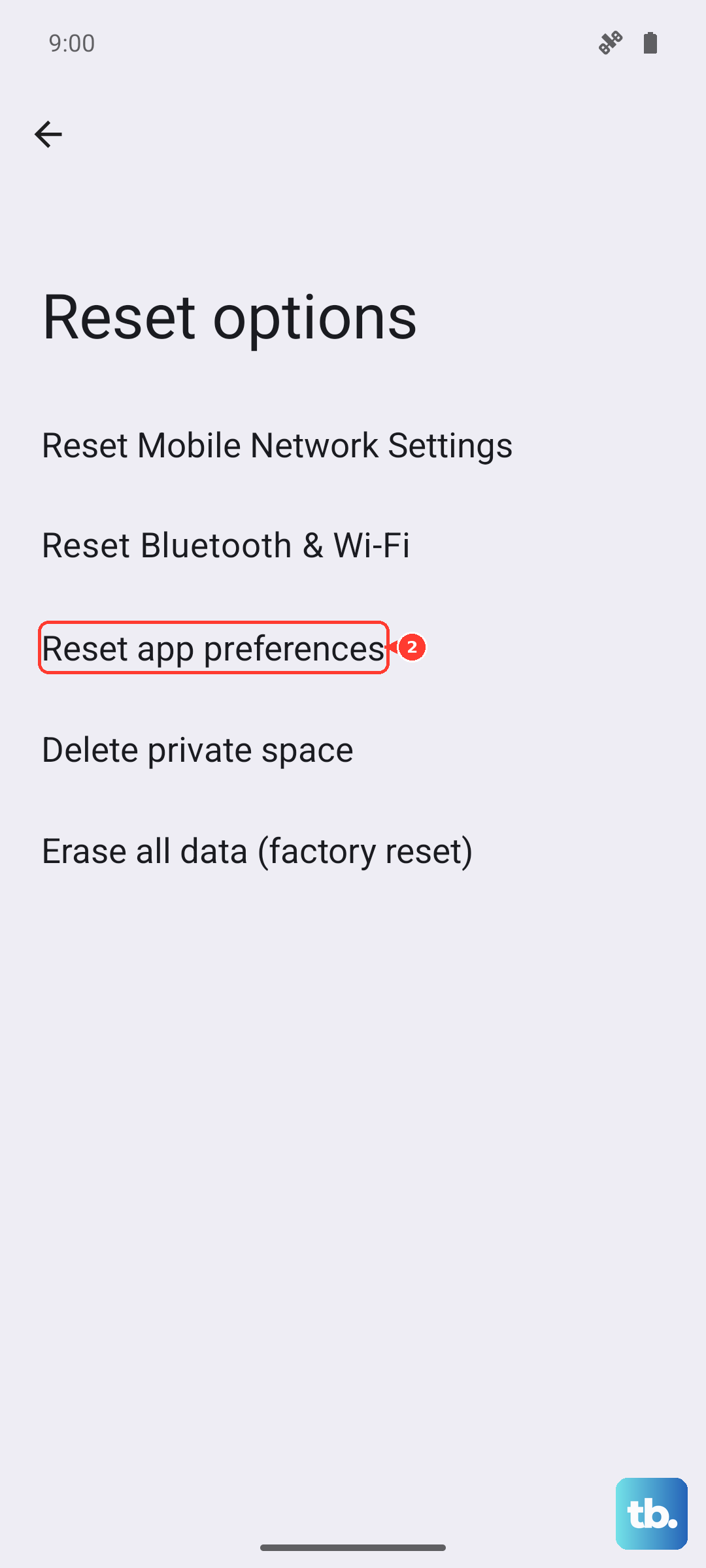
Navigate to Settings > System > Reset options. Tap on Reset app preferences and confirm. You'll need to re-grant permissions to apps when you use them next, but it's a small price to pay. After the reset, test the Settings app immediately.
Perform a Factory Reset
If you've tried everything else and the Settings app is still unusable, a factory reset is the final step. This will erase all data from your Pixel 9 Pro and return it to its original out-of-the-box state. You absolutely must back up your photos, messages, and files first. Use Google One backup or manually transfer files to your computer.
Since the Settings app is crashing, you might need to use the recovery menu. First, power off your phone completely. Then, press and hold the Power button and Volume Down button together. When you feel the phone vibrate and see the Android mascot, release the buttons. Use the volume keys to highlight "Wipe data/factory reset" and press the power button to select it. Confirm the reset. This process will take several minutes. Once it's done, you can set up your phone as new or restore from your backup.