
If your Google Pixel 9 Pro shows a "Not registered on network" error or can't find a signal, you're stuck without calls, texts, or mobile data. This can be especially frustrating on a new phone. The Pixel 9 Pro's Tensor G4 modem, while capable, can sometimes be a bit less robust in weaker signal areas compared to some competitors. Before you worry about a hardware problem, there are several straightforward fixes you'd want to try.
Start with the simplest solution. Pull down the notification shade twice and tap the Airplane Mode icon to turn it on. Wait about 15 seconds, then tap it again to turn it off. This forces your phone's cellular radio to disconnect and reconnect to the nearest tower, which often clears up a temporary registration glitch. Check your status bar to see if the signal bars or 5G/4G LTE icon returns.
Restart Your Pixel 9 Pro
A full restart is a classic fix for a reason. It clears the system cache and reloads all the software that manages your connection to the carrier network. Just press and hold the power button, then tap "Restart" on the screen. Wait for the phone to completely boot up before checking for service. If the problem is a minor software hiccup, this usually takes care of it.
Check Your SIM Card
A loose or dirty SIM card is a common culprit. First, power off your Pixel 9 Pro. Use the SIM eject tool (or a small paperclip) to open the tray on the bottom edge of the phone. Gently remove the SIM card and inspect the gold contacts for any dust or debris. Give both the card and the slot a light blow to clear anything out, then reseat the SIM card firmly. Push the tray back in and power the phone on.
It's also a good idea to verify your carrier account is active. Sometimes an unpaid bill or an expired prepaid plan can cause this exact error. Try logging into your carrier's app from Wi-Fi or use another phone to call customer service and confirm your line is in good standing.
Update Your Android Software
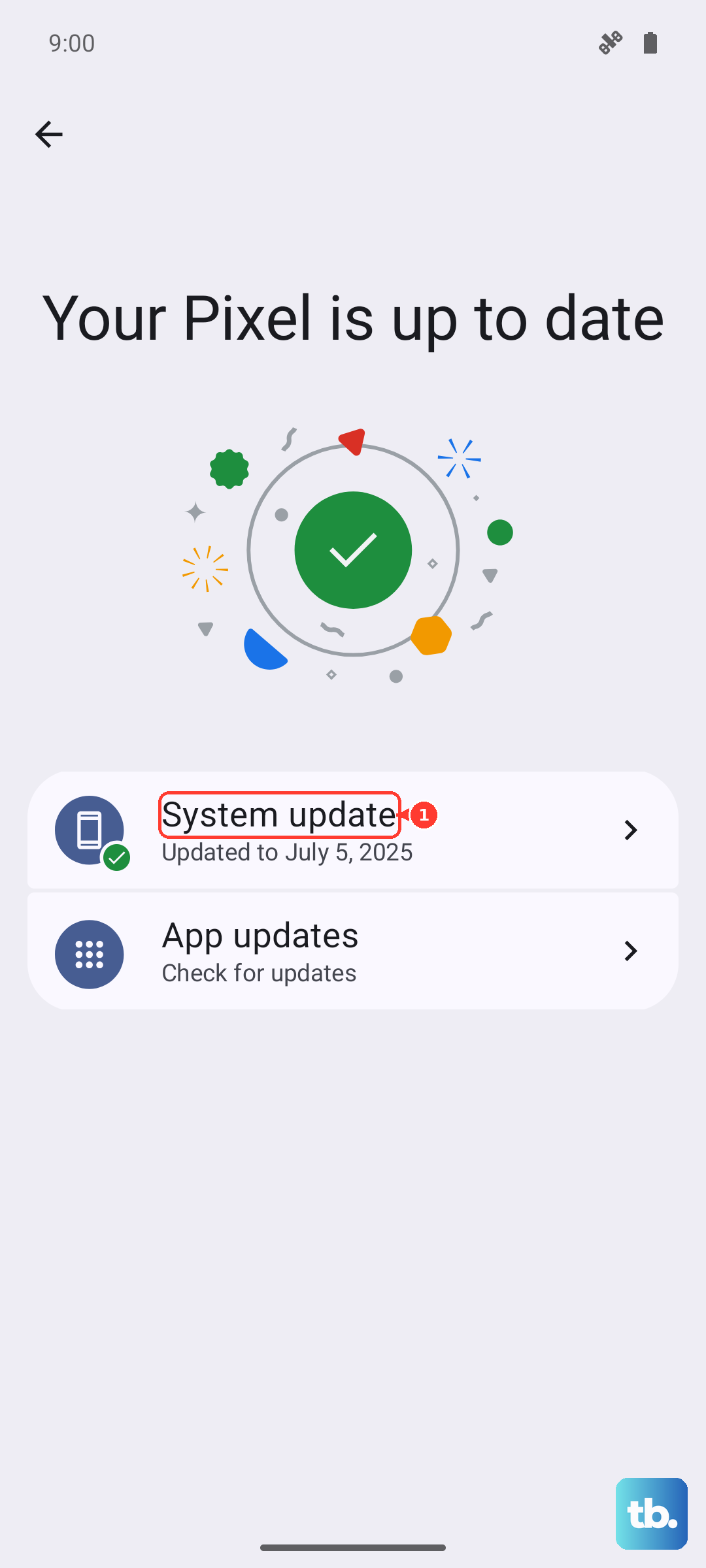
Google frequently releases updates that include modem firmware improvements and bug fixes for network connectivity. An outdated version of Android 15 could have a known issue that's already been patched. Go to Settings > System > System update and tap "Check for update." If an update is available, install it. Your phone will restart, and it's worth checking your signal immediately after.
Reset Your Network Settings
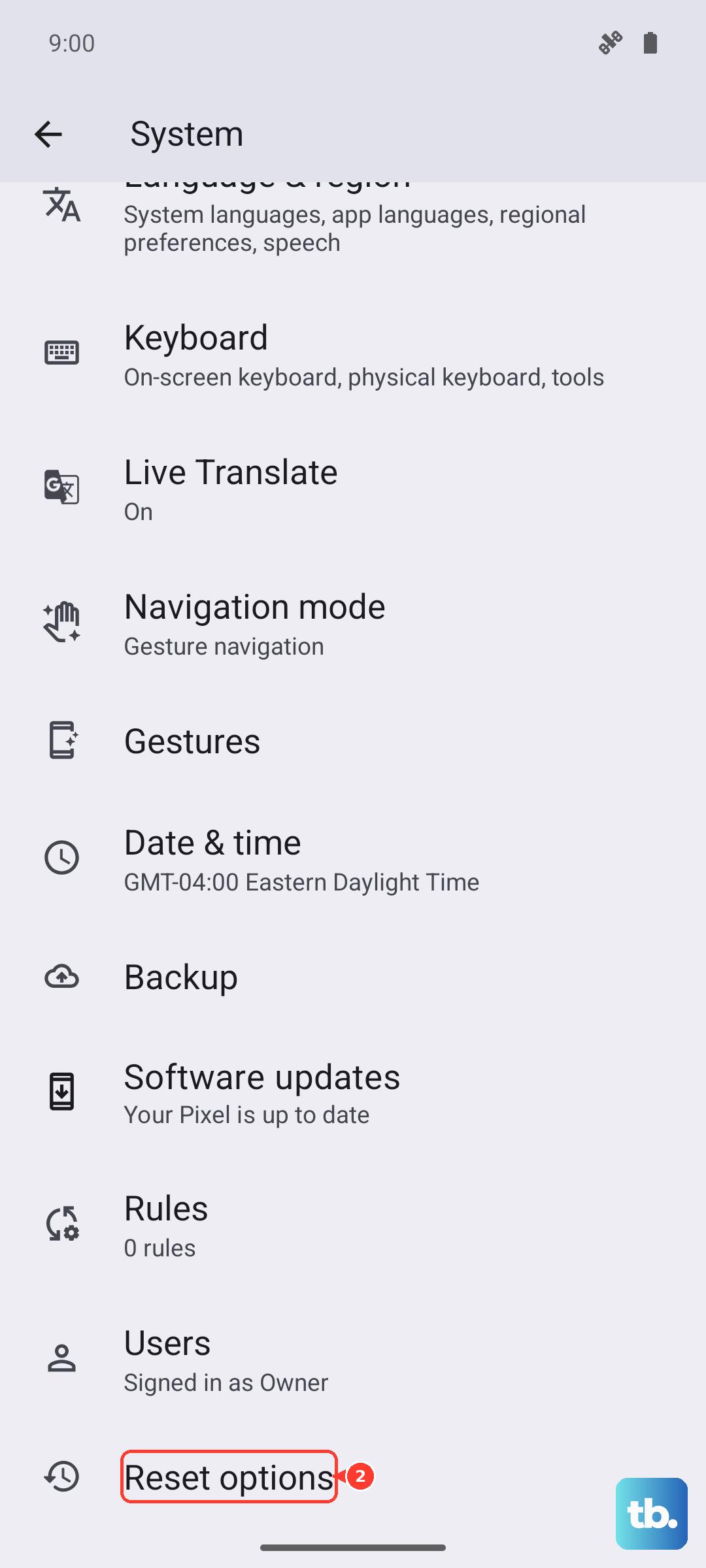
This step clears all your saved network configurations without deleting your personal data. It wipes your Wi-Fi passwords, Bluetooth pairings, and cellular network settings, forcing your Pixel to rebuild them from scratch. To do this, open Settings > System > Reset options. Tap "Reset Wi-Fi, mobile & Bluetooth" and confirm. After your phone reboots, you'll need to reconnect to Wi-Fi and re-pair Bluetooth devices, but it often resolves persistent network registration problems.
Manually Select Your Network Operator
Your phone might be trying to automatically connect to a network that's having temporary issues. You can manually choose your carrier to force a different connection. Go to Settings > Network & internet > SIMs. Tap your active SIM, then tap "Carrier." Turn off the "Choose automatically" toggle. Your phone will search and present a list of available networks. Select your carrier's name from the list and wait a moment for it to register.
Try a Different Network Mode
In areas with spotty 5G coverage, forcing your Pixel 9 Pro to use 4G LTE can provide a more stable connection. You can change this in your network settings. Head to Settings > Network & internet > SIMs and tap your active SIM. Look for "Preferred network type" and tap it. Try selecting "LTE" instead of "5G/LTE" to see if your phone registers on the network. If it does, the issue might be related to 5G signal strength or configuration in your area.
Clear the Phone Services Cache
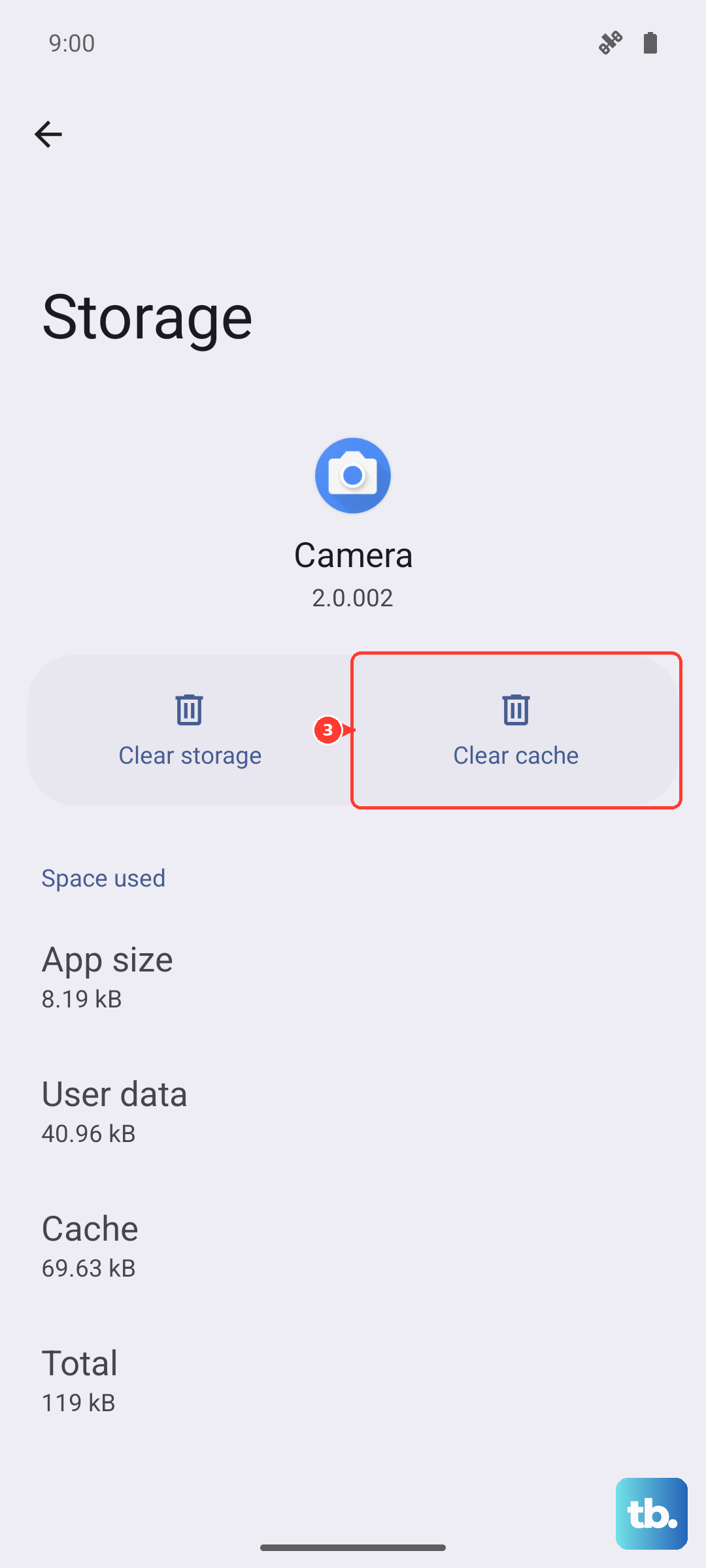
The system app that manages your cellular connection can accumulate corrupted temporary data. Clearing its cache is a safe and quick step. Go to Settings > Apps > See all apps. In the list, find and tap "Phone Services." Tap "Storage & cache," then tap "Clear cache." Do not tap "Clear storage" or "Clear data," as that could cause other issues. Once the cache is cleared, restart your phone.
Test with a Different SIM Card
This is a key diagnostic step. If you can borrow a working SIM card from a friend (on any carrier), pop it into your Pixel 9 Pro. If the borrowed SIM connects to a network without any issues, then your original SIM card is likely faulty or deactivated. You'll need to contact your carrier for a replacement. If the borrowed SIM also fails to register, the problem is almost certainly with your phone's hardware or software.
Perform a Factory Reset
Consider this your last resort before seeking repair. A factory reset will erase all data from your Pixel 9 Pro, so you must back up everything important first using Google One or another method. Once backed up, go to Settings > System > Reset options > Erase all data (factory reset). Follow the prompts to confirm. After the reset, set up the phone as new without restoring a backup immediately, just to test the network connection. If the "not registered" error persists after a clean factory reset, the issue is likely a hardware fault with the internal modem or antenna, and you should contact Google Support or your retailer.