
Here’s how to choose Content for Your Firefox Home Screen.
Customizing Your Firefox Home Screen
Follow these simple steps to choose exactly what content appears on your Firefox home screen:
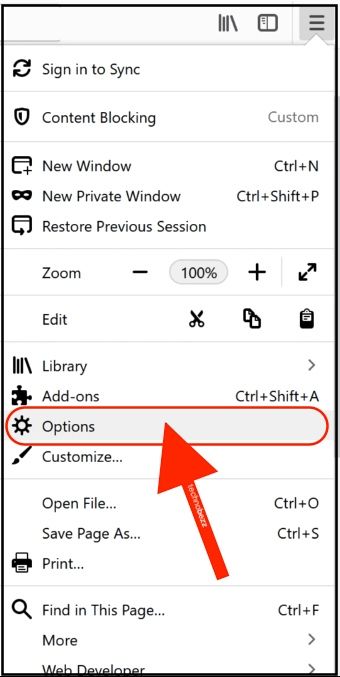
Launch Firefox on your computer and click the menu button (three horizontal lines) in the top-right corner.
Select Options from the dropdown menu.
Click on Home in the left sidebar to access home screen settings.
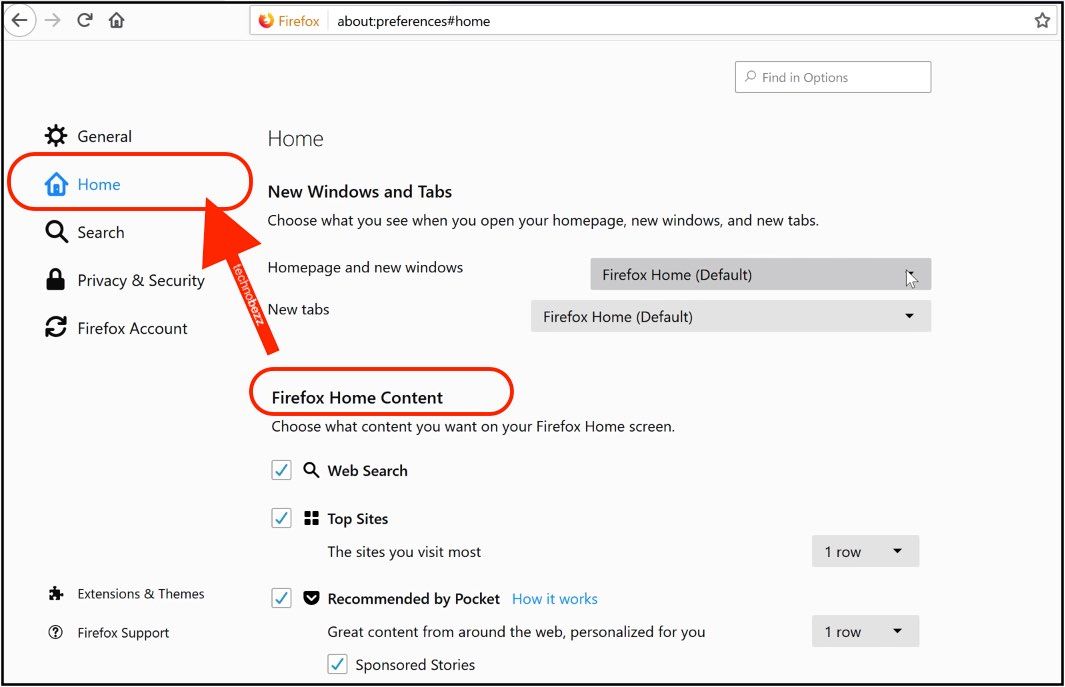
Under "Firefox Home Content," you'll find several customization options.
Available Home Screen Content Options
Firefox offers several content sections you can enable or disable:
Top Sites shows your most frequently visited websites for quick access.
Pocket Recommendations displays trending articles and stories curated by Pocket.
Recent Bookmarks shows your most recently saved bookmarks.
Recent History displays pages you've visited recently.
Snippets shows tips, news, and information from Mozilla.
You can toggle any of these sections on or off by clicking their checkboxes. For sections like Top Sites, you can also adjust the number of rows displayed to control how much content appears on your home screen.
Quick Customization Tips
Disable unwanted sections if you don't use Pocket or find snippets distracting, simply uncheck those options.
Adjust row counts for sections you do use, customize the number of rows to fit your screen space.
Changes apply immediately any adjustments you make take effect right away when you return to the home screen.
Your Firefox home screen should reflect how you browse the web. Take a few minutes to configure it with the content you actually use, and you'll have a much more efficient and enjoyable browsing experience every time you open a new tab.