
Your Samsung Galaxy Tab S10+ has a large, powerful battery, but like all lithium-ion cells, its capacity diminishes with time and use. Knowing how to check its status can help you understand your tablet's endurance and decide if you need to change your charging habits or even consider a service. Samsung provides several built-in tools to give you a clear picture of your battery's health and performance.
Start with the Device Care Menu
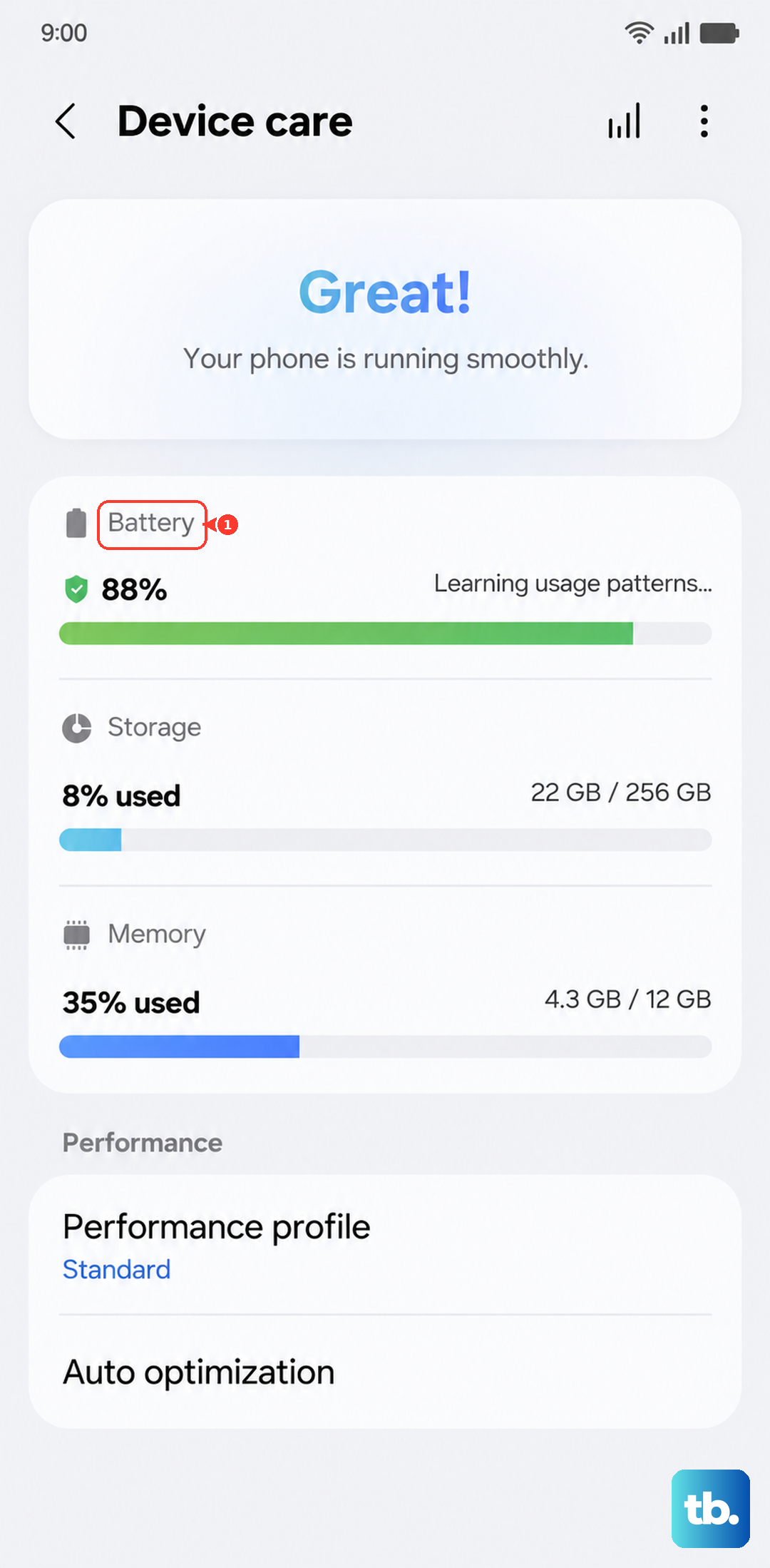
Open your tablet's Settings and go to Battery and device care. Tap on Battery to see the main dashboard. Here, you'll find your current charge percentage and an estimate of how much time you have left.
While Samsung doesn't display a precise battery health percentage like some brands, this section provides the core status. Look for any notifications or messages about battery condition. If the system detects a significant issue, it will alert you here that service may be needed.
Run a Diagnostic with Samsung Members
For a more detailed check, use the pre-installed Samsung Members app. Open it and tap on the Get help tab at the bottom. Then, select Interactive checks.
From the list of tests, choose Battery status. The app will run a quick diagnostic and report back on your battery's health. This is one of the most straightforward official methods to get a "Normal" or "Weak" assessment directly from Samsung's diagnostics.
Check Which Apps Are Draining Power
Understanding your battery life often comes down to what's using it. Go back to Settings > Battery and device care > Battery and tap on Battery usage.
This screen shows a breakdown of power consumption by app since your last full charge. Tap on any app to see a split between its active (screen-on) use and background activity. If you see a game or app you haven't used much consuming a high percentage, it might be misbehaving in the background.
For the Tab S10+, the powerful Dimensity 9300+ chip can draw more power during intensive tasks, which will be reflected here. It's normal to see higher drain from demanding apps or when using the high-refresh-rate display.
Use the Hidden Service Menu
A more technical method involves a diagnostic code. Open your tablet's Phone app, yes, even though it's a tablet, and dial *#0228#. This will launch a hidden battery status screen.
You'll see raw data like voltage, temperature, and other signal values. While it doesn't translate this into a simple "health" score, a consistently low voltage reading under load can be an indicator of a worn battery. I'd only recommend this for users comfortable with technical diagnostics.
Set Up Battery Protection
To proactively maintain your battery's long-term health, use Samsung's built-in protection feature. Navigate to Settings > Battery and device care > Battery > More battery settings.
Tap on Battery protection. You'll have options like Basic (charges to 100%), Adaptive (learns your routine and pauses charging), and Maximum (stops charging at 85%). Choosing Maximum is the single best setting to slow down battery aging, as it prevents the cell from staying at a full, high-stress charge.
Optimize Your Tablet's Power Settings
The Tab S10+ has several features to extend daily battery life. In the main Battery settings, you can toggle Power saving mode on, which limits performance and background activity. For a smarter approach, ensure Adaptive battery is enabled.
Adaptive battery learns how you use apps over time and restricts power for ones you rarely open. You can also tap Background usage limits to manually put specific apps to sleep or into deep sleep, preventing them from running when you're not using them.
Recognize When a Replacement Might Be Needed
If your tablet struggles to last through a day of moderate use when it used to easily, that's a key sign. Other red flags include the device shutting down unexpectedly at what appears to be 10-20% charge, or taking an unusually long time to power up.
Since the Tab S10+ supports 45W wired charging, using a compatible USB-PD charger is crucial for speed. If you're only using a low-wattage charger, what feels like a slow battery could just be slow charging. Always try a proper 45W charger first.
Daily Habits to Preserve Battery Health
Heat is a battery's biggest enemy. Try to avoid leaving your tablet in direct sunlight or a hot car, especially while charging. I'd recommend using the Battery protection feature to cap charging at 85% for daily use, only charging to 100% when you know you'll need the full capacity for a long day.
Also, avoid constantly draining the battery to 0%. Lithium-ion batteries are happiest between 20% and 80%. For your Tab S10+, make sure you're using a high-quality 45W USB-C charger for peak efficiency, as the tablet didn't come with one in the box.