
Keeping an eye on your Samsung Galaxy S26+ battery health is a smart way to understand its performance and plan for the future. The phone has several built-in tools in One UI 8.5 to give you a clear picture of your battery's condition and help you optimize it.
Start with the Battery Menu in Settings
Head to Settings > Battery and device care > Battery. This is your main hub for all things battery-related. On the S26+, you'll find a battery health indicator here that gives you a status like "Normal" or "Weak."
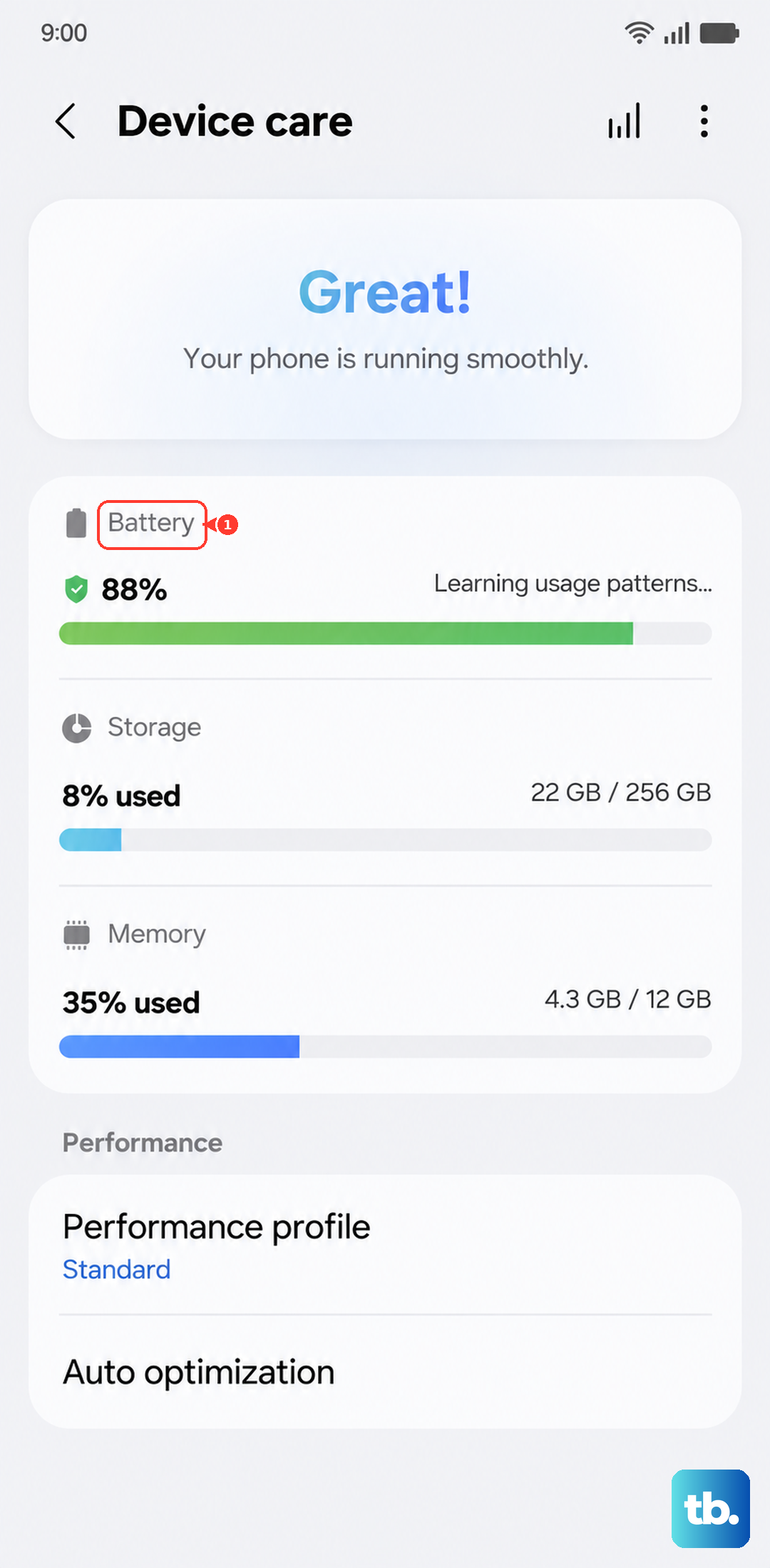
Samsung doesn't provide a precise percentage like some other brands, but this status is a reliable indicator of overall condition. If you see a warning here, it's a good sign the battery is significantly degraded.
Run a Detailed Diagnostic with Samsung Members
For a more thorough check, open the pre-installed Samsung Members app. Tap on Get help and then select Interactive checks. Choose the Battery test from the list.
This diagnostic runs a quick series of checks on your battery's performance and health. I've found this to be the most detailed official method for getting a clear read on your S26+ battery's current state.
Check Which Apps Are Draining Power
Understanding your usage is key. Go back to Settings > Battery and device care > Battery and tap on Battery usage. This screen shows you a breakdown of power consumption since your last full charge.
You can tap on any app to see how much time it spent on screen versus running in the background. If you spot an app you don't use much with high background activity, it might be misbehaving and hurting your battery life.
Use the Hidden Service Menu for Tech Details
Open your Phone app and dial *#0228#. This launches a hidden battery status menu. It shows real-time data like voltage and temperature.
While it won't give you a simple "health" score, a consistently low voltage reading under load can be a technical indicator of wear. It's a useful tool for the curious, but the simpler methods above are usually sufficient.
Configure Battery Protection for Longevity
Your S26+ includes features to extend battery lifespan. Go to Settings > Battery and device care > Battery > More battery settings. Here you'll find Battery protection.
You can set it to cap charging at 85%, which greatly reduces long-term wear. If your phone seems to stop charging before 100%, this setting is likely enabled. You can toggle between Basic, Adaptive, and Maximum protection modes here based on your needs.
Optimize with Adaptive Battery and Power Saving
In the same Battery menu, look for Adaptive battery and make sure it's turned on. This feature uses on-device AI to learn your app usage patterns and restrict battery for apps you rarely open.
You can also set a Power saving mode to kick in automatically at a certain battery level, or enable it manually when you need to stretch your charge. For even more control, tap Background usage limits to put specific apps to sleep.
Recognizing When a Replacement is Needed
If your S26+ struggles to last a full day with your normal use, shuts down unexpectedly at 20% charge, or takes an exceptionally long time to power up, the battery is likely worn out. Any physical swelling of the device is an immediate sign to stop using it.
For an official replacement, you'll need to visit a Samsung Authorized Service Center. Using genuine parts is crucial for safety and maintaining features like Wireless PowerShare.
Daily Habits to Keep Your Battery Healthy
Heat is a battery's biggest enemy. Try not to leave your S26+ in a hot car or charge it under a blanket. For the fastest 60W Super Fast Charging, you'll need a compatible USB-C Power Delivery charger, which you may need to purchase separately.
Using battery protection to limit charging to 85% for daily use is one of the best things you can do. Also, try to avoid regularly draining the battery to 0%. Keeping it between 20% and 80% most of the time puts the least stress on the cells.