
Your iPhone 17 Pro's battery is its lifeline, and keeping an eye on its health is key to maintaining that all-day performance. With iOS 26, Apple provides detailed diagnostics right in your settings. Here's exactly where to look and what the numbers mean for your specific device.
Find Your Battery Health Percentage
Open Settings > Battery > Battery Health & Charging. The first number you'll see is Maximum Capacity. This percentage shows your battery's current charge capacity compared to its original, factory-fresh state. A new iPhone 17 Pro will show 100%. After a year of typical use, seeing a value between 90% and 95% is completely normal.
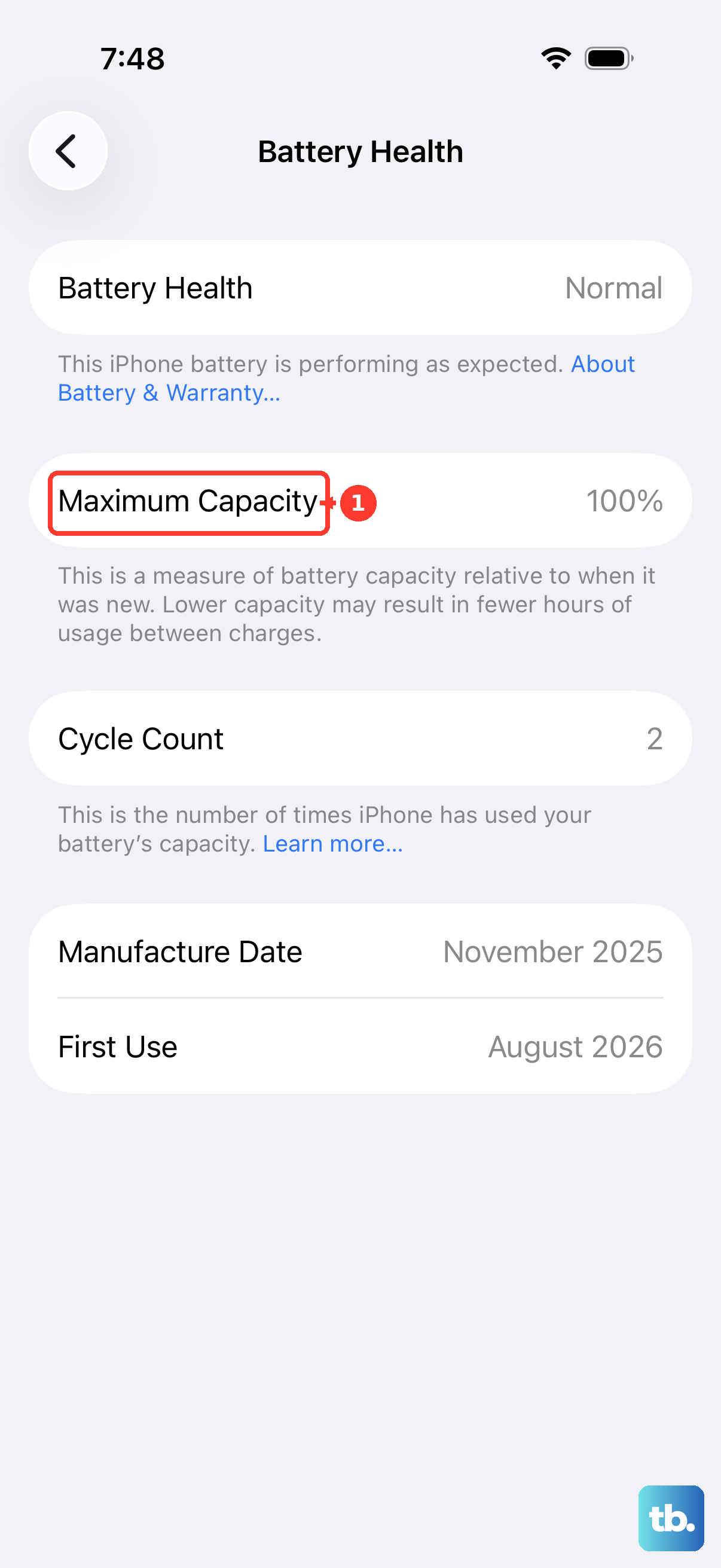
When this number falls below 80%, Apple considers the battery significantly degraded. You'll likely notice your phone needs charging more often. Right below this, the Peak Performance Capability section will confirm if your phone can deliver its full speed or if any software management is active to maintain stability.
Check the Battery Cycle Count
A charge cycle is counted each time you use 100% of the battery's capacity, which can happen over multiple charges. Apple rates the iPhone 17 Pro battery to retain up to 80% of its original capacity at 1,000 complete charge cycles. You can find your exact count directly in the settings.
Navigate to Settings > Battery > Battery Health & Charging and scroll down. You'll see your cycle count listed alongside the battery's manufacture date and the date it was first used. This gives you a clear, long-term view of your battery's usage history.
See Which Apps Are Using Power
Head back to Settings > Battery. Below the battery level graph, you'll find a breakdown of battery usage by app for the last 24 hours or the last 10 days. Tap Show Activity next to any app to see a split between how long it was on your screen and how much it ran in the background.
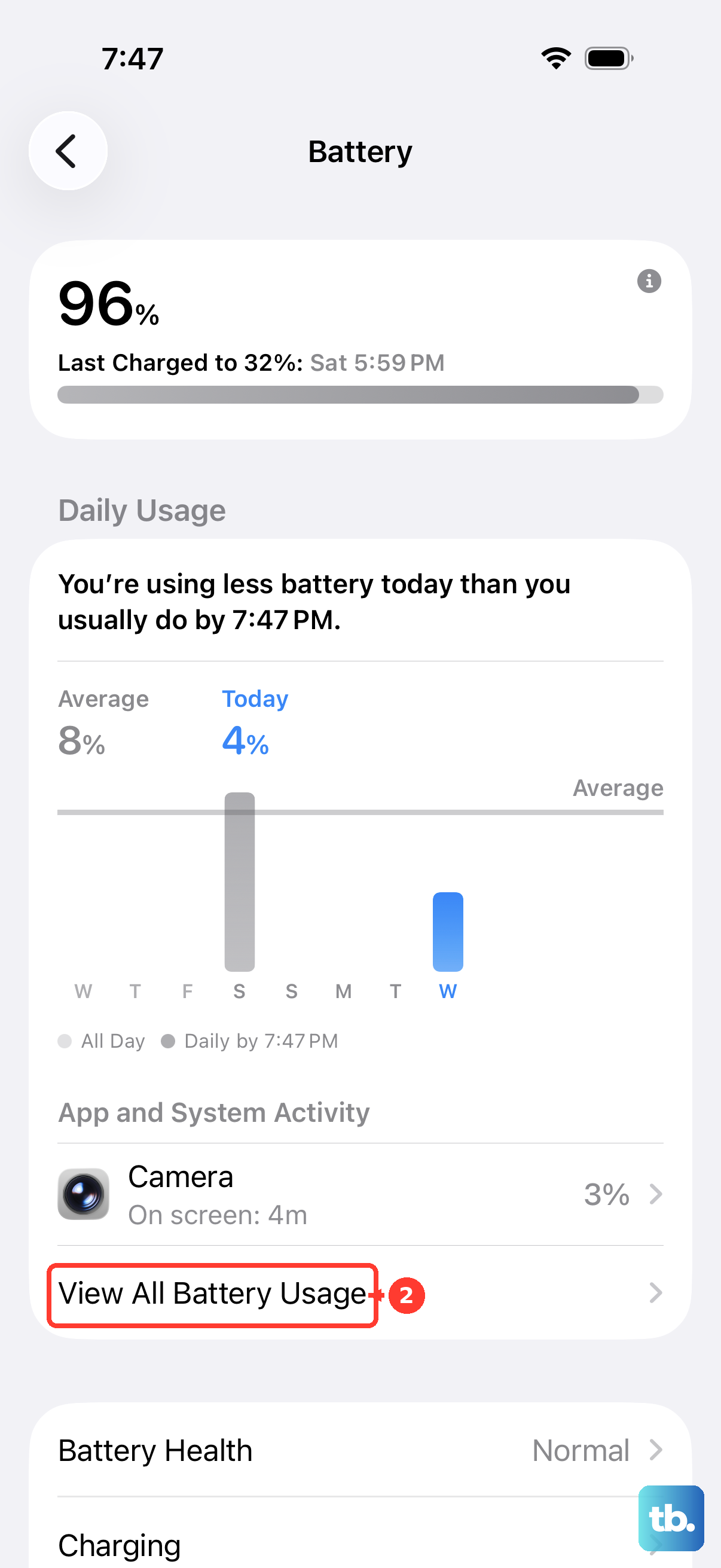
If you spot a rarely-used app with surprisingly high background activity, it might be misbehaving. For the iPhone 17 Pro, which supports powerful background processes, managing this can be a straightforward way to save power. You can restrict its background refresh in the app's settings.
Manage Charging Optimization Settings
Your iPhone 17 Pro comes with smart charging features to extend battery lifespan. In Settings > Battery > Battery Health & Charging, you'll find Optimized Battery Charging. When enabled, your phone learns your routine and will hold the charge at around 80% overnight, only topping up to 100% just before you typically unplug it.
You may also see an 80% Limit option. Turning this on will stop all charging at 80%, which is the best setting for maximizing long-term battery health if you don't need a full charge every day. I'd recommend using this if your phone is often connected to power, like on a desk or in a car.
Understand Your Charging Hardware
The iPhone 17 Pro supports incredibly fast 60W wired charging, but it requires the specific Apple 40W Dynamic Power Adapter (Model A3351) to hit that top speed. Using a standard USB-C Power Delivery charger will typically max out around 30W, which is still plenty fast for most situations.
With MagSafe and Qi2 wireless charging, you get up to 30W. The phone can get noticeably warm during a 60W wired charge or a high-speed MagSafe session, which is normal but something to be aware of for battery longevity. Using a third-party case can sometimes interfere with MagSafe alignment and reduce charging efficiency.
When a Battery Replacement Makes Sense
Once your Maximum Capacity dips below 80%, you'll start seeing a real impact on daily battery life. Performance management features may also engage to prevent unexpected shutdowns. This is the standard point where a battery replacement becomes a worthwhile consideration.
A new battery from Apple or an authorized service provider will restore your iPhone 17 Pro's capacity to 100% and return it to full, unthrottled performance. It's often a more cost-effective choice than upgrading the entire device.
Daily Habits for Battery Longevity
Try to avoid letting your phone regularly hit 0% or sit at 100% charge for extended periods. Keeping it between 20% and 80% is ideal for lithium-ion health. Extreme heat is a battery's biggest enemy, so try not to leave it in a hot car or use intensive apps while it's charging rapidly.
Stick with Apple-certified chargers and cables, especially for that 60W fast charging. The phone's software and the official 40W adapter are designed to work together to manage heat and power flow safely, which cheaper accessories might not handle as well.