
Your iPad Air's battery is a consumable part, and its capacity naturally decreases with every charge cycle. Knowing exactly how many cycles it's been through gives you a clear picture of its overall lifespan and remaining health. While Apple doesn't always put this number front and center, there are a few reliable ways to find it on your 2026 model.
Find the Cycle Count in Settings
The most straightforward method is built into iPadOS 26 on supported iPad models, including iPad Air (M2, M3, and M4). Open the Settings app, tap Battery, then tap Battery Health. This screen shows battery health and history, including the cycle count.
This number represents how many complete charge cycles the battery has endured. A cycle is counted each time you use 100% of the battery's capacity, which can happen over multiple partial charges. For context, Apple typically designs iPad batteries to retain 80% of their original capacity after a high number of cycles, often around 1,000.
Check Detailed Battery Health
For a broader view of your battery's condition, go to Settings > Battery > Battery Health. Here, you'll see the Maximum Capacity percentage, which shows the battery's current full charge capacity compared to when it was new. A new iPad Air starts at 100%.
This screen may also display the cycle count, manufacture date, and first use date, consolidating all the key diagnostics in one place. If your Maximum Capacity has dropped significantly, say below 85%, you'll likely notice your iPad doesn't last as long on a single charge as it used to.
If Battery Health Doesn't Appear
The 2026 iPad Air is a supported model for Apple's Battery Health screen, so check the cycle count on the iPad itself at Settings > Battery > Battery Health.
If you still do not see Battery Health, confirm the exact iPad model against Apple's supported-model list. Do not rely on System Information on a Mac for this iPad check; Apple's cycle-count instructions for Mac System Information apply to Mac laptop batteries.
Understand What the Cycle Count Means
Seeing a high number isn't an immediate cause for alarm. I've seen iPad batteries hold up well for many cycles. The cycle count is just one data point. It's more useful when combined with the Maximum Capacity percentage from the Battery Health menu.
If your cycle count is relatively low but the Maximum Capacity has dropped sharply, it might indicate the battery has experienced stress from extreme temperatures or a faulty charger. Conversely, a high cycle count with a capacity still above 85% shows a very healthy battery.
Optimize Charging for Battery Longevity
To reduce battery wear on the 2026 iPad Air, use 80% Limit instead. Go to Settings > Battery > Battery Health and turn on 80% Limit. When this limit is on, iPad charges to about 80%, stops, resumes if the battery drops to about 75%, and occasionally charges to 100% to keep battery percentage estimates accurate.
For charging, use the included USB-C cable with a compatible power adapter. Apple says a higher-wattage USB-C power adapter, such as one that came with a Mac laptop, can also charge the iPad faster. Avoid leaving your iPad in direct sunlight or a hot car, as heat is one of the biggest factors in accelerating battery degradation.
Monitor App Battery Usage
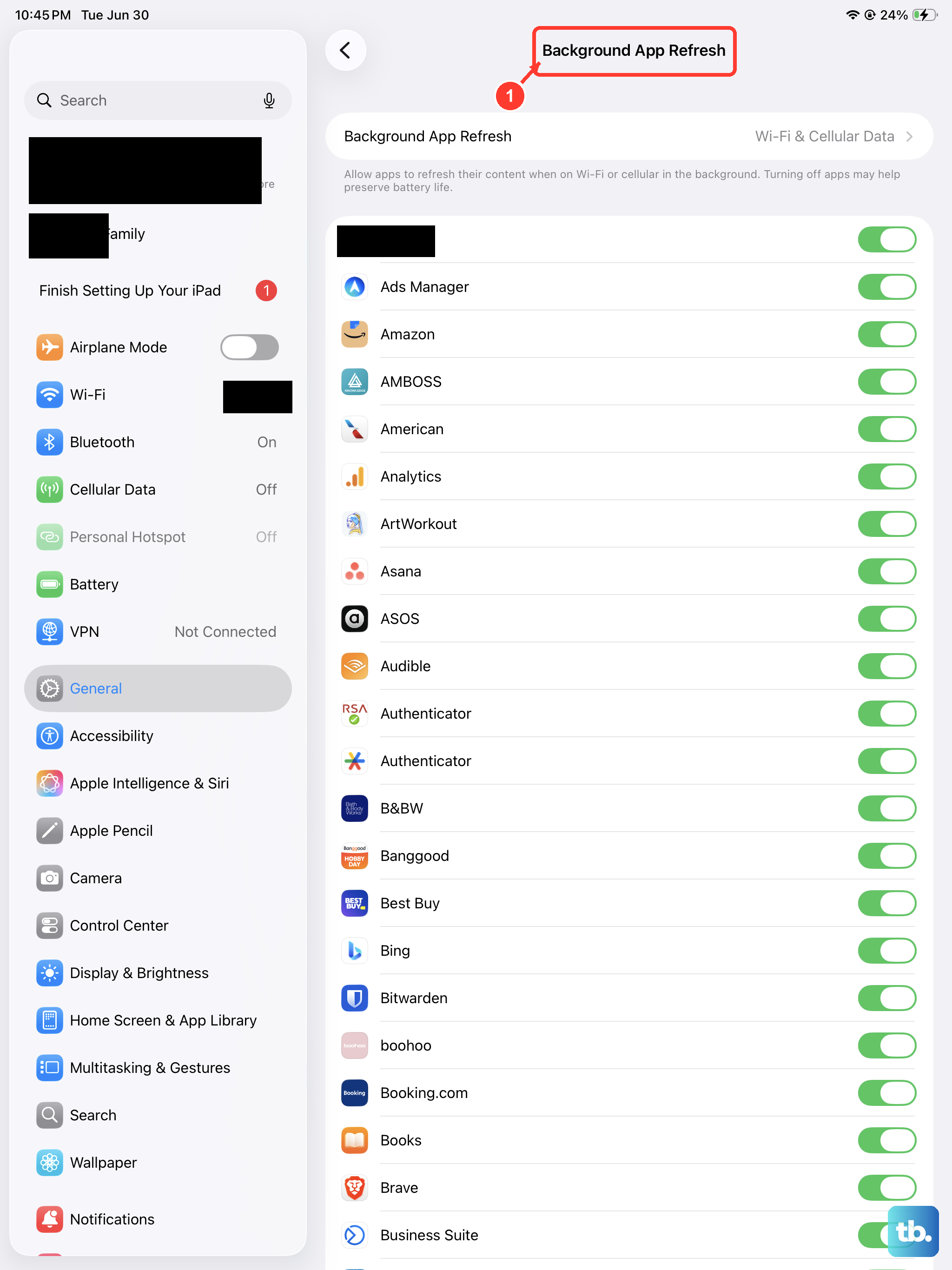
While checking hardware health, also see what's using that power. Go to Settings > Battery to view today's usage, or tap View All Battery Usage and choose a day to review usage from the last eight days. Tap an app to see more details, including its battery usage and activity for each day.
A surprisingly high percentage next to an app you rarely use openly could mean it's misbehaving in the background. You can manage this by going to Settings > General > Background App Refresh and limiting the app's permissions.