
Your Google Pixel 10's battery is a consumable part, and its capacity naturally decreases with each charge cycle. Keeping an eye on its health helps you understand your phone's performance and plan for a replacement when the time comes.
Find Your Battery Health in Settings
On the Pixel 10 running Android 15, the most direct path is through your settings. Open the Settings app and navigate to Battery > Battery health. Here, you'll find key details like your battery's current capacity percentage compared to its original design, the total number of charge cycles, and its manufacturing date.
This built-in tool gives you a clear, official snapshot of how your battery is holding up over time. I've found this menu to be the most reliable source of information, as it pulls data directly from the phone's battery management system.
Review Which Apps Are Draining Power
If your battery seems to be draining faster than usual, the culprit is often a specific app. Head to Settings > Battery > Battery usage to see a detailed breakdown. This screen shows you which apps have used the most power since your last full charge.
Tap on any app listed to see a further split between foreground use (when you're actively using it) and background activity. A poorly optimized app running constantly in the background can significantly shorten your battery life and contribute to long-term wear.
Optimize Your Charging Routine
The Pixel 10 includes a smart feature designed to extend your battery's lifespan. Go to Settings > Battery > Adaptive charging. When enabled and you set an alarm, your phone will learn your schedule and slow down charging overnight to complete just before you wake up.
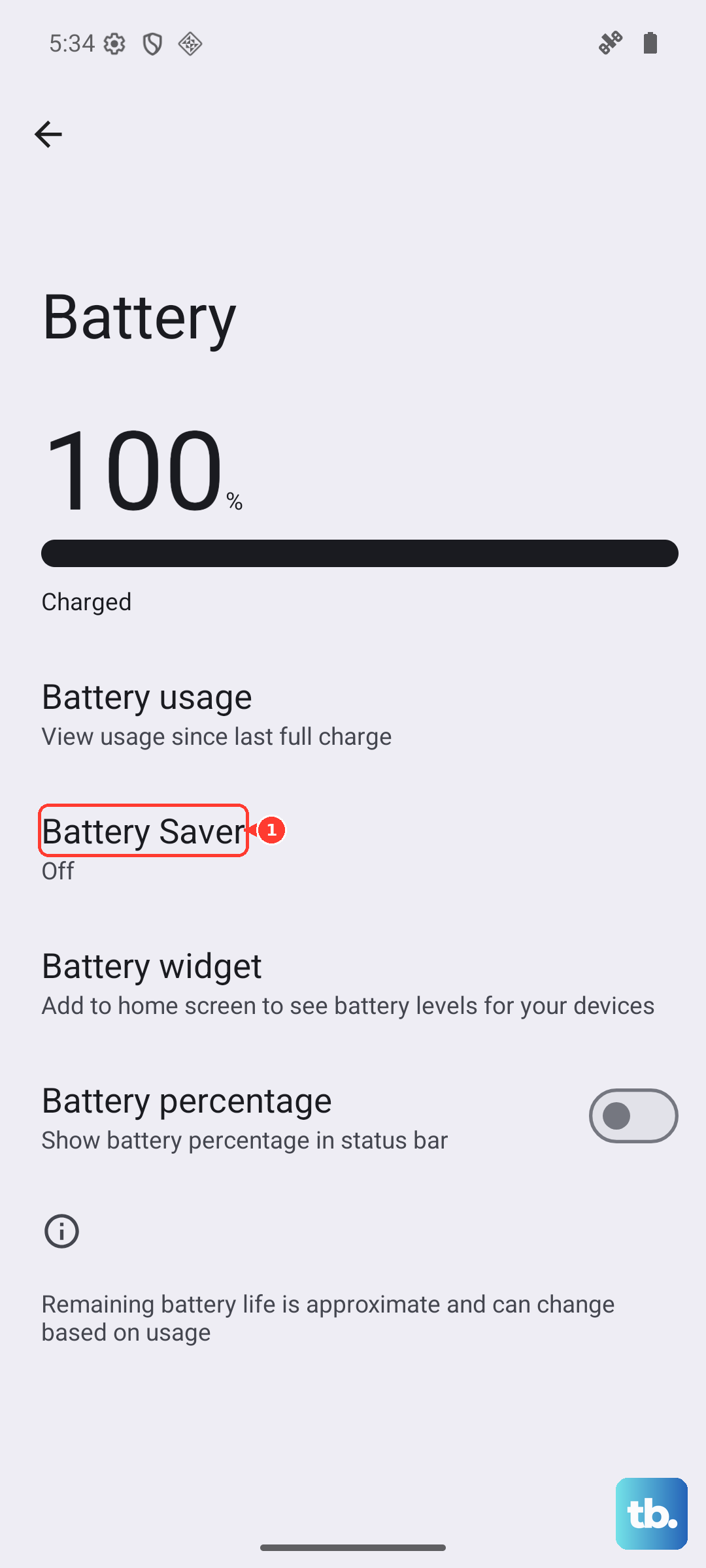
For more direct control, look for Settings > Battery > Battery Saver and Adaptive Battery. Turning on Adaptive Battery allows your phone to learn your usage patterns and automatically restrict power for apps you don't use often.
Use an Official Google 30W Charger
For the fastest and most reliable wired charging, I'd recommend using the official Google 30W USB-C PD charger. While the Pixel 10 is compatible with other USB-C chargers, the official one ensures you get the full 30W speed and proper voltage regulation, which is gentler on the battery over time.
If you prefer wireless charging, make sure your charger supports the newer Qi2 standard to take advantage of the Pixel 10's 23W wireless charging capability. A compatible Qi2 charger will provide efficient, faster wireless power transfer.
Consider a Third-Party App for Deep Analysis
If you want more historical data and estimates, you can use a third-party app like AccuBattery from the Google Play Store. After you install it and go through a few charge cycles, it provides an estimated health percentage based on the actual charge your battery holds versus its designed capacity.
These apps can also give you detailed stats on charging speed, discharge rate per hour, and how much wear each full charge cycle contributes. It's a great tool for data enthusiasts who want to track degradation trends over many months.
Recognize When a Replacement is Needed
You'll know it's time to think about a battery replacement when your Pixel 10 struggles to make it through a normal morning on a single charge, shuts down unexpectedly with battery percentage still showing, or takes an unusually long time to power up. Physical swelling of the device is an immediate sign to stop using it.
For a Pixel 10, you can contact Google Support or visit an authorized service partner like uBreakiFix for a genuine battery replacement. Getting it done professionally ensures the water resistance is maintained and the new battery is calibrated correctly with your phone.
Daily Habits to Preserve Long-Term Health
Heat is the biggest enemy of lithium-ion batteries. Try to avoid leaving your phone in direct sunlight, like on a car dashboard, or charging it under a pillow where heat can't dissipate. It's also better for long-term health to keep the charge between 20% and 80% for daily use, rather than constantly charging to 100% or draining to zero.
If your Pixel 10 ever becomes completely unresponsive and won't turn on, you can perform a force restart by pressing and holding the Power button and the Volume Up button together for about 10 seconds until the Google logo appears. This can often resolve temporary software glitches that affect battery reporting.