
To change your Hulu plan when Hulu bills you, open your Hulu Account page in a phone or computer browser, select Change next to Your Plan, and pick a different plan card. Check the card, the add-ons and the estimated total in the bar at the bottom before you select Review changes, because Hulu's help calls that the step that confirms the change.
If Disney+, Apple, Google Play, Amazon, Spotify or a phone or internet provider bills you, Hulu says to manage the subscription through that company, and the plans on offer may differ. Roku is the exception, because Roku says Hulu manages a Hulu plan even when Roku bills you, so contact Hulu. A plan change keeps the subscription running, so if you want the charges to stop instead, follow our guide on how to cancel your Hulu subscription.
The short version
- Open hulu.com/account in a browser and check who bills you under Payment info.
- If Hulu bills you, select Change next to Your Plan.
- Pick a different card, then check Add-ons and Estimated total.
- Check the total before Review changes, which Hulu calls the confirming step.
- Billed by Disney+, Apple or a provider? Change it there. Billed by Roku? Contact Hulu.
Change your Hulu plan on the Account page
Hulu's help says plans and add-ons are changed from the Account page on Hulu.com, in a mobile or web browser, so start there rather than in the TV app. Go to hulu.com/account and sign in if Hulu asks. Hulu names both a mobile and a web browser, and the pictures here show the page on a computer.
When we opened the Account page, it was titled Manage Your Account, with Overview and Profiles tabs. The first card on Overview was Your Plan, which names your plan and the services in it, with a blue Change link on the right. That link opens the plan choices.
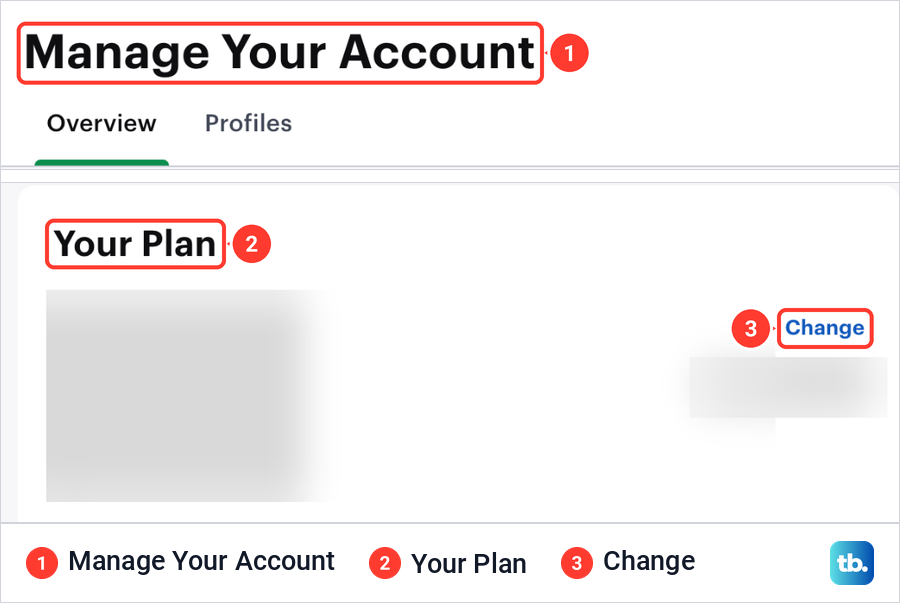
Hulu's help still describes a Your Subscription section with a Manage Plan button and an on and off switch for each plan. The page we saw had no Your Subscription heading and used plan cards instead. Look for Your Plan first, and use the older labels only if your page still shows them.
Change opened a page titled Change your plan, with a Back link at the top and a line starting Current plan that repeats your plan and its monthly price. Under the heading Bundle & save sat a row of plan cards. The one you pay for now was outlined and tagged with a Current Plan badge. To switch, choose another card and open its Details first.
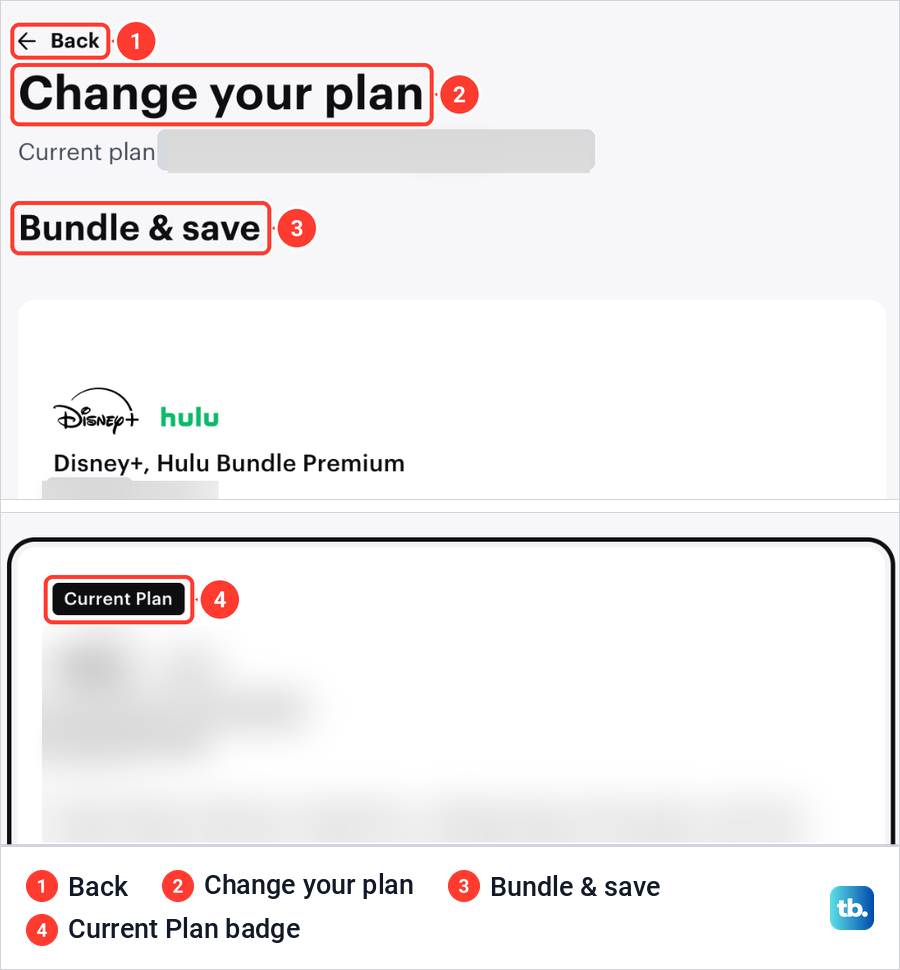
Further down the same page, a Live TV section followed the bundle cards. A bar along the bottom of the page showed the plan picked, an Add-ons line and an Estimated total, beside the Review changes button. With no other card picked, Review changes was grey on our screen.
Choose the card you want and check the bar at the bottom, as the section on the total explains. Hulu's add-on instructions put a Submit button after Review changes, so if another screen appears, read it and submit only when the plan and the charge are right.
Most changes start from the same two links on the Account page. The table matches each common change with where to begin and the one thing to check before you confirm.
| What you want | Where to start | Check before you confirm |
|---|---|---|
| Switch to another plan Hulu bills | Your Plan > Change on hulu.com/account | The services on the new card and the Estimated total |
| Remove ads | A plan whose Hulu part is No Ads, often Premium in the name | Live and linear programming can still carry ads |
| Add Live TV | The Live TV section below the bundle cards | Hulu + Live TV keeps the library, Live TV Only does not |
| Add or remove an add-on | Add-Ons > Change on the Account page | The add-ons listed in the bottom bar |
| Change a plan another company bills | That company's settings, or Hulu if Roku bills you | Which plans that company offers |
Check who bills your Hulu subscription
Hulu's help says the steps depend on your billing party, and it points to the Payment Information section of the Account page to confirm it. On the account we used, which Hulu bills directly, the Payment info card further down held a Payment Method row with Change and a Gift Card row with Add, and Change next to Your Plan was the way in.
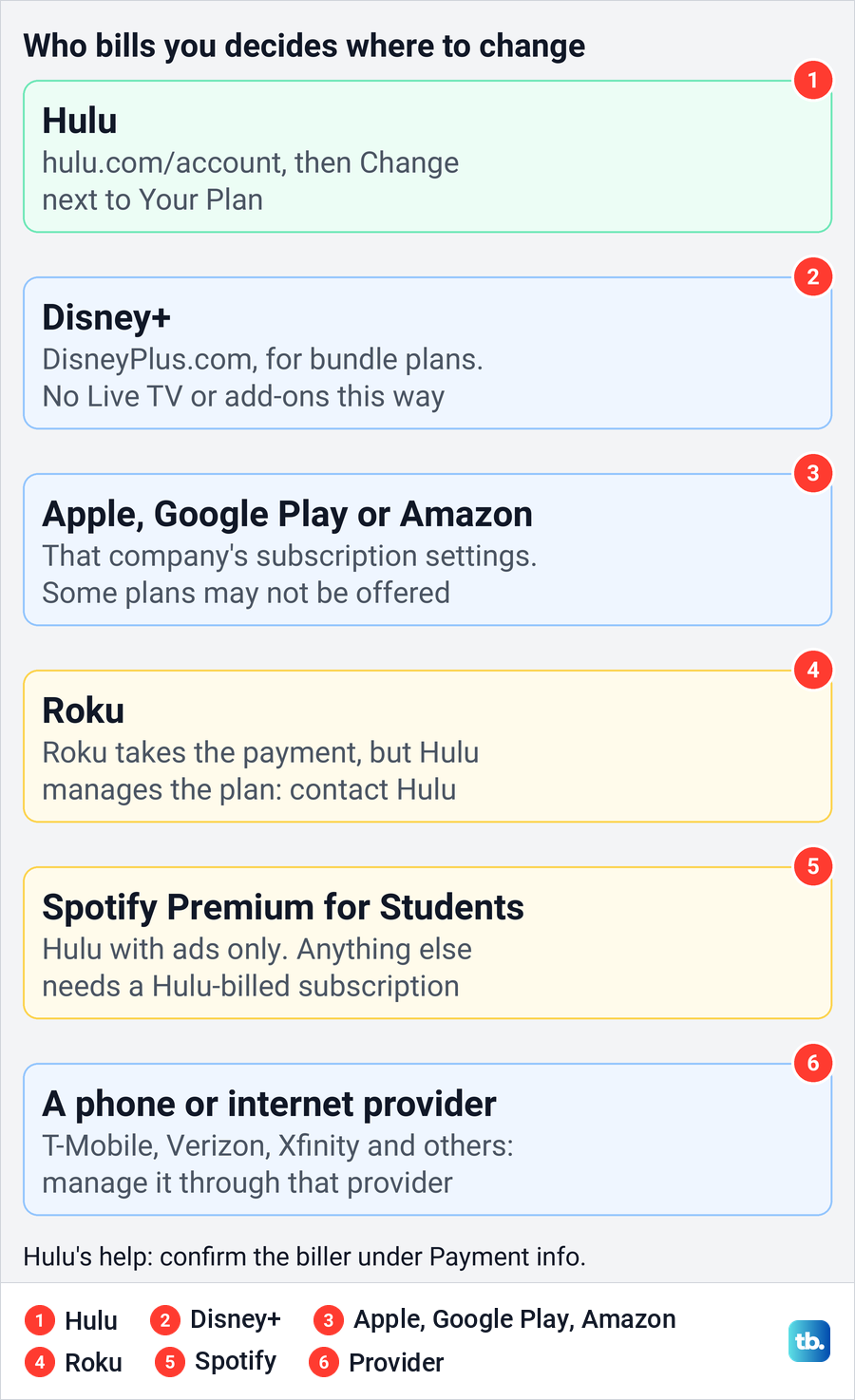
If another company's name appears there, or your statement shows the charge from Apple, Google, Amazon, Spotify, Disney+ or a phone or internet provider, the change is made with that company, while a Roku charge means you contact Hulu. Our steps to find subscriptions on your bank statement show how to spot which company takes the money. The name of a plan does not settle it, because a Disney+ and Hulu bundle can be billed by Hulu or by Disney+.
Choose the right Hulu plan
Each card on Change your plan names the plan and its monthly price, with a line of text and a Details link underneath. Some of those lines list the services and which have ads, such as Disney+ (With Ads), Hulu (With Ads), and HBO Max Basic with Ads, while others are a short description, so open Details when the card does not say. On the cards we saw, the bundles paired Disney+ and Hulu, and some added HBO Max or ESPN Unlimited.
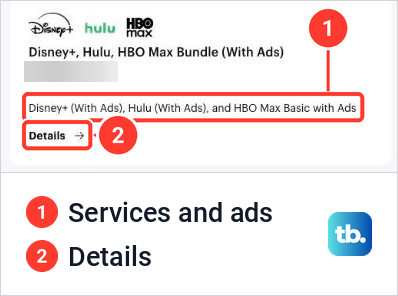
The HBO Max bundles carried an extra note. It said that signing up for the Disney+, Hulu, HBO Max Bundle directs Disney+ and Hulu to share your email address and subscription details with HBO Max for eligibility, marketing and other purposes. Read it before you pick one of those cards if that matters to you.
Prices change, and the cards on your page show the monthly price of each plan. Hulu's plans and prices article on help.hulu.com lists the current public prices and what every plan includes, so compare there and on your own Change your plan page rather than trusting a figure quoted elsewhere.
Hulu's plans page also says you can change plans and add-ons at any time. It says its listed prices apply to new subscriptions from September 23, 2026, and that people who signed up before then see a price change in a billing cycle on or after October 21, 2026.
One kind of plan needs a warning before you leave it. Hulu marks some older plans as no longer available to buy or switch into, and says existing subscribers keep such a plan only as long as they do not cancel or change it. If yours is one of them, you cannot switch back to it after a change.
Upgrade Hulu to no ads
To remove ads, pick a plan whose Hulu part is No Ads, which in Hulu's plan names usually means Premium or No Ads in the title. Check every service in a bundle separately, in Details or on Hulu's plans page, because a bundle can mix services with and without ads. Hulu's own list has Premium bundles where Hulu and Disney+ have no ads but ESPN still does.
No ads is not absolute either. The no-ads bundle cards we saw said ads will be served in select live and linear content. Hulu's help adds that, because of streaming rights, a few library shows may play a short ad before and after each episode on Hulu Premium, and that the list can change.
Hulu says a Hulu Premium + Live TV subscription includes additional content with ad breaks, so going ad-free on the library does not make the live channels ad-free. If ads on live channels are the reason you are upgrading, read the Live TV card's Details first.
Downgrade Hulu to a cheaper plan
A downgrade uses the same page. Choose a card with fewer services or with ads, and compare what you lose, such as Disney+, ESPN or HBO Max on a bundle, or the no-ads version of Hulu. If the card you are leaving is one of Hulu's older plans, remember that it will not come back.
Hulu's subscriber agreement says it may prorate your charges when you change your service tier or add-ons, and that the timing of when you are billed may vary. That rules out a single promise that every downgrade waits for the next bill, so go by the amounts and any date Hulu shows for your own change.
Add or remove Live TV on Hulu
Live TV plans sit in their own section further down Change your plan, below the bundle cards, so scroll past Bundle & save before you decide Hulu does not offer one. Hulu sells two main kinds. Hulu + Live TV adds live channels to the Hulu library and Disney+, while Live TV Only gives live channels without the Hulu streaming library or Disney+.
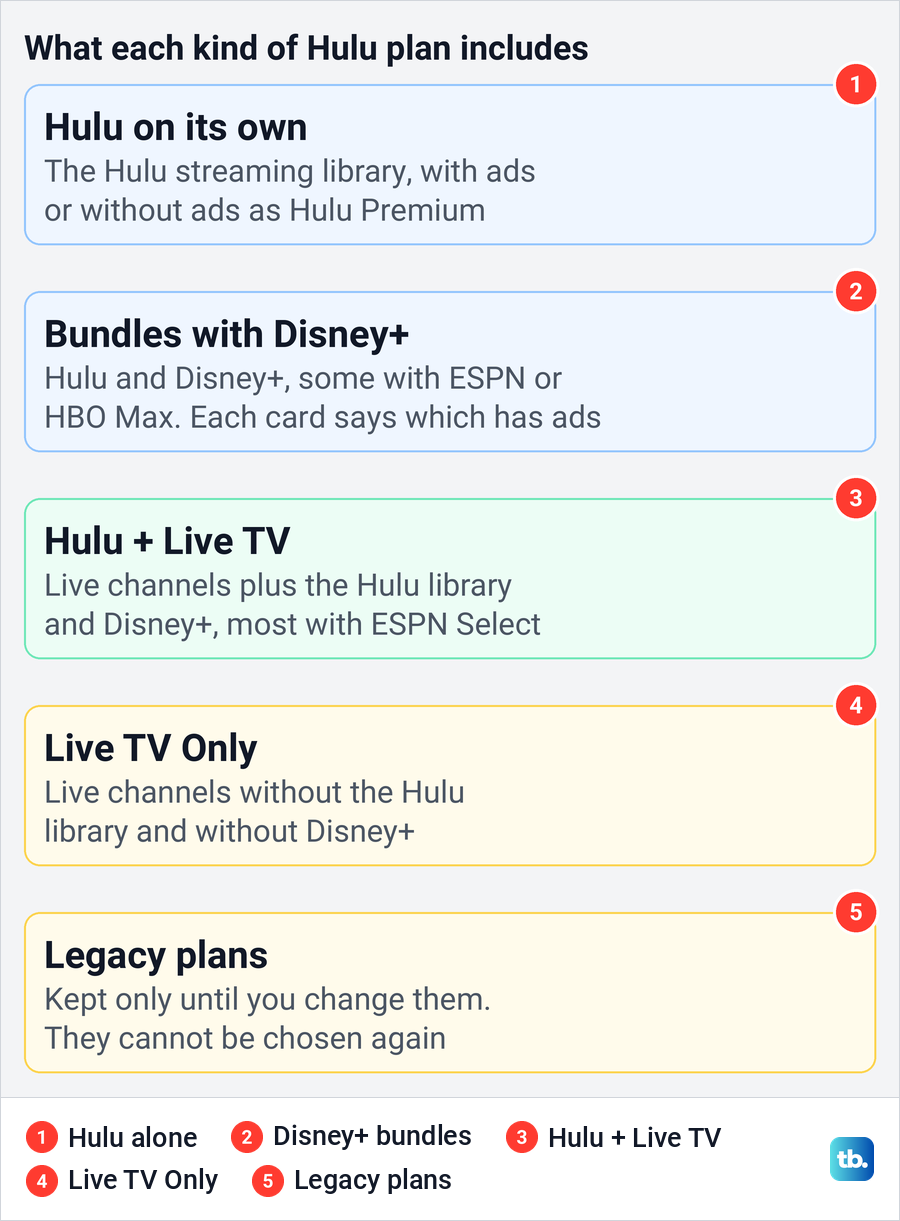
That difference matters when you switch. Moving from a bundle to Live TV Only drops the on-demand library you watch today, so read the card and its Details first. To drop Live TV, pick a card from Bundle & save that has no Live TV and check it the same way.
Disney billing is the exception here. Hulu says Disney-billed subscribers cannot switch to a Hulu + Live TV plan or sign up for add-ons, and the section on other billers below explains the extra step that takes.
Change Hulu add-ons without changing your plan
Add-ons have their own row on the Account page. Under Your Plan, an Add-Ons line showed what is attached to the plan, with its own Change link on the right. Further down the Overview, a card titled Change your plan offered to help you choose a bundle.
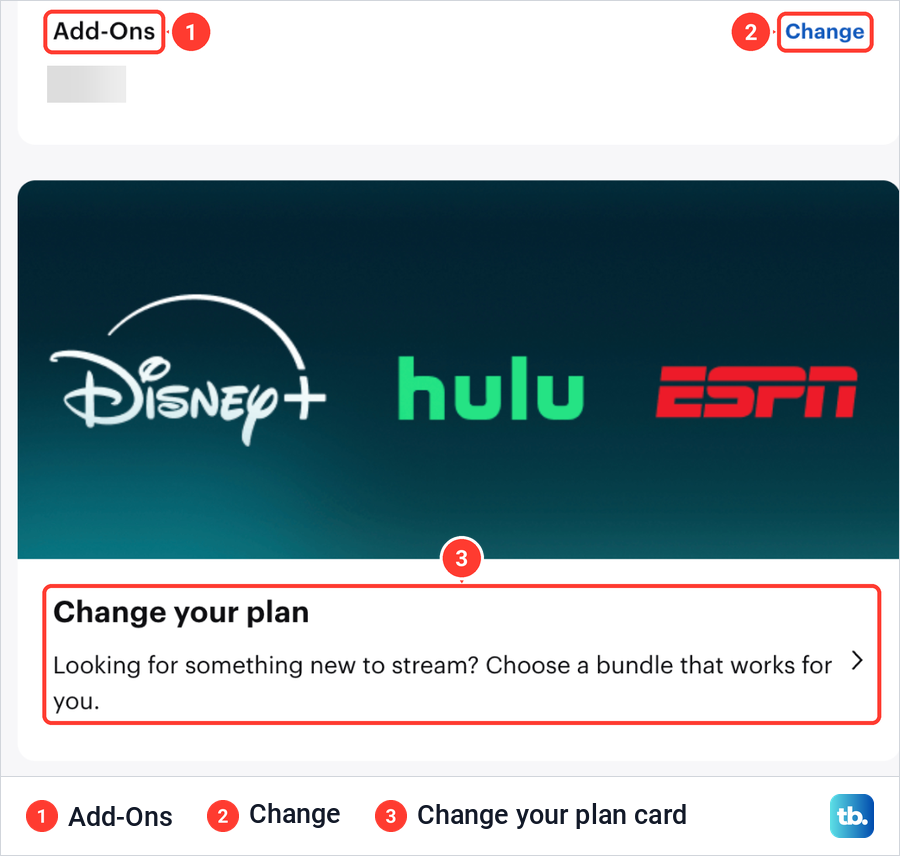
For us, Change beside Add-Ons led to the same Change your plan page, where the bottom bar has an Add-ons line with a plus sign. Open Add-ons there and follow the choices the page shows. Hulu's help, written for the older layout, describes a plus sign to add an add-on and a tick that switches to a cross to remove one, followed by Review Changes and Submit.
Add-ons follow the same billing rules as plans. Hulu's subscriber agreement names add-ons among the changes it may prorate. Hulu also says Disney-billed and Spotify-billed subscribers cannot add add-ons on those billing arrangements at all.
Check the total before you select Review changes
The bottom bar is your first check. It lists the plan picked, the add-ons and an Estimated total beside Review changes, so look at the total after you pick a card and before you select the button.
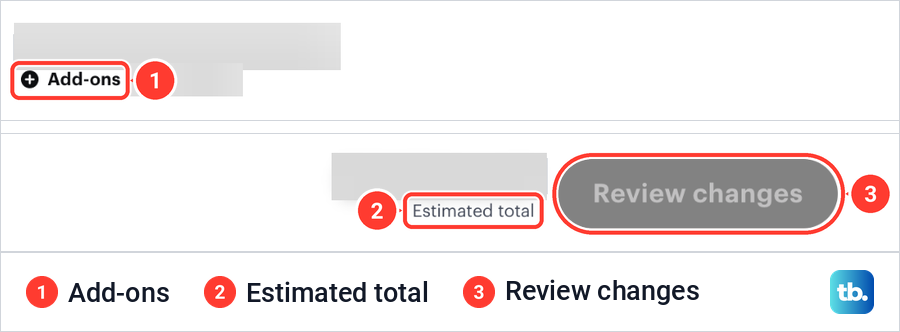
Hulu's help says to select Review Changes to confirm, so treat that button as the confirming click. Before you press it, check the new plan and its services on the card or in Details, the add-ons the bar lists, and the Estimated total. If Hulu then shows another screen with Submit, as its add-on instructions describe, read it the same way and leave the page instead of submitting if anything is wrong.
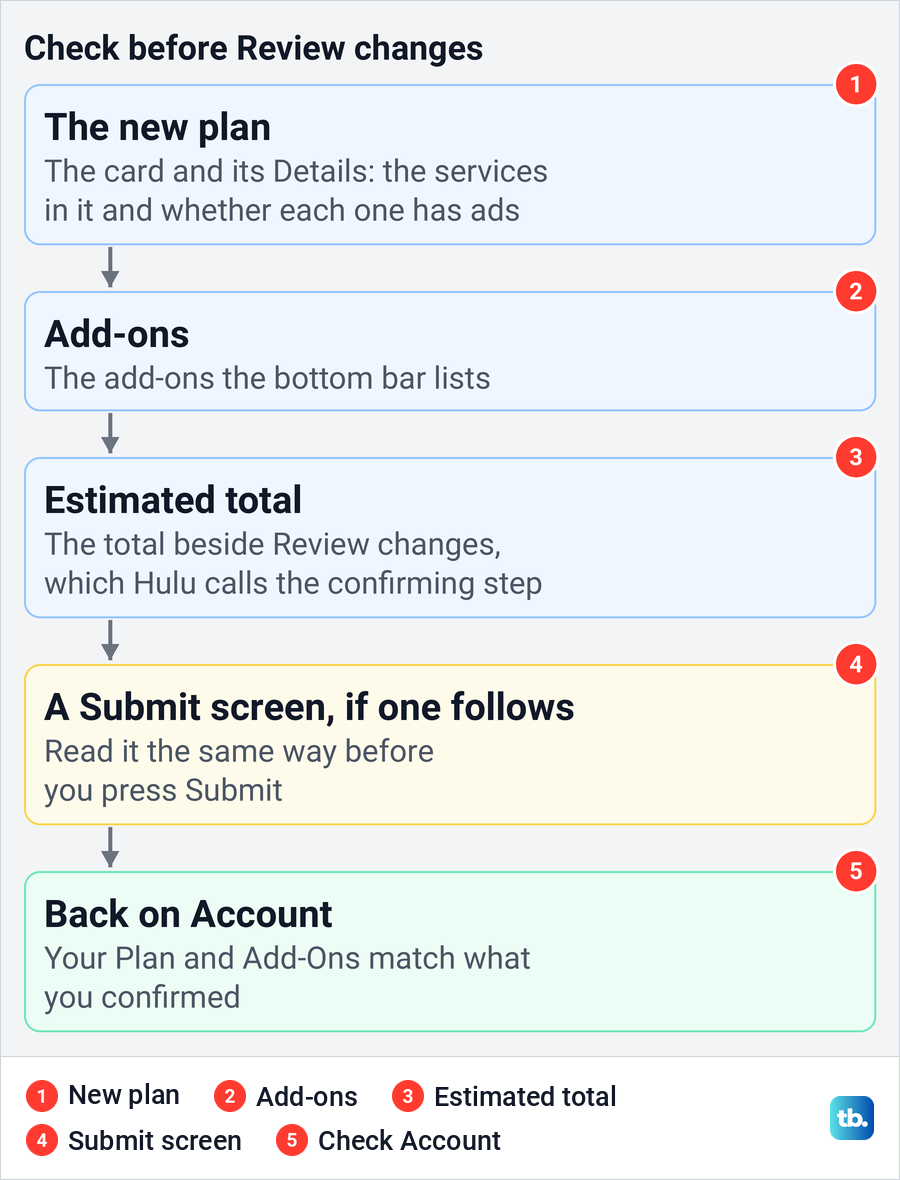
Keep a screenshot of the page before you select Review changes, and of any screen that follows. If the charge on your next statement does not match it, that record is what you will want in front of you when you contact Hulu.
Change a Hulu plan billed by another company
Hulu says Disney-billed subscribers change their plan on DisneyPlus.com, where they can move to any of the bundle plans. They cannot switch to Hulu + Live TV or add add-ons that way. For those, Hulu says to end the current bundle and sign up again directly through Hulu once the billing cycle is over, and our guide to cancel a Disney Plus subscription covers ending it.
Apple, Google Play and Amazon run their own subscription settings, and Hulu sends their customers to each company's help, warning that certain plan options may not be available. Apple's steps on an iPhone are Settings, your name, Subscriptions, the subscription, then See All Plans. The Subscriptions list there is the same one our guide to cancel subscriptions on iPhone walks through.
Google Play says you can change between plans only if the app developer allows it, by opening the app and selecting a new plan. Amazon's own help covers its side. If the plan you want is not offered by Apple, Google or Amazon, Hulu says you can cancel that subscription and sign up directly at Hulu.com, then choose from the plans Hulu sells itself.
Roku is the odd one out. Roku's support page says that even when Roku bills you for Hulu, Roku processes the charge but Hulu manages the subscription, so contact Hulu to change the plan. Roku's own Change Plan screen is for subscriptions bought through The Roku Channel with Roku Pay.
Spotify Premium for Students includes Hulu with ads only. Hulu says Hulu Premium, Live TV or add-ons need a subscription billed directly by Hulu, after you deactivate Hulu in Spotify. For T-Mobile, Verizon, Xfinity, Optimum and the other providers Hulu lists as billers, manage the plan through that provider's account.
When Change or Review changes does not work
If there is no Change link next to Your Plan, check Payment info first, because a plan billed by another company is managed with that company, or with Hulu if Roku bills you. If the plan you want is not on the page at all, it may be one of Hulu's older plans that is no longer sold, or a plan your biller does not offer.
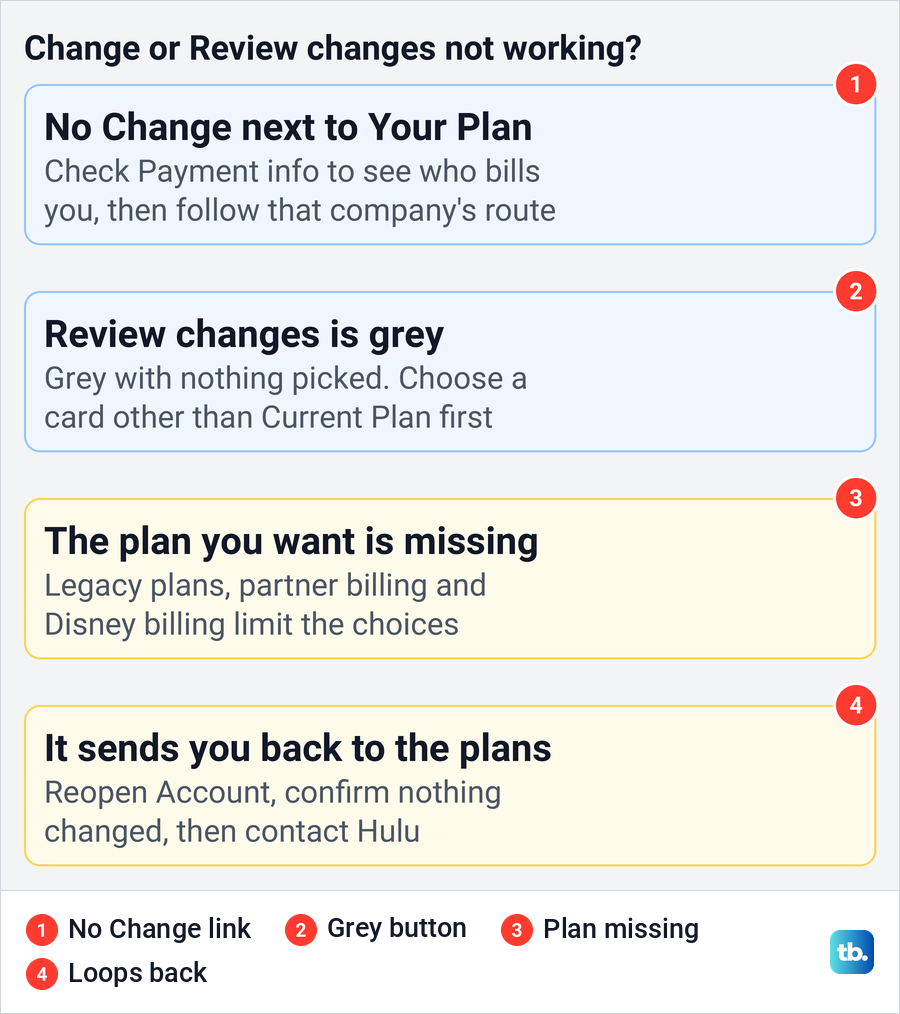
A grey Review changes button is expected before you pick anything. It was grey on our screen with only the Current Plan card selected, so choose a different card first. If it stays grey with a different card chosen, contact Hulu, which its help offers for trouble updating a subscription.
Some subscribers report Review changes sending them back to the plan cards without finishing. Hulu publishes no fix for that. Reopen the Account page, check that Your Plan still shows your old plan, and contact Hulu rather than repeating the purchase.
Check that the Hulu plan change went through
After you confirm, go back to hulu.com/account and read the Your Plan card. It should name the new plan and its services, and the Add-Ons row should match what you chose. If Hulu gave a later start date, judge the change on that date rather than straight away.
Bundles bring one more check. Hulu says that if you already had a Disney+ or ESPN subscription when you signed up for a bundle through Hulu, you keep being billed for it separately until you cancel it. Look for a second charge on your next statement.
A plan you did not change yourself is a warning sign. If the plan or the payment details changed without you, start with how to recover a hacked Hulu account and change the password. Then sign out of Hulu on all devices so nobody stays signed in with the old details.
If Hulu does not play after the change
Check the Account page first. If it shows the new plan, the billing side is done, and a stream that fails is a separate problem. If a new bundle is active but Hulu access is missing, work through the steps to fix Hulu access with the Disney bundle.
If the account shows the new plan but streams still fail, see how to fix Hulu when it stops working. On a television, the steps to fix Hulu not working on your TV cover the app itself, and if the TV asks you to activate Hulu again after the change and the code fails, our guide can help you fix a Hulu activation code.
How we tested this guide
We tested this on Hulu on the web in Chrome, going from Your Plan on the Account page through the Change your plan cards up to the Review changes button.
Frequently Asked Questions
Can I change my Hulu plan without cancelling?
Yes. If Hulu bills you, select Change next to Your Plan on hulu.com/account, pick a different card and check the bottom bar. Hulu says you can change plans or add-ons without cancelling, and cancelling is a separate action.
Why is Review changes greyed out on Hulu?
It was grey for us while only the Current Plan card was selected. Pick a different plan card first. If it stays grey, check who bills you under Payment info, then contact Hulu if Hulu bills you.
Can I upgrade Hulu to no ads if I have Live TV?
Yes. Hulu's plans page lists a Hulu Premium + Live TV plan, and Hulu says a Hulu Premium + Live TV subscription still includes additional content with ad breaks, so the live channels keep their ads.
Can I add Live TV to a Disney-billed Hulu bundle?
Not directly. Hulu says Disney-billed subscribers cannot switch to Hulu + Live TV or add add-ons. You end the bundle, wait for the billing cycle to finish, then sign up again directly through Hulu.
Will Hulu charge me straight away when I change plans?
It depends on the change. Hulu's subscriber agreement says charges may be prorated and the timing of billing may vary, so go by the Estimated total and any amount or date Hulu shows for your change.
Why can't I see a plan change option on Hulu?
Check Payment info on the Account page to see who bills you. If it is another company, change the plan with that company, or contact Hulu if Roku bills you, and if Hulu bills you and the page still fails, contact Hulu.
Can I change my Hulu plan on my TV?
Hulu's instructions use the Account page in a mobile or web browser. Open hulu.com/account on a phone or computer signed in to the same account, and the new plan applies to the TV once it takes effect.