
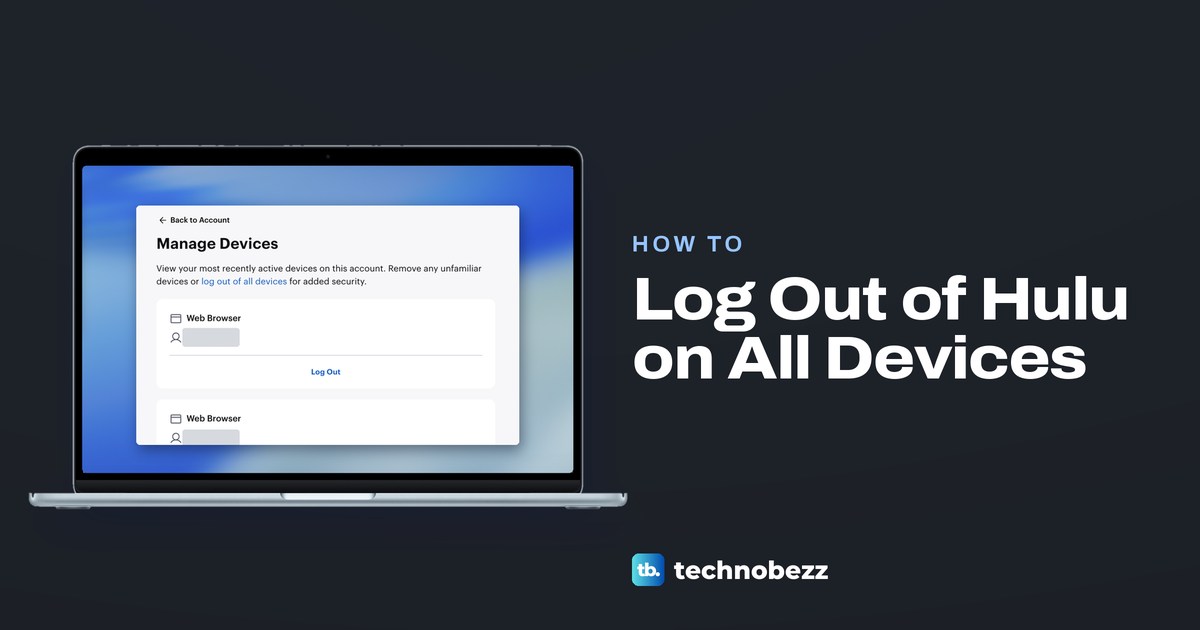
To log out of Hulu on all devices, sign in at hulu.com/account in a web browser, select Manage next to Devices, then select log out of all devices at the top of the Manage Devices page. To remove just one TV, phone or console, select Log Out on that device's card instead. On a TV in front of you, use Log Out in the Hulu app's own menu if it shows one.
Hulu signs you in with a MyDisney login, and its device page is the same MyDisney page that Disney+ uses. Disney documents its own route for signing out across every service on that login, Log out of everywhere at my.disney.com. Disney says it signs out the device you use at once and the rest within up to four hours. That route also signs you out of Disney+ and the other apps on the same login.
The short version
- One device you cannot reach: hulu.com/account, then Devices, Manage, and Log Out on that device's card.
- Every device: log out of all devices on Manage Devices, or Disney's Log out of everywhere at my.disney.com, which Disney says takes up to four hours.
- The TV or phone in front of you: Log Out inside the Hulu app, if you can find it.
- The browser you are on: select your profile picture, then Log Out.
- Someone using it without permission: reset your password and log out of all devices.
Choose the right way to log out of Hulu
| What you want | Where to go | What it does |
|---|---|---|
| Remove one device you cannot reach | hulu.com/account > Devices > Manage > Log Out on its card | Signs out that device and leaves the rest alone |
| Log out every device from Hulu's page | hulu.com/account > Devices > Manage > log out of all devices | Hulu's own control for every device, on that page |
| Log out everywhere, Disney's documented way | my.disney.com > Access & Security > Log out of everywhere | Ends all sessions and apps on your MyDisney login within up to four hours, Disney says |
| Leave the TV, phone or tablet in front of you | The Hulu app on that device | Log Out, if you can find it in the app |
| Leave the browser you are using | Profile picture menu on Hulu's home screen or Account page | Log Out for that browser |
| Stop someone using your login | Reset the password, then log out of all devices | Hulu's advice for use without your permission |
| Put a PIN on the non-Kids profiles | Account > Profiles > PIN Protection | Asks for a PIN on non-Kids profiles, and nobody is signed out |
The first row is the one most people need. It works for a hotel TV, a friend's console or a phone you sold, because nothing on that device has to be touched. Apart from the in-app row, the sign-out routes in the table start in a web browser on your phone or computer.
Log out of one device you cannot reach
Open hulu.com/account in a phone or computer browser and sign in. If you start on Hulu's home screen instead, select your profile picture at the top right and choose Account.
On the account we used, the page was titled Manage Your Account. Its right-hand column held a MyDisney card with a Manage with MyDisney link, and a Your account card below it. Inside Your account, the Devices row had a Manage link at its right end.
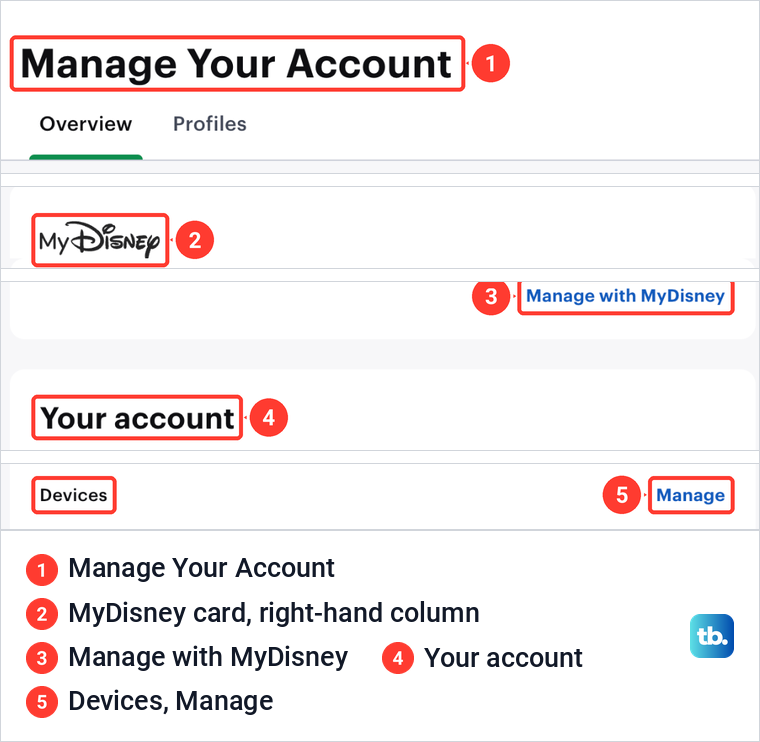
Select Manage and the Manage Devices page opens. It starts with one line: "View your most recently active devices on this account. Remove any unfamiliar devices or log out of all devices for added security." Below it, each listed device has its own card, with Log Out across the bottom.
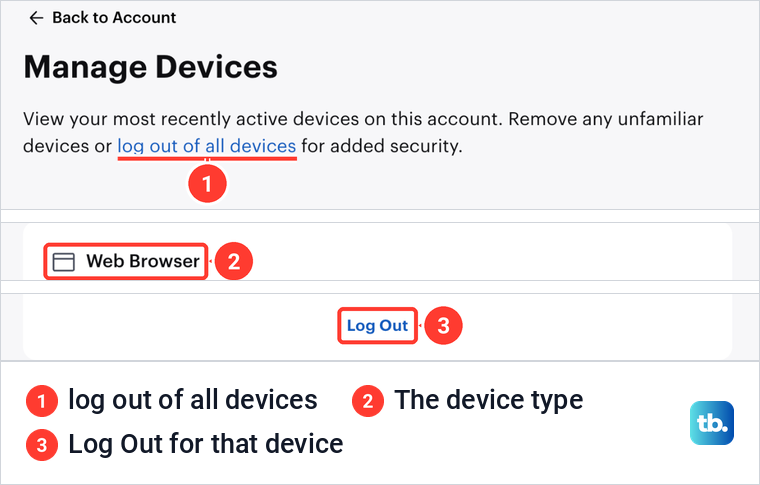
Each card on our list named the device type, such as Web Browser, with the date it was last active underneath. Match the type and the last time you watched there before you pick a card, then select Log Out on it. Back to Account at the top of the page takes you back. Older guides send you to a Remove button or a Protect Your Account section, but this page uses Log Out on each card.
Read that opening line closely. Hulu calls the list your most recently active devices, so a TV that has not been used for a while may not have a card at all. If you cannot find the device, or two cards look alike, use the all-devices route below instead of guessing.
Disney's device help gives no waiting time for a single card's Log Out. If the TV still plays Hulu the next day, log out of all devices and change your password.
Log out of all devices at once
The log out of all devices link sits in the opening line of Manage Devices, marked 1 in the picture above. It is Hulu's own control for every device, and you select it right there on Hulu's page. Disney also publishes a separate route of its own, Log out of everywhere, and that is the one Disney gives a reach and a timing for.
Disney's steps start at my.disney.com in a phone or computer browser. Sign in, select Access & Security, then Log out of everywhere. Enter the one-time passcode Disney sends to the email address on your MyDisney account, select Confirm, then select Log out.
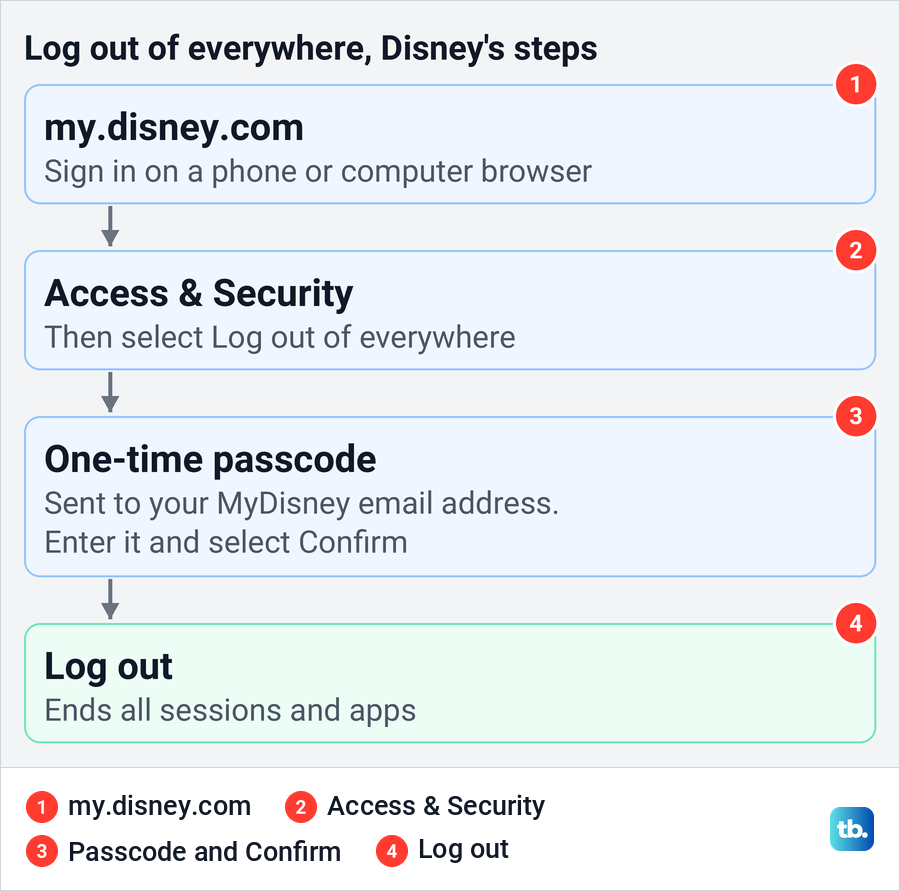
The passcode goes to your email, so check the spam folder if it is slow to arrive. If you no longer control that email address, deal with that first, because every step above depends on it. The password section below covers a login someone else has taken over.
What happens to your other devices
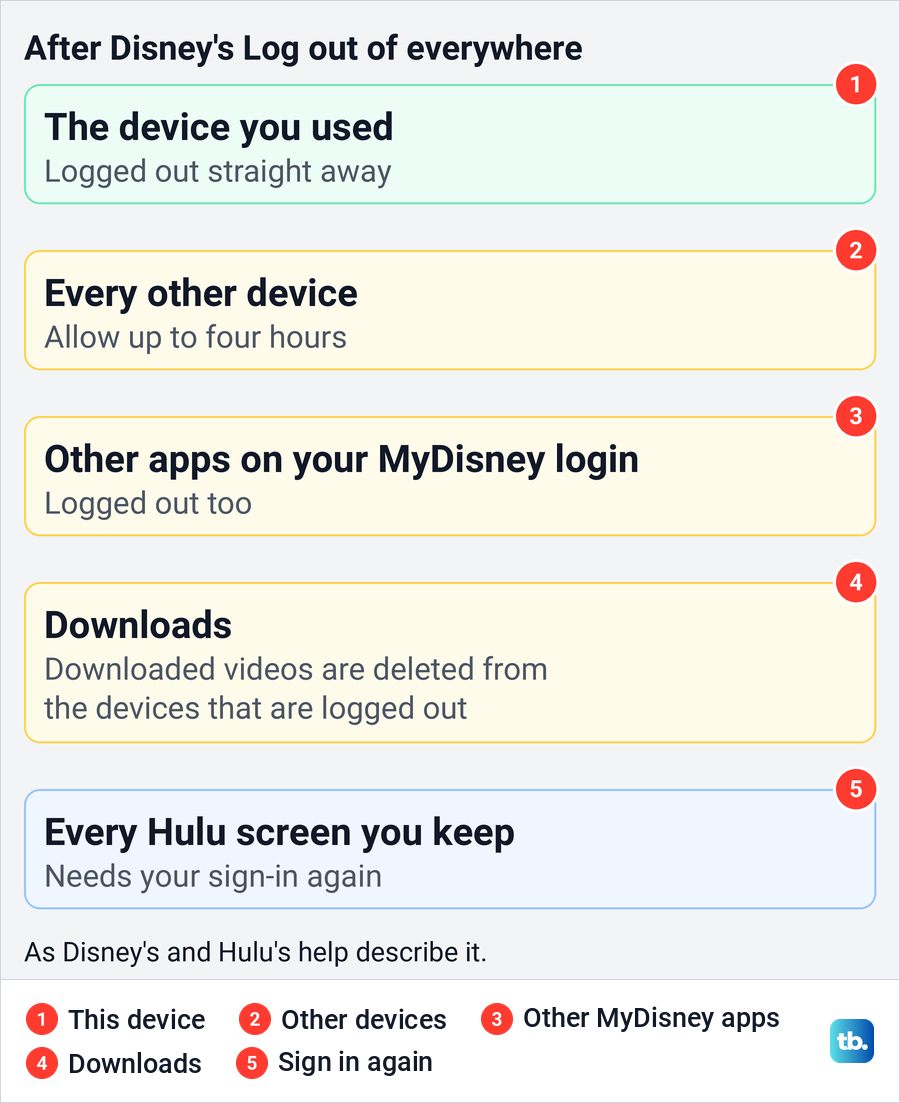
Disney says the device you use for Log out of everywhere is signed out immediately, and the remaining devices can take up to four hours. Disney also says the route covers all devices and services associated with MyDisney, and Hulu's help says your Hulu password is your MyDisney login. So expect to sign in again on every Hulu screen you keep, and on other apps that use the same login.
Downloads go too. Hulu's help says logging out of Hulu deletes all downloaded videos from that device, and Disney says the same for the devices Log out of everywhere reaches. If you are about to travel with downloads on a phone, log out of the other devices after the trip, or plan to download again.
Logging out is not cancelling. It does not end your subscription or change its billing, and a signed-out device can sign back in with the same login. If what you really want is for the charges to stop, cancel your Hulu subscription as a separate step.
Log out of the browser you are using
On Hulu's website on a computer, Hulu's own menu does this. On the home screen, select your profile picture at the top right. The menu lists your profiles, then Manage Profiles, Account, Help Center and Log Out.
The Account page has the same picture at the top right, and its menu is shorter: Back to Home, Manage Profiles, Account, Help and Log Out. Either Log Out is the one for the browser in front of you.
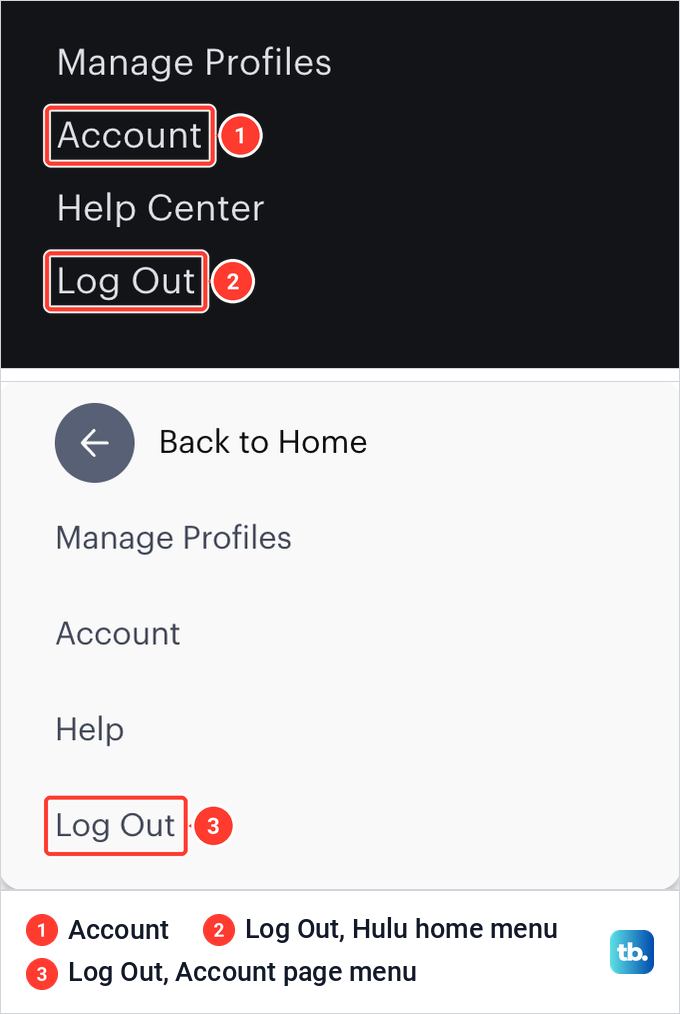
Use it on a shared or borrowed computer before you walk away. If the menu looks different in a phone browser, go to hulu.com/account and find that browser's card in Manage Devices by its type and activity. If you cannot tell it apart from the others, use log out of all devices. Neither control reaches a TV somewhere else, which needs its own card or the all-devices route.
Log out on the TV in front of you
If you can still hold the remote, start in the Hulu app itself. Open Hulu, look through its menus for Log Out and select it if it appears. Menus differ between TVs, streaming sticks and consoles, so it may sit in a different place on each.
If you cannot find Log Out within a minute, do not dig through the TV's own settings. Take out your phone, open Manage Devices and select Log Out on that TV's card. That route works whether you are standing in front of the TV or have already left.
The same goes for the Hulu app on a phone or tablet. Look for Log Out in the app, and if you cannot find it, use that device's card in Manage Devices.
A frozen app hides its menu anyway. Sign the TV out from your phone first, then fix Hulu when it will not work on your TV as a separate job.
Remove the Hulu app from a TV you are leaving
Deleting the app or clearing its data tidies up one device. It is not how you end your Hulu session everywhere, so do it after Log Out or the device card, especially on a TV you are selling or giving away. The steps below are each maker's own.
On Roku, Roku's steps are to press Home, highlight the app, press the Star button and select Remove channel, which the same Roku page also calls Remove app, then confirm. Roku adds that a missing remove option can mean a subscription billed through Roku is still active. Our guide to remove apps from your Roku has more, and Roku's advice for a player you return, sell or give away is a factory reset.
On Fire TV, Amazon's route is Settings > Applications > Manage Installed Applications, then the app and Uninstall. On a Samsung TV, Samsung's steps are to open Apps, select the Settings icon at the top right, pick the app and select Delete. If Delete is grayed out, Samsung says it is a recommended app and offers Reinstall instead. Samsung says these steps sign you out of the app, and our guide shows how to delete apps on a Samsung smart TV.
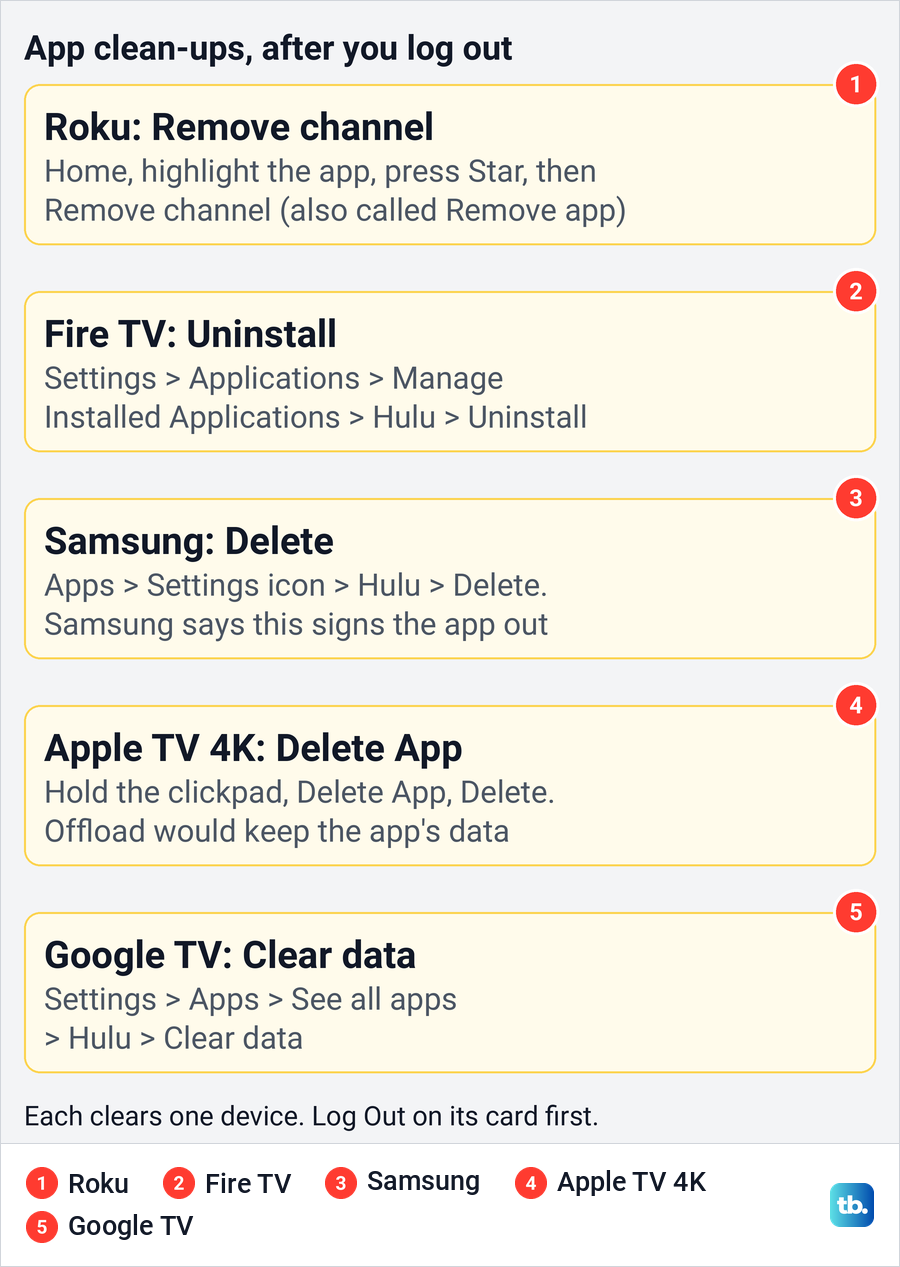
On Apple TV 4K, Apple's steps are to highlight the app on the Home Screen, press and hold the clickpad or touch surface, select Delete App, then Delete. Choose Delete rather than Offload, because Apple says offloading keeps the app's data and deleting removes it. On Google TV, Google lists Settings > Apps > See all apps, then the app and Clear data.
On LG TVs, PlayStation and Xbox, use the Hulu app's own Log Out if you can see it, and the device's card in Manage Devices if you cannot. Signing out of the console's own PlayStation or Xbox account is a different control from Hulu's, so do not count on it to end your Hulu session.
Change your password if someone else is using it
If you think someone is using your Hulu without your permission, Hulu's advice is to reset your password and log out of all devices. Do both. Hulu says changing the password also changes your MyDisney login, so the new one applies to every Disney app you sign in to with it.
A new password on its own is not described as signing anyone out. Disney says you get the option to log out of all devices whenever you change your email address or password, so take it when it is offered. If someone has already changed your email or password, start with the steps to recover a hacked Hulu account. The same two steps end sharing you agreed to and now regret, such as a login you gave a former partner.
Lock the non-Kids profiles without signing anyone out
Sometimes the problem is a person on a screen you share, not a device you lost. Switching profiles changes whose watch history and recommendations you see, but the device stays signed in to the account. Deleting a profile is not a sign-out either.
To put a PIN in front of the non-Kids profiles, use PIN Protection. It is a switch under Parental Controls on the Profiles tab of Hulu's Account page, with the line "Helps prevent access to non-Kids profiles by requiring a PIN." It asks for a PIN, and nobody is signed out.
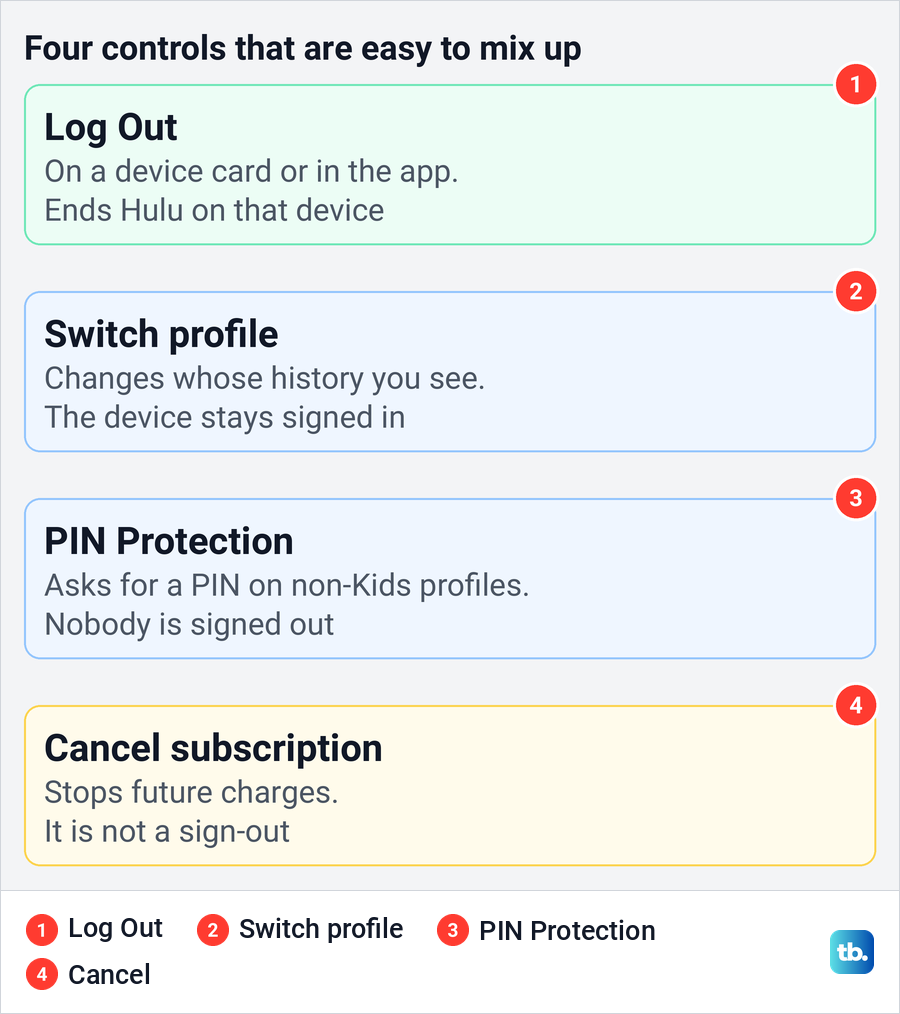
That line speaks of non-Kids profiles in general, not one profile you pick, so it is not a way to keep your own profile private from another adult. Anyone who opens one of those profiles will need the PIN, so tell the rest of the household before you turn it on.
Handle a hotel TV or a TV you sold
For a hotel or rental TV, use the app's Log Out before you check out if you can. Once you have left, use that TV's card in Manage Devices, matching the type and the last time you watched there. If you cannot tell which card it is, log out of all devices.
For a TV or streaming stick you sold, gave away or left with someone else, log out of all devices and change your password. Anyone who knew the old password could otherwise sign straight back in. If the device is still in your hands, finish with the app clean-up steps above.
Sign back in and check it worked
For a device in front of you, close Hulu and open it again. If it asks you to sign in, the logout worked. If it opens straight to your profiles, it is still signed in, so try Log Out again or use its card in Manage Devices.
For a device somewhere else, wait a while, and after Log out of everywhere allow the full four hours Disney gives. Then ask someone with access to open Hulu. The activity on each card in Manage Devices helps you identify a device, but it cannot confirm that the device was signed out.
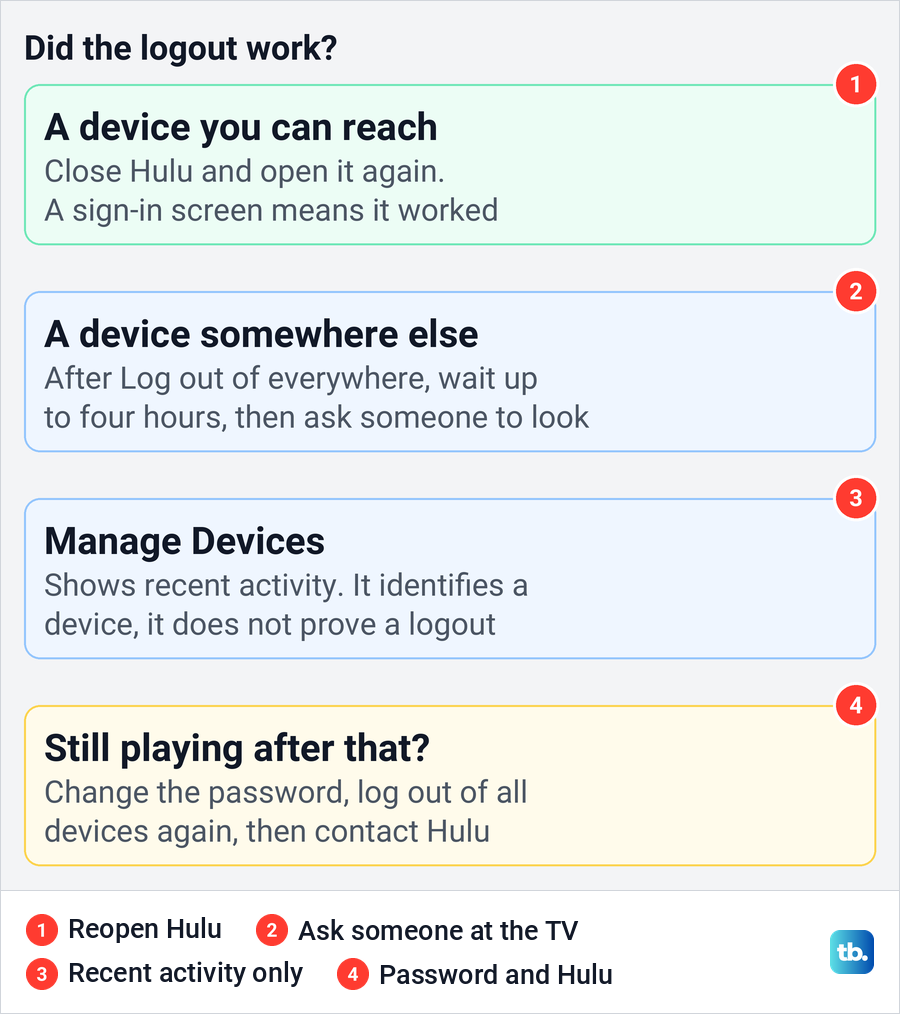
To use a signed-out TV again, open Hulu and follow the sign-in screen it shows, with your MyDisney email and password. If the TV asks for a code and rejects it, use our steps to fix a Hulu sign-in code that does not work. If you are signed out again later without doing anything, see what to do when Hulu keeps logging you out unexpectedly.
How we tested this guide
We tested this on Hulu on the web in Chrome, going from the Account page to Manage Devices up to the Log Out links on the device cards.
Frequently Asked Questions
Can I log out of Hulu on a TV without the remote?
Yes. In a phone or computer browser, open hulu.com/account, select Manage next to Devices and select Log Out on that TV's card. If you cannot tell which card is the TV, use log out of all devices.
Does logging out everywhere also sign out Disney Plus?
Disney's Log out of everywhere does, going by Disney's help, which says it covers all devices and services associated with MyDisney. Hulu's Manage Devices page does not say how far its own link reaches. Hulu uses a MyDisney login, so after Disney's route plan to sign in again on Disney+ and other apps that share it.
How long does it take for my other devices to log out?
For Log out of everywhere, Disney says the device you use is signed out immediately and the remaining devices can take up to four hours. Disney's help gives no separate time for a single device's Log Out.
Does changing my Hulu password log everyone out?
Neither Hulu's nor Disney's help describes a new password alone as signing anyone out. Hulu's advice for use without your permission is to reset the password and log out of all devices, and Disney offers the all-devices option when you change the password, so choose it.
Will logging out delete my downloads or profiles?
Downloads, yes: Hulu says logging out deletes downloaded videos from that device. Profiles are managed separately, under Manage Profiles, and logging out is not the same as deleting one.
Why is an old device still on my Manage Devices list?
The page lists your most recently active devices, and a card's activity helps you identify a device rather than confirm a logout. If that device still plays Hulu four hours after Log out of everywhere, change your password, log out of all devices again and contact Hulu.
Does logging out of Hulu cancel my subscription?
No. Logging out leaves your plan and its billing as they are. To stop the charges, cancel from the Hulu Account page, or with whichever company bills you.