
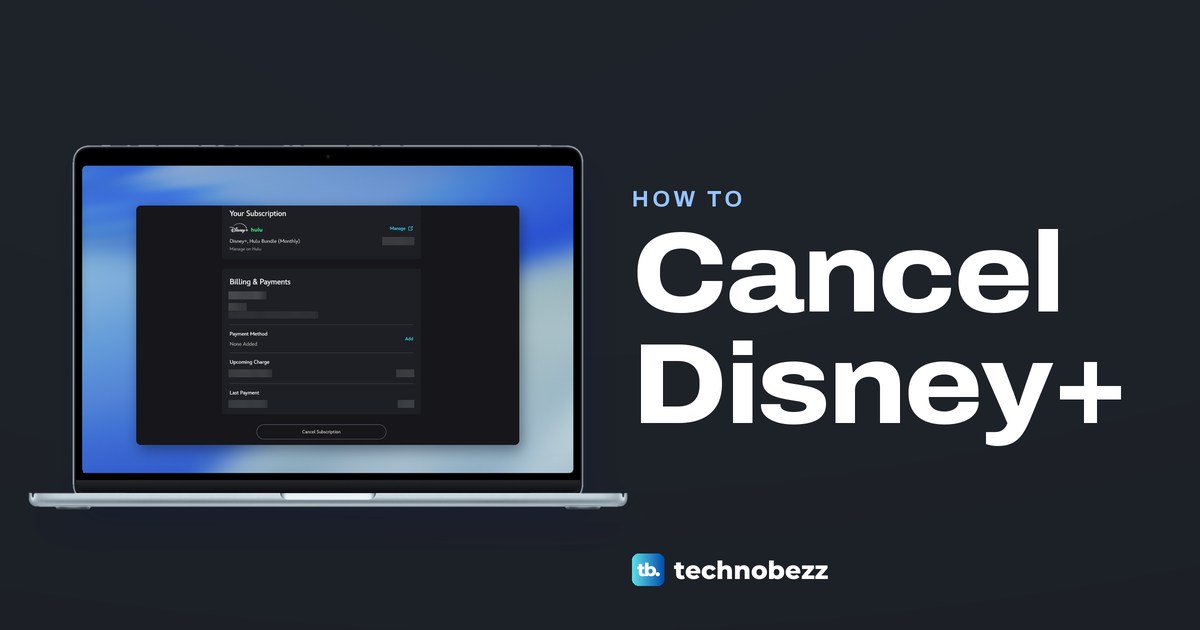
To cancel Disney Plus, sign in at DisneyPlus.com in a web browser, open your Account page, select your subscription and choose Cancel Subscription, then complete the cancellation. That route is for plans Disney bills, and Roku-billed plans use it too. If your subscription page says Manage on Hulu, cancel on Hulu's account page instead, and if Apple, Google Play, Amazon or a phone or TV company bills you, start with that company, though some Verizon plans can also be canceled on Disney+.
Read the subscription page before you press anything. On the Disney+, Hulu bundle we used on the web in Chrome, it said Manage on Hulu, with a Manage link that opened Hulu, while a Cancel Subscription button still sat at the bottom of the same page. That one line decides where you cancel.
The short version
- Billed by Disney or Roku: DisneyPlus.com, Account, your subscription, Cancel Subscription, then complete the cancellation.
- Page says Manage on Hulu: the bundle is billed by Hulu, so cancel it on Hulu's account page.
- Apple, Google Play or Amazon: cancel in that company's subscriptions list. Deleting the app does not cancel.
- Access: a paid plan runs until the billing period ends, or a longer minimum term. A trial or promotion may end at once.
- Not sure yet: monthly plans Disney bills can offer Pause Subscription instead.
Disney Plus cancel routes at a glance
| Who bills you | Where to cancel | What to check first |
|---|---|---|
| Disney+ | DisneyPlus.com > Account > your subscription > Cancel Subscription | Which services the plan covers |
| Roku | DisneyPlus.com > Account, the same as a Disney-billed plan | The billing party in the Payment Method section |
| Hulu (the page says Manage on Hulu) | hulu.com/account > Cancel your subscription > Cancel > Cancel Subscription | Any older Hulu plan that bills on its own |
| Apple | iPhone Settings > your name > Subscriptions > Disney+ > Cancel Subscription | Which Apple Account the receipt names |
| Google Play | Google Play > Payments & subscriptions > Subscriptions > Disney+ > Manage > Cancel subscription | Which Google account paid |
| Amazon | Amazon Memberships & Subscriptions > Disney+ > Cancel Subscription | That Amazon, not Disney, is named on the charge |
| HBO Max | HBOMax.com/subscription > Cancel Your Subscription | Who the top of that page says bills you |
| Verizon, Xfinity or another provider | The provider's account, or Disney+ where Disney's help allows it | Whether the plan is a perk or billed separately |
On the web, on a bundle that Hulu bills, we opened Disney's account and subscription pages, then Hulu's account page and its cancel page. The Disney-billed cancellation and the other rows follow Disney's help pages and, for Roku, Apple and Google Play, those companies' own support pages.
Find out who bills your Disney Plus subscription
Start at DisneyPlus.com/account, or select your profile and then Account. The page is titled Manage Your Account. On the account we used, a MyDisney card with the sign-in details came first, then Subscriptions & Billing, holding one row for the subscription and one for Billing History.

Select the subscription row. Disney's help says the billing party is listed in the Payment Method section of that page, and on the page we saw, Payment Method was a row under Billing & Payments. On our Hulu-billed bundle, the plan name at the top carried a second line, Manage on Hulu, which told us the same thing faster.
The device you watch on proves nothing about the biller. Disney says new and returning subscribers can no longer sign up and pay through Apple or Google, while new purchases made on an Amazon Fire TV are billed by Disney. An older Apple, Google or Amazon subscription keeps its original biller.
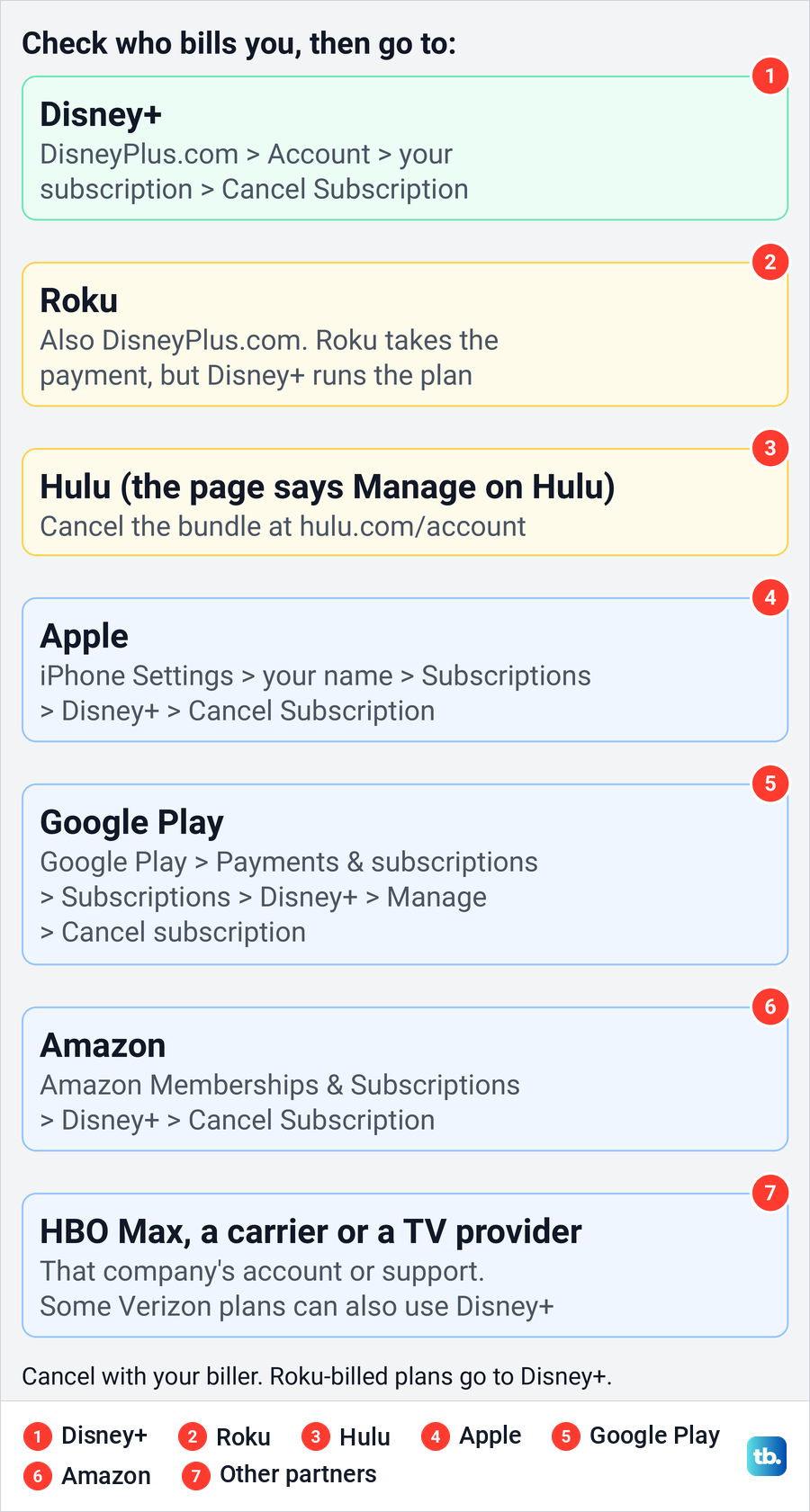
If the account page leaves you unsure, the company named on the charge is the one that took the money, and our guide shows how to find recurring subscriptions on your bank statement. Disney also says an empty Billing History can mean a partner bills you.
Cannot sign in, or someone changed the email or password? Recover a hacked Disney Plus account first, because the subscription page is only visible once you are back in.
Cancel Disney Plus on the web
This is the route for a plan Disney bills, and for a Roku-billed plan. In a computer or phone browser, go to DisneyPlus.com, select your profile, then Account. Under Subscriptions & Billing, select your subscription to open its details page.
The details page has a Back to Account link at the top left, then Your Subscription, then Billing & Payments, and an outlined Cancel Subscription button at the bottom. On our bundle the button sat under Billing & Payments even though the plan said Manage on Hulu, so check that line before you use it.
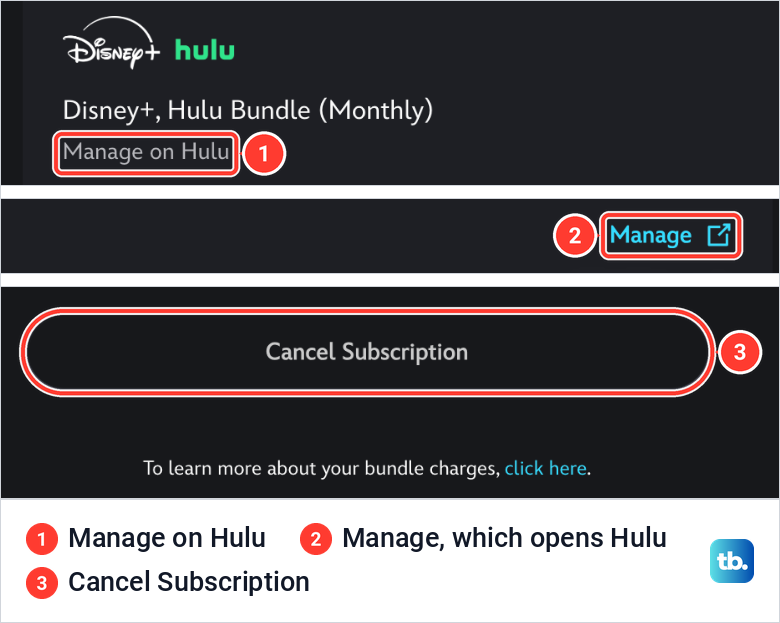
Select Cancel Subscription. Disney's help says you are then asked for your reason for canceling in a short survey, which is optional, and you complete the cancellation from there. The cancellation is not done until you finish that last step, so do not close the tab at the survey.
For a monthly plan Disney bills, the same details page is also where Disney puts Pause Subscription. The page we saw, for a Hulu-billed bundle, had no pause button, which fits Disney's rule that pausing is for plans it bills directly.
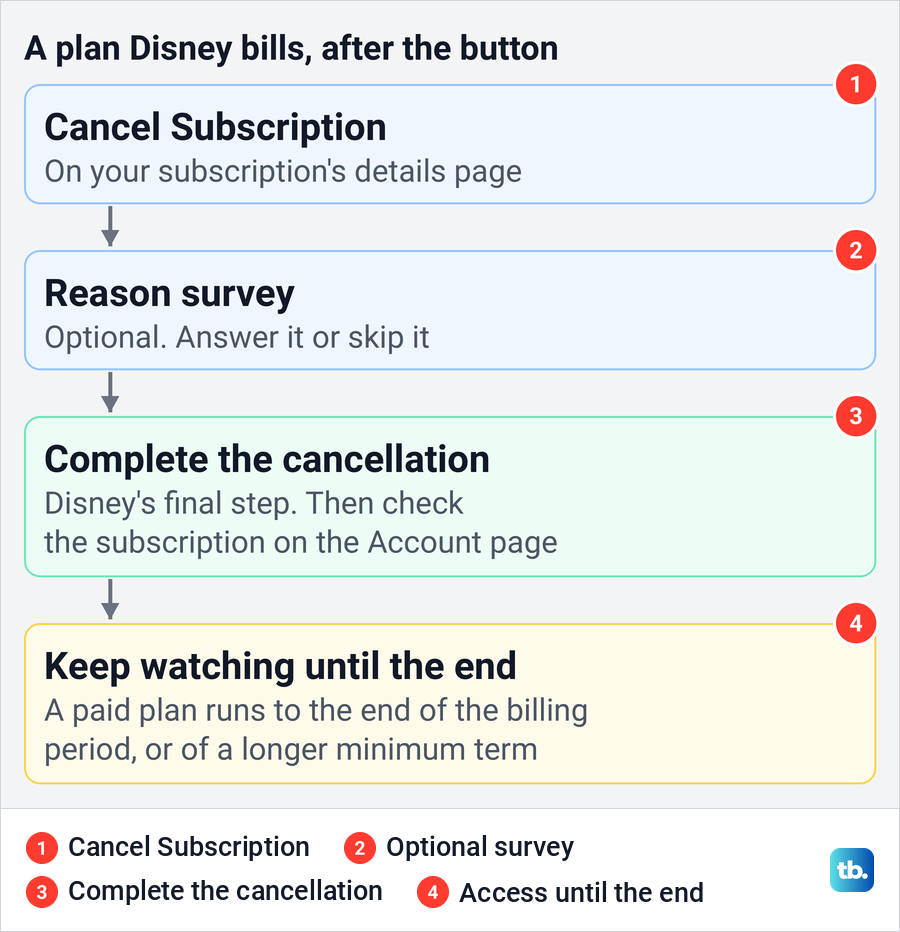
If Cancel Subscription is missing, another company probably bills you, and the table above shows where to go. Disney+ pages can sit on a loading spinner for a while, and some took 15 to 25 seconds for us. If the account page still stays blank, try another browser.
Cancel a bundle that Hulu bills
When the subscription page says Manage on Hulu, Hulu is your biller and the bundle is managed on Hulu's own account page. Disney's help says the same thing for eligible Hulu customers on a bundle plan. Select Manage on the Disney+ page to jump to Hulu, or go straight to hulu.com/account and sign in.
Hulu's account page is also titled Manage Your Account, so check the logo at the top left. On the page we saw, Cancel sat in a one-row card of its own, Cancel your subscription. When we selected Cancel, Hulu did not cancel anything yet. It opened a page called Don't miss these recommendations, with Keep Subscription and Cancel Subscription buttons in a bar at the bottom.
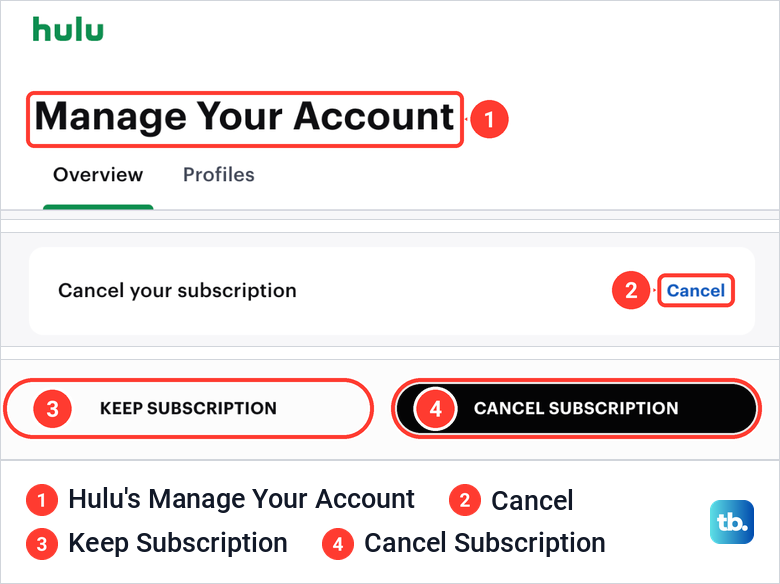
Keep Subscription backs out. In Hulu's help, Cancel Subscription is the last step, and the account page then reads Your subscription will be canceled. Hulu's help gives the same steps for a Hulu subscription and a bundle subscription, and says you keep access to the bundle plan until the end of the current billing cycle. For Hulu's remaining steps, its pause offer and how to check that the cancellation worked, see how to cancel a Hulu subscription on the web.
One trap is easy to miss. Hulu's help says that when you cancel a Disney+, Hulu, ESPN+ bundle, an original Hulu or ESPN+ plan, or one billed by another company, continues at its then-current price unless you cancel it separately. If you paid for Hulu before the bundle, look for that older plan too.
Cancel or change a bundle Disney bills
If Disney bills the bundle, it is canceled on DisneyPlus.com like any other Disney plan, from the subscription's details page. The plan name tells you which services are in it. On the account page we saw, the whole bundle was a single subscription row, so do not assume Cancel Subscription removes only Disney+.
To keep one service and drop the others, change the plan instead. Disney's steps are to select the subscription under Your Plans & Billing (Subscriptions & Billing on the page we saw), select Change next to its name, choose the plan you want, select Continue and follow the prompts to confirm the change. Disney says a move to a lower plan takes effect on your next billing date, and that changing plans ends any current promotion or price hold.
On a Hulu-billed bundle, the Your Plan card on Hulu's account page has its own Change link for the plan. Which plans are offered depends on the account, so look before you assume a Disney+ only plan is or is not available.
If Hulu stopped loading after a bundle change while the billing looks right, fix Hulu access in the Disney bundle before you cancel anything. Billing and access are separate problems.
Cancel Disney Plus on your phone
Disney's cancel steps use a browser, on a computer or a phone, rather than the Disney+ app. On a phone, open DisneyPlus.com in Safari or Chrome, sign in, and follow the same Account, subscription and Cancel Subscription steps.
If Apple or Google Play bills you, the cancel button lives in the phone's subscription settings, covered in the next section. Google notes that uninstalling an app does not cancel its subscription, so deleting Disney+ from your phone will not stop the charge.
Cancel Disney Plus billed by Apple, Google Play or Amazon
Disney's steps for an Apple-billed plan are to open Settings on your iPhone or iPad, tap your name at the top, tap Subscriptions and select Disney+, and Apple's steps end with Cancel Subscription. Apple adds that if there is no Cancel button, or you see an expiration message in red, the subscription is already canceled. For every screen, see how to cancel an App Store subscription on iPhone.
For Google Play, Disney's steps are to open the Google Play store in a web browser, check you are signed in to the right Google account, then select your account icon, Payments & subscriptions, the Subscriptions tab and Disney+. Select Manage, then Cancel subscription. Google says you can still use the subscription for the time you have already paid.
If Disney+ is missing from the list, you may be in a different Google account, so switch accounts from your profile picture. If you cannot get into the one that paid, recover the Google account that holds the subscription first.
For an Amazon-billed plan, Disney's steps are to open Memberships & Subscriptions on Amazon in a web browser, sign in, go to your Disney+ subscription and select Cancel Subscription. Locked out of the Amazon account? Recover your Amazon account when sign-in fails, then come back to that page.
Cancel Disney Plus billed through Roku
Roku is the exception to canceling with your biller. Disney's help says a Roku-billed subscription must be canceled on DisneyPlus.com through the Disney+ Account page, and Roku's own help agrees. Roku processes the charge, but Disney+ manages the subscription.
Roku's general steps, the Star button on the remote and its subscriptions page, do not apply to Disney+. Use the web steps above. Disney says you keep access until the end of the current billing cycle, and your Roku account is not charged for Disney+ after that.
If you cannot find the account, Roku's help lists Disney+ support at 888-905-7888. If Disney+ asks for your Customer Identifier for Billing, Roku says it is on your Roku invoice.
Cancel through HBO Max, a carrier or a TV provider
Disney's list of US billing partners includes Hulu, HBO Max, Verizon, Xfinity, Spectrum, Kroger and Total Wireless. It says a subscription bought through a partner is typically managed by that partner, so the provider's account or support is the place to start.
For a bundle bought from HBO Max, Disney sends you to HBO Max's help. HBO Max's steps are to go to HBOMax.com/subscription, check who bills the subscription at the top, and if it is HBO Max, select Cancel Your Subscription. Disney's Verizon section adds that some Verizon subscriptions can also be managed or canceled directly through Disney+.
A perk that comes with a phone or internet plan is usually removed in the provider's account rather than on Disney's site. Verizon, for one, says that when you cancel its perk, a Disney or ESPN subscription you had before it resumes, so check for that plan afterwards.
Pause Disney Plus instead of canceling
If you only want a break, Disney offers a pause on monthly subscriptions it bills. Its steps are the same Account and subscription route, then Pause Subscription, a choice of how long, and Pause Subscription again. Some promotional and minimum-term plans cannot be paused.
Disney says the pause starts on the first day of your next billing period, so you can keep streaming until then. During the pause you are not charged and cannot watch anything, and an Extra Member on the plan is paused too. Selecting Resume Subscription early bills you at once and starts a new billing period.
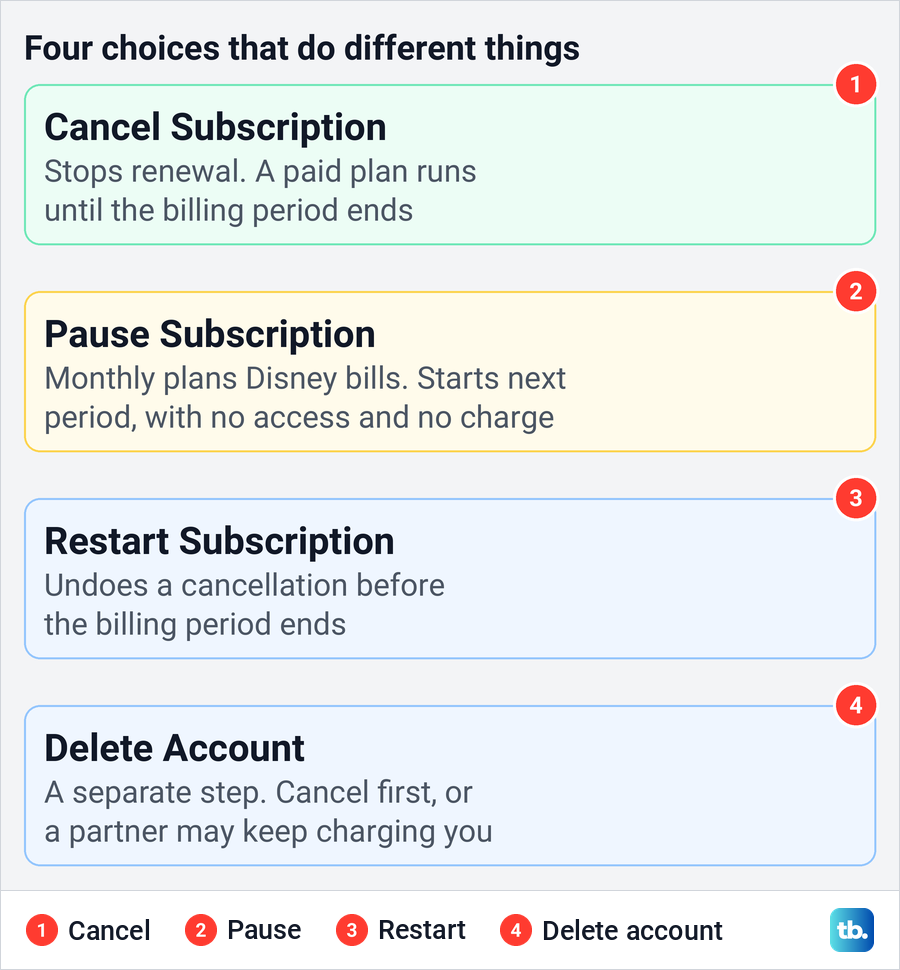
Changed your mind after canceling? Disney's steps are to go back to Account, select Restart Subscription and then Agree, which works until the billing period or minimum term ends. After that, you would sign up again.
If the service is mainly for children and the worry is what they can watch, you may not need to cancel at all. You can set up Disney Plus parental controls with a content rating and a profile PIN instead.
When your access ends and whether you get a refund
Disney says you keep watching until the end of your current billing period, monthly or annual, and if an agreed minimum term runs longer, until the end of that term. The subscriber agreement sets the deadline at 11:59 p.m. Eastern Time on the day before your subscription term ends, so cancel a day or two early. It adds that canceling during a free trial, promo code or other credit may take effect at once.
Canceling is not a refund request. Disney says that under certain circumstances it may issue refunds, and an approved refund for a plan it bills usually goes back to the original payment method. The subscriber agreement says partly used billing periods are not refunded except where the law requires it, though Disney may decide case by case. Partner-billed plans follow the partner's refund rules, so ask Apple, Google, Amazon or your provider.
Check that the cancellation went through
Go back to DisneyPlus.com/account and open the subscription again once you finish. If Disney bills you, look for Restart Subscription on the Account page, which is where Disney's steps put the option to undo a cancellation. For a partner-billed plan, check the partner's subscription list.
Cancellation emails get faked, too. Before you click a link in one you did not expect, check whether a cancellation email is genuine, or type the address into the browser yourself.
Still charged after canceling? An older Hulu or ESPN+ plan, a second Disney+ account or a partner billing you separately can each keep charging, so cancel each one where it lives.
Leaving because the app stopped working is worth a second look first. Most playback and sign-in faults have a fix, and our guide shows how to fix Disney Plus when it stops working.
Sign out devices and delete the account separately
Disney says you keep access until the billing period ends, so if you also want other devices off the account now, sign them out yourself. On the account we used, Manage Devices sat under Access & Security on the Account page and opened a list of recently active devices, each with a Log Out button, plus a log out of all devices link in the opening sentence. Our guide shows how to sign out of Disney Plus on all devices.
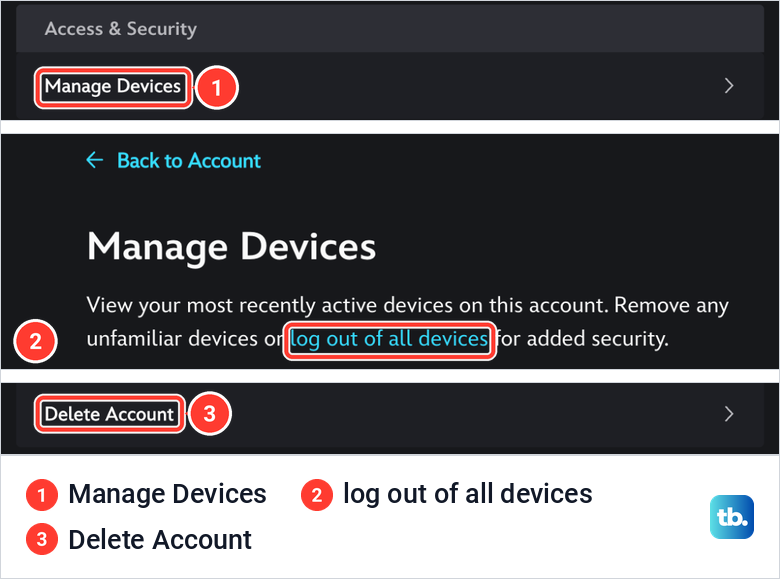
Delete Account is at the bottom of Other Settings on the same page, and it is not a cancellation. Disney says to cancel the subscription before you request deletion, or you may keep being charged. On our Hulu-billed bundle, Delete Account was listed while the plan was still active.
That matches Disney's warning about partner billing. If a partner bills you, Disney says the delete option stays available, but deleting ends your Disney+ access at once, you can no longer manage the subscription on Disney's site or app, and the partner may still bill you. Cancel with the partner, and cancel any bundle, before you delete.
How we tested this guide
We tested this on a live Disney+ and Hulu bundle on the web in Chrome, going through each screen up to the Cancel Subscription button.
Frequently Asked Questions
Can I cancel Disney Plus in the app?
Disney's steps use a browser, so open DisneyPlus.com in your phone's browser and go to Account. If Apple or Google Play bills you, cancel in your iPhone's Settings or in Google Play's subscriptions instead.
Why does my Disney Plus page say Manage on Hulu?
Hulu bills your bundle. On the account we used, that line sat under the plan name with a Manage link to Hulu, and Hulu's steps cancel the bundle at hulu.com/account with Cancel and then Cancel Subscription.
Why can't I cancel Disney Plus through Roku?
Roku takes the payment, but Disney+ manages the subscription. Disney says to cancel a Roku-billed plan on the DisneyPlus.com Account page, and Roku's help sends Disney+ customers to Disney+.
Can I cancel Disney Plus but keep Hulu?
Hulu's help says an older Hulu plan you pay for separately keeps running when you cancel the bundle, so check for one first. Otherwise, use Change on the plan, on Hulu's account page if Hulu bills you or on DisneyPlus.com if Disney does, and check which plans it offers.
Will I still have Disney Plus after canceling?
On a paid plan, yes, until the end of the billing period you paid for, or a longer minimum term if your plan has one. A free trial, promo code or other credit may end as soon as you cancel, so check that offer's terms and the date your biller shows.
Will Disney Plus refund the rest of my month?
Usually not. Disney says it may issue refunds in certain circumstances, but the subscriber agreement rules out refunds for partly used periods unless the law requires them. Partner-billed plans follow the partner's rules.
Does deleting the app or my Disney account stop the charges?
No. Uninstalling the app does not cancel the subscription, and Disney says to cancel before you delete the account, because a partner can keep billing after deletion.
Does Disney Plus have a free trial I need to cancel?
Disney says it does not currently offer one. A trial from a partner promotion follows that partner's terms, and Apple asks you to cancel its trials at least 24 hours before they end.