

To change the language on Disney Plus menus, open Edit Profiles and change App language on your profile; to change the spoken audio or the subtitles, open the Audio & Subtitles menu while a title plays. For the menus, select your profile icon, choose Edit Profiles and pick the profile before you change App language. For audio or subtitles, start a show or movie, open that player menu and choose a track under Audio or Subtitles.
On the web, the gear in the player's control bar opens that menu. To turn subtitles off, open the same player menu and deselect the subtitle option that is selected. App language is saved on each profile, while audio and subtitles are chosen in the player, and the languages on offer depend on the title and your country or region.
The short version
- Menus and buttons: profile icon, Edit Profiles, the profile, then App language.
- Spoken audio: play a title, open Audio & Subtitles and choose under Audio. On the web, the player's gear opens Settings with Subtitles and Audio Options.
- Subtitles: the same player menu, under Subtitles, where CC is listed too.
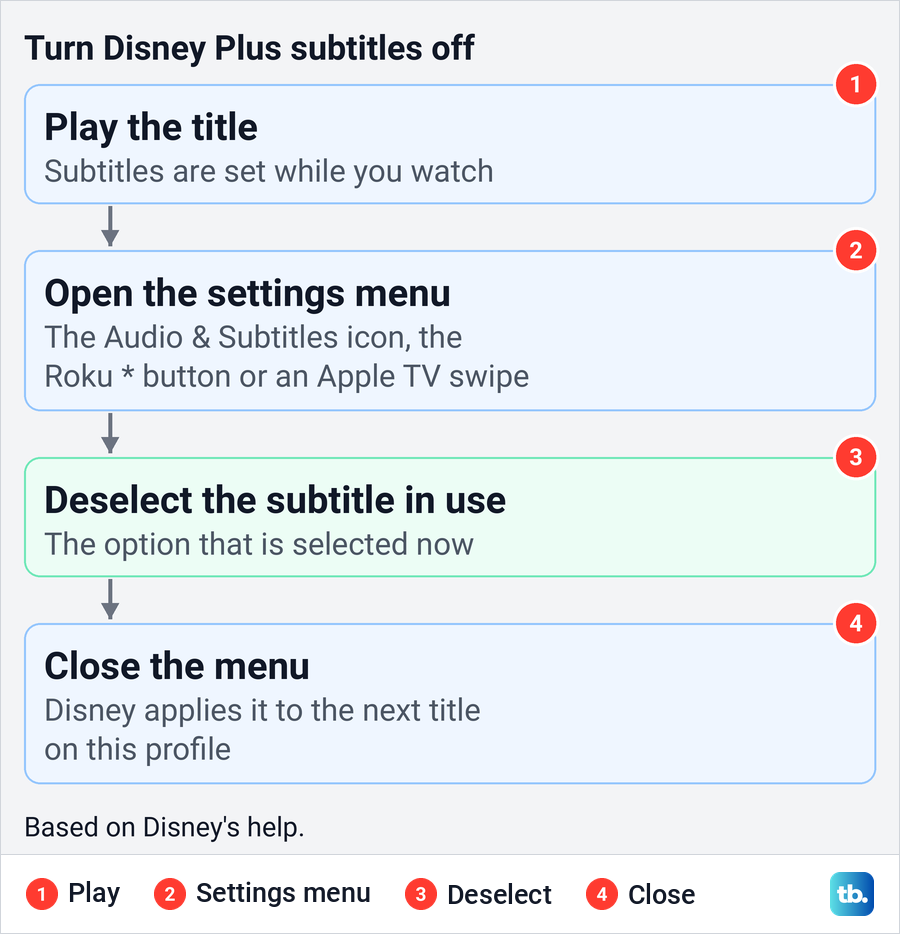
- Subtitles off: deselect the subtitle option in use, or select Off on the web, then close the menu.
- On a remote: press * on a Roku remote, or swipe down on an Apple TV remote, to open the menu.
- Missing language: that version may not exist for the title in your country, and App language can bring up another version.
Choose the language setting you need
Disney Plus keeps its language settings in two places, and most confusion comes from looking in the wrong one. App language lives in each profile's settings and changes the words in the menus. Audio and subtitles live in the video player and change only what you hear and read during a title.
| What you want to change | Where to go | What changes |
|---|---|---|
| Menus and buttons | Profile icon > Edit Profiles > the profile > App language | The interface on that profile, and the version of a title if one exists in that language |
| Spoken dialogue | Play a title > Audio & Subtitles > Audio; on the web, the player's gear > Settings > Audio Options | The spoken track of the title you are watching |
| Words on the screen | Play a title > Audio & Subtitles > Subtitles; on the web, the player's gear > Settings > Subtitles | The subtitle or CC track of that title |
| No subtitles at all | Play a title > Audio & Subtitles > deselect the subtitle in use; on the web, the player's gear > Subtitles > Off | Subtitles stop showing on that profile |
| Subtitle size and color | On the web, the player's gear > Settings > Subtitle styling; on phones and Apple TV, the device's caption settings | How the text looks, not its language |
The settings overlap in one place. Disney's help says that if a title has a version in your App language, the video plays in that language, and different audio, caption and subtitle options may become available. Day to day, though, the player menu is where you choose what you hear and read.
Change the app language for one profile
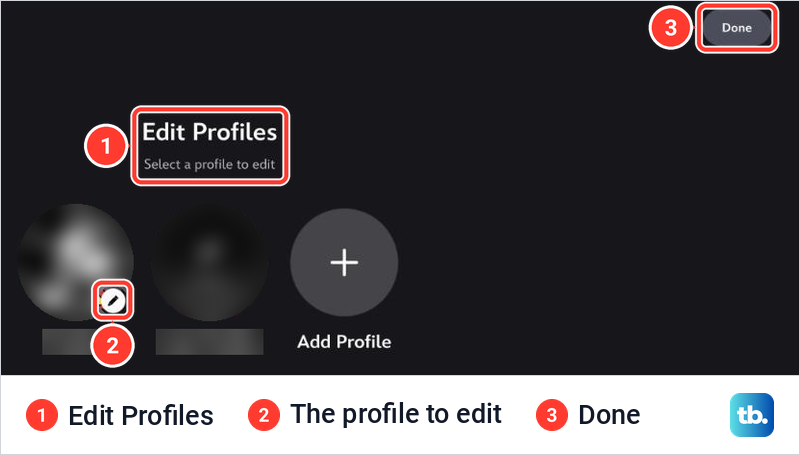
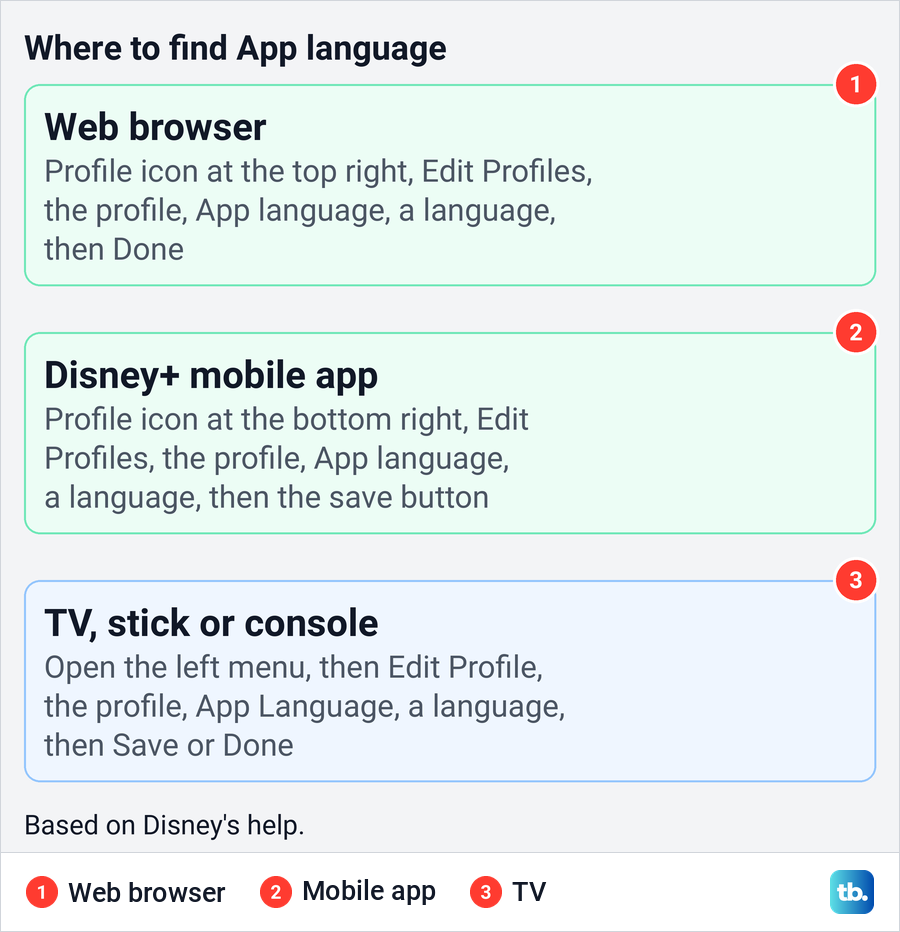
Disney's steps for App language are to select your profile icon, choose Edit Profiles, select the profile you want to change, pick a language from the App Language menu and select Done. In a web browser, the profile icon sits in the top right corner. Each profile has its own App language, so changing yours leaves the menus on everyone else's profile as they were.
When we opened Edit Profiles on the web in Chrome, the page read "Select a profile to edit", with a small pencil badge on the profile and a Done button at the top right. Select the profile you want to change, not Add Profile beside it. Give the page a moment, because Edit Profiles and the profile page each sat on a loading spinner for 15 to 25 seconds for us before they appeared.
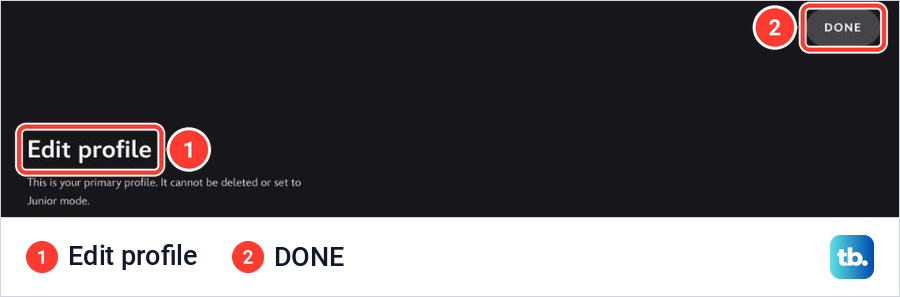
The profile's own page is titled Edit profile, with a DONE button in the top right corner. On the page we opened, the settings ran in cards down the page, and the language setting sat in the second card, just after Personal Information.
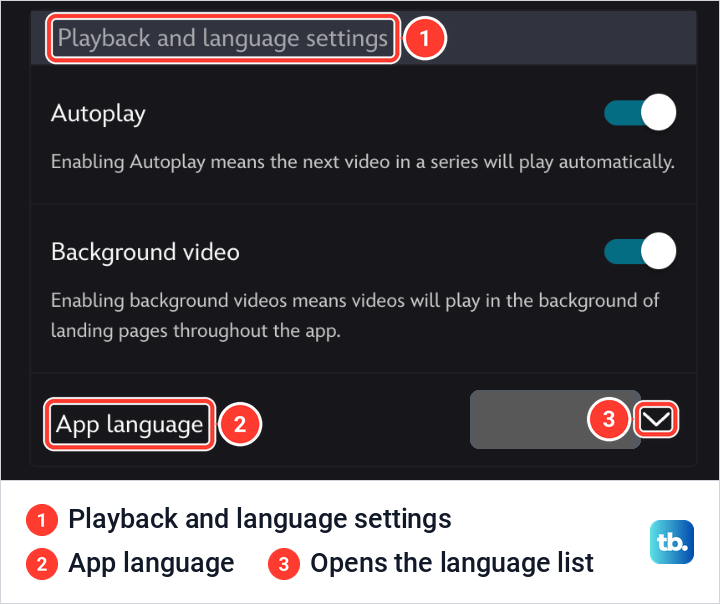
Scroll to Playback and language settings. On the profile we opened, that card held three rows, Autoplay, Background video and App language, with the current language beside App language and a down arrow at the right. Disney's help calls it the App Language dropdown menu, so select the arrow, pick your language and select Done.
Disney's help pages disagree on the last label. Its language help ends with Done, which matches the web page we saw, while its general profile help ends with Save, so select whichever of the two your screen shows. Content rating and Profile PIN sit further down the same page, and if you came to protect a child's profile, set up Disney Plus parental controls as a separate job.
Find App language on a phone or TV
The setting is the same on every device, but the way in moves. Disney's help puts the profile icon at the bottom right of the Disney+ mobile app. Tap it, then tap Edit Profiles, the pencil on the profile you want and App Language, and finish with the save button the app shows.
On a smart TV, streaming stick or games console, Disney's help says to expand the left navigation bar to reach your profile. From there, Disney's general profile steps are the same on every device: select Edit Profile, the profile you want and App Language, then Save or Done, whichever your screen shows.
Disney's help gives no time for a change to show up on another device that is already running. If the menus on a TV still look the same after you changed the profile on a phone, close the Disney+ app and open it again, or switch to another profile and back.
Change the spoken audio while a title plays
Audio is not a profile setting you pick in advance. Disney's help says you can change the language of audio and subtitles at any time while watching, from the settings menu inside the player, so start the show or movie first.
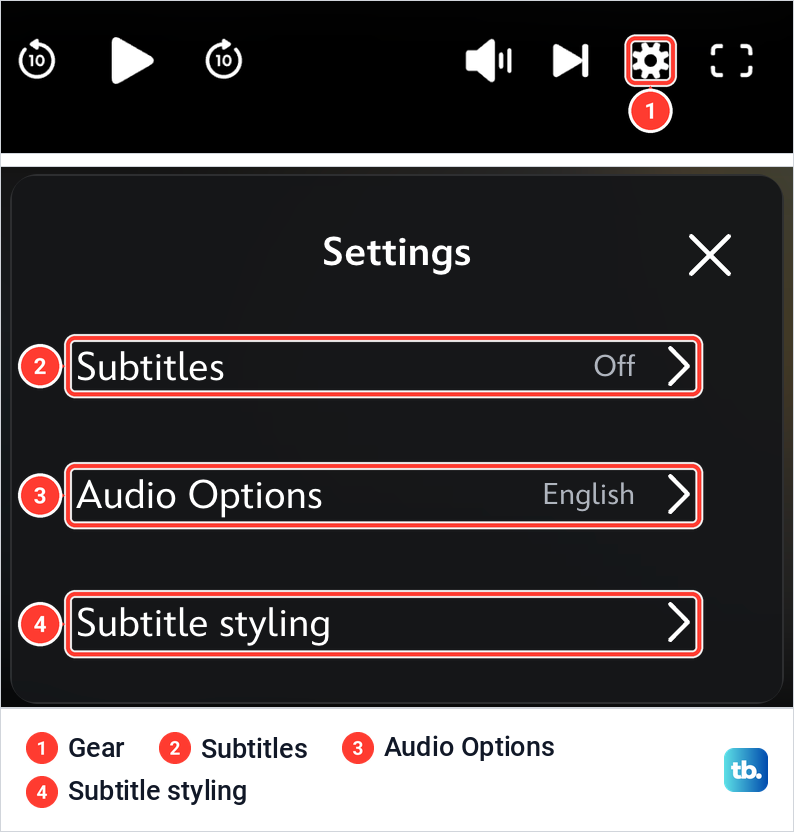
On the web player we used in Chrome, there was no separate audio and subtitles icon. With the controls showing, the gear sat at the bottom right of the control bar, between the play-next and full-screen buttons, and it opened a panel titled Settings. That panel had three rows, Subtitles, Audio Options and Subtitle styling, and an X to close it.
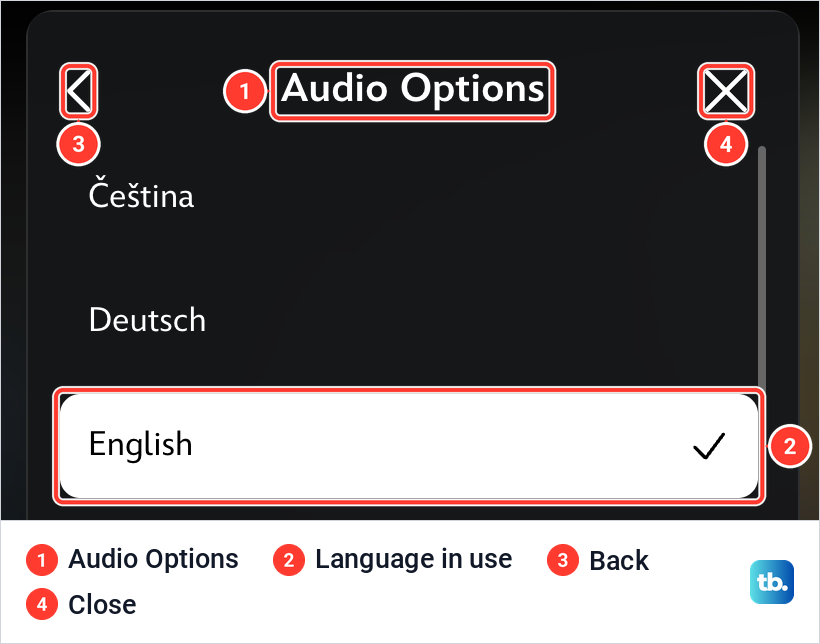
On our screen, Audio Options listed the title's audio languages, with a tick beside the one in use and a back arrow and an X at the top. Which languages the list offers depends on the title, so expect a different list from ours.
Disney's help calls this menu Audio & Subtitles and puts its icon at the top right of the player in the mobile app, and at the bottom right, or behind a three dot icon, on most TV-connected devices. Choose a language, then close the panel with the X or the back arrow. Disney says that closing it saves the selection for this profile, and you carry on watching from the same point.
Disney's language page says the options can include regional variants, such as English for the US or the UK, Spanish for Latin America or Spain and French for Canada or France, depending on your country and the title. If your language appears twice, pick the variant you are used to hearing.
If the title never gets as far as the player, the language menu cannot open at all. In that case, first fix Disney Plus when playback fails, then come back to these steps.
Change the subtitle language separately
Subtitles sit in the same player menu as audio, but they are a separate choice, so you can hear one language and read another. Disney's help says to choose your subtitle language in that menu, and that captions, marked CC, are listed under the subtitle options. On the web, Subtitles is the first row of the same Settings panel and shows the current choice beside it.
CC and ordinary subtitles are not quite the same. Captions are written for viewers who cannot hear the sound, so they may add cues such as music or a door closing, while subtitles carry the dialogue. If you only want the spoken words, pick the plain subtitle entry for your language when the title offers one.
The two lists can also differ on the same title. A show can have subtitles in a language it has no dub for, or the other way round, so check both lists before you decide your language is missing.
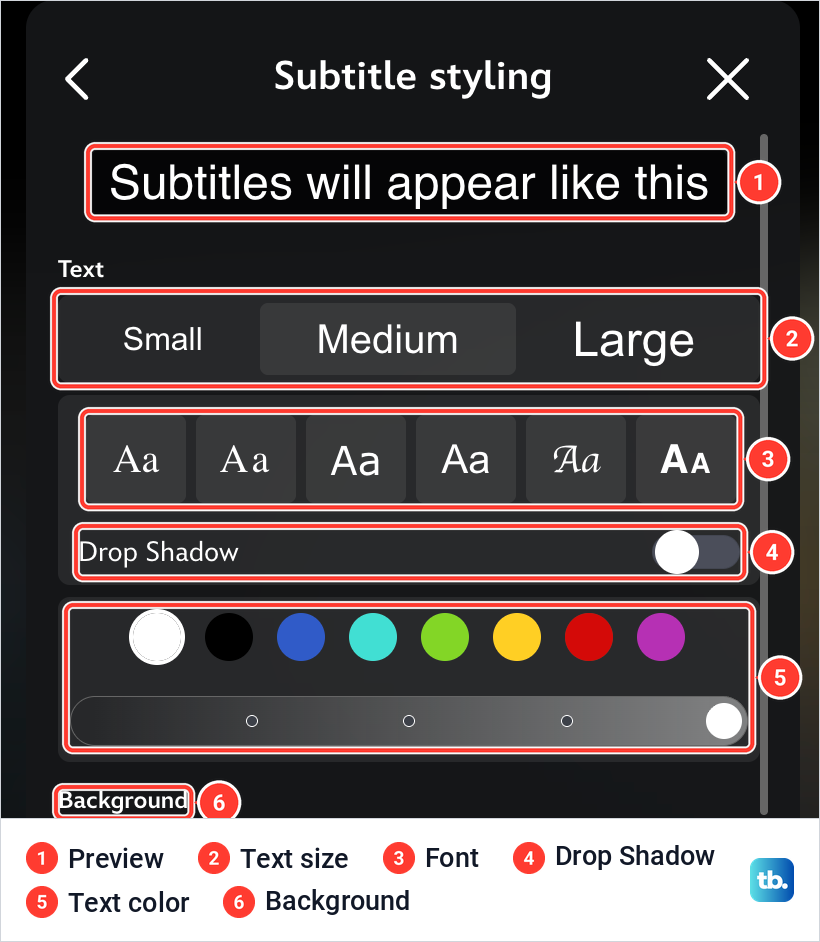
How the subtitles look is a different setting again. On the web, Subtitle styling is the third row of the Settings panel and opens a panel with a preview line, three text sizes, font samples, a Drop Shadow switch, text colors and background options. On a smart TV, Disney's help points to Subtitle Styling in the same player menu, while on iPhone, Android phones and Apple TV the text style comes from the device's own accessibility settings.
Turn subtitles off on Disney Plus
Disney's steps to turn subtitles off are short. While the title plays, open the settings menu, deselect the subtitle option that is currently selected, and close the menu to keep watching.
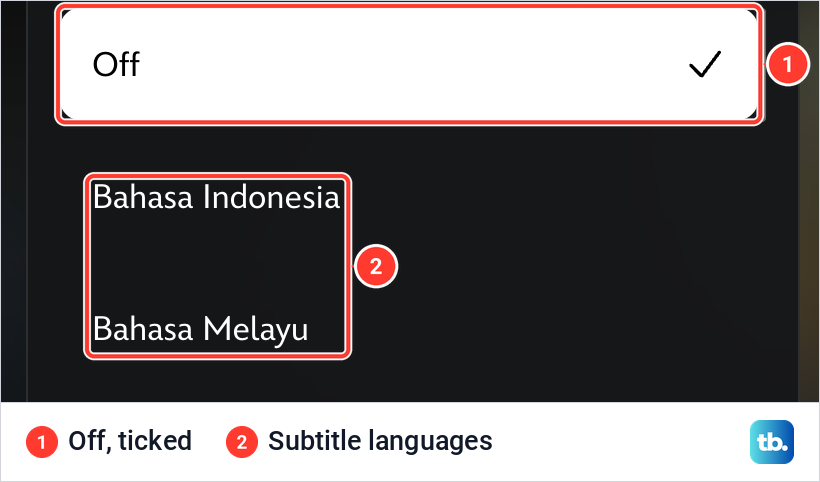
Disney's page puts it as selecting or deselecting the subtitle option. If your player lists an Off entry under Subtitles, select it. If it does not, select the subtitle that is ticked or highlighted to clear it.
On the web, the Subtitles list we opened had Off as its first entry, and it was ticked because subtitles were off. So select the gear, then Subtitles, select Off and close the panel.
Use the right controls on a TV or streaming player
Most trouble on a TV comes from looking for the language menu in the wrong place. Disney's playback help puts it at the bottom right of the player on TV-connected devices, with a three dot icon on some of them, and gives its own shortcuts for Roku and Apple TV.
On Roku, press * during playback, because that is the button in Disney's steps rather than the Up button. On Apple TV, swipe down on the Apple remote while the title plays, then choose under Audio or Subtitles as on any other device.
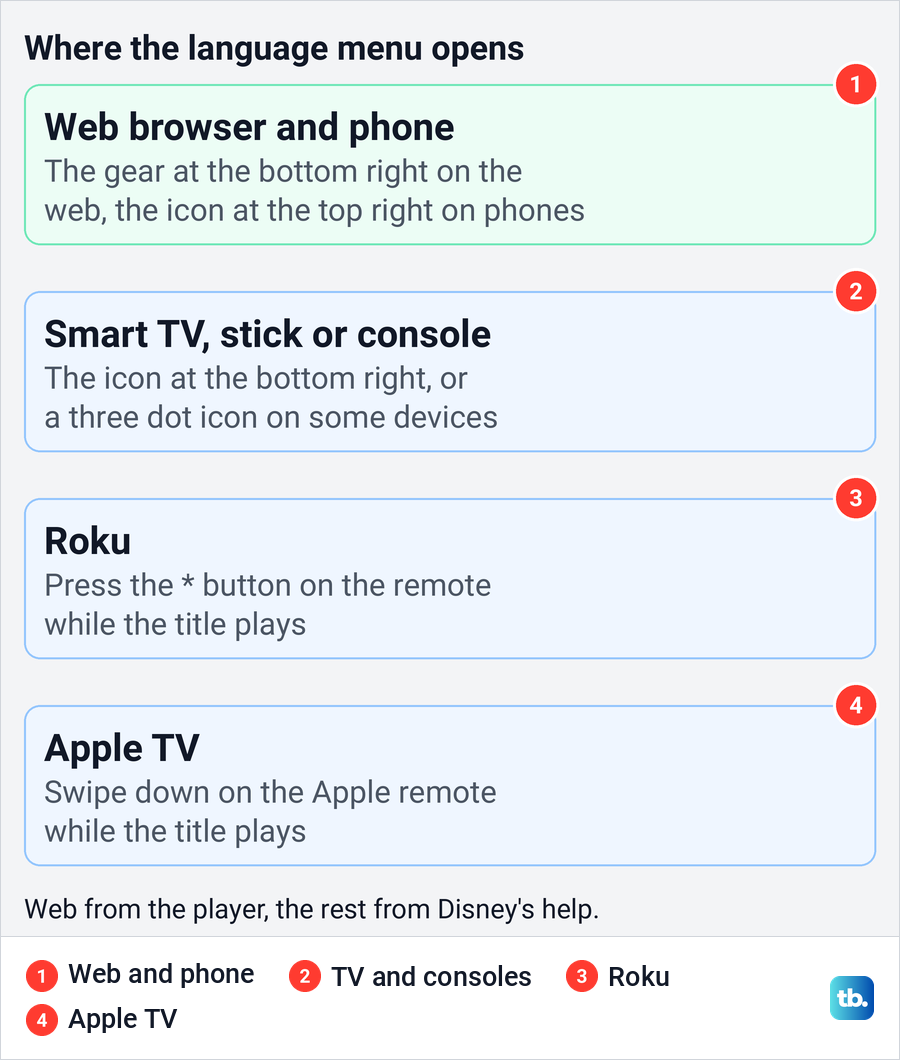
Other TV-connected devices, such as smart TVs, streaming sticks and consoles, follow Disney's general TV route, with the icon at the bottom right or three dots on some of them. An older Disney subtitle page placed the smart TV button at the top right of the player, so if the icon is not where you expect, check every corner of the player controls.
Fire TV is no exception to this. Disney's accessibility help lists subtitles and closed captions for Fire TV, so for Disney+ audio and subtitle tracks, start in the Disney+ player like on any other TV. If captions remain after you turn them off there, check the Fire TV's own caption settings too, as Disney's troubleshooting suggests for any device.
What your choice does on the next show
Disney says your audio and subtitle choices are saved automatically, and that the last settings you used are applied to the next show or movie you watch, as long as those languages are available. If the next title does not offer them, open the player menu again, because Disney's help says you may need to repeat the steps and reselect your settings.
Disney's steps save the choice for the profile, so someone watching on their own profile keeps their own audio and subtitles. That is also why a profile can seem stuck in another language. Someone picked a track on it, and Disney carried that choice forward to the next title.
Disney's help ties both App language and the player choices to a profile, not to the screen in front of you. If your real goal is to remove your account from a shared screen, log out of Disney Plus on TV and other devices instead. If you meant to stop paying rather than change a setting, follow our guide to cancel a Disney Plus subscription.
If the language you want is missing
Disney's help says the audio, caption and subtitle options vary by country or region and by title. A missing language often means that version is not offered for that title where you are, not that a setting is wrong.
Disney's order of checks is a sensible one. Look through the Audio and Subtitles lists in the player first. If the language is not there, set App language to it, because Disney says that if a version of the title exists in your App language, the video plays in it, and different audio, caption and subtitle options may appear.
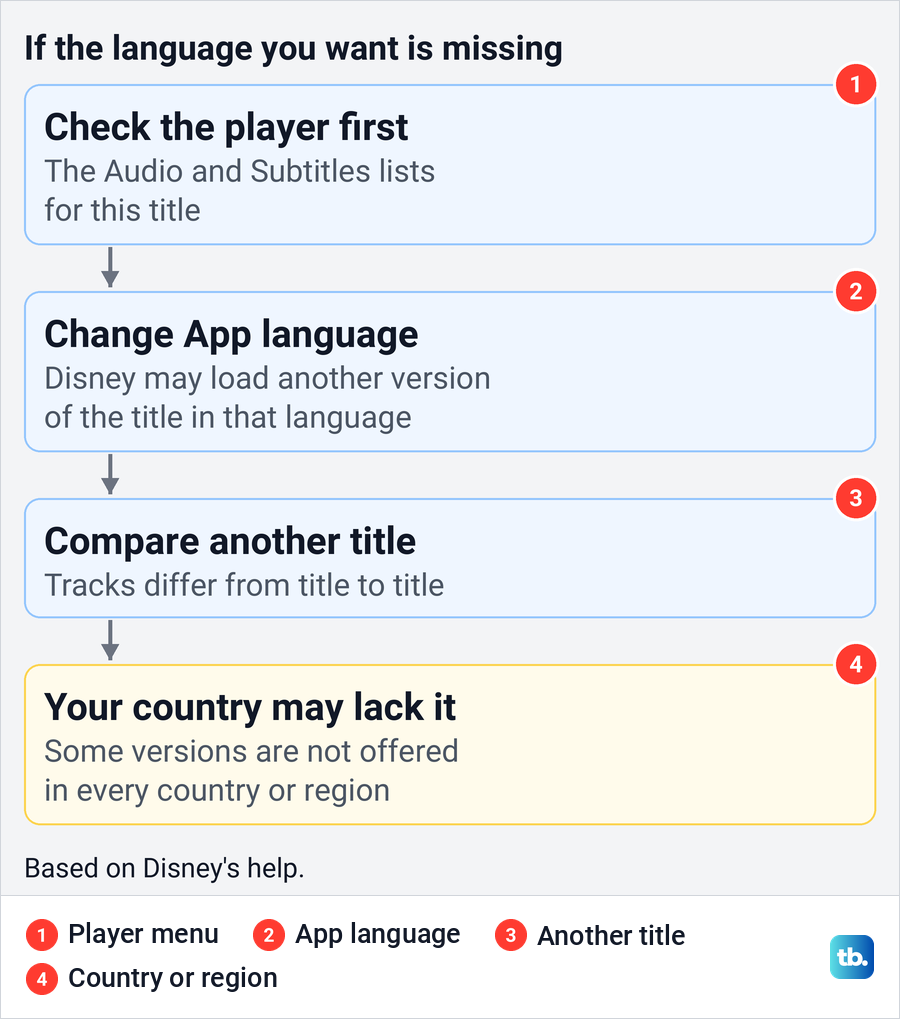
If no version exists in your App language, Disney says the title plays in English, and if English is not available either, in any version it has. Compare with another title next, since tracks differ from show to show, and Disney says that if you still cannot find the language, that version may not be available in your country or region.
A title that will not play at all, or a message that it is not available where you are, is a different problem from a missing track. For that, troubleshoot Disney Plus region availability errors rather than changing language settings.
Disney's help invites you to report a missing audio language, caption or subtitle through its feedback form. No setting in the app adds a track that Disney does not offer for that title.
If captions stay on after you switch them off
When text keeps appearing after you deselect Disney's subtitle option, the words may be coming from the device rather than from Disney+. Disney's troubleshooting steps are to check that audio, captions and subtitles are set correctly in the app, check the device's accessibility settings where they apply, and test another video for comparison.
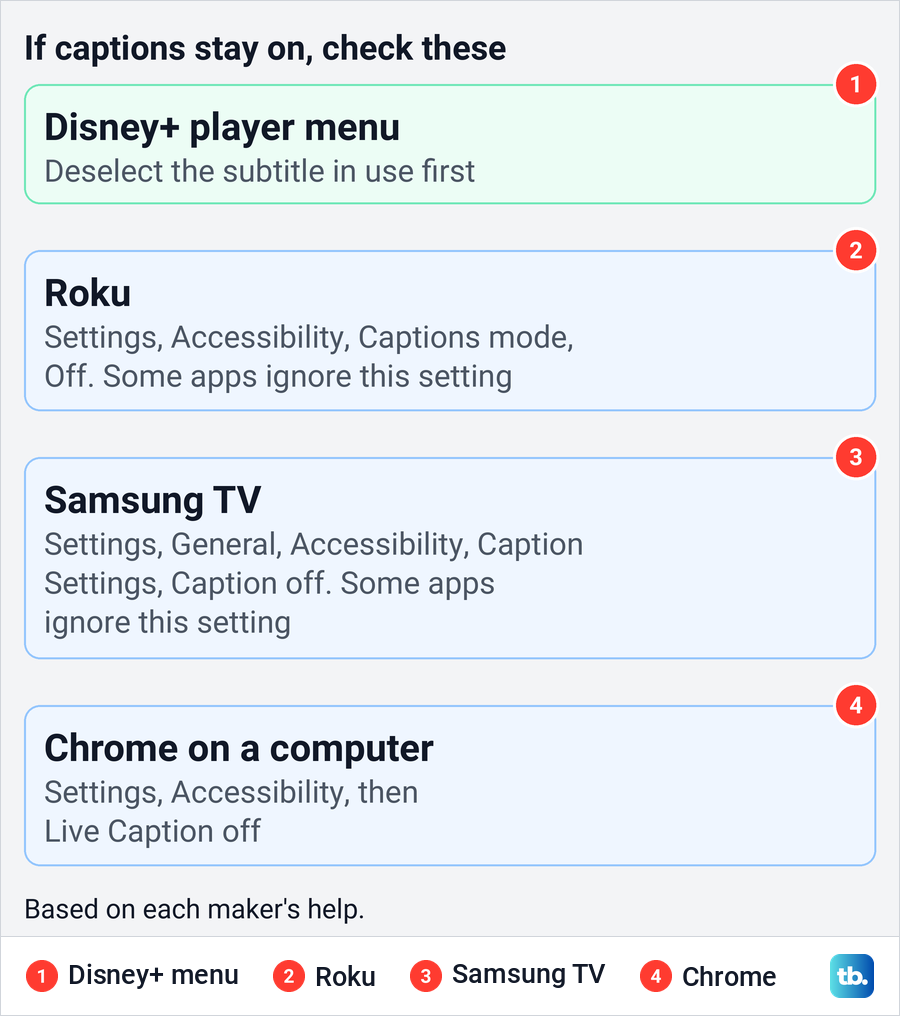
Roku's help says its own caption setting works for many apps but has no effect on apps that handle captions themselves, so it may or may not reach Disney+. If text stays on, press Home, open Settings and Accessibility (or Captions if Accessibility is not listed), and set Captions mode to Off.
Samsung's help says the same about its TVs, since apps with their own caption settings are not changed by the TV menu. Its Caption switch, under Settings, General, Accessibility and Caption Settings, covers broadcasts and certain apps, so turn it off there if text remains after Disney's subtitles are off.
Google TV warns that its caption preferences might not apply to certain apps, so start with Disney's own menu there. In Chrome on a computer, Google says Live Caption generates its own captions for audio and shows them in a bubble you can drag, so if that bubble remains after Disney's subtitles are off, turn off Live Caption in Chrome.
If languages or other profile settings keep changing and nobody at home changed them, someone else may be using your account. Change the password and recover a Disney Plus account after unauthorized changes before you set things back.
How we tested this guide
We tested this on Disney+ on the web in Chrome, going through a profile's App language setting and the player's Settings panel for subtitles and audio.
Frequently Asked Questions
How do I change Disney Plus from one language to another?
For the menus, select your profile icon, then Edit Profiles, the profile and App language. For what you hear or read in a show, open the Audio & Subtitles menu in the player and choose under Audio or Subtitles; on the web, the player's gear opens Settings with Subtitles and Audio Options.
Why is Disney Plus still playing in another language after I changed App language?
App language changes the menus, while audio and subtitles are chosen in the player, and Disney carries your last player choice on to the next title. Open the Audio & Subtitles menu on that title, or the player's gear on the web, and pick your language there, and if it is not listed, that version may not be offered in your country.
How do I turn off subtitles on Disney Plus?
While the title plays, open the settings menu, deselect the subtitle option that is selected and close the menu. On a Roku, press * to open the menu first, and on an Apple TV, swipe down on the remote.
Where is the language button on Roku and Apple TV?
Disney's help says to press the * button on the Roku remote during playback. On an Apple TV, swipe down on the Apple remote while the title plays.
Why is my language missing from a show?
Disney says audio and subtitle options vary by title and by country or region. Setting App language to the language you want can bring up another version of the title, but only if Disney offers that version where you are.
Will my audio and subtitle choices carry to the next show?
Disney says the last settings you used apply to the next show or movie on that profile, as long as the languages are available. If a title does not offer them, set them again in the player.
What is the difference between subtitles and CC on Disney Plus?
Disney lists captions, marked CC, under the subtitle options. Captions may include sound cues for viewers who cannot hear the audio, while plain subtitles show the dialogue, so choose the entry that suits you when a title offers both.