
To set up Disney Plus parental controls, open Disney+ in a web browser or the mobile app, select your profile icon, choose Edit Profiles and pick the child's profile. Set a Content rating under Parental Controls, or turn on Junior Mode on that profile for a young child. Then add a Profile PIN to each adult profile and switch on Restrict Profile Creation in Account.
The PIN and the password do different jobs. A Profile PIN stops a child from opening a profile, while your account password is what Disney asks for before a rating or a PIN can change. Most controls are set one profile at a time, so a child who can switch to an unlocked adult profile walks straight past the limits on their own.
The short version
- Young child: Junior Mode on their own profile, with Kid-Proof Exit turned on.
- Older child: a regular profile with a Content rating that fits their age.
- Adults: a four-digit Profile PIN on every profile without limits.
- New profiles: Account, then Restrict Profile Creation, so adding one needs the password.
- Live sports and news: switch off Allow titles without ratings on the child's profile.
- Where: change ratings, PINs and switches in a web browser or the mobile app; a TV can add a new profile, Junior Mode included.
Choose the right parental control
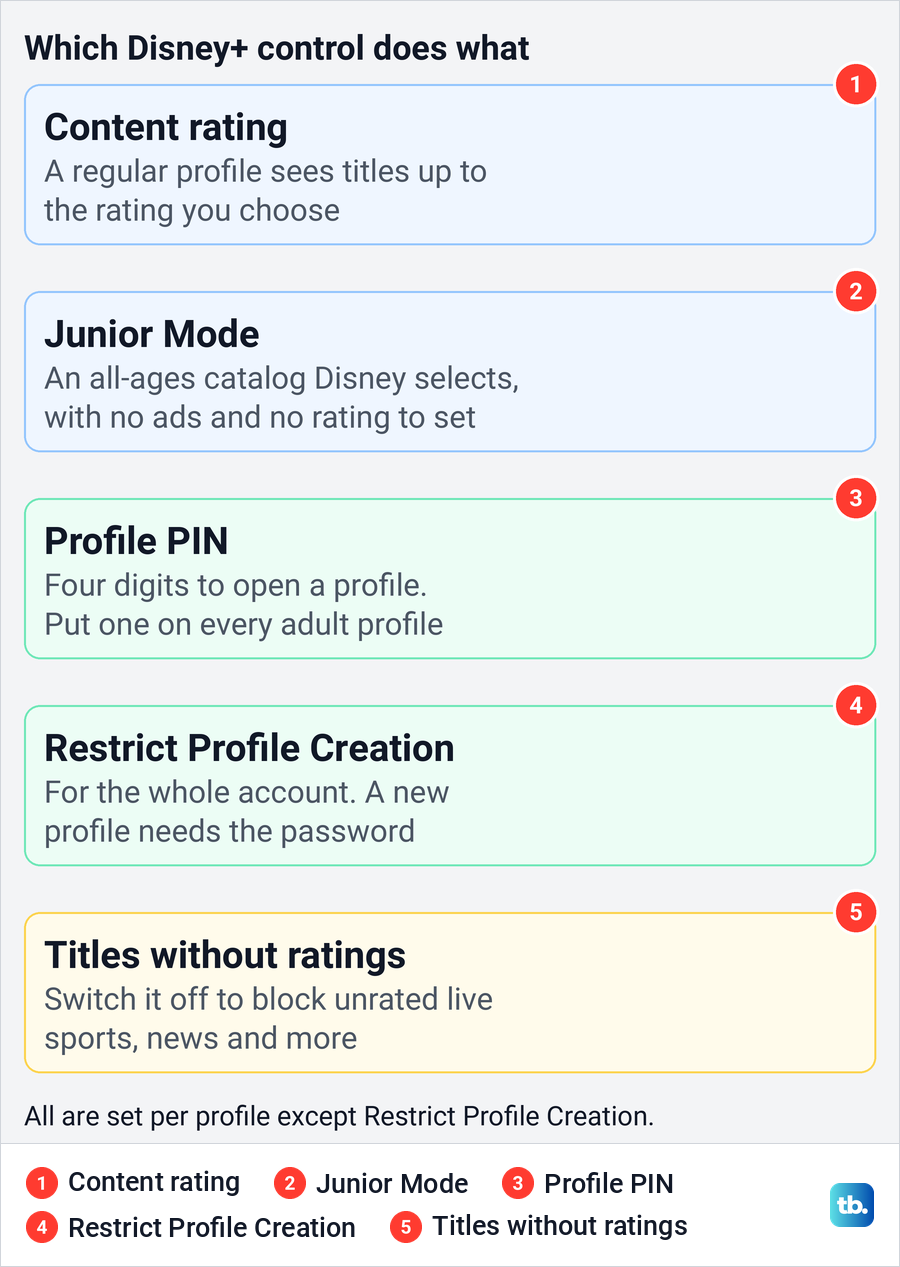
Disney+ has five parental controls, and they work best together. Disney's help lists content ratings, Junior Mode, the Profile PIN, profile creation restriction and a setting for titles without ratings, plus Kid-Proof Exit, which comes with Junior Mode. Four of the five are set on each profile, while Restrict Profile Creation covers the whole account.
| What you want | Where to go | What it changes |
|---|---|---|
| Limit what an older child can watch | Edit Profiles > the child's profile > Content rating | Titles rated above the limit stop showing in browse and search |
| Give a young child a simpler Disney+ | Add Profile, or Edit Profiles > the child's profile > Junior Mode | An all-ages catalog Disney selects, with no ads and no rating to set |
| Keep children out of adult profiles | Edit Profiles > the adult profile > Profile PIN | That profile asks for its four-digit PIN before it opens |
| Stop anyone adding a profile | Account > Restrict Profile Creation | Creating a profile always needs the account password |
| Block unrated live sports and news | Edit Profiles > the child's profile > Allow titles without ratings | Turned off, nobody on that profile can watch unrated content |
| Stop a young child leaving Junior Mode | Edit Profiles > the Junior profile > Kid-Proof Exit | An exit challenge comes before any other profile |
Junior Mode suits a young child, because Disney chooses the catalog and you have nothing to tune. A regular profile with a rating you pick suits an older child better, since you decide where the line sits. Either way, the PIN on the adult profiles is what stops the child from switching.
Open Edit Profiles on the web or in the app
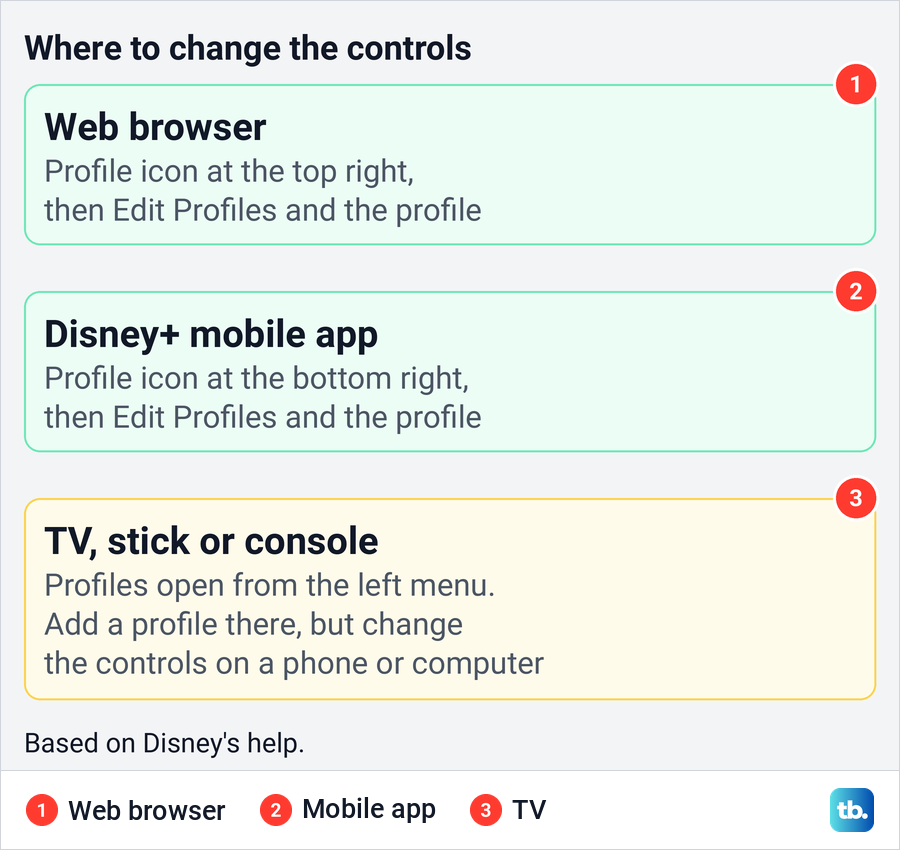
Disney's help says parental controls can only be managed in a supported web browser or the Disney+ mobile app. In a browser, the profile icon sits in the top right corner, and in the mobile app Disney puts it at the bottom right. Select it, choose Edit Profiles, then select the profile you want to change.
When we opened Edit Profiles on the web in Chrome, the page read "Select a profile to edit", with a pencil badge on the profile, an Add Profile circle and a Done button at the top right. The Account page points the same way. Under Other Settings, a line on ours read "To manage parental controls for profiles on your account, visit Edit Profiles and select a Profile."
The profile's own page is titled Edit profile, and its settings run in cards down the page. On the one we opened, Parental Controls came after Personal Information and Playback and language settings, with Content rating, the switch for titles without ratings and Profile PIN inside it. A DONE button sat at the top right of the page.
Set a content rating for a child's profile
Disney's steps for a rating are short. In Edit Profiles, select the child's profile, then select Content rating under Parental Controls. Enter your account password, choose the rating you want and select Save.
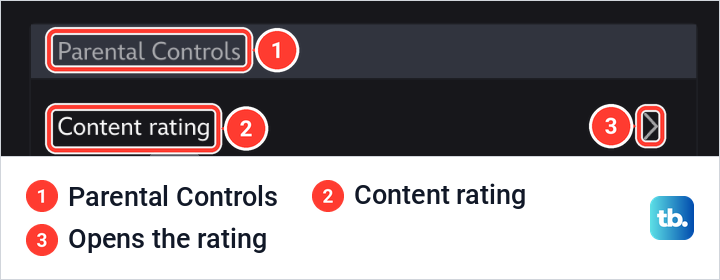
On the profile we opened, a line under Content rating spelled out the current limit, in the form "Titles rated [rating] and below are available to watch." Read that line on every profile before you change anything. Disney's US help says the primary profile and any profile with a date of birth of 18 or older are set to TV-MA by default, while its UK help gives a family-friendly default instead.
The ratings you can pick depend on your country. Disney's US ratings page uses TV labels such as TV-Y7-FV, TV-G, TV-14 and TV-MA, while its UK and European page uses ages from 0+ to 18+. Choose the highest rating you are happy for the child to see, because everything above it is hidden.
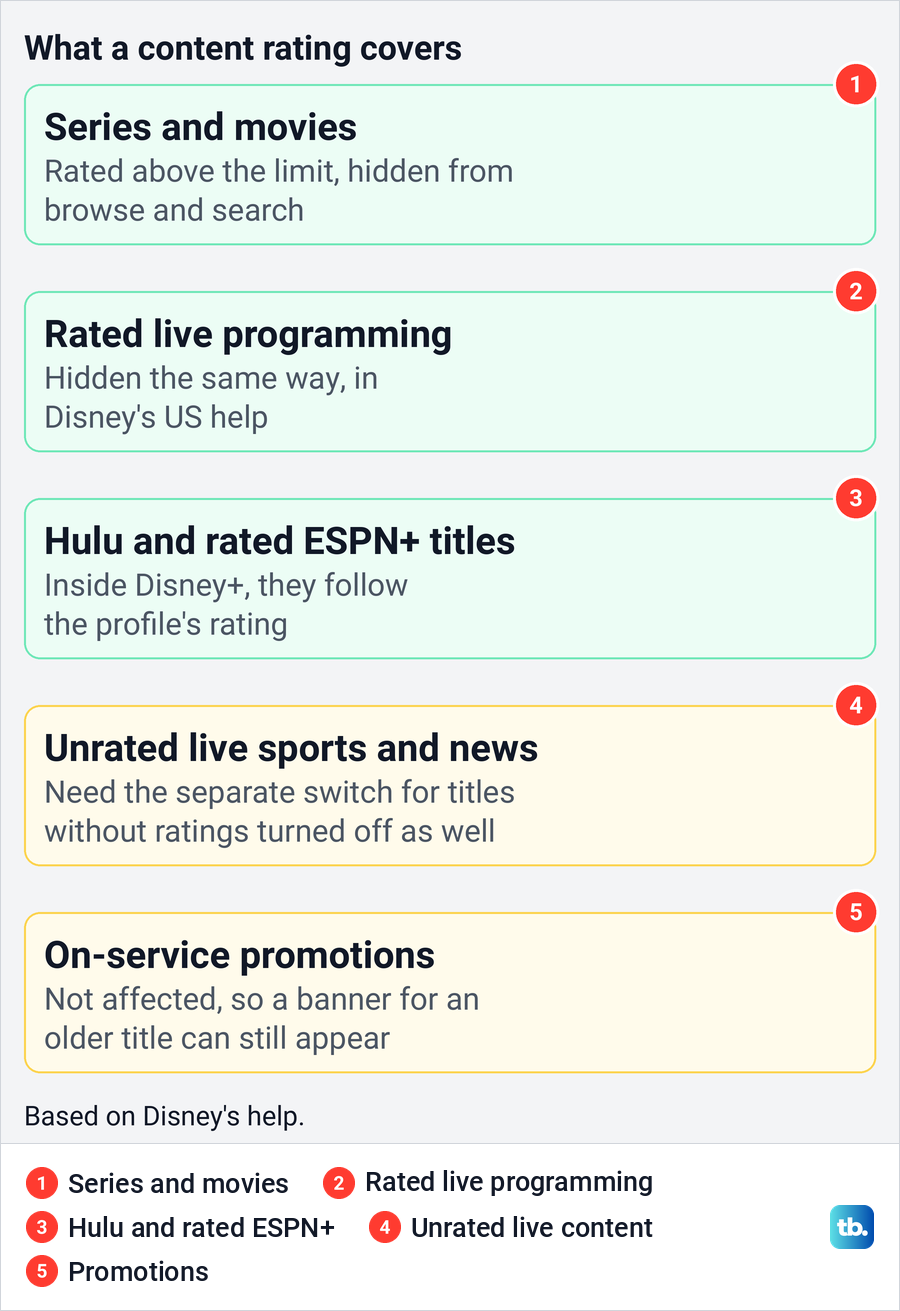
Disney says titles rated higher than the profile's rating are not shown while browsing or searching, and its US help includes live programming in that. The rating does not affect content in on-service promotions, so a banner for an older title can still pass across the screen. Hulu titles shown inside Disney+ follow the same rating.
Use Junior Mode for younger children
Junior Mode turns a profile into a simpler Disney+ with its own catalog. Disney describes it as content suitable for viewers of all ages, selected for younger viewers, and says the titles in it can vary by country. Junior Mode content does not contain ads, and you cannot set a content rating on a Junior Mode profile.
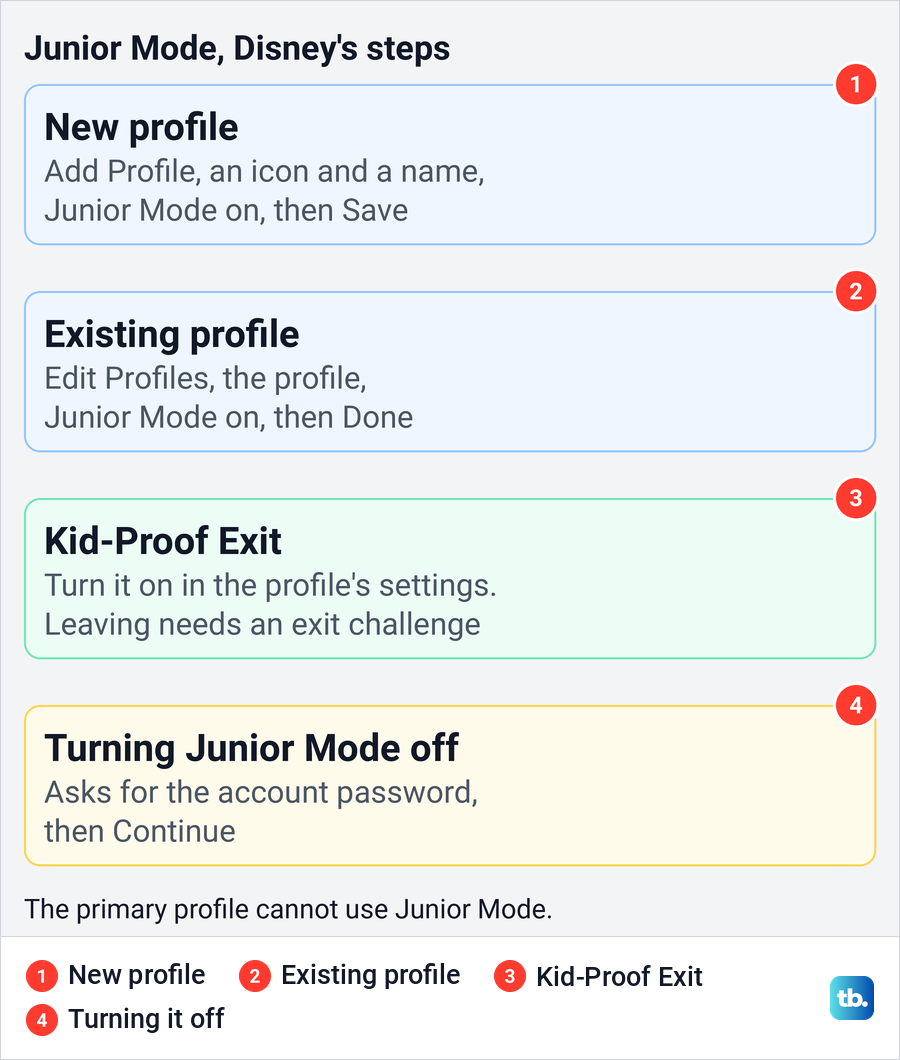
To make a new Junior profile, Disney's steps are to select your profile icon, then Add Profile, pick a character icon and enter a name. Turn on the Junior Mode switch and select Save, though in some countries Disney asks for a date of birth before you can save. Disney allows this on a TV, a phone or a web browser.
For a profile the child already uses, go to Edit Profiles, select that profile, turn Junior Mode on and select Done. This works on any profile except the primary one, which belongs to the account holder.
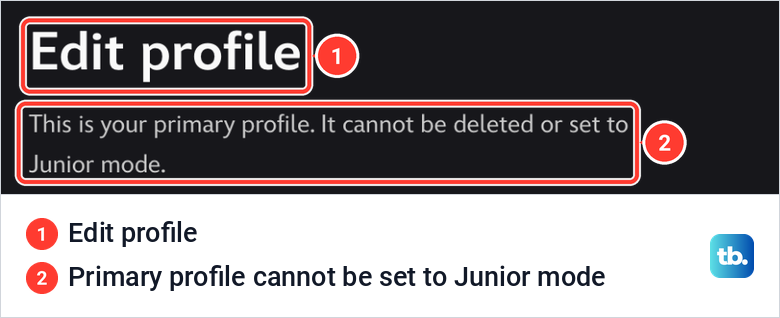
That limit showed on the page we opened. Our primary profile's Edit profile page began with "This is your primary profile. It cannot be deleted or set to Junior mode." If a child has been watching on the primary profile, give them a profile of their own and put the PIN on yours.
Keep children inside Junior Mode
A Junior profile only helps while the child stays in it. Disney's Kid-Proof Exit setting, turned on in the profile's settings in Edit Profiles, asks for an exit challenge before anyone can leave Junior Mode for another profile. Turn it on for each Junior profile.
The challenge is a speed bump, not a lock. A child old enough to solve it can still reach other profiles, so the adult profiles need a Profile PIN as well. Turning Junior Mode off takes the account password, as Disney's steps are to switch it off, enter the password and select Continue.
Lock adult profiles with a Profile PIN
A Profile PIN is a four-digit code that Disney says restricts others from opening your profile. It is the piece that stops a child from leaving a limited profile for one without limits, so set one on every adult profile, not only your own.
Disney's steps are to open Edit Profiles, select the profile and select Profile PIN under Parental Controls. Enter your account password and select Continue, then enter the four digits and select Save. The same screen is where you change or remove the PIN later.
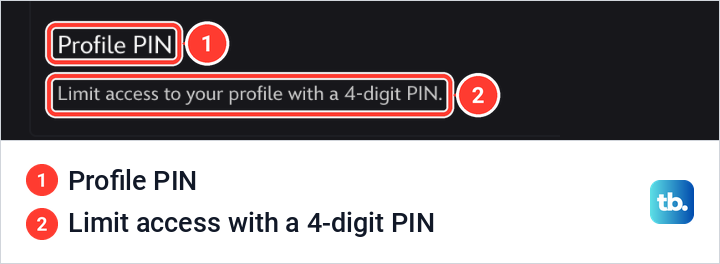
On the profile we opened, Profile PIN was the last row in Parental Controls, with "Limit access to your profile with a 4-digit PIN." under it. The PIN guards the door to the profile, not its settings. Changing a rating or a PIN asks for the account password, so that password is the real key.
On a shared family computer, the browser may fill in the Disney password for anyone who asks. Take a minute to manage passwords and autofill in your browser and remove the saved Disney password from it, so the password prompt actually stops a child. Disney's own advice is to consider a trusted password manager, and if you set up a password manager, lock its vault whenever a child is using the computer.
Require a password for new profiles
Without this switch, anyone using Disney+ can add a new profile, and the limits on the child's profile do not follow them to it. Disney's Restrict Profile Creation setting closes that gap for the whole account. Once it is on, Disney says a password is always required to create a new profile.
Disney's steps are to use a profile with full account access, open Account in the mobile app or a web browser, turn on Restrict profile creation, then enter your password and select Continue. Disney's help puts the switch under a Settings heading. On the Account page we opened, it sat under Other Settings, with the note "Creating new profiles will require a password."
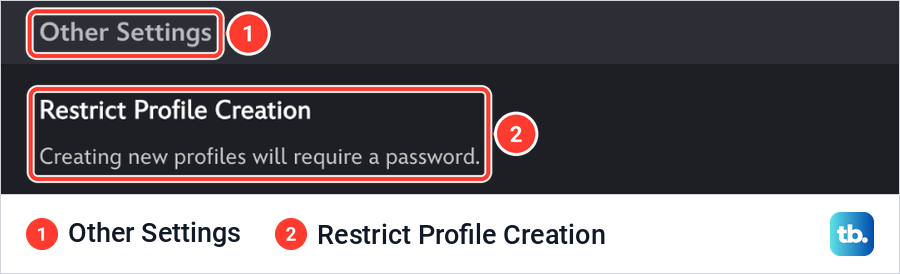
Just below the switch, the same card carried the line that sends you to Edit Profiles for everything else. That split is worth remembering: Restrict Profile Creation lives on the Account page, and the other controls live on each profile. None of them touches billing, so if you want to stop paying, cancel your Disney Plus subscription instead.
Block live sports and other unrated titles
A content rating does not reach every title on its own. Live sports, news and similar streams often carry no rating, so Disney gives each profile a separate switch, Allow titles without ratings like live sports, news and more. Disney says it is on by default, except on Junior Mode profiles.
To turn it off, open Edit Profiles, select the child's profile and switch it off under Parental Controls. Disney says that prevents anyone on that profile from viewing any unrated content while streaming. Switching it back on asks for the account password, so a child cannot quietly reverse it without that password.
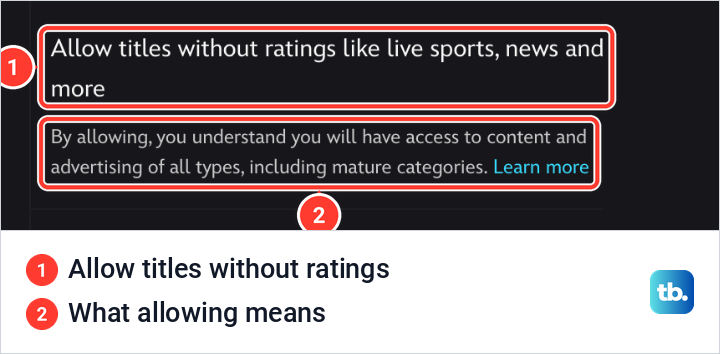
On the profile we opened, the description under the switch read "By allowing, you understand you will have access to content and advertising of all types, including mature categories." Disney's help adds that live content and live ads may feature adult themes. Rated ESPN+ titles follow the profile's rating, but with this switch on, unrated ESPN+ content shows as well.
The wording can differ by country, and Disney's UK help calls it the Not Rated & Live Content setting. Disney adds that rated programs, and some other programs without ratings, still follow the profile's content rating whichever way the switch is set, so check both the rating and the switch on a child's profile.
Change parental controls when you watch on a TV
If your family watches on a TV, note that Disney's parental-controls help says these settings are managed only in a supported web browser or the mobile app. On a smart TV, streaming stick or games console, the profile list opens from the left navigation bar, and that is where you switch profiles or add one.
Disney's profile help lets you add a profile from a TV, including one with Junior Mode on. For a rating, a PIN, the unrated switch or Restrict Profile Creation, follow that parental-controls help: pick up a phone or computer, sign in to the same account and use Edit Profiles or Account there.
Disney's help gives no time for a change to reach a TV that is already running, so reopen the app or switch profiles before you check. If a TV at someone else's home should not have your account at all, sign out of Disney Plus on all devices rather than relying on a rating.
Check that the controls are working
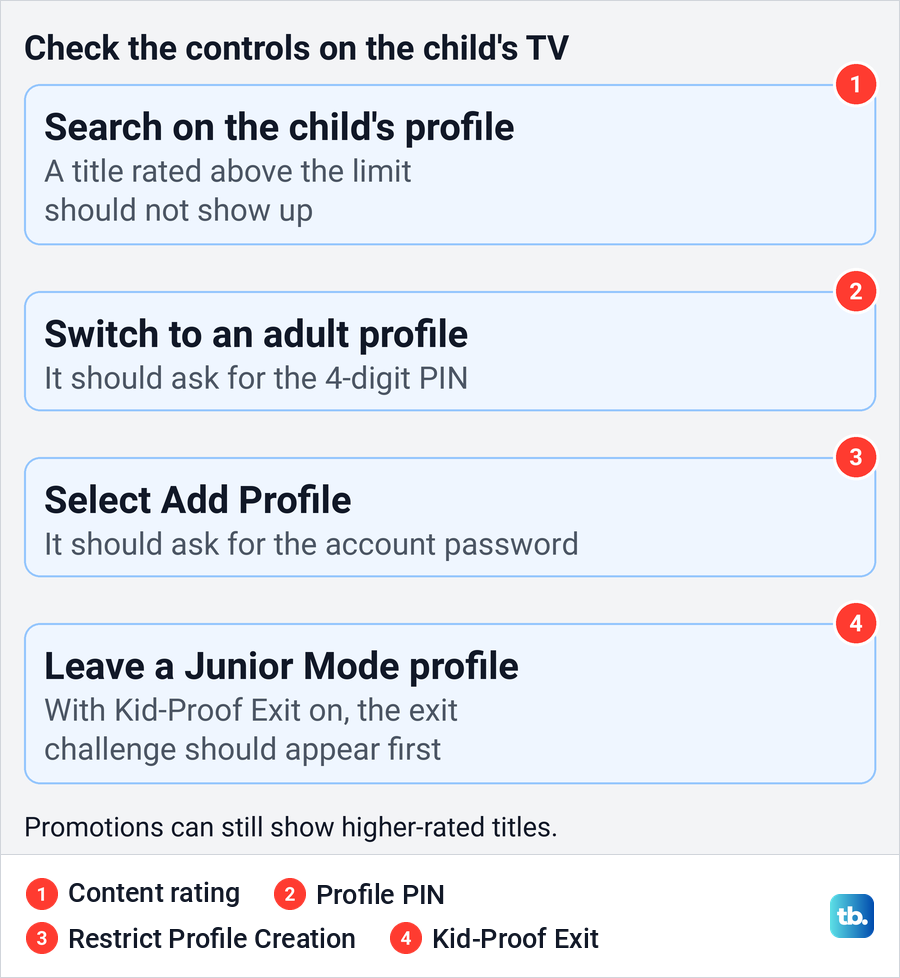
A quick test on the TV the child uses shows whether the settings took. Open the child's profile and search for a title you know is rated above the limit, which Disney says should not show while browsing or searching. Then try to switch to an adult profile, which should ask for the four-digit PIN.
Next, select Add Profile. With Restrict Profile Creation on, Disney says a password is always required. On a Junior Mode profile with Kid-Proof Exit turned on, leaving the profile should bring up the exit challenge first.
Fix missing titles and a forgotten PIN
If a show the child should see has vanished, check three things on that profile before blaming the app. Disney lists a content rating set too low as one reason a title cannot be found. Junior Mode shows only its own selected catalog, and with the unrated switch off, the profile cannot watch unrated content such as live sports and news.
If the title is missing on every profile, check those same three settings on each profile first, because every profile can carry a low rating or Junior Mode. If they all allow the title, check whether Disney+ offers it in your country, which our guide on Disney Plus region availability errors walks through. Save app troubleshooting for an app that is failing, and then fix Disney Plus when it is not working on that device.
Disney's help covers Hulu titles inside Disney+ only. Do not assume a limit set here reaches the separate Hulu app.
If you forget a Profile PIN, select Forgot your PIN? when Disney asks for it. Disney's help says that once you verify your account by entering your password, the PIN can be reset.
If settings you made have changed and nobody at home changed them, someone else may know the password. Change it and recover a hacked Disney Plus account before relying on a new PIN. Disney notes that a new password also changes your MyDisney login for its other services.
Disney's five controls include no way to block one named title and no viewing-time limit. If a single show is the problem, set the rating below that show's rating, knowing that this also hides every other title above the new limit. For time, look to the device's own tools: you can check screen time on Android to see how long a child watches, including through Family Link. To manage a child's Apple device, first set up Family Sharing on iPhone and add a child account.
How we tested this guide
We tested this on Disney+ on the web in Chrome, going from the Account page through Edit Profiles up to a profile's Content rating and Profile PIN controls.
Frequently Asked Questions
What is the difference between a Disney Plus Profile PIN and a content rating?
A content rating decides which rated titles a profile can see. A Profile PIN is a four-digit code that stops others from opening a profile at all, so a child cannot switch to one without limits.
Why are some movies missing in Junior Mode?
Junior Mode shows a catalog Disney selects for younger viewers, and Disney says the titles in it vary by country. If a child is ready for more, a regular profile with a rating you choose gives a different catalog.
Can I change Disney Plus parental controls on a TV?
Disney says parental controls are managed in a supported web browser or the mobile app. You can add a profile, including a Junior Mode one, on a TV, but change ratings and PINs on a phone or computer.
Why can my child still see live sports or news?
Live sports and news are often unrated, so the content rating may not stop them. Turn off Allow titles without ratings like live sports, news and more on the child's profile, and keep the rating set as well.
How do I reset a forgotten Disney Plus Profile PIN?
Select Forgot your PIN? when the PIN prompt appears. Disney's help says you verify your account with the password, and the PIN can then be reset.
Can my child add a new Disney Plus profile?
Yes, unless Restrict Profile Creation is on. Turn it on in Account from a profile with full account access, and Disney then asks for the password whenever someone adds a profile.
Why did a show vanish after I changed the content rating?
Titles rated above the profile's limit stop showing in browse and search. If the show is within the limit, check whether the profile is in Junior Mode or has the unrated switch turned off.