
To log out of Disney Plus on a TV, open the Disney+ app, press Left or Back on the remote to open the menu on the left, select the gear icon and choose Log Out if it is there. For a TV you cannot reach, sign in at DisneyPlus.com in a browser, open Account, then Manage Devices, and select Log Out on that TV's card. To sign out every device at once, use Log out of everywhere in your MyDisney account.
Disney says the device you use for Log out of everywhere is signed out straight away, while the others can take up to four hours. On the account we used on the web in Chrome, Manage Devices sat under Access & Security on the Account page, and the page it opened had a Log Out link on the device card and a log out of all devices link above it.
The short version
- TV in front of you: in Disney+, press Left or Back, select the gear and choose Log Out if it is listed.
- TV you left somewhere: DisneyPlus.com, Account, Manage Devices, then Log Out on that device's card.
- Every device: my.disney.com, Access & Security, Log out of everywhere. Allow up to four hours.
- Someone using it without permission: reset your password and log out of all devices.
- Only want privacy: a Profile PIN locks one profile without signing anyone out.
Choose the right way to log out
| What you need | Where to go | What it does |
|---|---|---|
| Log out the TV in front of you | Disney+ app > Left or Back > gear > Log Out, if listed | Signs out that TV from inside the app |
| Remove a TV you cannot reach | DisneyPlus.com > Account > Manage Devices > Log Out on its card | Signs out that one device and leaves the rest alone |
| Log out every device | my.disney.com > Access & Security > Log out of everywhere | Ends all sessions and apps, other Disney services included, within up to four hours |
| Stop use without your permission | Reset the password, then log out of all devices | Disney's advice when you suspect it |
| Keep one profile private | Edit Profiles > your profile > Profile PIN | Locks that profile, and nobody is signed out |
| Fix an app that will not open | The device's own app settings, such as Clear Data or Delete App | Clears the app on that device only, which is not Disney's sign-out |
The first two rows both aim to sign out one TV: the first uses the app's own menu, the second the Log Out on that TV's card in Manage Devices. If the TV is in a hotel, a holiday rental or someone else's living room, the browser route is the one that works.
Log out on the TV in front of you
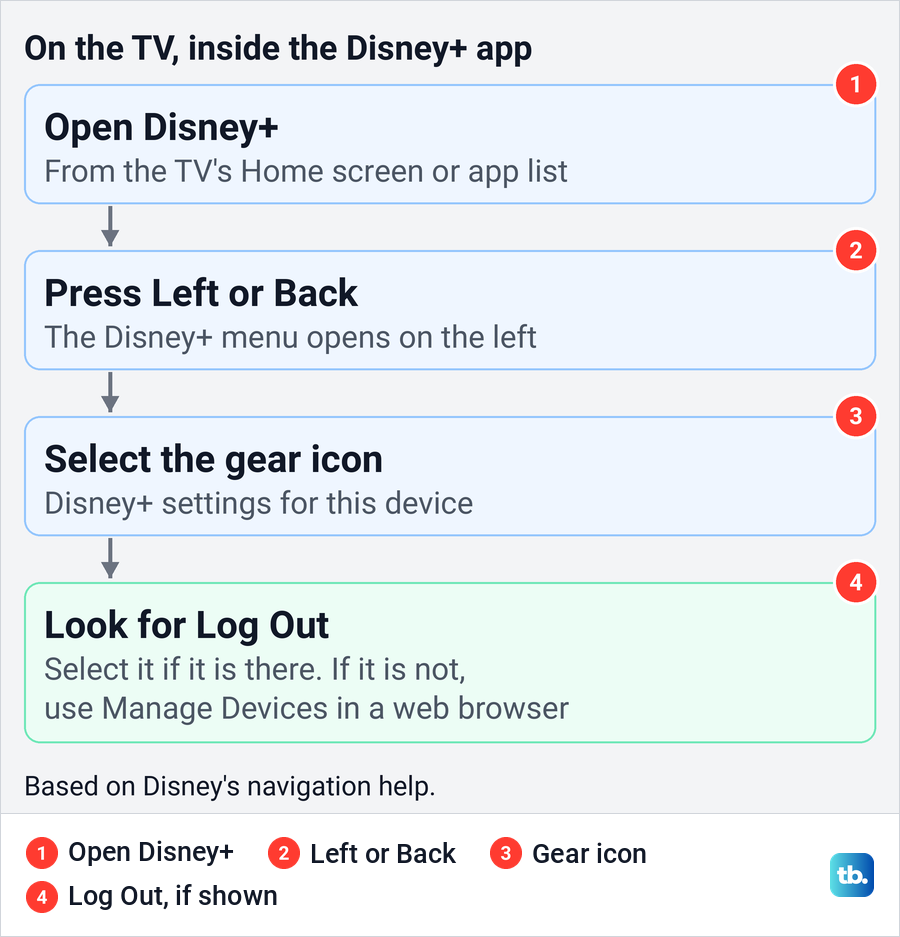
Disney's help puts the Disney+ menu on the left side of the screen on TV-connected devices. Scroll left or press Back on the remote to open it, then select the gear icon for Disney+'s settings.
Look for Log Out there and select it. Disney's help describes the menu and the gear but does not show what sits inside the gear on each device. If Log Out is not on your screen, do not hunt through the TV's own settings menu: use Manage Devices from a phone or computer instead, as the browser section below shows.
Disney's advice for travel is short. If you sign in on a TV away from home, log out before you leave, and if you forget, manage your devices from a mobile or web browser. Do not count on a hotel or a host to clear the TV for you.
If the app freezes before the menu opens, deal with that separately. Our guide to fix Disney Plus when the app will not open covers the usual causes, and you can sign the TV out from a browser in the meantime.
Find Log Out on Roku and Fire TV
On Roku and Fire TV, start with Disney's menu route for TV-connected devices. Open Disney+, press Left or Back on the remote, select the gear and select Log Out if it appears; if it does not, use Manage Devices in a browser. Stay inside the app, because the remote's Home button leaves Disney+ for the device's own menus.
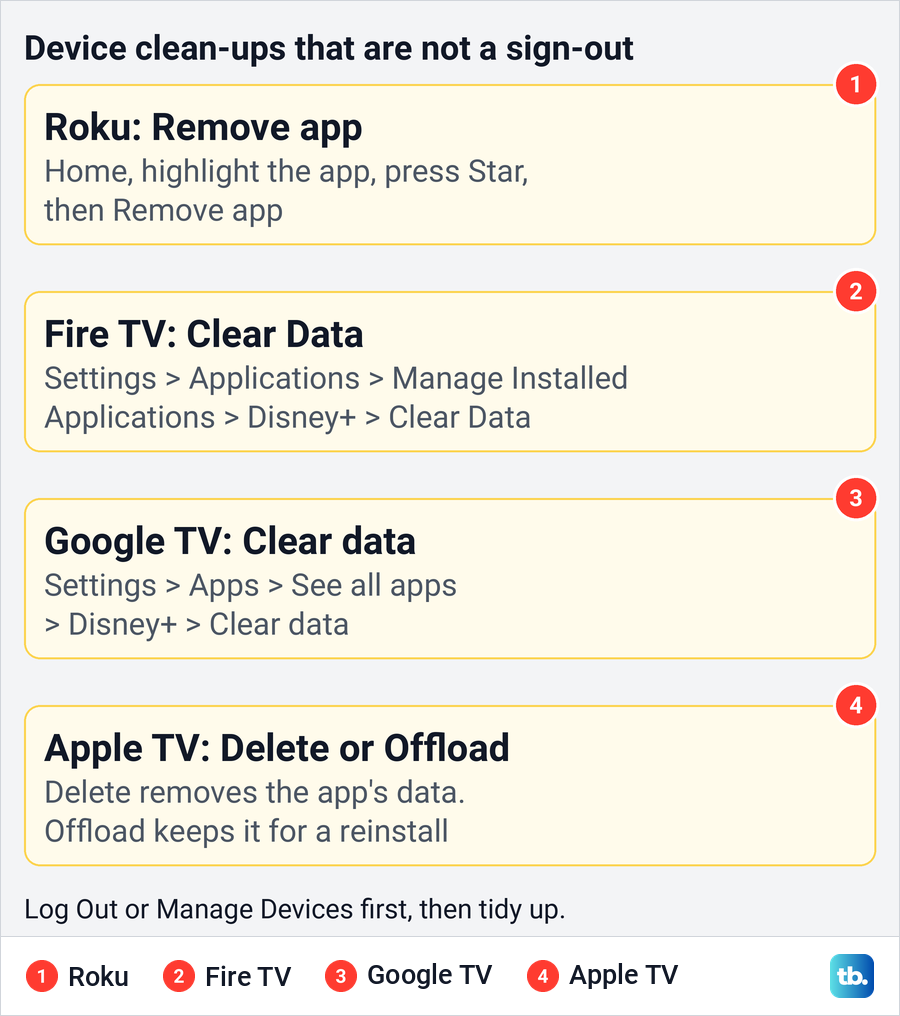
Removing the app is a different job. Roku's steps are to press Home, highlight the app, press Star and select Remove app. Roku's help does not say that this signs the device out of your Disney account, so log out first and then remove an app from Roku if you no longer want it on the player.
Roku adds that a missing Remove app option can mean a subscription billed through Roku is still active. If the app only looks stuck, clear the Roku cache for an app problem, which is a fix and not a sign-out.
On a Fire TV, Disney's help lists Settings > Applications > Manage Installed Applications > Disney+, then Clear Cache and Clear Data. Disney gives that as a fix for streaming problems, not as a way to log out, so still use Log Out on the device's card in Manage Devices.
Find Log Out on Samsung and LG TVs
On a Samsung or LG smart TV, try the Disney+ app's own menu first. Open it from the TV's Home screen, press Left or Back, select the gear and select Log Out if it appears; if it does not, use Manage Devices in a browser. The TV's own Settings menu is a different thing that controls the television, not your Disney account.
Disney's cache steps for these two brands clear data in the TV's web browser, not in the Disney+ app. Samsung's Reset Smart Hub goes much further, because Samsung says it deletes all information related to Samsung accounts, linked service accounts and Smart Hub apps. Neither belongs in a routine sign-out.
If Disney+ will not load on the set at all, our guides to clear app cache on a Samsung TV and clear app cache on an LG TV cover that separate problem. Sign the TV out from a browser while you sort it out.
Find Log Out on Apple TV and Google TV
On Apple TV, Google TV and other Android TV devices, Disney's menu route is the place to start. Open the app, move left or press the remote's back button to open the menu, then select the gear and select Log Out if it appears. If it does not, use Manage Devices in a browser.
The devices' own clean-up tools work differently. Apple's steps are Delete App, then Delete or Offload. Delete also deletes the app's data, while Offload removes the app but keeps its data in case you install it again. Disney's own advice for clearing cached data on an Apple TV is to uninstall and reinstall the app, so Offload is the wrong choice if you want the app's data gone.
On Google TV, Google's steps are Settings > Apps > See all apps, then the app and Clear data. Google lists that as a playback fix, so use the device's Log Out in Manage Devices as well rather than assume it signed the account out.
Find Log Out on PlayStation and Xbox
Disney lists PlayStation and Xbox among its TV-connected devices, so its menu route applies there too. Open Disney+, move left to open the menu, select the gear and select Log Out if it appears. If it does not, use Manage Devices in a browser.
Disney's cache steps for consoles delete the app's saved data: on PlayStation through Settings > Storage > System Storage > Saved Data, and on Xbox through My Games and Apps > Apps, the Disney+ app's menu and Manage App. For a console you sold or lent out, Log Out on its card in Manage Devices is the cleaner option.
If the app will not launch on the console at all, our guide to fixing streaming services on Xbox covers the console side. Disney's supported device list does not include Nintendo Switch, so there is no Switch route to follow.
Remove one device you cannot reach
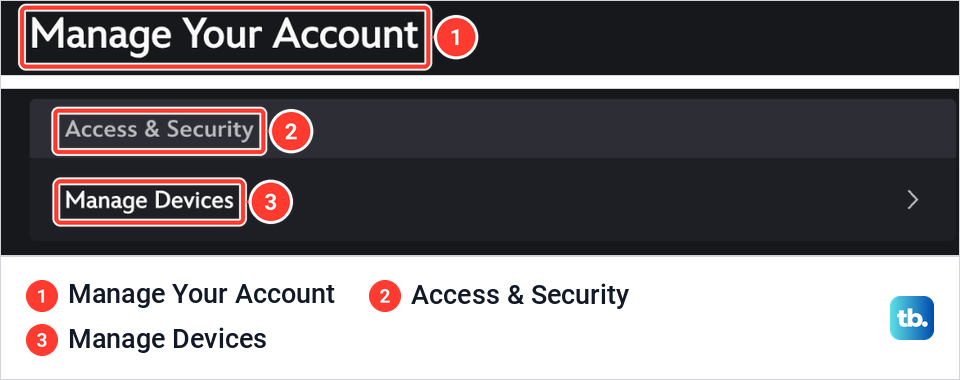
This is the route for a TV at a holiday rental, a console you sold or a phone you lost. Disney's steps are to log in at DisneyPlus.com in a mobile or web browser, select your profile and then Account. Under Access & Security, select Manage Devices, then select Log Out on the device you want to remove.
On the account we used, the Account page was titled Manage Your Account. Access & Security was a card of its own below Subscriptions & Billing, with Manage Devices as its only row.
Manage Devices opened a page that starts "View your most recently active devices on this account. Remove any unfamiliar devices or log out of all devices for added security." Below that, each device gets a card with Log Out across its bottom edge. Our list held a single card, for the Chrome browser we were using, tagged CURRENT DEVICE, and even that card had its own Log Out.
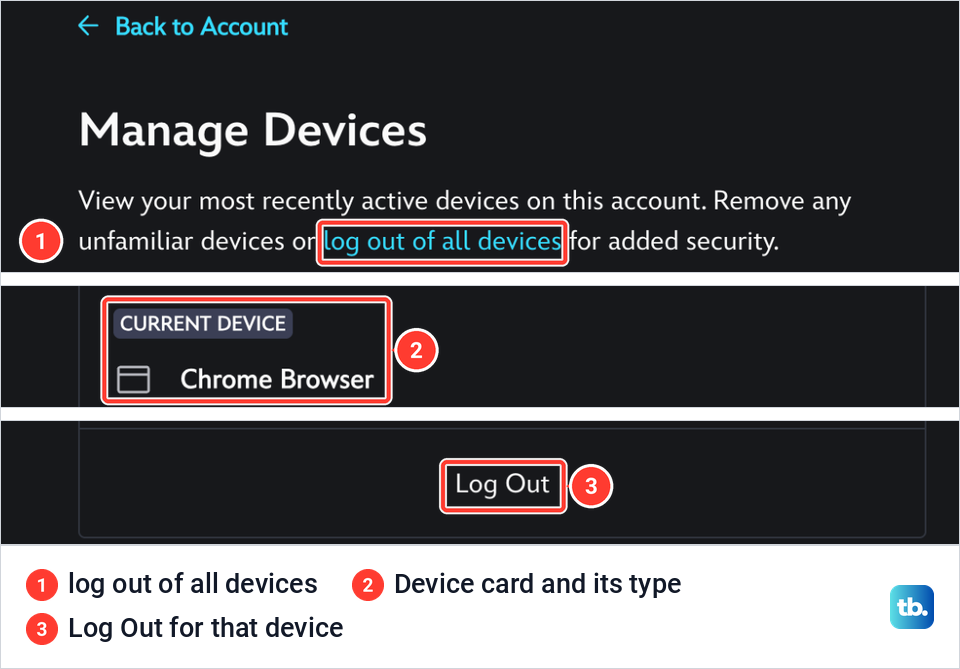
Pick the right card before you press anything. Disney says a card shows the type of device, the general location where it was last used, the date and time it last showed activity, and the profile that last used it if that profile's age is at least 18. The location is only approximate, so match the device type and the last activity to when the TV was last used.
Use the Log Out on the card itself, and if you cannot tell which card is the TV, or it is not in the list, use Log out of everywhere below. Disney's help gives no waiting time for a single device, so if the TV still plays later, use that all-devices route too.
Log out of all Disney devices
When every screen should come off the account, Disney's help sends you to MyDisney rather than Disney+. Sign in to my.disney.com in a mobile or web browser, select Access & Security, then Log out of everywhere. Enter the one-time passcode Disney sends to the email address on your MyDisney account, select Confirm, then select Log out. On the account we used, the MyDisney card at the top of the Disney+ Account page also had a Manage with MyDisney link.
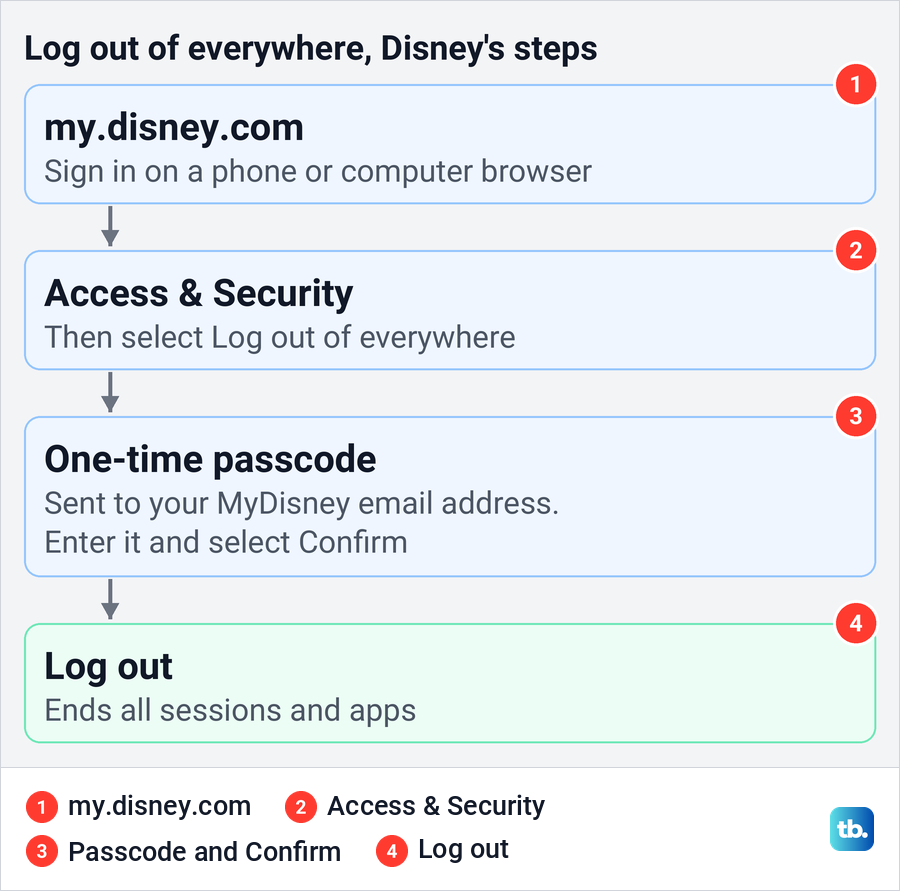
The Manage Devices page has its own log out of all devices link, marked 1 in the Manage Devices picture earlier. Disney's written steps for signing out everywhere start at MyDisney, which is why they are the ones given here.
The passcode goes to your email, so check the spam folder if it is slow. If you no longer control that address, recover the account first.
What happens to other screens
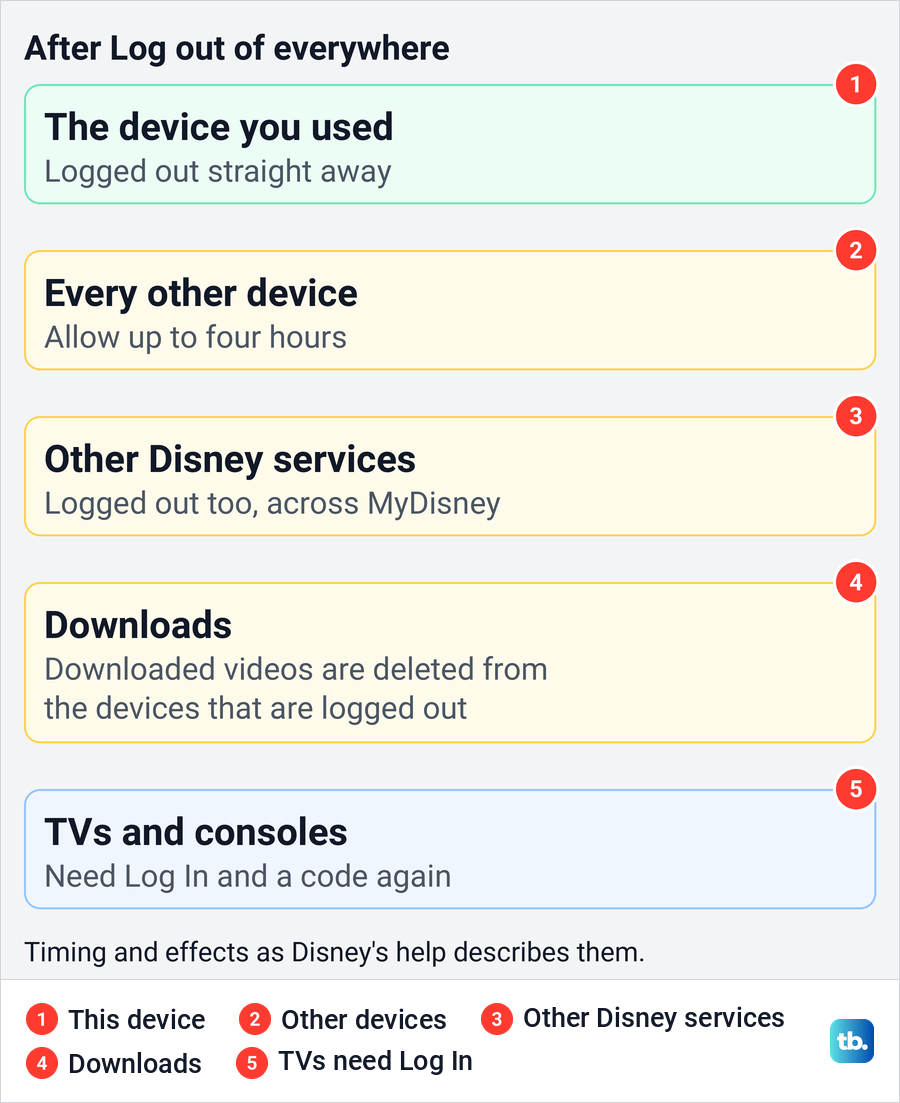
Disney says that once the action is complete, the device you used is logged out immediately, and the remaining devices can take up to four hours. Every TV, stick and console then needs signing in again, with the codes covered below.
The reach is wider than Disney+. Log out of everywhere also logs you out of services and experiences across The Walt Disney Family of Companies, which share the one MyDisney login. If you have downloaded shows or films on a phone or tablet, Disney says logging out deletes those downloads from the devices that are logged out.
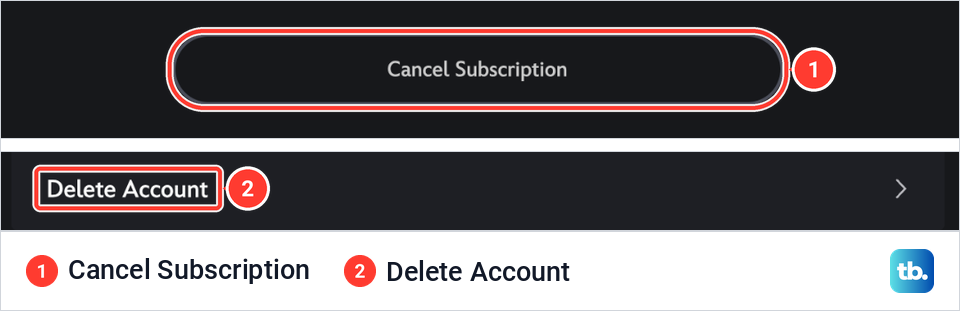
Logging out does not cancel your subscription or change its billing status. On the account we used, Cancel Subscription sat on the subscription's own page and Delete Account under Other Settings, both apart from Manage Devices. If ending the plan is the real goal, see how to cancel your Disney Plus subscription instead.
Change the password if someone is using your account
If you think someone is using your account without your permission, Disney's advice is to reset your password and log out of all devices. Do both. Disney says you get the option to log out of all devices whenever you change your email address or password, so take it when it is offered.
Disney does not describe a new password on its own as signing anyone out, which is why the second step matters. The password belongs to your MyDisney login, so changing it on Disney+ changes it for the other Disney services you use with that login too.
Disney says it notifies you whenever a new device logs in, and that suspicious login activity can get the MyDisney account locked within four hours, ending all active sessions. If someone has already changed your email or password, recover a Disney Plus account after a takeover before anything else.
Switch or protect a profile instead
Sometimes the problem is a person, not a device. Switching profiles changes whose watch history and recommendations you see, but the device stays signed in to the account. Deleting a profile is not a sign-out either, and Disney says deletion is permanent and the primary profile cannot be deleted.
The account we used showed that rule. When we opened the primary profile from Edit Profiles, its page began with "This is your primary profile. It cannot be deleted or set to Junior mode."
To keep others out of your profile without signing anyone out, add a Profile PIN. Disney's steps are Edit Profiles, your profile, Profile PIN under Parental Controls, your password and Continue, then the four-digit PIN and Save. Disney says parental controls can only be managed in the mobile app or a supported web browser, not on the TV.
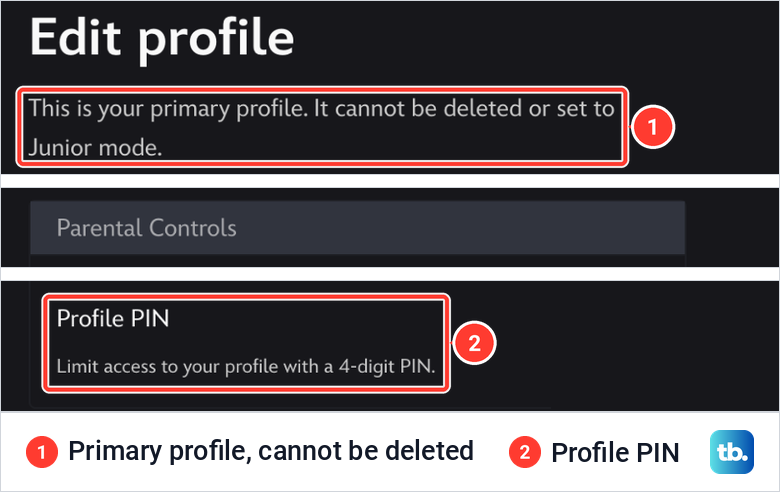
On the profile page we opened, Profile PIN sat at the bottom of Parental Controls, with "Limit access to your profile with a 4-digit PIN" under it. For content ratings and the rest of those settings, set up Disney Plus parental controls with our full guide.
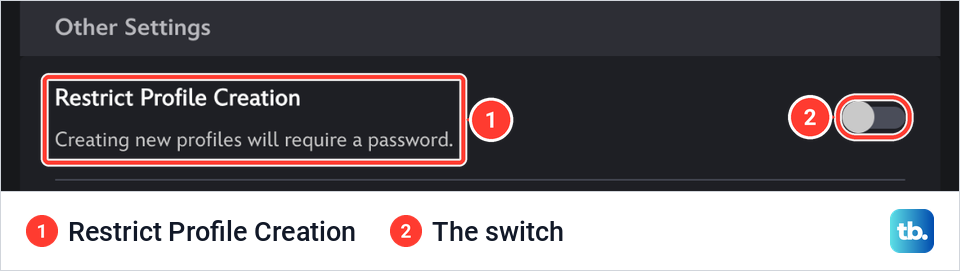
To stop new profiles appearing on the account, turn on Restrict Profile Creation. On the Account page we used, it was a switch under Other Settings with the note "Creating new profiles will require a password." Disney says that once it is on, a password is always required to create a profile.
Sign back in with a code
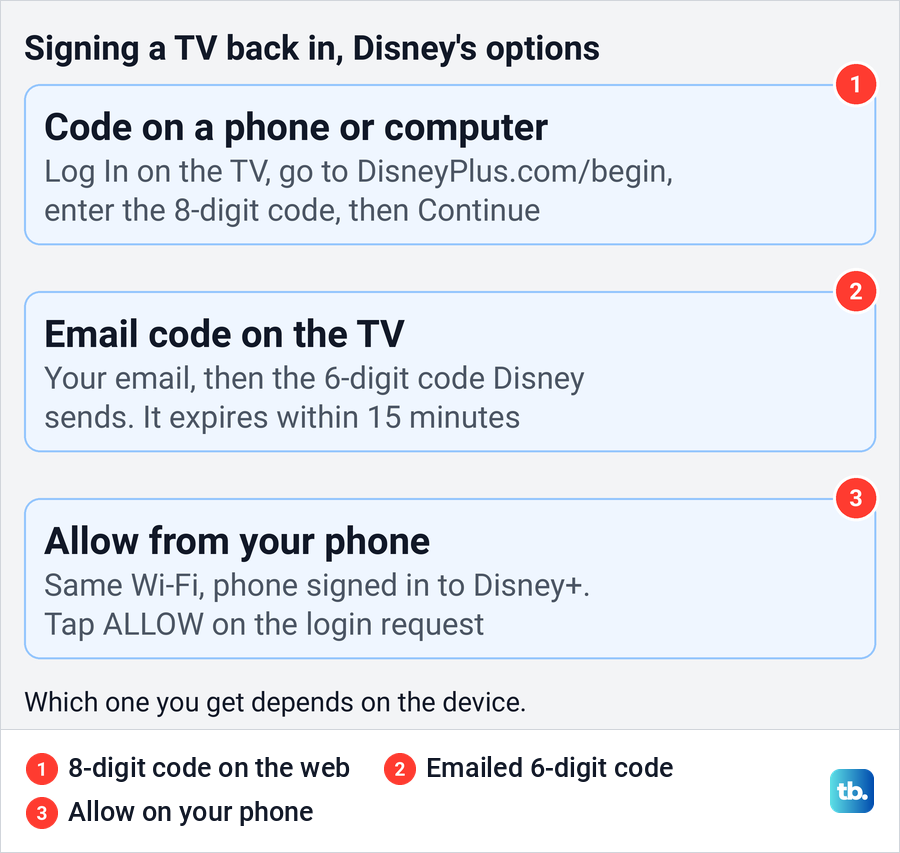
To use a logged-out TV again, open Disney+ and select Log In. On a smart TV or games console, Disney's steps are to go to DisneyPlus.com/begin on a computer or phone, enter the 8-digit code shown on the TV and select Continue, then enter your email address and password.
On some TV-connected devices, Disney's steps are to enter your email address on the TV and then a 6-digit one-time code that Disney emails to you. The code expires within 15 minutes, and you can choose Log in with password if the email does not arrive.
The third way skips typing. With the TV and your phone on the same Wi-Fi network and the phone already signed in to Disney+, open the app on both, and a device login request appears on the phone for you to tap ALLOW. If that request never shows, see how to fix Tap Allow on iPhone for Disney Plus.
Check that the sign out worked
For a TV in front of you, close Disney+ and open it again. If it asks you to log in, the sign-out worked. If it opens without asking, the TV is still signed in, so try Log Out again or use Manage Devices.
For a TV somewhere else, give Disney's four-hour allowance time to pass after Log out of everywhere. Then ask someone with access to the TV to open Disney+ and check that it asks them to log in. The last activity times in Manage Devices help you identify a device, but they cannot confirm that it was signed out.
If a device still streams after that, change the password, take the option to log out of all devices, and contact Disney's support. Unplugging the TV is not part of Disney's instructions, so do not count on a power cycle to end the session.
How we tested this guide
We tested this on Disney+ on the web in Chrome, going through the Account page, Manage Devices and Edit Profiles up to the Log Out link on the device card.
Frequently Asked Questions
Can I log out of Disney Plus on a TV without the remote?
Yes. Sign in at DisneyPlus.com on a phone or computer, open Account, then Manage Devices, and select Log Out on that TV's card. Disney's help points to the same route if you forget to log out of a TV away from home.
How do I remove only one device from Disney Plus?
Use that device's card in Manage Devices. Match the device type and its last activity before you select Log Out, because the location shown is only the general area.
How long does Log out of everywhere take?
Disney says the device you use is logged out at once, and the rest can take up to four hours. If a TV still plays after that, reset the password and log out of all devices again.
Will logging out delete my profile or cancel my subscription?
No. Logging out leaves profiles and the plan as they are. Deleting a profile is a separate, permanent step, and cancelling is done from the subscription's page or with whoever bills you.
Does Log out of everywhere affect other Disney services?
Yes. Disney says it also logs you out of services and experiences across The Walt Disney Family of Companies that use your MyDisney login, so expect to sign in again to those apps.
How do I log back into Disney Plus on my TV?
Select Log In, then go to DisneyPlus.com/begin on a phone or computer and enter the 8-digit code from the TV. Some devices use an emailed 6-digit code or an Allow request on your phone instead.
Does changing my Disney Plus password log everyone out?
Not on its own, going by Disney's description. Disney offers the option to log out of all devices when you change the password, so choose it.