
If your Google Pixel 9a's camera app is crashing, freezing, or just showing a black screen, the first thing to try is a simple restart. Press and hold the power button until the shutdown menu appears, then tap Restart. This clears out any temporary software glitches that might be hanging up the camera system.
If you are unsure whether the camera or the app is at fault, run a camera test first. Seeing a live preview means the hardware and driver are doing their job.
Key Points
- Restart Your Phone: This is the quickest fix for most temporary camera app crashes.
- Check for App and System Updates: Outdated software is a common cause of camera problems on the Pixel 9a.
- Clear the Camera App's Cache: This can resolve issues without deleting your personal settings.
- Check for Physical Obstructions: A case or a dirty lens can easily block the camera.
- Boot Into Safe Mode: This helps determine if a third-party app is interfering with the camera.
- Reset App Preferences: This reverts all your app settings to default without erasing your data.
- Check Storage Space: A full phone can prevent the camera from saving new photos and videos.
- Factory Reset (Last Resort): This wipes all software issues but requires a full backup first.
- Consider Hardware Failure: If all else fails, the camera module itself may be damaged.
Give the phone a full minute to reboot completely, then open the camera app again to see if it's working.
Check for App and System Updates
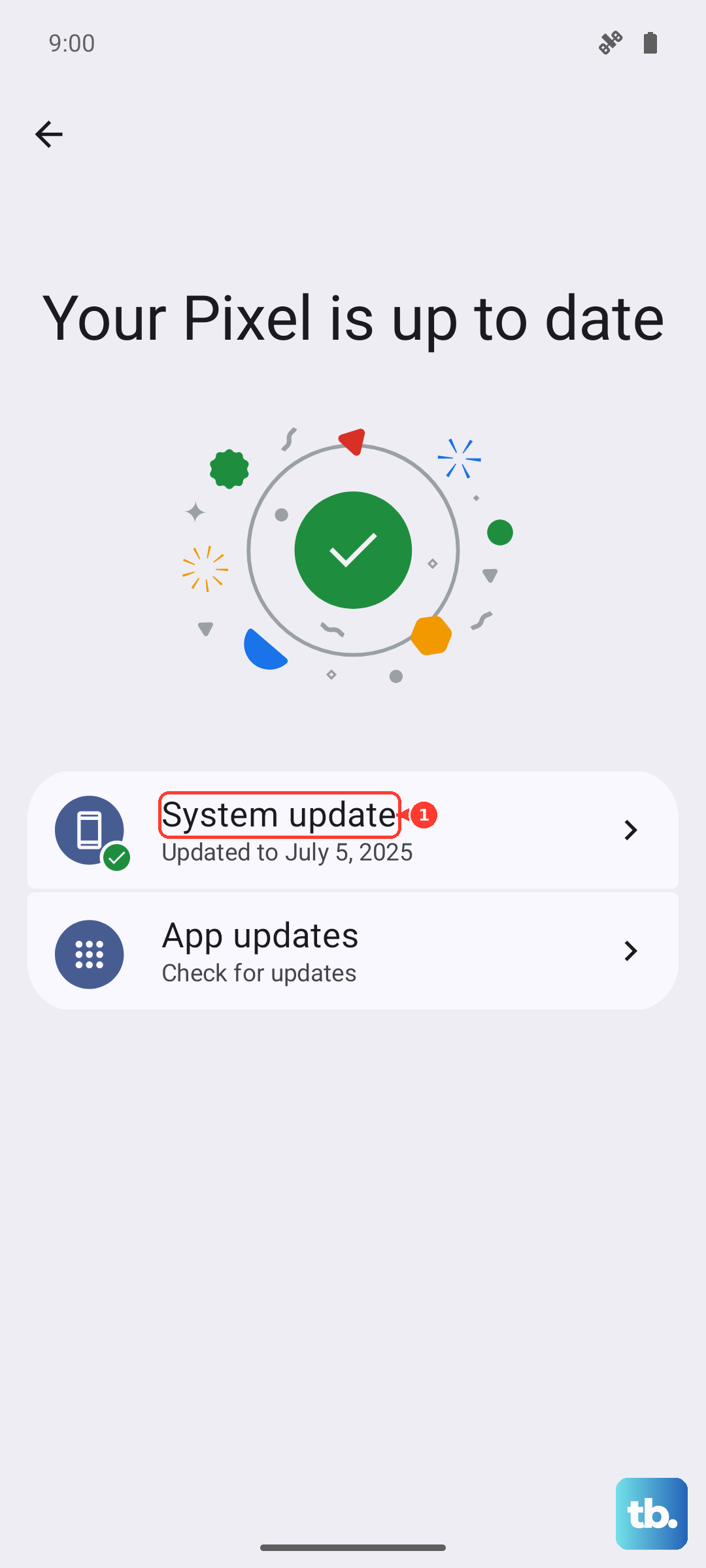
An outdated camera app or Android system can definitely cause problems. First, open the Google Play Store, tap your profile icon, and go to Manage apps & device. Look for updates, specifically for the Camera app. Install any that are available.
Next, check for the larger Android system updates. Go to Settings > System > Software update and tap Check for update. Google frequently releases patches that fix bugs, including camera-related ones, so it's worth making sure you're on the latest available version of Android.
Clear the Camera App's Cache and Data
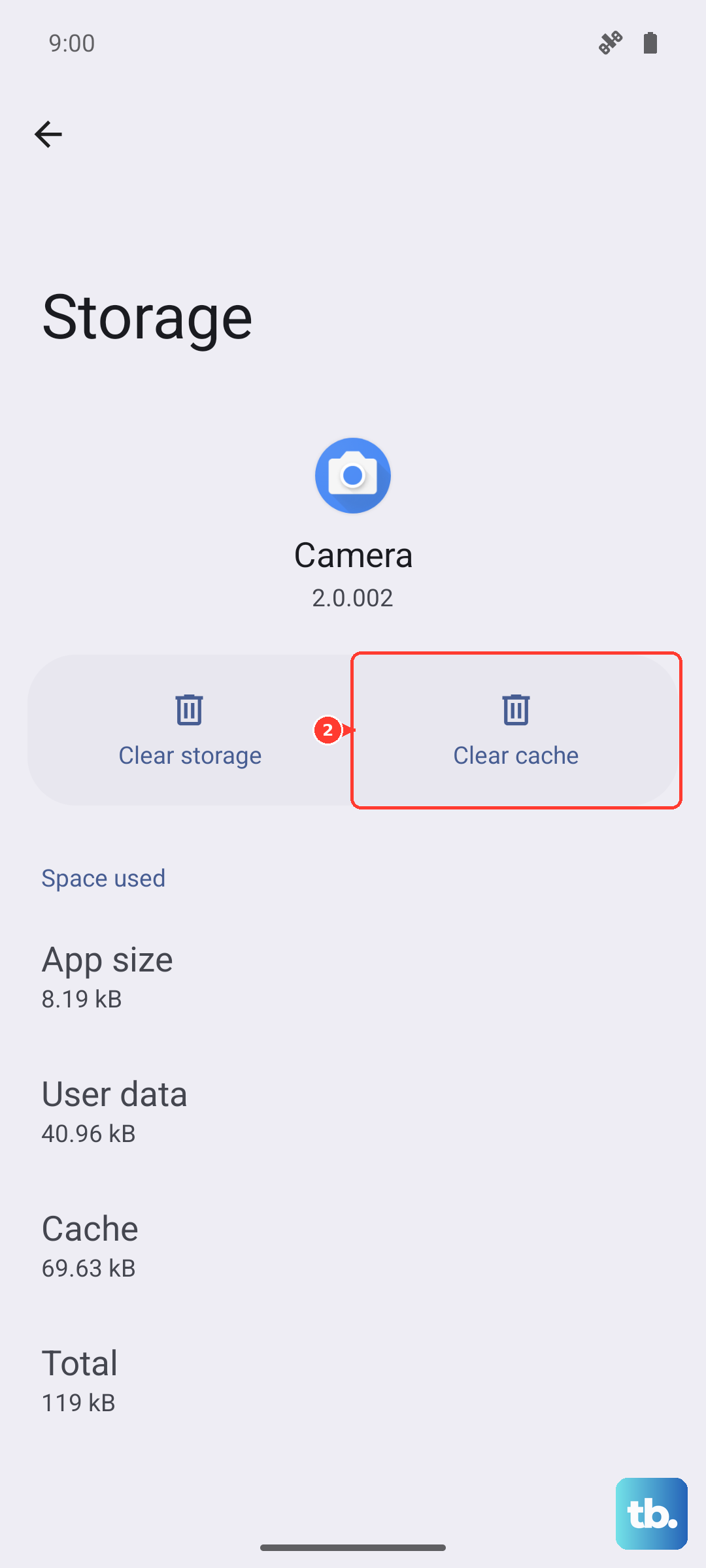
Sometimes the app's temporary files get corrupted. Clearing the cache is a safe first step that won't delete your photos or personal settings. Go to Settings > Apps > See all apps, find and tap on Camera.
Tap Storage & cache, then tap Clear cache. Try the camera again. If it's still not working, you can go back and tap Clear storage or Clear data. This will reset the camera app to its default settings, so you'll need to re-grant permissions and set your preferences again, but your photos in Google Photos will be safe.
Check for Physical Obstructions
This sounds obvious, but it's easily overlooked. Take a close look at all your camera lenses on the back. Make sure there's no protective film left on from when you unboxed the phone, and check that your phone case isn't overlapping and blocking any part of the lens.
Gently wipe the lenses with a clean, dry microfiber cloth. Fingerprints and smudges can cause blurry photos or make the camera struggle to focus. I'd start with this check, as it takes just a few seconds and solves a lot of issues.
Boot Into Safe Mode
If the camera works fine in Safe Mode, you know a third-party app you installed is causing the conflict. To boot your Pixel 9a into Safe Mode, press and hold the Power button and Volume Up button together until the power menu appears.
Then, press and hold the Restart option on your screen. You'll get a prompt asking if you want to reboot into Safe Mode. Tap OK. Once booted, you'll see "Safe mode" in the bottom corner. Try opening the camera app. If it works normally here, start uninstalling recently downloaded apps one by one until the problem goes away.
Reset App Preferences
This is a broader fix that resets permissions, background restrictions, and default apps for everything on your phone, but it won't delete any of your personal data. Go to Settings > Apps > See all apps.
Tap the three-dot menu in the top right and select Reset app preferences. Confirm your choice. Afterward, you'll need to re-allow permissions for apps when you use them next, but this can resolve conflicts where another app is incorrectly trying to control the camera hardware.
Check Your Phone's Storage Space
The camera app needs free space to process and save photos and videos. If your Pixel 9a's internal storage is completely full, the camera may fail to open or crash immediately. Go to Settings > Storage to see how much space you have left.
If you're running critically low, try freeing up space by deleting old downloads, clearing app caches, or moving photos and videos to Google Photos cloud storage. Aim to have at least a few gigabytes free for the camera to operate smoothly.
Perform a Factory Reset
This is your last resort software fix. A factory reset will wipe your phone back to its original out-of-the-box state, eliminating any deep-seated software corruption. Before you do this, it is absolutely critical to ensure all your important data is backed up to your Google account or another secure location.
To proceed, go to Settings > System > Reset options > Erase all data (factory reset). Follow the prompts. After the reset is complete, set up your phone as new (don't restore from a backup immediately) and test the camera before reinstalling your apps.
Consider a Hardware Issue
If you've tried every software fix here, including a factory reset, and the camera still doesn't work, the problem is likely with the physical camera module. This is especially true if you see error messages specifically about the camera hardware, or if the phone has suffered any recent drops or water exposure.
Since the Pixel 9a uses Corning Gorilla Glass 3, which can scratch more easily, it's also possible for a deep scratch over a lens to cause image quality problems. At this point, you would need to contact Google Support or a reputable repair service to diagnose and potentially replace the camera hardware.