
If your Google Pixel 9 videos are stuttering, freezing, or lagging during playback, it can be incredibly annoying. This is a common problem that pops up for a few different reasons, but the good news is most fixes are pretty straightforward.
Before you start troubleshooting, it helps to pinpoint what you're seeing. Stutter looks like the video is choppy and skipping frames, while lag usually means the video buffers or is delayed. Freezing is when the picture stops entirely, but the audio might keep going.
Restart Your Pixel 9
This is always the best first step. A simple restart can clear out temporary software glitches that might be interfering with video playback. Just press and hold the Power button for about 30 seconds until you feel the phone vibrate and the Google logo appears on the screen.
It's a quick process that takes less than a minute, and I've seen it resolve playback issues more often than not.
Check Your Internet Connection for Streaming
If you're watching videos on YouTube, Netflix, or another streaming app, a weak connection is the most likely culprit. The Pixel 9 needs a stable Wi-Fi or cellular data connection to stream smoothly without constant buffering.
Try switching from Wi-Fi to your mobile data, or vice versa, to see if the problem goes away. If you're on Wi-Fi, you might try moving closer to your router or restarting the router itself.
Free Up Storage Space
When your phone's internal storage is nearly full, it can struggle with tasks that need to read and write large files quickly, like playing back high-resolution video. Android needs some breathing room to operate properly.
Head to Settings > Storage to see how much space you have left. If you're down to just a gigabyte or two, it's time for a cleanup. You can start by clearing cached data from apps like Google Photos or your video streaming services.
Update Your Apps and Android
An outdated video app or an old version of Android can have bugs that cause playback problems. App developers and Google regularly release updates that include performance fixes.
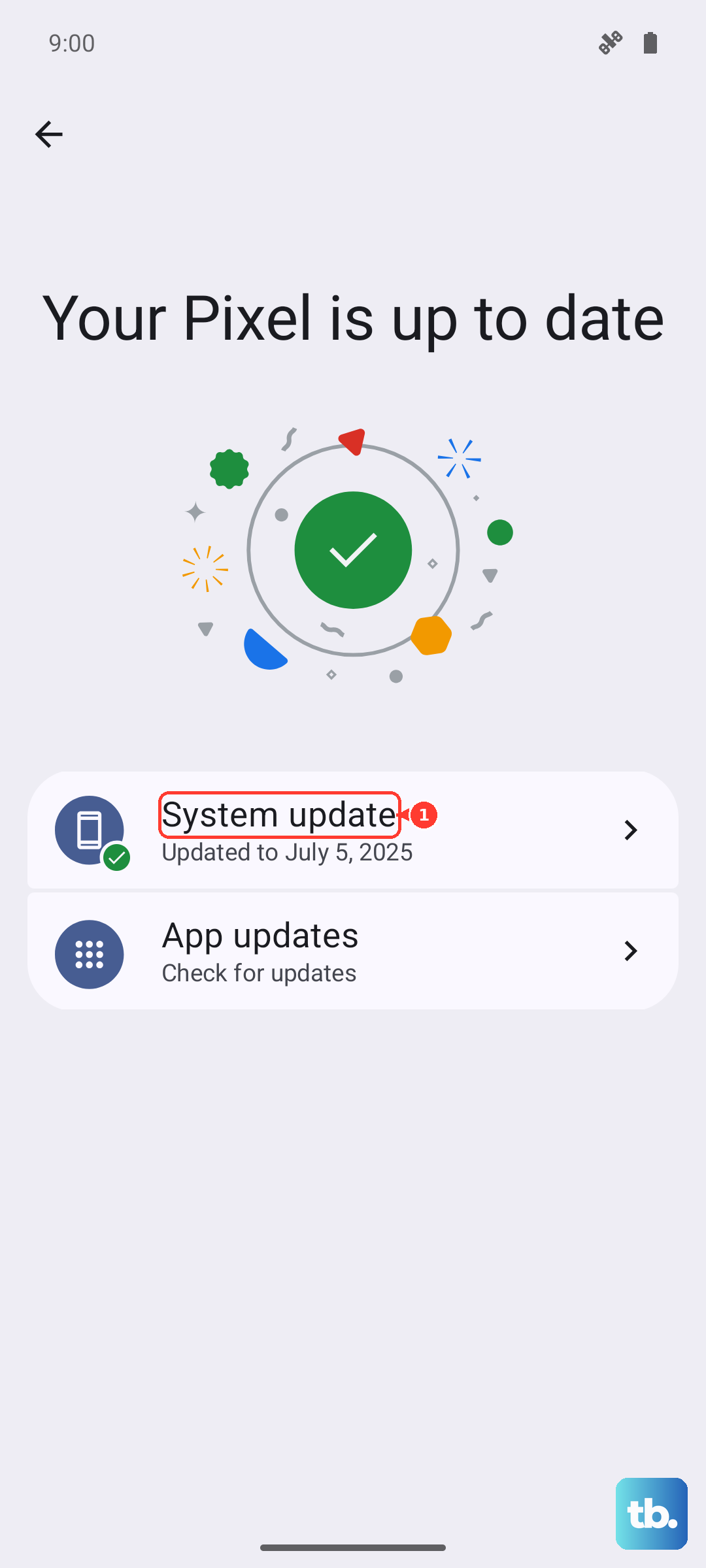
First, open the Google Play Store, tap your profile picture, and go to Manage apps & device > Updates available. Update any video-related apps. Then, check for a system update by going to Settings > System > System update. If your Pixel 9 is still on Android 14, updating to Android 15 could resolve the issue.
Check for Overheating
The Pixel 9's processor can throttle its performance if the device gets too hot, which can lead to video lag. This often happens if you're recording long 4K videos, using the phone in direct sunlight, or while it's fast charging.
If the back of your phone feels very warm to the touch, give it a break. Close any demanding apps, take it out of its case, and let it cool down in a shaded spot. Playing videos once it's back to a normal temperature should be smoother.
Clear the App's Cache and Data
If the lag is only happening in one specific app, like YouTube or your gallery, the app's temporary data might be corrupted. Clearing this cache won't delete your personal data like login info or downloads.
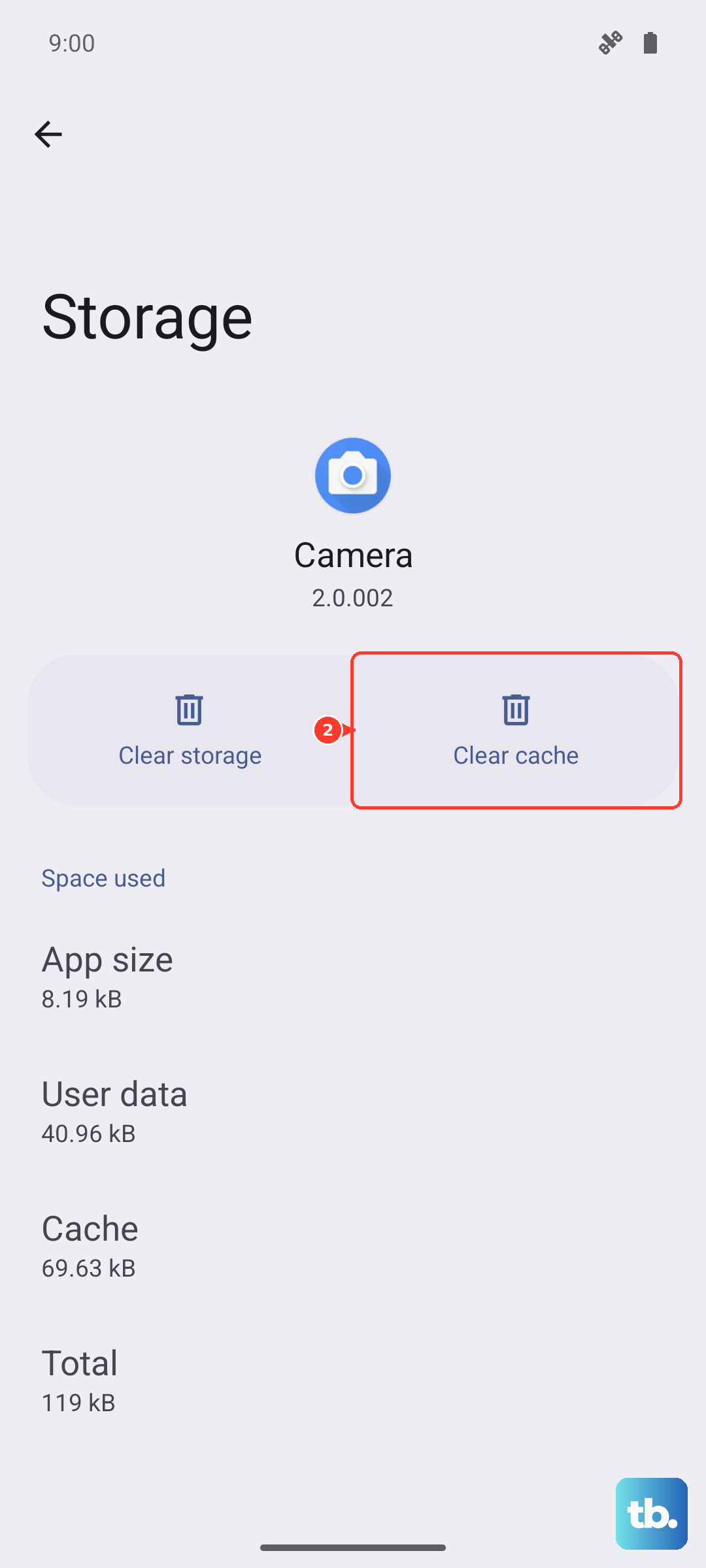
Go to Settings > Apps, select the problematic app, then tap Storage & cache. Tap "Clear cache" first. If that doesn't help, you can try "Clear storage" or "Manage space," but be aware this will reset the app to its default state and you may need to log back in.
Disable Battery Optimization for Video Apps
Android's battery optimization is great for saving power, but it can sometimes be too aggressive and limit background processes for apps you're actively using. This can interfere with video buffering and playback.
You can turn it off for a specific app. Go to Settings > Apps, select your video app, then tap Battery. Change the battery setting from "Optimized" to "Unrestricted." This tells your Pixel 9 not to restrict that app's activity in the background.
Reset App Preferences
This is a useful middle-ground step that resets permissions, background restrictions, and default apps without deleting any of your personal data. It can fix issues caused by a misconfigured setting you might not even be aware of.
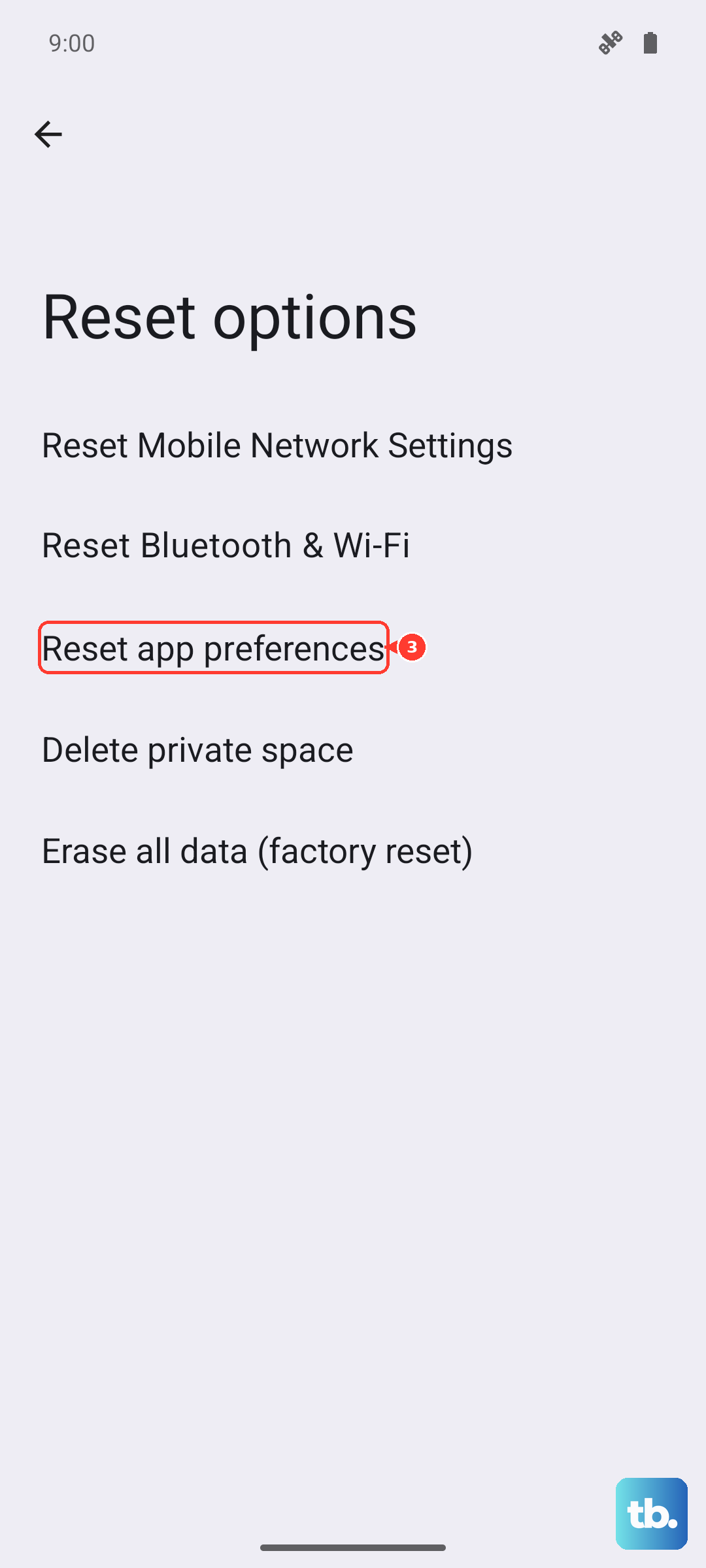
Navigate to Settings > System > Reset options. Tap on "Reset app preferences" and confirm. Afterward, you'll just need to re-grant permissions to apps when you use them again.
Boot into Safe Mode
Safe Mode temporarily disables all third-party apps. If your videos play perfectly in Safe Mode, then you know a downloaded app is causing the conflict. It could be a launcher, a "cleaner" utility, or another app running in the background.
To enter Safe Mode, press and hold the Power button and Volume Up button together until the power menu appears. Then, press and hold the "Power off" option on your screen until you see a prompt to reboot to Safe Mode. Tap "OK." To exit, just restart your phone normally.