
Running out of space on your Google Pixel 9 Pro can really slow things down, stopping you from taking new photos or updating apps. The good news is Android 15 gives you great tools to see exactly what's eating your storage. You can often free up dozens of gigabytes without losing anything important.
See What's Taking Up Space
Open Settings > Storage. You'll get a clear, color-coded breakdown of your storage usage right at the top. Tap on any category, like Apps or Photos & videos, to dive deeper. I'd start by looking at the largest items first, as they'll give you the biggest space savings for your effort.
Clear App Caches and Data
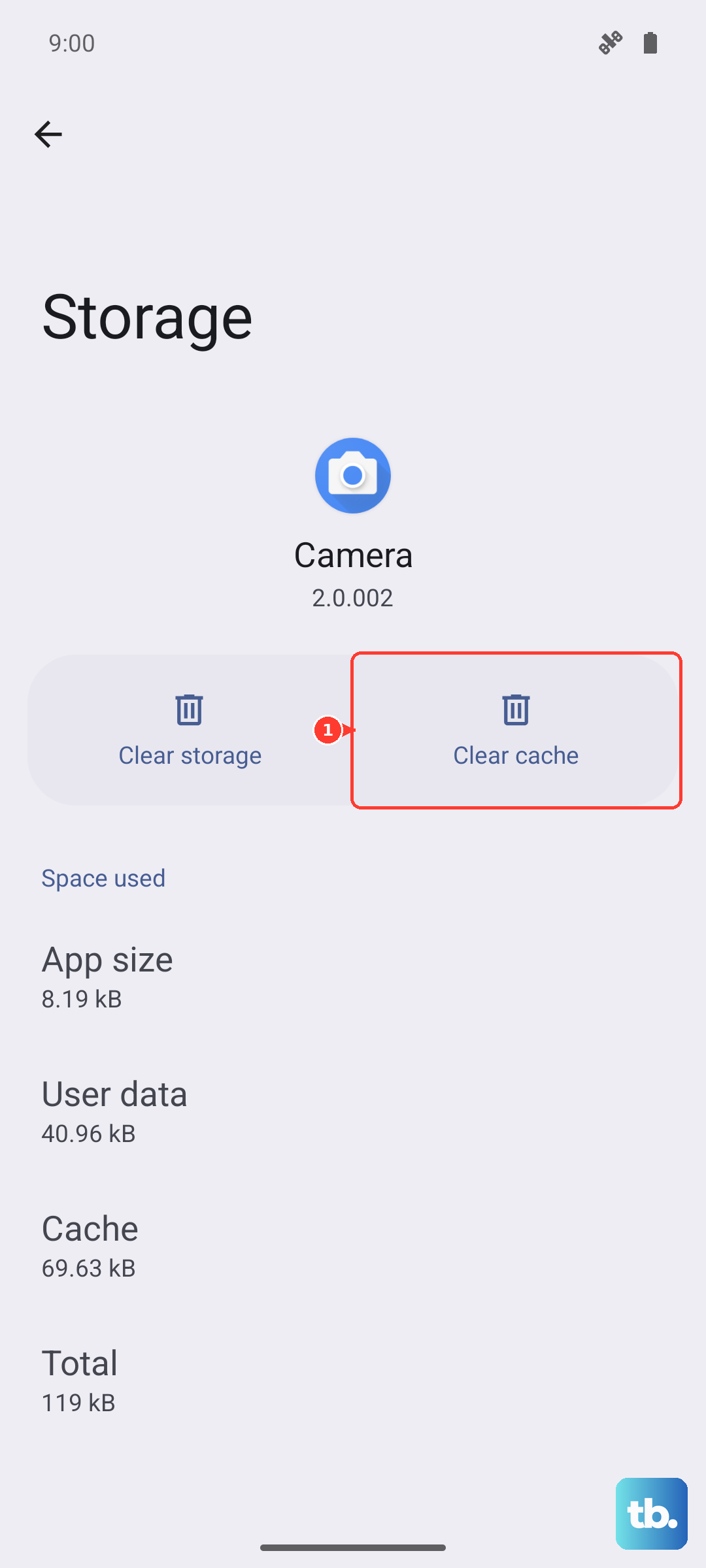
Go back to Settings > Storage > Apps. Tap on any large app, especially social media or streaming apps like Instagram, TikTok, or Spotify. You'll see two numbers: the app size and the data/cache it has stored. Tap Clear cache first, this is safe and won't delete your login or settings. If you need more space, you can tap Clear storage or Clear data, but know this will reset the app as if you just installed it.
Use Google Photos' Storage Saver
Your Pixel 9 Pro's camera is fantastic, but those high-quality photos and 4K videos add up fast. Open the Google Photos app, tap your profile picture, and go to Photos settings > Backup & sync. Make sure "Storage saver" is selected for your backup quality. This uploads a high-quality compressed version to the cloud. You can then use the "Free up space" tool in Photos settings to remove the full-resolution copies already safely backed up from your device.
Delete Downloaded Files and Podcasts
Open the Files by Google app and tap the Clean tab at the bottom. It will suggest large, duplicate, or unused files to delete. Also, check your streaming apps. In Spotify, go to Settings > Storage and remove downloads. In YouTube or Netflix, go to your library's downloads section and delete watched content.
Manage Your Messages
Open the Google Messages app and search for terms like "image" or "video." You can long-press on large message threads, especially group chats, tap the three-dot menu, and select Details. From there, you can manually delete attached photos and videos. For automatic cleanup, go to Messages settings > Advanced and enable "Auto-download MMS when roaming" only when needed to prevent unwanted large downloads.
Review and Uninstall Unused Apps
Head to the Play Store, tap your profile icon, and select Manage apps & device > Manage. Sort by "Size" to see which installed apps are the largest. Scroll through and uninstall anything you haven't used in months. Android 15 also has an "Auto-archive" feature you can enable in the Play Store settings, which temporarily removes unused apps but keeps your data ready for a quick reinstall.
Free up storage and clear app caches
Use Pixel's storage tools instead of a recovery-cache wipe. Open Settings > Storage to review what's using space, then remove unused files, downloads, photos, videos, or apps you no longer need.
For an app that is taking space or acting up, go to Settings > Apps > See all apps, choose the app, then tap Storage & cache > Clear cache. Avoid Clear storage unless you understand it permanently removes that app's data.
Check for and Remove Duplicate Files
The Files by Google app has a built-in duplicate file finder. Open the app, tap Browse at the bottom, and then look for the Categories section. Tap on Duplicate files. The app will scan and show you files with identical names and sizes, often screenshots or downloaded images, so you can safely delete the extras.
Leverage Google One Storage Management
If you subscribe to Google One, open the Google One app. The Storage tab offers powerful, personalized cleanup suggestions. It can identify blurry photos, large videos, and old documents across your account that you might have forgotten about. It's one of the most effective ways to clean up not just your phone, but your entire Google account storage in one place.