
You're staring at your Google Pixel 9 Pro, and that Wi-Fi icon just won't light up. It's a frustrating spot to be in, especially when you need to get online. The good news is that this is almost always a software glitch you can fix yourself. I'd start with the simplest solutions first, as they often do the trick.
Toggle Wi-Fi and Restart Your Pixel
First, swipe down from the top of your screen to open the Quick Settings panel. Tap the Wi-Fi icon to turn it off, wait a few seconds, and then tap it again to turn it back on. This forces your Pixel 9 Pro to re-scan for networks and can clear up a temporary hiccup.
If that doesn't work, give your phone a full restart. Press and hold the Power button and Volume Up button together until the power menu appears, then tap "Restart." A reboot clears out minor software bugs that can interfere with the Wi-Fi radio, and it's a solid first step for any connectivity issue.
Use Airplane Mode to Reset Radios
This is a more thorough version of toggling Wi-Fi. Swipe down for Quick Settings again and tap the Airplane Mode icon. Leave it enabled for about 15 to 20 seconds, which shuts down all wireless communication.
After that short wait, tap the icon again to turn Airplane Mode off. Your Pixel will re-establish all its connections from scratch, which can often bypass a stubborn network error that a simple Wi-Fi toggle couldn't fix.
Forget and Re-add Your Wi-Fi Network
Your phone might be holding onto outdated information for your network. To clear it, go to Settings > Network & internet > Internet. Tap the settings gear next to your network's name and select "Forget."
Now, go back to the list of available networks, tap on yours, and re-enter the password. This is crucial if you've recently changed your Wi-Fi password or gotten a new router, as your Pixel will keep trying the old credentials.
Check for Android and App Updates
Outdated software is a common culprit. Google releases monthly security updates that often include stability fixes for the modem and connectivity. Go to Settings > System > System update to check.
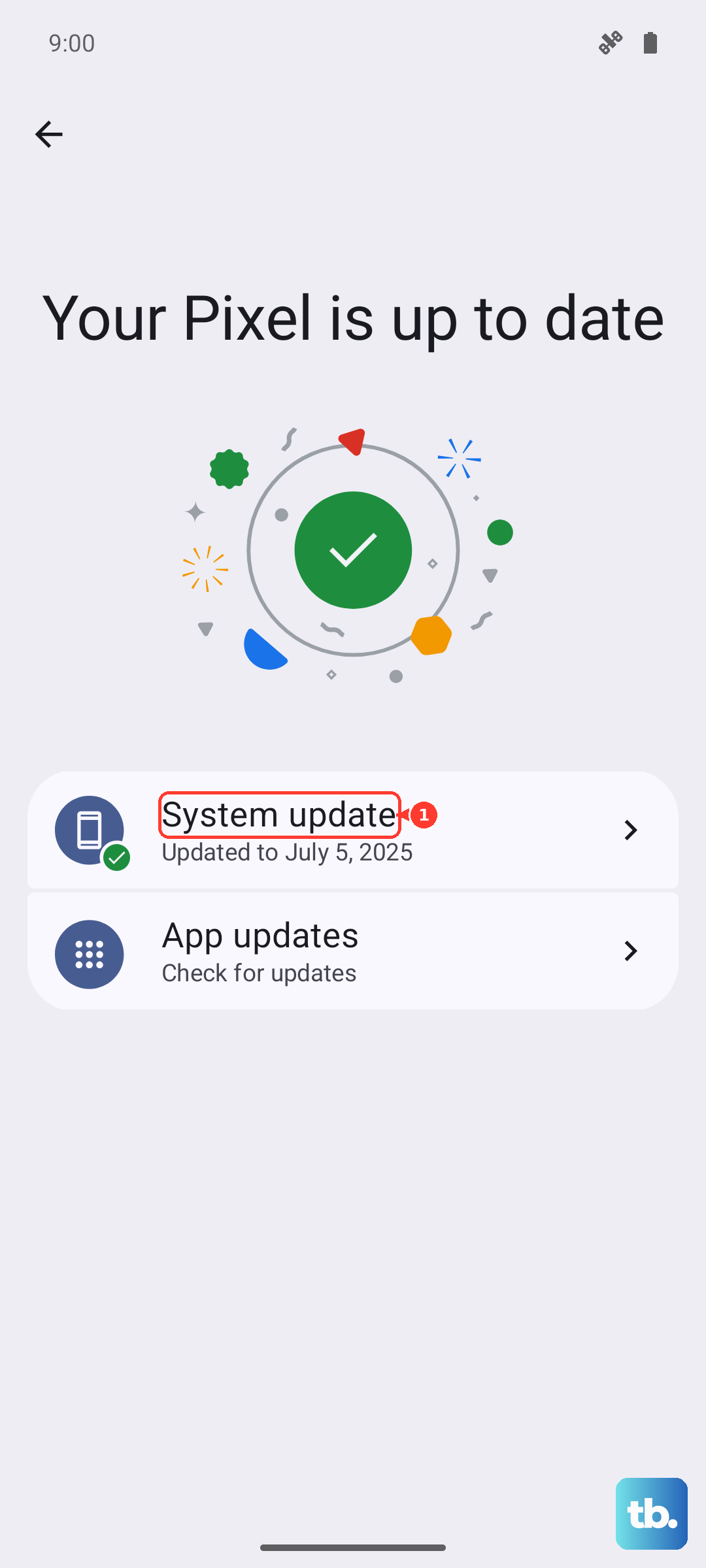
Also, check the Google Play Store for app updates, particularly for any VPN, security, or network utility apps you have installed. A buggy update to one of these can sometimes break Wi-Fi.
Disable Adaptive Connectivity
Your Pixel 9 Pro has a feature called Adaptive Connectivity designed to save battery by managing your network usage. Sometimes, it can be a bit too aggressive. You can find it in Settings > Network & internet > Adaptive connectivity.
Try turning this setting off temporarily to see if your Wi-Fi connection stabilizes. If it does, you can always turn it back on later, but this will tell you if the feature is causing the conflict.
Turn Off Bluetooth to Test for Interference
Both Wi-Fi and Bluetooth can operate on the 2.4GHz band, and while modern phones are good at managing this, interference can still happen. Swipe down to your Quick Settings and turn Bluetooth off.
See if your Wi-Fi connects immediately after. If it does, you've found the issue. You can then turn Bluetooth back on; often, the simple act of resetting the state resolves the conflict.
Verify Your Date, Time, and Security Settings
This one seems odd, but it's important. An incorrect date or time can cause Wi-Fi authentication to fail because security certificates won't validate. Go to Settings > System > Date & time and ensure "Set time automatically" is on.
Also, if you're on a public or enterprise network, check that you don't have a captive portal login page waiting. Sometimes the notification for this gets missed.
Boot Into Safe Mode
This will tell you if a third-party app is causing the problem. To boot your Pixel 9 Pro into Safe Mode, press and hold the Power button and Volume Up button together until the power menu appears. Then, tap and hold the "Power off" option on your screen.
You'll see a prompt to reboot to Safe Mode. Tap it. If your Wi-Fi works perfectly in Safe Mode, you know an app you installed is the culprit. Start by removing any recent apps, especially VPNs, ad blockers, or antivirus software.
Reset Your Network Settings
This is a more significant step, but it doesn't delete your personal data. It will erase all saved Wi-Fi networks, Bluetooth pairings, and mobile network settings. Go to Settings > System > Reset options > Reset Wi-Fi, mobile & Bluetooth.
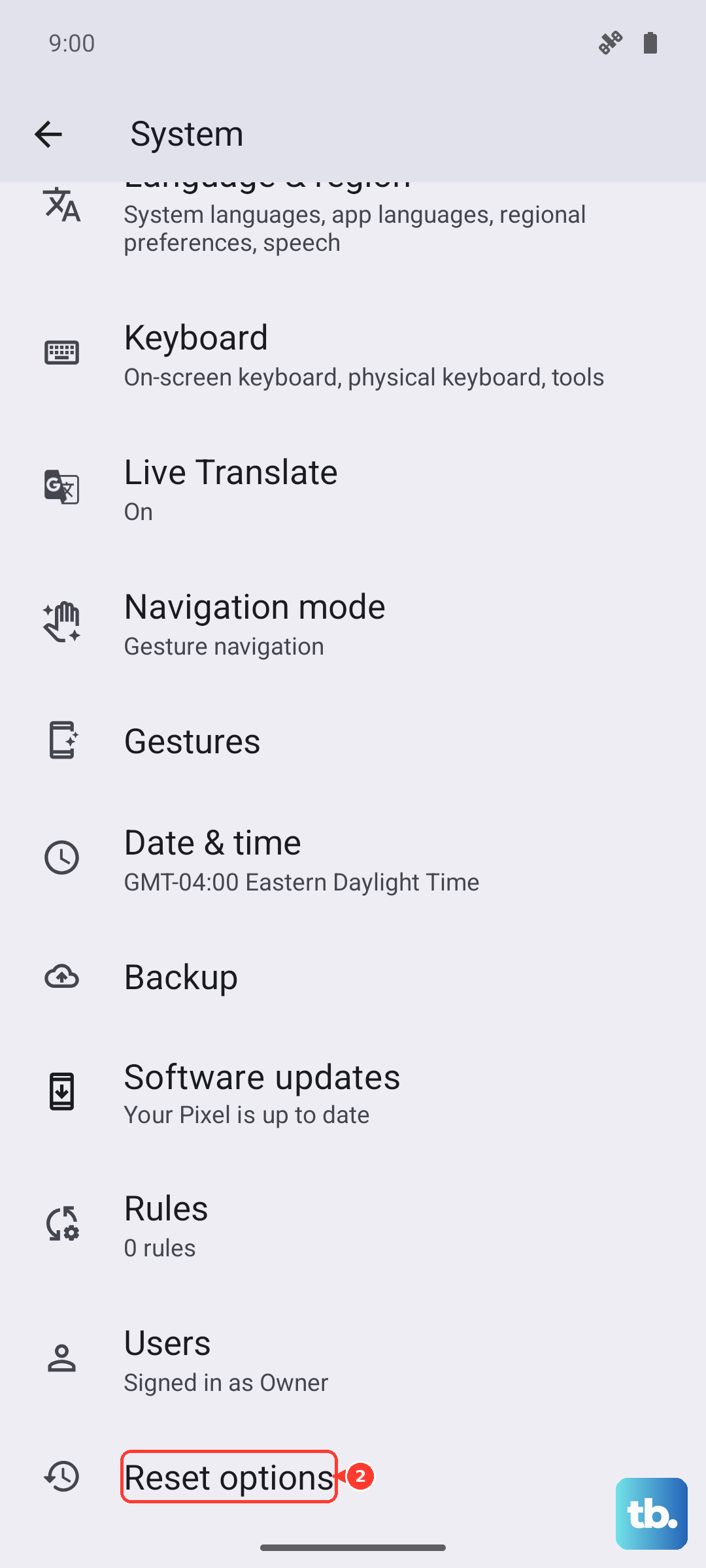
Tap "Reset settings" and confirm. After your phone reboots, you'll need to reconnect to your Wi-Fi and re-pair any Bluetooth devices, but it often clears deep-seated network configuration errors.
Restart Your Router and Modem
Don't forget that the problem might not be your phone at all. Unplug your router and modem from power. Wait a full 60 seconds before plugging the modem back in, letting it fully boot, and then plugging the router back in.
This gives your home network a clean start. If other devices were also having trouble connecting, the router is almost certainly the source of the issue. It's also a good time to check your router's admin page for a firmware update.