
So your Google Pixel 9 Pro won't charge. You've plugged it in, maybe swapped cables, and the battery icon is stubbornly staying put. It's a frustrating spot to be in, but I've found this is almost always something you can fix yourself without a trip to the repair shop.
Whether you're dealing with a USB-C port that feels loose, a wireless charger that won't connect, or a phone that just sits there completely dark, let's walk through the fixes. We'll start with the quickest solutions and work our way through.
Force Restart Your Pixel 9 Pro
This is my go-to first step every single time. A simple force restart clears out temporary software glitches that can interfere with the charging system. It takes about 30 seconds and solves the problem more often than you'd think.
For the Pixel 9 Pro, just press and hold the Power button for 30 seconds or more. Keep holding it even after you see the Google logo flash. Release the button only once you feel the phone vibrate and see the boot animation start.
Once it's back on, plug it in again and check for the charging indicator or the battery percentage ticking up.
Clean the USB-C Charging Port
This is the single most common fix for any phone with a USB-C port, and the Pixel 9 Pro is no exception. Lint and pocket debris get packed in there over time, preventing the cable from making a solid connection.
Grab a flashlight and take a close look inside the port. If you see any dark fuzz or packed-in dust, you've found your culprit. Turn the phone off first for safety.
Then, use a wooden or plastic toothpick to gently scrape around the edges and dislodge the gunk. Avoid metal tools, as they can scratch the delicate gold contacts. A quick blast of compressed air can help, too. Finally, give the phone a gentle tap with the port facing down to shake anything loose.
Test a Different Cable and Power Source
You need to isolate the problem. Is it the cable, the wall adapter, or the phone itself? The best way is to swap each component one by one.
Try a different USB-C cable first, preferably one you know works with another device. Then, test with a different wall charger. Don't forget to try a different wall outlet entirely, as sometimes a faulty circuit is to blame.
Also, take your phone case off, especially if it's a thick or rugged one. Some cases can prevent the USB-C plug from seating all the way into the port.
Check for Overheating and Let It Cool
The Pixel 9 Pro can get warm during extended use, especially with the camera or demanding apps. Android has built-in temperature protection that will slow down or completely stop charging if the phone gets too hot to protect the battery.
If the phone feels unusually warm to the touch, unplug it and let it cool down on a flat, hard surface. Avoid charging it on a soft bed or couch, as that traps heat. Once it's back to room temperature, try plugging it in again.
Try Wireless Charging
If you have a Qi wireless charger or, even better, a Google Pixel Stand (2nd gen), give that a shot. This is a great way to figure out if the problem is specific to your USB-C port or something else.
For the fastest 15W wireless speeds, you'll want the Pixel Stand. A standard Qi charger will work at up to 12W. Make sure you remove any thick cases or cases with metal plates, as they can block the charging coil.
If wireless charging works perfectly but your cable doesn't, that's a strong sign your USB-C port needs a closer look or repair.
Update to the Latest Android Version
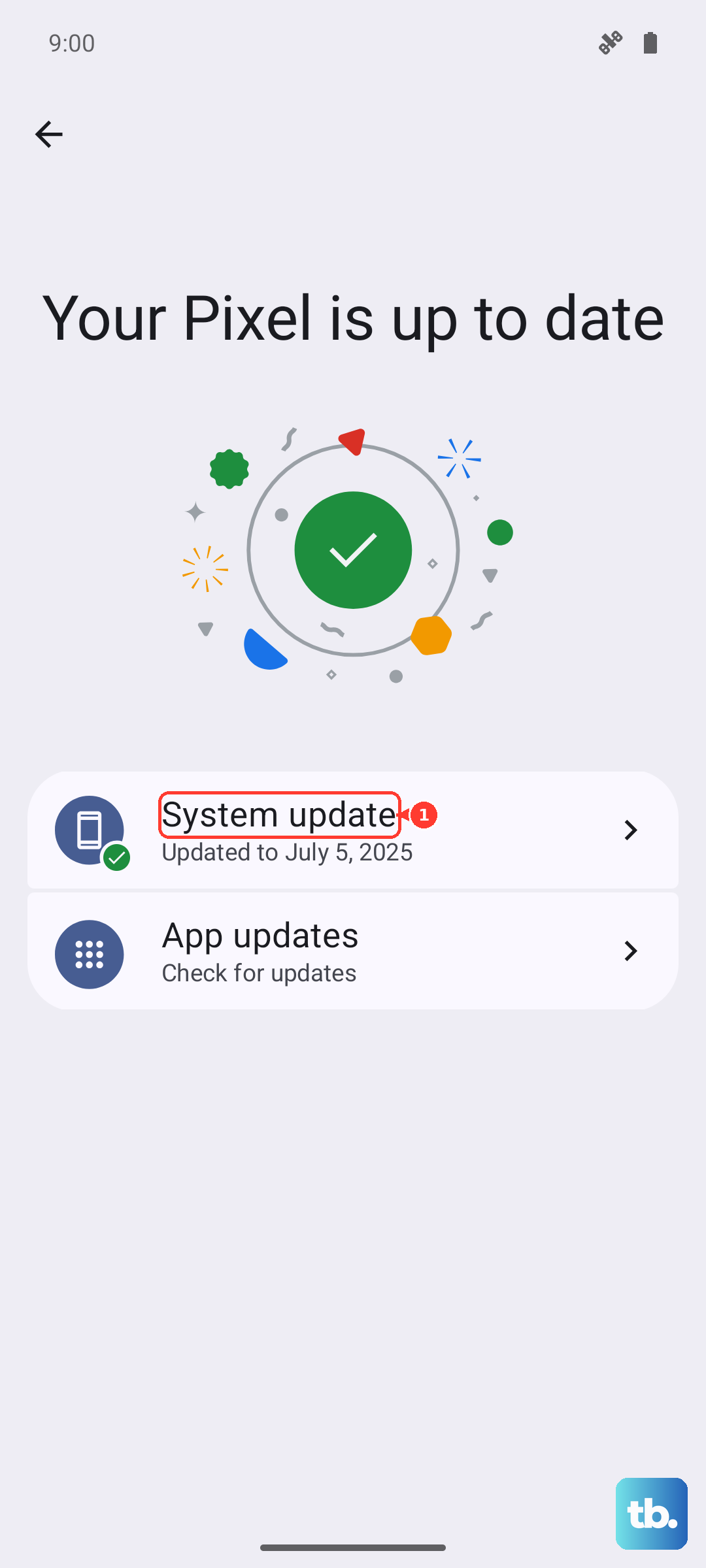
Google regularly releases updates that fix bugs, including ones related to power management and charging. If you're running an older version of Android 15, an update could resolve your issue.
Go to Settings > System > Software update (labeled System update on some phones, including Nothing devices) to check for and install any available updates. If your phone won't turn on enough to do this, you can try updating via a computer using the Android Flash Tool online, but that's a more advanced process.
Enable or Disable Adaptive Charging
Your Pixel has a smart feature called Adaptive Charging designed to preserve long-term battery health. When enabled, it learns your routine and will slow down charging overnight, aiming to hit 100% right before your alarm goes off.
Sometimes, if your schedule is irregular, it might seem like the phone is charging very slowly. You can check this by going to Settings > Battery > Adaptive preferences. You can toggle Adaptive Charging off to see if it makes a difference, though for battery longevity, I'd recommend keeping it on once the issue is resolved.
Wait If the Battery Is Fully Drained
If you've let your Pixel 9 Pro battery run down to absolute zero, it won't show any signs of life immediately when you plug it in. This is normal behavior for lithium-ion batteries.
Leave it connected to a wall charger (not a slow computer USB port) for at least 30 minutes. After that, try the force restart method again while it's still plugged in. You should eventually see the battery icon or a charging indicator on the screen.
Boot into Safe Mode
This step checks if a recently downloaded app is causing the problem. Safe Mode temporarily disables all third-party apps. To enter Safe Mode on the Pixel 9 Pro, press and hold the Power button and Volume Up button together until the power menu appears.
Then, tap and hold the "Power off" option on your screen. You'll get a prompt to reboot to Safe Mode. Tap "OK". If your phone charges normally in Safe Mode, you know a downloaded app is the culprit. You'll need to uninstall apps one by one, starting with the most recent, to find the bad one.