
That "No SIM" message on your Pixel 9 is a real roadblock. It usually means the phone can't read the SIM card, which cuts you off from calls, texts, and mobile data. The good news is it's often a simple fix you can handle in a few minutes.
Start With a Force Restart
This is the single best first step for any Pixel glitch. Press and hold the Power button for a full 30 seconds. Don't let go when you see the power menu, just keep holding until the screen goes black and the Google logo appears. This forces a clean reboot and can clear temporary software bugs causing the SIM error.
Toggle Airplane Mode On and Off
Swipe down twice from the top of your screen to open the full Quick Settings panel. Tap the Airplane mode icon to turn it on, wait about ten seconds, then tap it again to turn it off. This resets all the phone's radio connections, including the cellular modem, and often kicks the SIM recognition back into gear.
Check Your SIM Card Status in Settings
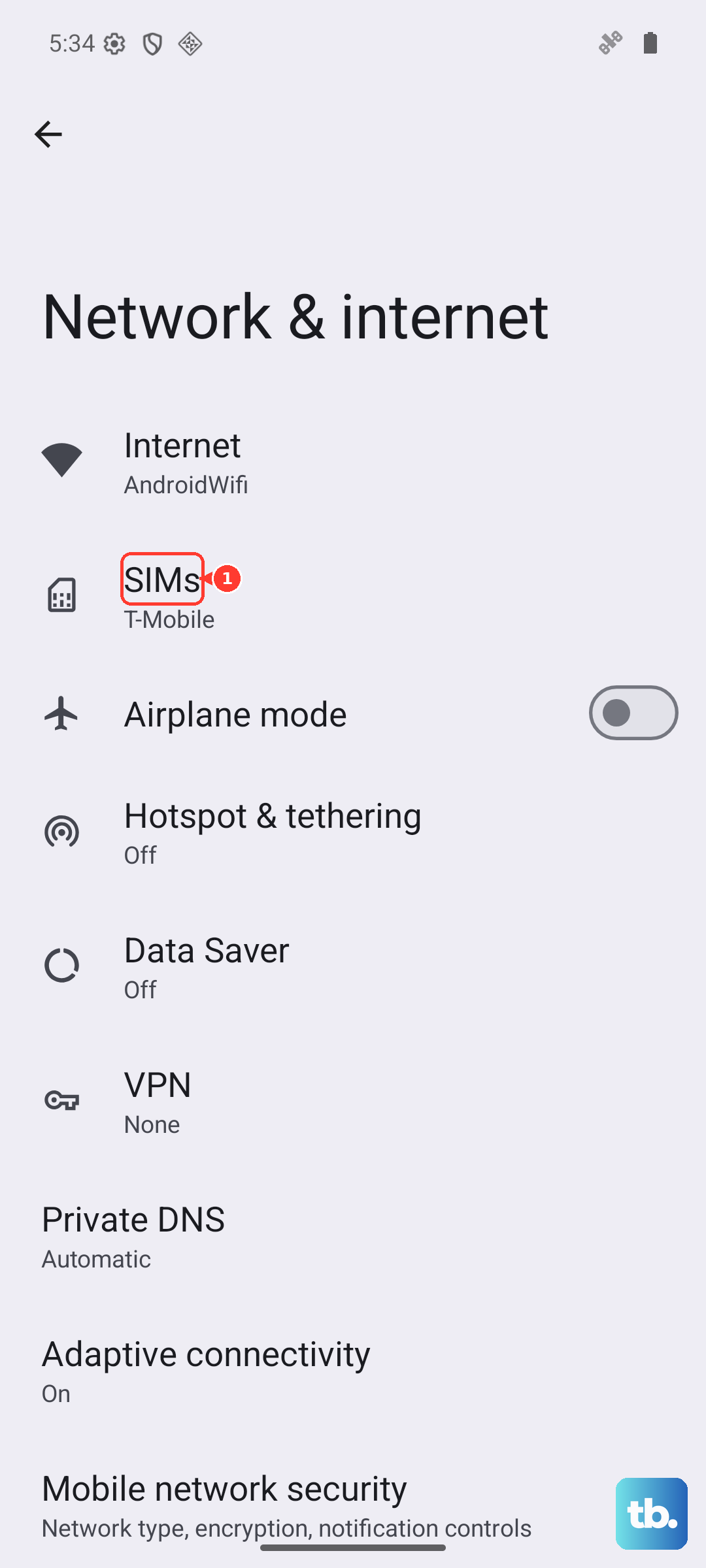
Open your Settings app and go to Network & internet. Tap on SIMs. Here, you should see your SIM listed. Make sure the switch next to it is turned on. If you have an eSIM set up as well, you can also check its status from this menu to rule out any configuration conflicts.
Physically Remove and Reinsert the SIM
Power your Pixel 9 off completely. Find the SIM ejector tool that came in the box (a small paperclip works too) and gently push it into the tiny hole on the left side of the phone's frame. The tray will pop out.
Carefully remove the SIM card. Give the gold contacts on the card a gentle wipe with a dry, soft cloth. Also, take a quick look inside the SIM slot for any obvious dust or debris. Blow it out gently if needed. Reinsert the SIM, ensuring it's seated correctly in the tray, and push the tray back in until it clicks. Power the phone back on.
Test the SIM in Another Phone
If you have access to another unlocked phone, pop your Pixel's SIM card into it. If the other phone also says "No SIM," then the issue is almost certainly with the SIM card itself. If the other phone recognizes it and gets service, then the problem is isolated to your Pixel 9.
Update Your Pixel's Software
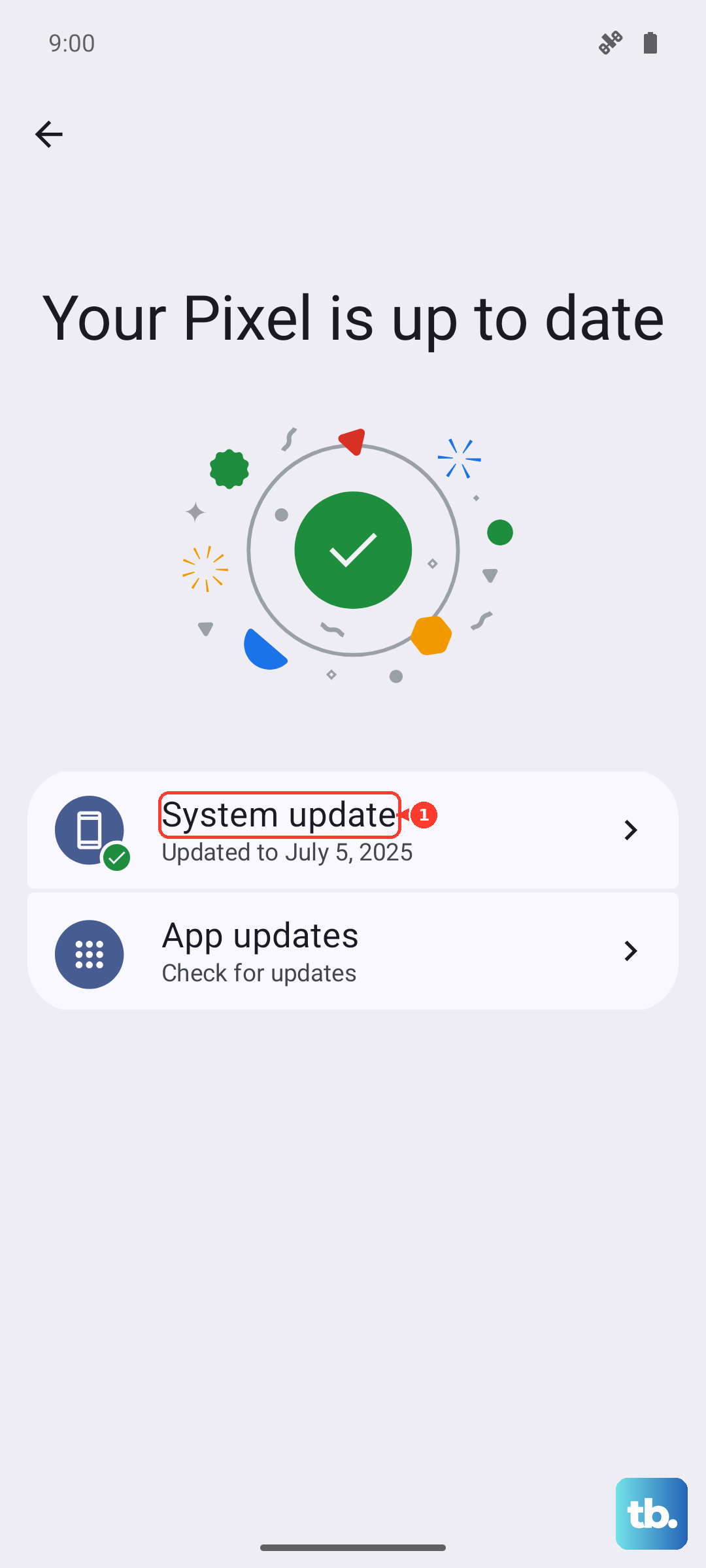
Outdated system software can sometimes cause modem or connectivity bugs. Go to Settings > System > System update and tap Check for update. If an update is available, install it. I've seen Pixel Feature Drop updates occasionally introduce quirks that a subsequent patch quickly resolves.
Reset Your Network Settings
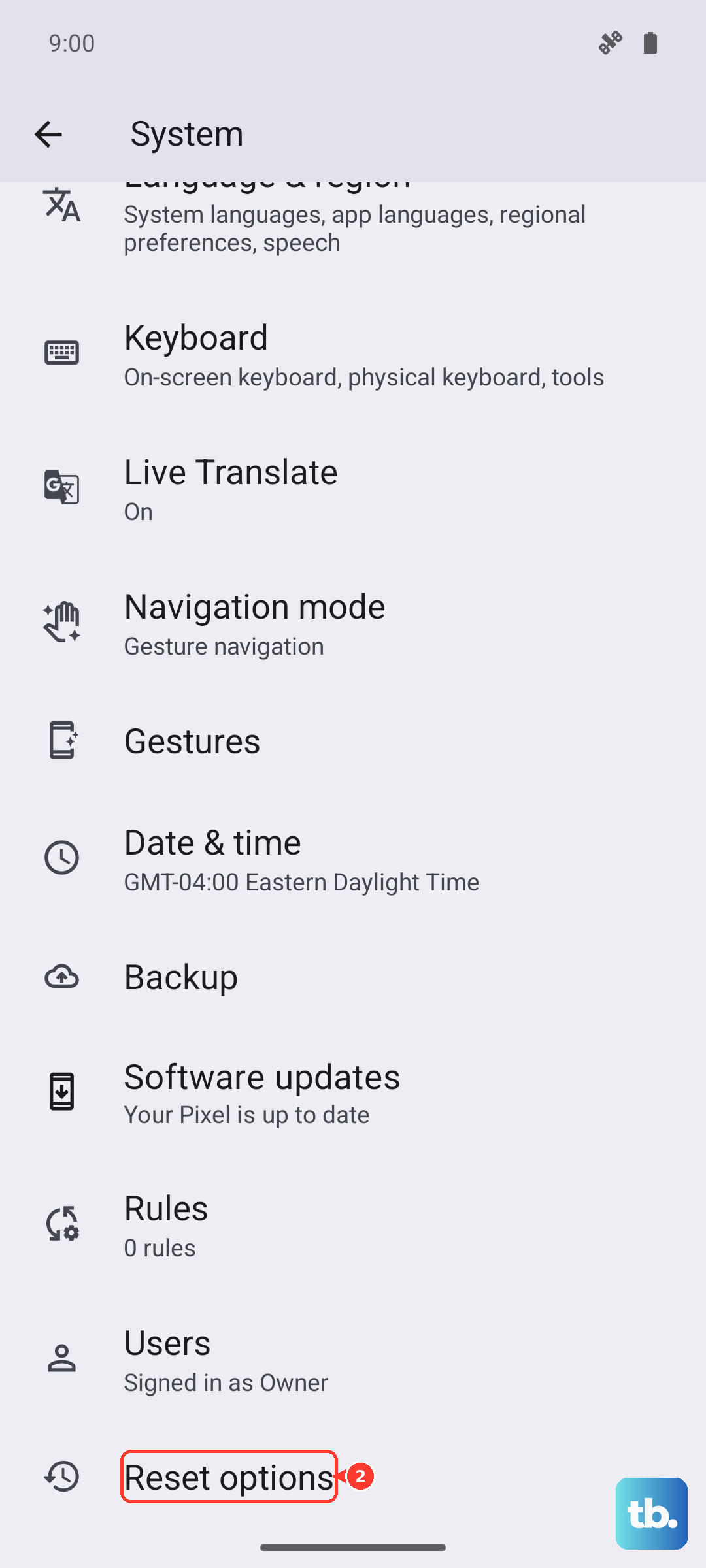
This clears all your saved Wi-Fi networks, Bluetooth pairings, and cellular network configurations back to factory defaults. It won't delete your photos or apps. Go to Settings > System > Reset options. Tap on Reset Wi-Fi, mobile & Bluetooth and confirm. After the phone reboots, you'll need to reconnect to Wi-Fi and re-pair Bluetooth devices, but it often fixes stubborn SIM issues.
Check and Reset Your APN Settings
The Access Point Name (APN) tells your phone how to connect to your carrier's mobile data network. If these settings are wrong, it can cause problems. Go to Settings > Network & internet > SIMs, then tap on your active SIM. Select Access Point Names.
You'll see a list. Tap the three-dot menu in the top right and select Reset to default. This will load the standard APN for your carrier. If you had to manually enter APN settings before, you may need to re-add them, so check your carrier's website for the correct info.
Try Manual Network Selection
Sometimes letting the phone automatically choose a network fails. You can force it to connect to your specific carrier. Go to Settings > Network & internet > SIMs. Tap on your SIM and then select Network. Turn off the "Automatically select network" switch.
The phone will search and present a list. Select your carrier's name from the list. Wait a minute to see if it connects. If it doesn't work, just go back and turn automatic selection back on.
Consider Switching to an eSIM
The Pixel 9 fully supports eSIM. If your physical SIM card is old or flaky, or if the SIM tray reader in the phone is having issues, moving to a digital eSIM can be a great permanent solution. Contact your carrier's support and ask them to help you convert your physical SIM to an eSIM. They'll provide a QR code to scan in your phone's settings, which provisions the digital SIM directly onto the device.