
You're staring at your Google Pixel 8, and it just won't join your Wi-Fi network. That spinning icon is getting old fast. Wi-Fi connection problems can have several causes, but the good news is you can try these fixes yourself without any special tools.
Toggle Wi-Fi and Restart Your Pixel
Let's start with the simplest fix. Swipe down from the top of your screen twice to open the full Quick Settings panel. Turn Wi-Fi off, then turn it back on to reconnect. Afterward, try opening a webpage to check whether your connection is working.
If that doesn't do it, give your Pixel 8 a full restart. Just press and hold the Power and Volume up buttons for a few seconds, then tap "Restart." This is different from the force restart method, which we'll get to later, and it's a great way to clear out any minor software bugs that are blocking the connection.
Forget the Network and Reconnect
Your phone might be holding onto outdated information for your Wi-Fi network. To clear it out, go to Settings > Network & internet > Internet. Tap the settings gear icon next to your problematic network name, then select "Forget".
Now, go back to the list of available networks, tap on yours, and enter the password again. This is especially important if you've recently changed your Wi-Fi password or gotten a new router. Make sure you enter the current password for your Wi-Fi network.
Check for Android and Carrier Updates
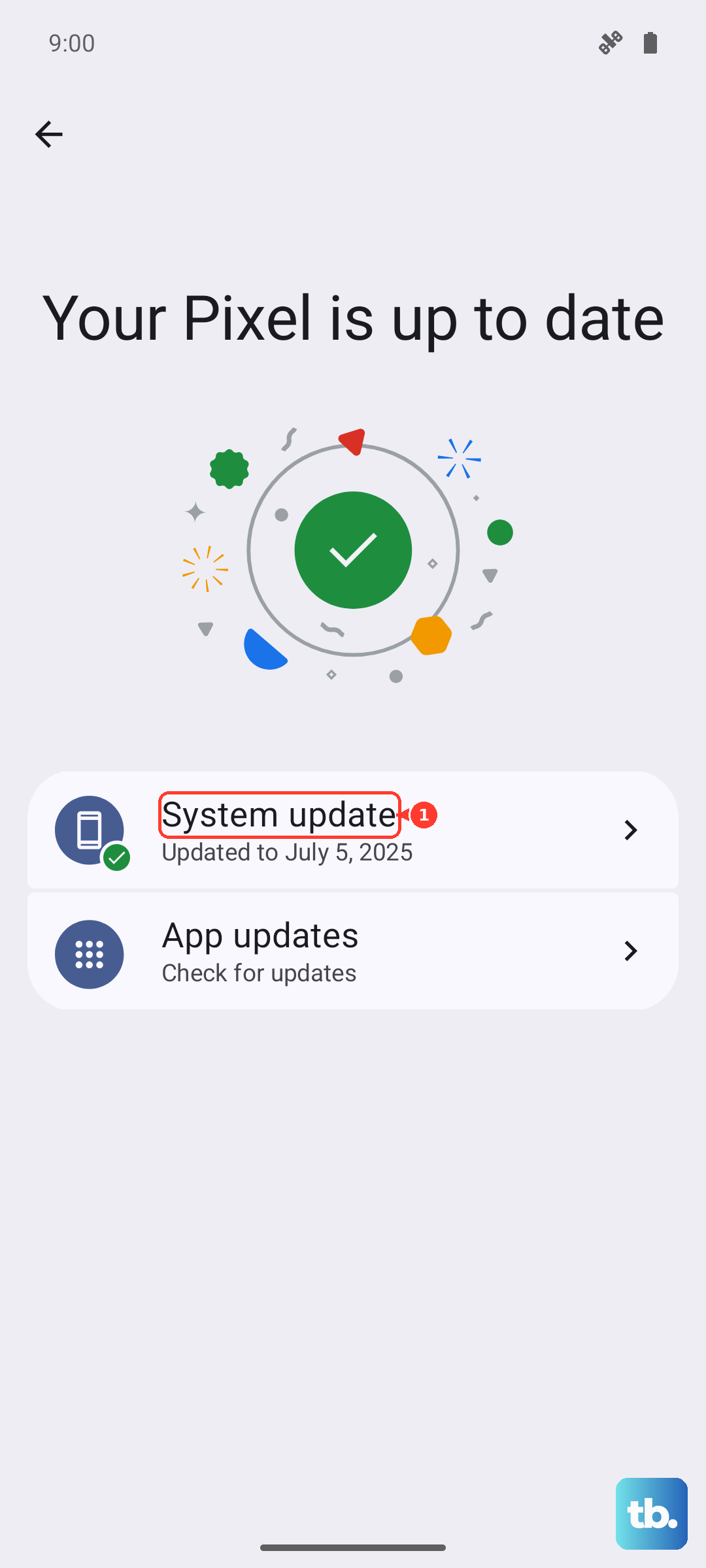
Check whether a software update is available for your Pixel. Open Settings > System > Software updates, then tap "System update" if shown. Follow the on-screen instructions to install any available update. Before updating, connect to a working Wi-Fi network and charge your phone to at least 75%.
You can also check whether the Carrier Services app has an update available. Open the Google Play Store, tap your profile icon, go to Manage apps & device > Manage, and tap "Updates available" to see if the "Carrier Services" app needs an update.
Test Another Wi-Fi Network
Try connecting your Pixel 8 to another Wi-Fi network, such as one at a friend's home or a public hotspot. If it connects there, the problem is likely with your original network. If it can't connect to other Wi-Fi networks either, the problem may be with your phone.
Turn Off Mobile Data Temporarily
Your phone may switch to cellular data when Wi-Fi has no internet connection or the local Wi-Fi connection is weak. A quick way to test this is to simply turn mobile data off, forcing the phone to use Wi-Fi if it can.
Swipe down to your Quick Settings and tap the mobile data icon to disable it. It usually looks like two arrows pointing up and down. With that off, attempt your Wi-Fi connection again. Open a webpage to check whether Wi-Fi provides internet access.
Reset Your Network Settings
This is a more thorough step that resets your Bluetooth and Wi-Fi settings. It will erase saved Wi-Fi networks and Bluetooth pairings, so you'll have to reconnect to those afterward. Have your Wi-Fi password ready before you begin.
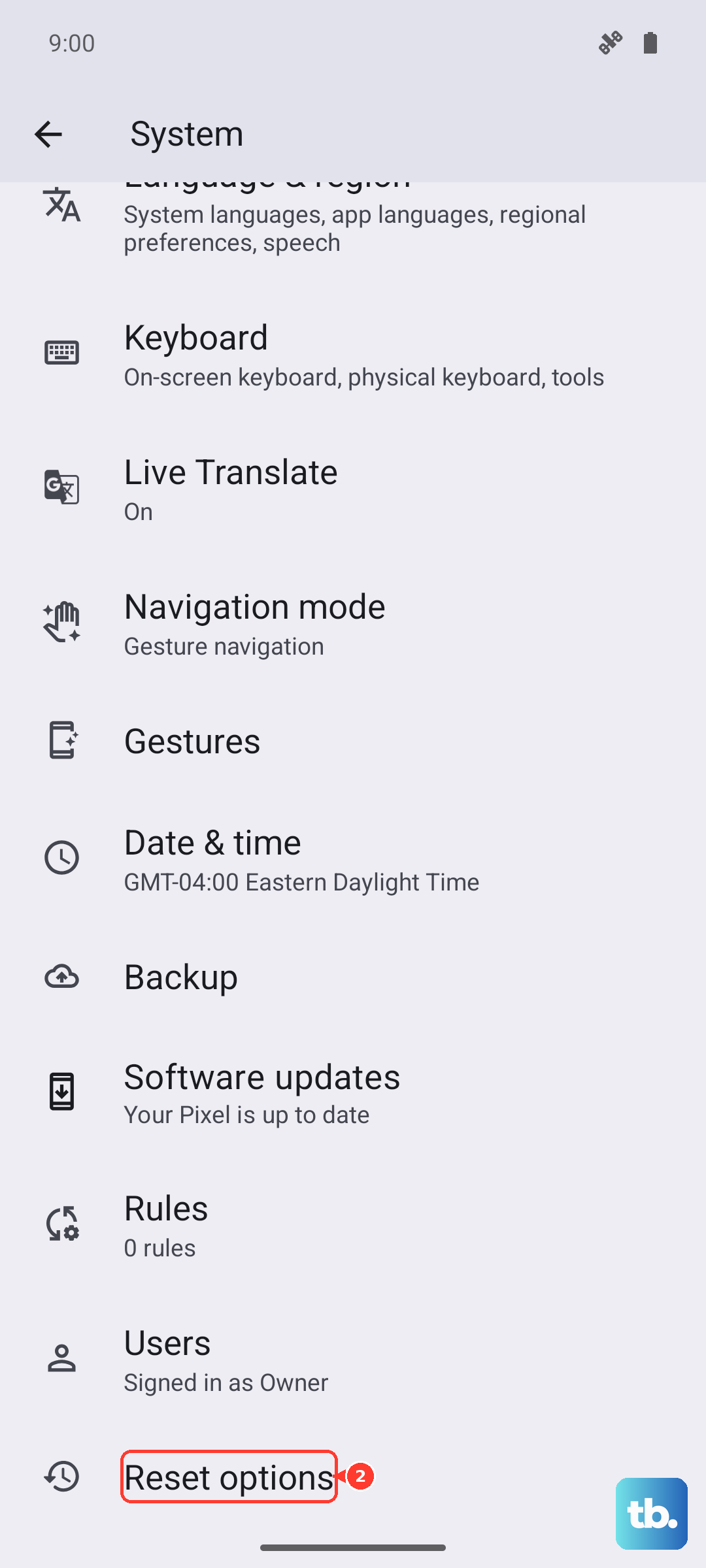
To do this, go to Settings > System > Reset options. Tap on "Reset Bluetooth & Wi-Fi", then tap "Reset settings" at the bottom. After the reset, reconnect to your Wi-Fi network.
Boot Into Safe Mode
If a third-party app you installed is causing the problem, Safe Mode can help you identify it. To boot your Pixel 8 into Safe Mode, press and hold the Power and Volume up buttons for a few seconds. Then, tap and hold the "Power off" option on your screen.
You'll see a prompt to reboot to Safe Mode. Tap "OK." Turn Airplane mode off, since it turns on automatically when entering Safe Mode, then test Wi-Fi. If it works, a downloaded app is likely causing the problem. Restart to exit Safe Mode, then uninstall recently downloaded apps one by one, checking the connection after each removal.
Check Your Router and Internet Source
Before you go any further with your phone, make sure the problem isn't actually your internet. The easiest test is to see if other devices (like a laptop or tablet) can connect to the same Wi-Fi network. If they can't, the problem is likely with the network or internet connection.
Try the classic router restart. Unplug your router and modem from power for 15 seconds, then plug them back in. Check that all cords and cables are secure at both ends. Wait a few minutes until the lights are working normally, then try connecting your Pixel 8 again.
Force Restart Your Pixel 8
This is different from a normal restart and can clear deeper system hangs. If your phone is frozen or unresponsive with the Wi-Fi, this is a good step. Simply press and hold the Power button for up to 60 seconds.
Keep holding it until you see the Google logo appear on the screen, then you can let go. Your phone will boot up normally. I've found this can kickstart network services that seem stuck.
Review Date, Time, and Certificate Settings
Incorrect date and time settings can cause Wi-Fi connection problems. Go to Settings > System > Date & time and make sure "Set time automatically" is turned on.
If your Wi-Fi network requires a certificate, check with your network administrator that you have the right one. Removing a required certificate can prevent your phone from connecting. To install one, go to Settings > Security & privacy > More security settings > Encryption & credentials. Tap "Install a certificate" > "Wi-Fi certificate," select the certificate file, and follow the prompts.