
Picture messages not downloading on your Google Pixel 8 can be a real headache, especially when you're trying to see photos from friends or family. This usually comes down to a few common culprits on Android, like a weak data connection, a setting that got switched off, or a temporary glitch in the Messages app itself.
Let's walk through the fixes, starting with the simplest things you can try right now.
Restart Your Pixel 8
It sounds too easy, but a restart clears out temporary software bugs that can block MMS downloads. Just press and hold the power button until you see the power menu, then tap "Restart." If your screen is unresponsive, you can force a restart by holding the power button for about 30 seconds until the device reboots.
Check Your Mobile Data Connection
MMS requires mobile data to download, even if you're on Wi-Fi. Swipe down from the top of your screen twice to open the Quick Settings panel and make sure your mobile data is turned on. Also, check your signal strength. If you only have one or two bars, try moving to a different spot.
Sometimes, being connected to Wi-Fi can interfere. I'd try temporarily turning Wi-Fi off to force the download to use your cellular data, which is what MMS needs.
Enable MMS Auto-Download in Google Messages
The most common fix is to ensure auto-download is enabled. Open the Google Messages app, tap your profile picture in the top right, and go to Messages settings > Advanced.
Here, you'll find the key toggles. Make sure "Auto-download MMS" is turned on. If you've been traveling or are in an area with spotty coverage, also check that "Auto-download MMS when roaming" is enabled.
Update the Messages App and Android
Outdated software is a frequent cause of these glitches. First, open the Google Play Store, tap your profile icon, and go to "Manage apps & device." See if there's an update available for "Google Messages" and install it.
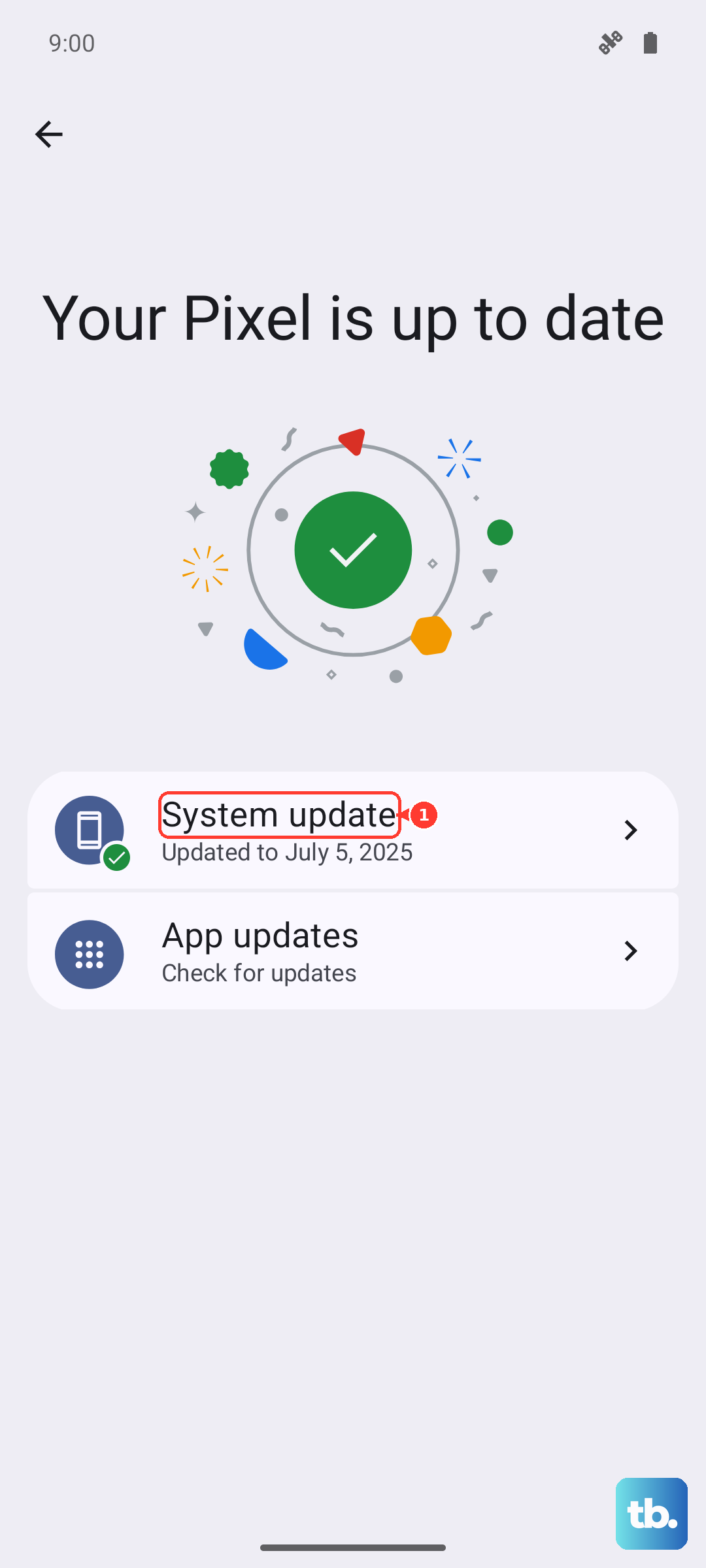
Next, check for a system update. Go to Settings > System > System update. Google has been known to release firmware fixes for various connectivity bugs, so staying current is important.
Review Your Access Point Name (APN) Settings
Incorrect APN settings from your carrier will break MMS. You can check them by going to Settings > Network & internet > Internet. Tap the settings gear next to your carrier's name, then tap Access Point Names.
You should see a list, with one option selected (usually indicated by a filled-in circle). Don't change these settings randomly. If they look wrong or you only see one generic entry, the best move is to contact your carrier's support. They can send you the correct configuration or walk you through updating it.
Clear the Cache for the Messages App
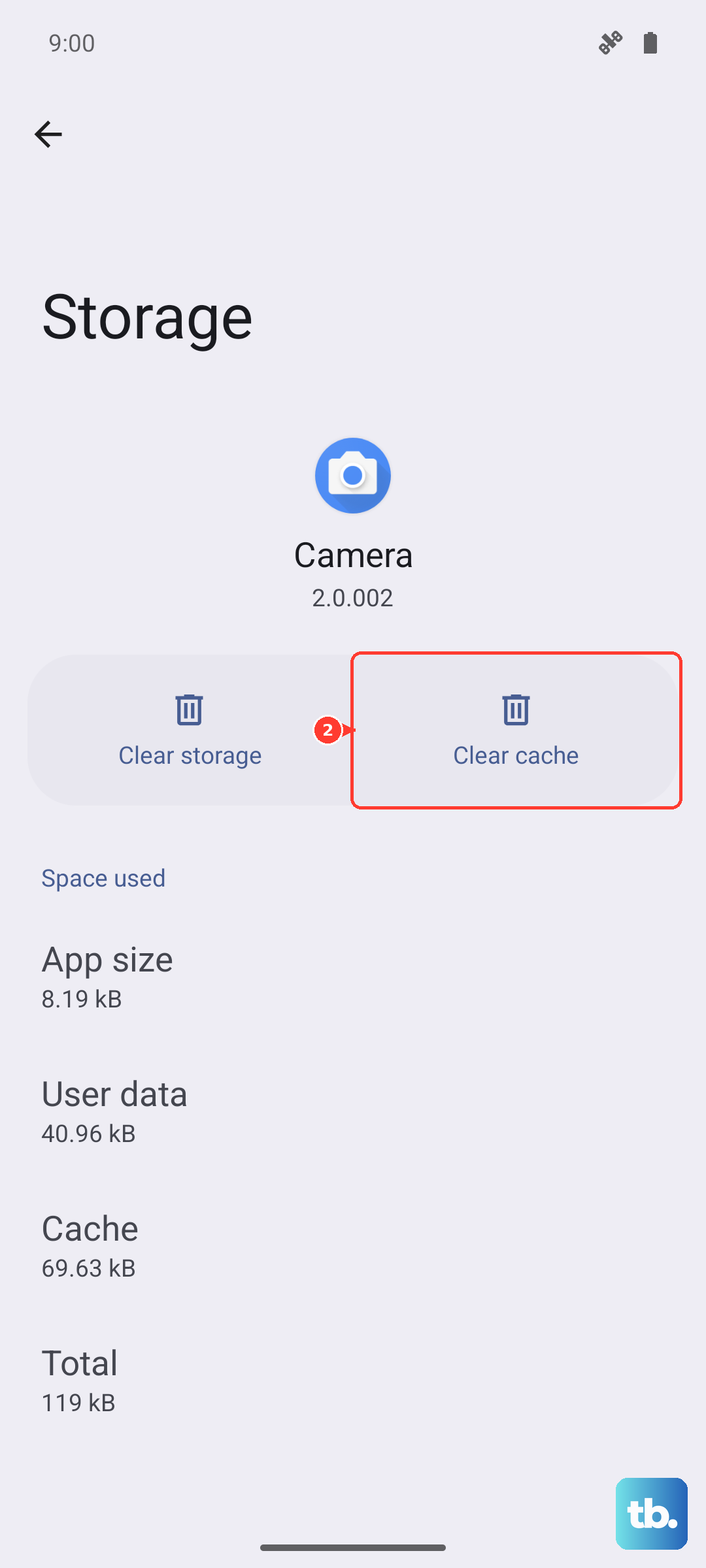
A corrupted cache can cause download failures. This clears temporary data without touching your texts. Go to Settings > Apps > See all apps. Find and tap "Messages."
Tap Storage & cache, then tap "Clear cache." After doing this, force close the app by swiping it away from your recent apps overview, then open it again and try downloading the picture.
Reset Your Network Settings
This will wipe all your network connections, including Wi-Fi passwords and paired Bluetooth devices, but it often resolves persistent MMS issues. Go to Settings > System > Reset options.
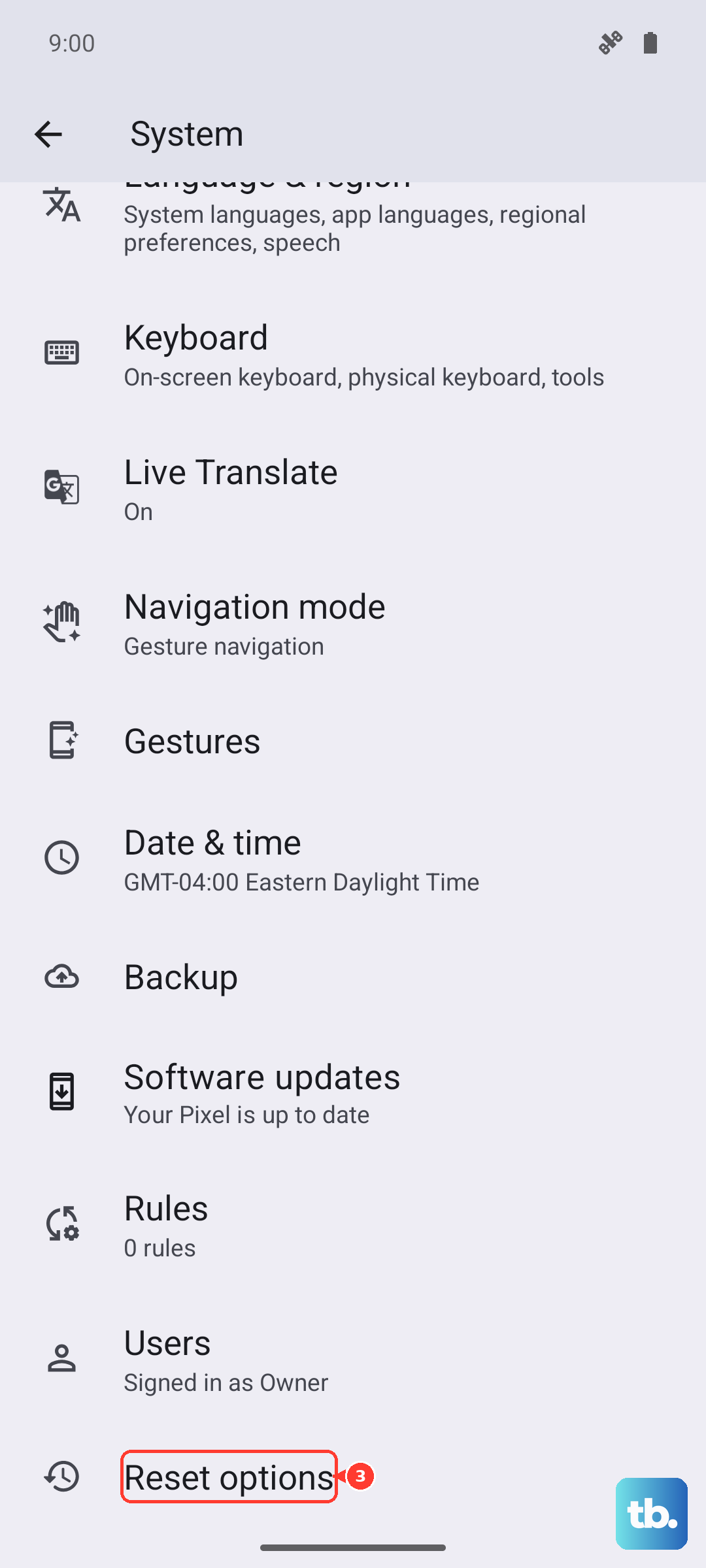
Tap "Reset Wi-Fi, mobile & Bluetooth." Confirm the reset, and your phone will reboot. Afterward, you'll need to reconnect to Wi-Fi networks and re-pair Bluetooth accessories, but your message history and personal files will be safe.
Check Your Phone's Storage
If your Pixel 8 is critically low on space, it may refuse to download new media. Go to Settings > Storage to see how much free space you have. If you're below 1GB, try deleting some old photos, videos, or unused apps to free up room.
The Google Files app can help you quickly find and remove large files or clear out cache from other apps.
Try a Different Messaging App Temporarily
To rule out a problem with the Google Messages app itself, you can test with an alternative. Download a simple app like "Textra" or "Simple SMS" from the Play Store, set it as your default, and see if picture messages come through.
If they download fine in another app, the issue is likely with Google Messages. You can then try the more thorough step of clearing its app data (which will erase your message history) or uninstalling its updates to revert to the factory version.