If your Google Pixel 8's fingerprint scanner has suddenly stopped recognizing you, it can lock you out of your phone and apps. The under-display optical sensor is generally reliable, but like any tech, it can have hiccups. Let's get it working again.
Clean Your Screen and Finger
This is the most common fix. The Pixel 8's sensor reads your fingerprint through the screen, so any smudges, grease, or moisture on the glass will block the scan. Give your screen a good wipe with a soft, dry microfiber cloth. Make sure your finger is clean and dry, too. Lotions, sweat, or even minor cuts can throw off the reading.
Re-register Your Fingerprint
Sometimes the stored print data gets corrupted. Head to Settings > Security & privacy > Device unlock > Fingerprint Unlock. You'll need to enter your PIN. Tap the fingerprint you're having trouble with and select Delete.
Now, add it again. When the phone prompts you, press your finger down lightly and lift it repeatedly, making sure to cover the edges and tip of your finger. I've found that registering the same finger twice under different names (like "Right thumb" and "Right thumb alt") can improve success rates.
Check Your Screen Protector
A poorly applied or incompatible screen protector is a frequent culprit. If you recently installed a new one, that's likely the issue. The Pixel 8's sensor works best with thin, high-quality tempered glass protectors.
Some thicker plastic films or glass with a "dot matrix" pattern can interfere. Try removing the protector temporarily to see if the scanner starts working. If it does, you'll need to find a protector marketed as compatible with in-display fingerprint sensors.
Restart Your Pixel 8
A simple reboot clears out temporary software glitches that might be affecting the sensor. Just press and hold the power button, then tap Restart. If the phone is completely unresponsive, you can force restart it by holding the power button for about 30 seconds until the Google logo appears.
Update Your Software
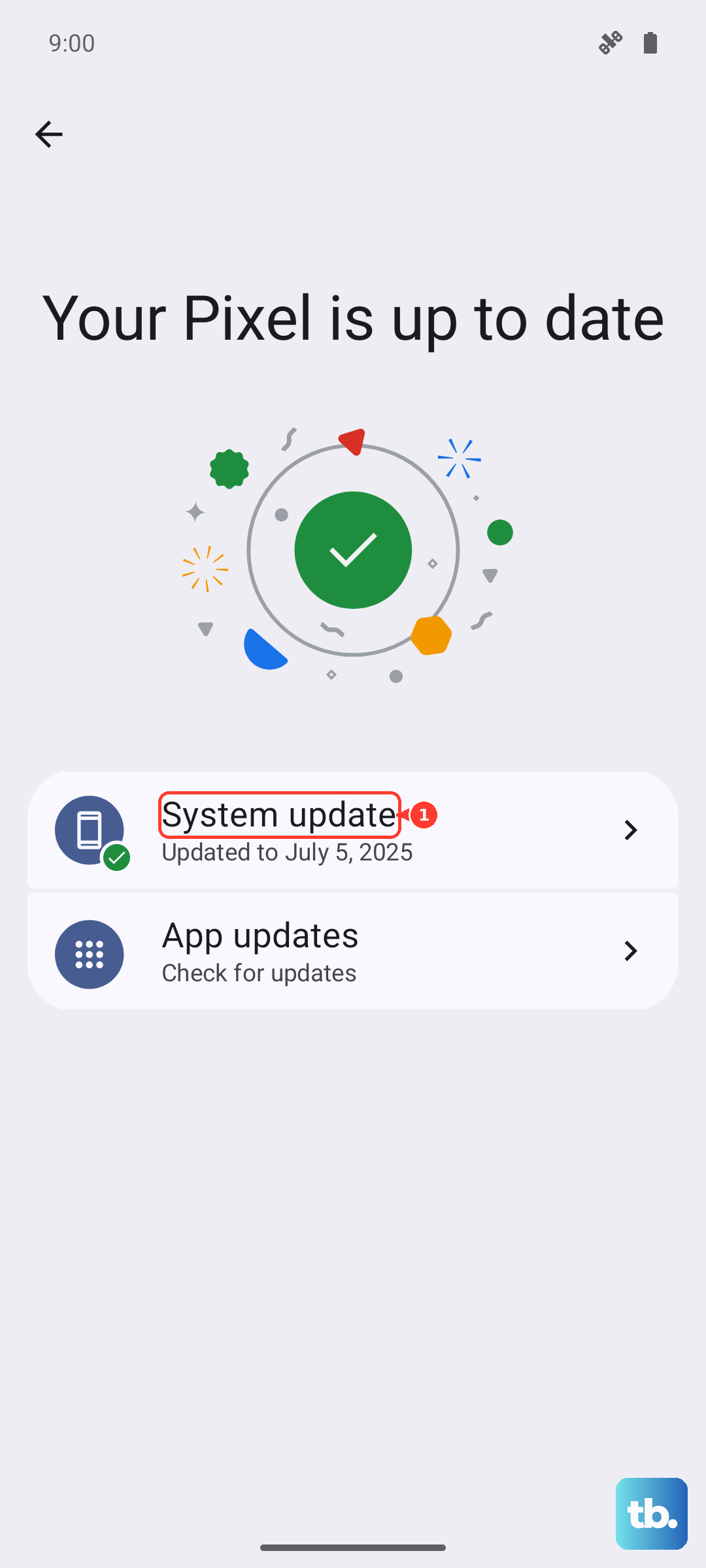
Google regularly releases updates that fix bugs, including ones related to biometrics. Go to Settings > System > System update and tap Check for update. If an update is available, install it and restart your phone. This has resolved fingerprint issues for many users after major Android version jumps.
Improve Your Scanning Technique
The optical sensor needs a clear, steady view. Don't just tap the screen. Place the pad of your finger flat against the indicated area and hold it there for a full second. Avoid using just the very tip of your finger or pressing at a steep angle.
Also, try a different finger. If your primary finger is slightly damaged or unusually dry, another registered finger might work perfectly. It's a good idea to have at least two fingers registered for this exact reason.
Boot Into Safe Mode
If the scanner stopped working after you installed a new app, that app could be causing a conflict. Booting into Safe Mode temporarily disables all third-party apps. Press and hold the power button, then tap and hold the Restart option on your screen until you see a prompt to reboot to Safe Mode.
If the fingerprint scanner works in Safe Mode, you know a downloaded app is the problem. You'll need to uninstall apps one by one (starting with the most recent) to find the culprit.
Check for Display Settings Interference
Certain accessibility or display features can mess with the sensor. Go to Settings > Accessibility and temporarily turn off any features like Color correction or High contrast text. Also, check Settings > Display and ensure Screen protector mode is toggled on if you're using one. This mode increases the sensor's sensitivity.
Clear the Biometrics System Cache
This is a deeper system reset for the unlock features. Go to Settings > Apps > See all apps. Tap the three-dot menu and select Show system. Scroll down and find Biometrics in the app list.
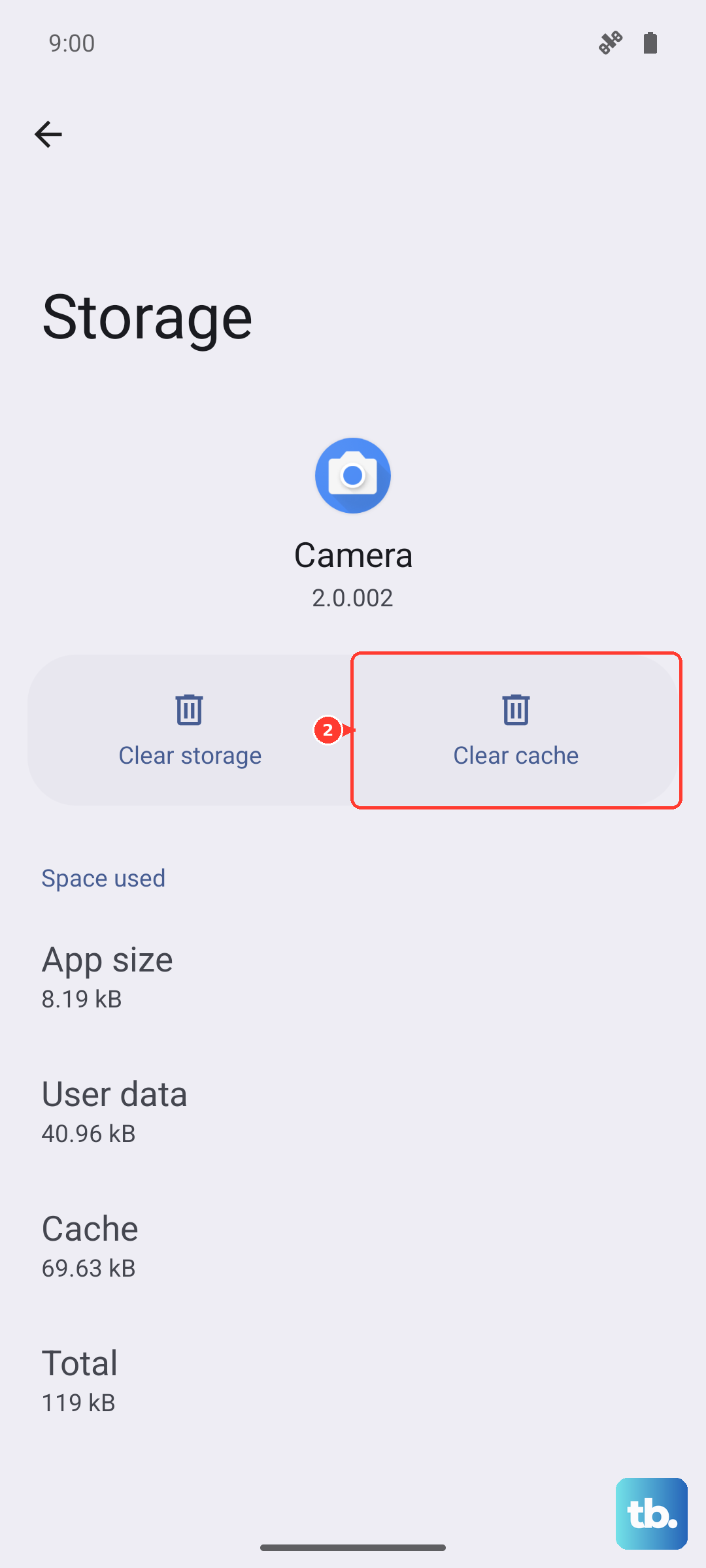
Tap on it, then go to Storage & cache. Tap Clear cache. This doesn't delete your fingerprints, but it clears temporary data that might be corrupted. After doing this, restart your phone and test the scanner.