
If your Google Pixel 8 is running out of juice way too quickly, it can feel like you're constantly hunting for a charger. The good news is, a fast-draining battery is often caused by software or settings you can adjust yourself. I'd start by checking the battery usage stats, as that almost always points you right to the problem.
Check What's Using Your Battery
Open Settings > Battery > Battery usage. This screen shows you exactly which apps and services have been consuming power over the last 24 hours. Look for any app using a surprisingly high percentage, especially if it's something running in the background like a social media app, email client, or a VPN.
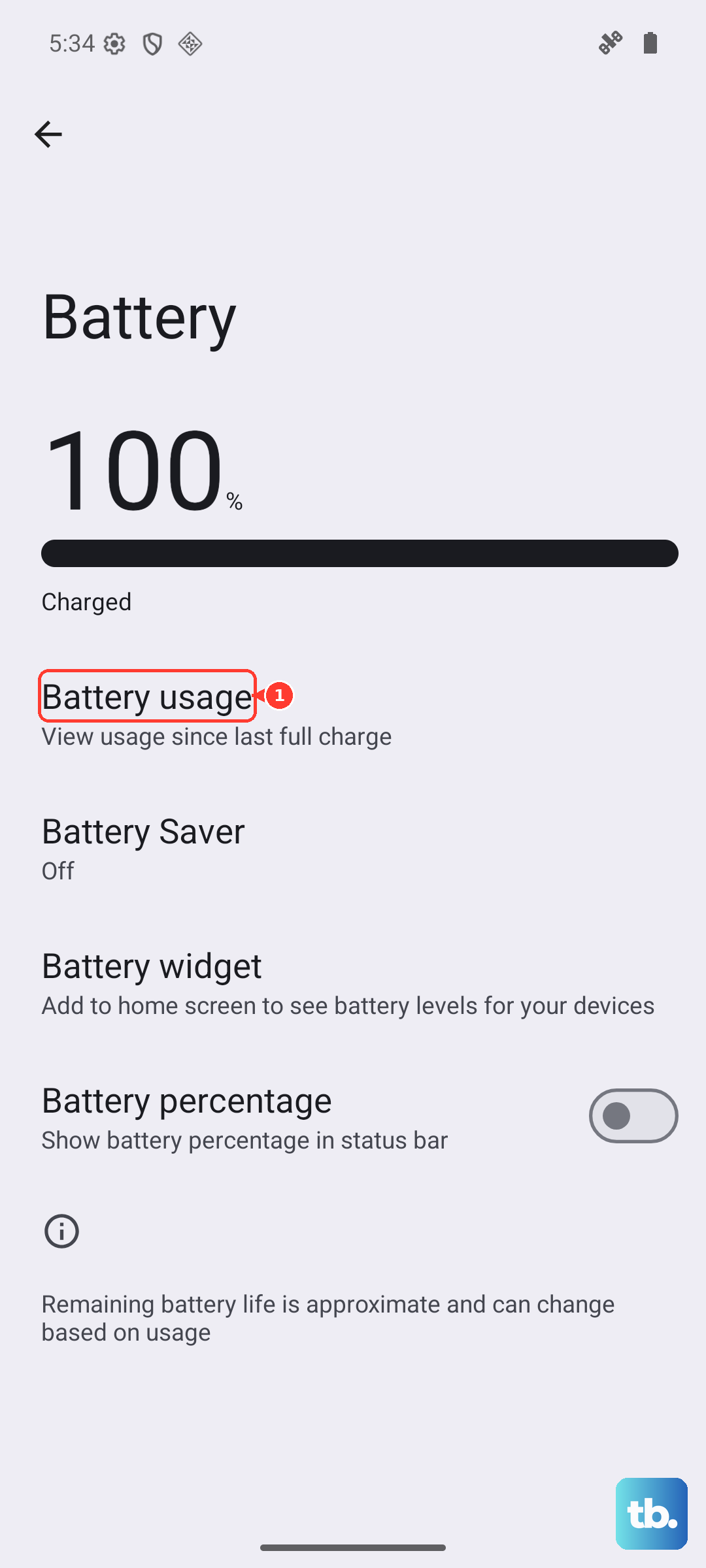
This is your best first move. It tells you if you have a single app going rogue or if the drain is more general across the system. If you see an app you don't recognize or one using 30% or more when you haven't actively used it, that's your prime suspect.
Update Your Pixel
Google is pretty good about pushing software updates that include battery optimizations and bug fixes. There was a known issue where some Pixel 8 phones would stop charging at 80%, which a firmware update addressed.
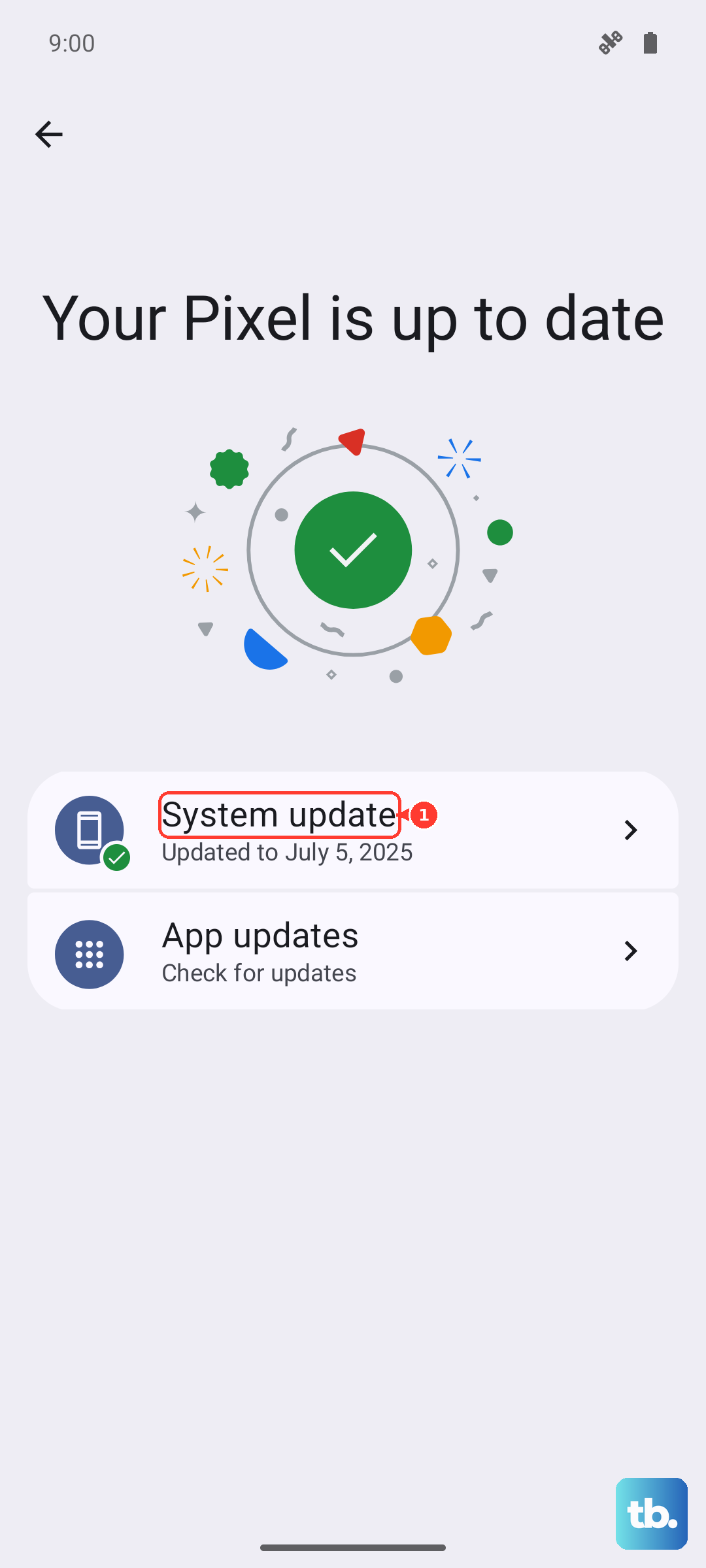
Go to Settings > System > System update and tap "Check for update." Installing the latest Android 17 update can resolve a lot of mysterious battery drain problems that stem from the operating system itself.
Review Your Connectivity Settings
Features that are always searching for a signal can be big battery hogs. If you're in an area with poor cellular service, your phone works harder to maintain a connection, which drains the battery faster. You can try turning on Airplane mode when you're in a known dead zone, but that obviously cuts off calls and texts.
For a more balanced approach, look at Bluetooth and Wi-Fi. Go to Settings > Connected devices and review your connections. If you have Bluetooth on but aren't connected to a speaker, watch, or headphones, consider turning it off from the Quick Settings panel. The same goes for Wi-Fi if you're out and about and not near a known network.
Manage Location Permissions
Apps constantly pinging your location in the background is a classic cause of battery drain. You don't need your weather app or social media checking your location every minute.
Go to Settings > Location. Here, you can toggle it off entirely, but a better method is to tap "App location permissions." Go through your apps and change any that are set to "Allowed all the time" to "Allowed only while in use" or "Don't allow." This small change can make a huge difference over a full day.
Adjust Display and Motion Settings
The screen is one of the biggest power draws on any phone. Lowering the brightness manually or ensuring Adaptive Brightness is working properly can help. You can find these controls in Settings > Display.
Also, consider reducing the screen timeout. A shorter time before the screen sleeps saves power. Enabling Dark Theme is another effective saver, as the Pixel 8's OLED screen turns off black pixels completely. You can find Dark Theme in Settings > Display > Dark theme.
Control Background Activity
Android allows apps to refresh and update in the background, which is convenient but uses battery. You can restrict this on an app-by-app basis. Go to Settings > Apps, select any app you suspect, then tap "Battery." Here, you can set it to "Restricted" to prevent most background activity.
For a broader approach, check Adaptive Battery. This is a Pixel feature that learns your usage patterns and tries to limit battery for apps you rarely use. Make sure it's turned on in Settings > Battery > Adaptive Battery.
Check for Adaptive Charging Behavior
This is a specific Pixel feature designed to extend your battery's long-term health. Adaptive Charging learns your routine and will slow down charging to reach 100% just before your usual wake-up time. If you plug in at night, you might see it pause around 80% for several hours.
This is intentional, not a bug. You can check or disable it in Settings > Battery > Adaptive charging. If you need a full charge immediately, just use your phone's alarm or turn this feature off temporarily.
Examine Your Charging Hardware
Sometimes the issue isn't the battery draining, but it not charging properly in the first place. The Pixel 8 uses a USB-C port, and lint or debris can get packed in over time, preventing a solid connection. Carefully inspect the port and use a plastic toothpick or compressed air to clean it out.
Also, make sure you're using a capable charger. The Pixel 8 supports up to 27W wired charging with a compatible USB Power Delivery (PD) charger. Using an old or underpowered charger will result in very slow charging, which can feel like the battery is draining while plugged in. For wireless charging, it supports up to 12W with a compatible Qi-certified charger, or up to 18W with the Google Pixel Stand (2nd gen).
Perform a Force Restart
If your phone is acting sluggish and the battery is plummeting, a simple software glitch might be the cause. A force restart can clear this up without deleting any data. Press and hold the Power button for about 30 seconds until the screen goes black and the Google logo reappears.
This is different from a normal restart and can resolve temporary system hiccups that cause high CPU usage and, consequently, fast battery drain. It's a quick fix that's always worth trying.
Reset All App Preferences
This is a less nuclear option than a full factory reset. It resets all your app permissions, notifications, and background restrictions back to default without deleting your personal data or apps themselves. It can fix issues caused by a misbehaving app setting.
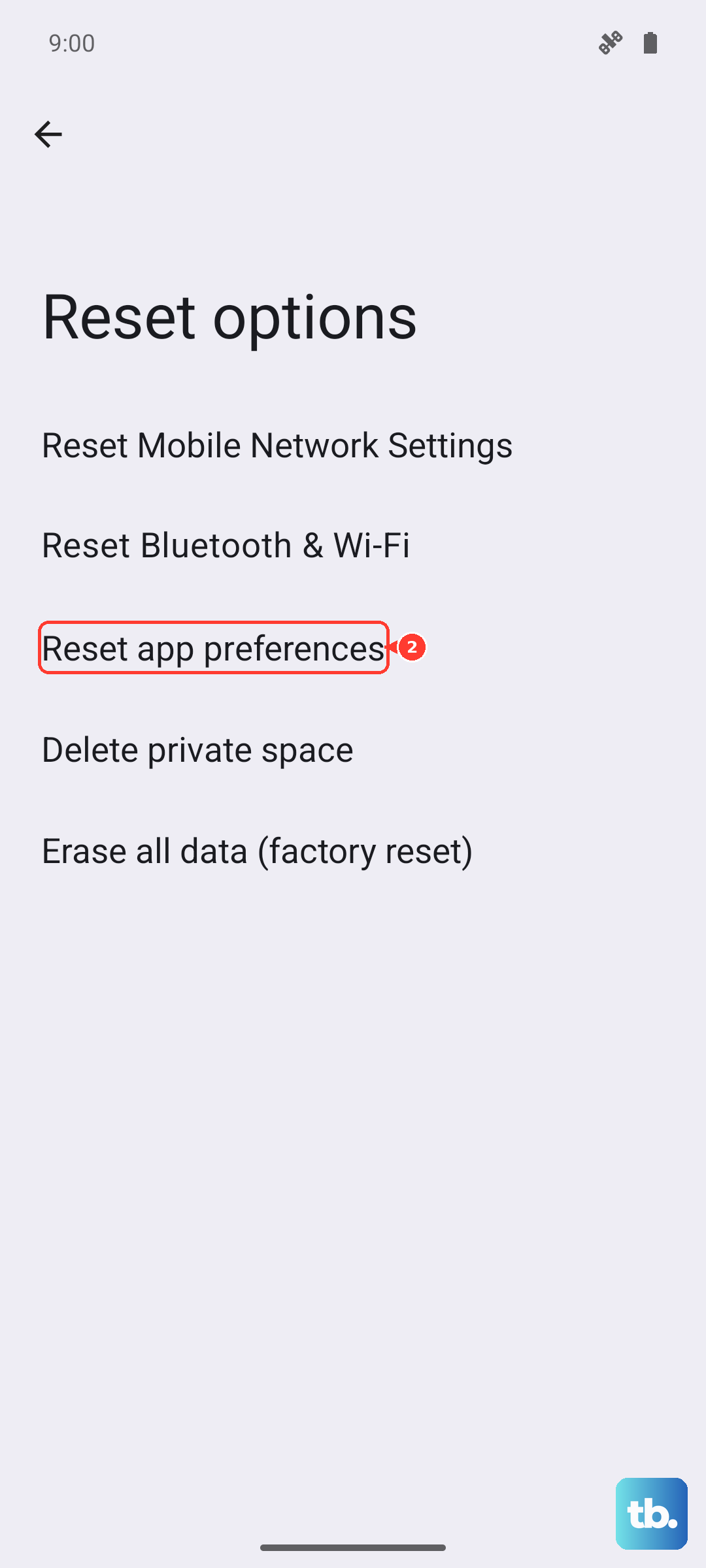
Go to Settings > System > Reset options > Reset app preferences. After doing this, you'll need to re-grant permissions like location and camera to your apps as you use them again.
Check for Overheating
The Pixel 8 can throttle performance and charging if it gets too hot, which sometimes happens during fast charging in a warm environment. If the phone feels unusually hot, take it out of its case, move it out of direct sunlight, and avoid using it while it's charging.
Persistent overheating can also be a sign of a problematic app running heavy processes in the background. In that case, the Battery Usage screen we talked about first is your best tool to identify the culprit.