
Running out of storage on a Google Pixel 10a can lock you out of taking photos, installing updates, or downloading new apps. Android 16 brings some solid tools to clear things up, but the clutter still needs a manual push every now and then. Here are the most effective ways to free up space on your Pixel.
Start with the Storage Breakdown
Open Settings > Storage. Android 16 shows a color-coded bar that breaks down exactly what's using your space, from apps and photos to system files and cached data. Tap into any category to see the specific items taking up the most room. The Free up space button at the top is worth tapping right away.
Run the Built-In Free Up Space Tool
This feature is often overlooked, but it does a solid first sweep. Tap Free up space inside the Storage menu and let it scan for temporary junk, unused apps, and old downloads. You can select everything it finds and hit Delete without worrying about losing important data. It's a safe way to clear the predictable clutter.
Offload Photos to the Cloud
Photos and videos are almost always the biggest storage hogs. Open Google Photos and tap your profile picture, then select Free up space. This removes photos from your local device that have already been backed up to the cloud. If you haven't turned on backup yet, go to Settings > Backup in the Photos app first, then run the cleanup.
Clear App Caches Regularly
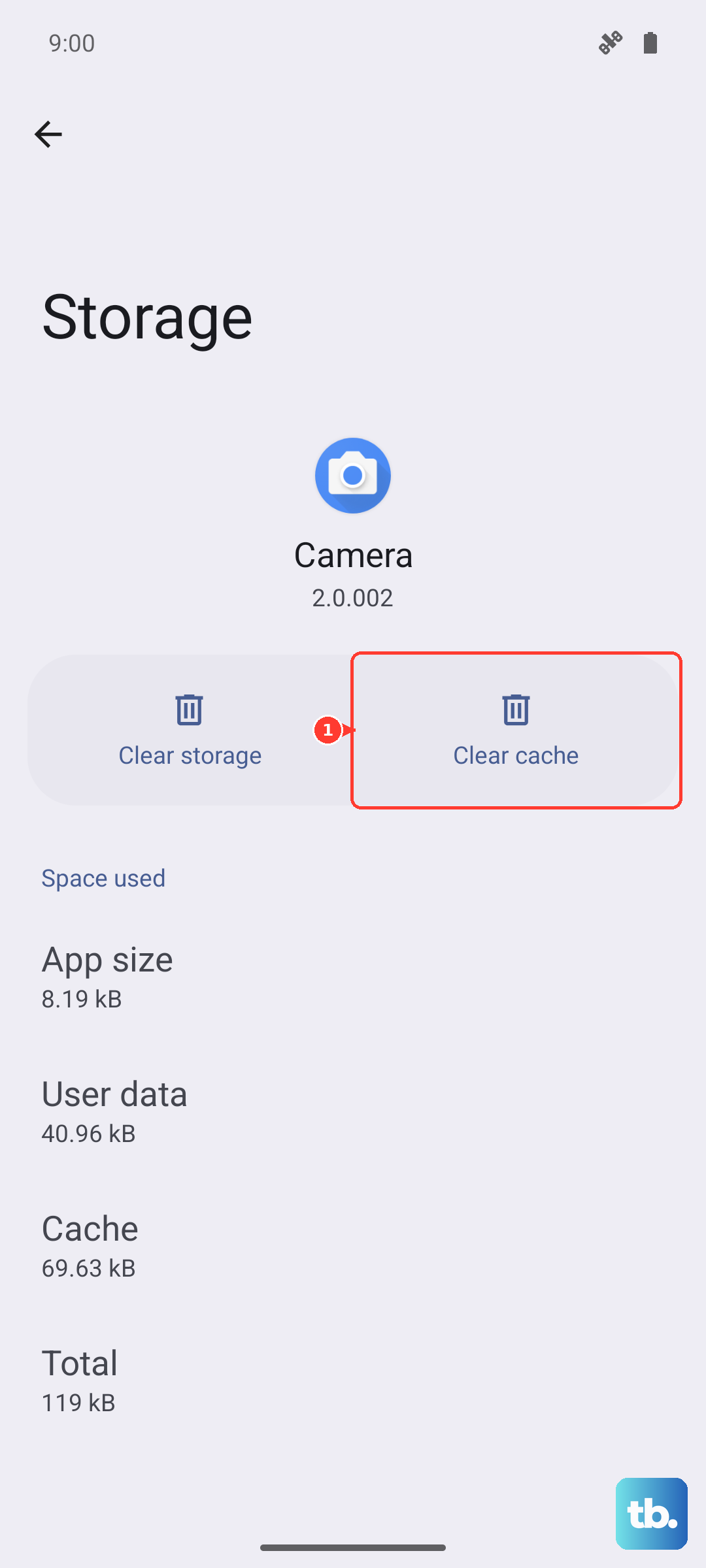
App caches speed things up temporarily, but they balloon over time. Go to Settings > Apps > See all apps and look for the ones with the highest storage usage, usually Chrome, Instagram, Spotify, or TikTok. Tap Storage & cache > Clear cache on each one. Doing this once a month keeps bloated temp files from eating your free space.
Delete Old Messages and Media
Google Messages stores every photo, video, and GIF someone sends you. Open the app, tap the three dots in the corner, and go to Settings > General > Auto-delete old messages. Set it to 1 year or 6 months to keep things under control. For a deeper clean, open individual conversations and manually delete large media threads, those video files add up fast.
Uninstall Unused Apps
The Play Store makes bulk uninstalling easy. Open the Play Store, tap your profile icon, and go to Manage apps & devices > Manage. Sort by Last used and check the apps you haven't opened in months, then tap the trash icon to remove them all at once. This frees up both the app data and any cached junk tied to those installations.
Clean Up Downloads with Files by Google
Files by Google comes pre-installed on the Pixel 10a and is built for exactly this job. Open it and tap the Clean tab at the bottom. It automatically surfaces large downloads, APK files, and duplicate documents you probably forgot about. The Large files section is especially useful for spotting old videos or PDFs sitting in your Downloads folder.
Clear Chrome's Cached Data
Chrome accumulates cache from every site you visit, and it rarely lets go. Open Chrome, tap the three dots, and go to Settings > Privacy and security > Clear browsing data. Check Cached images and files and hit Clear data. You can clear cookies here too if you want to free up an extra bit of space, but you'll have to log back into some sites.
Tackle System Bloat
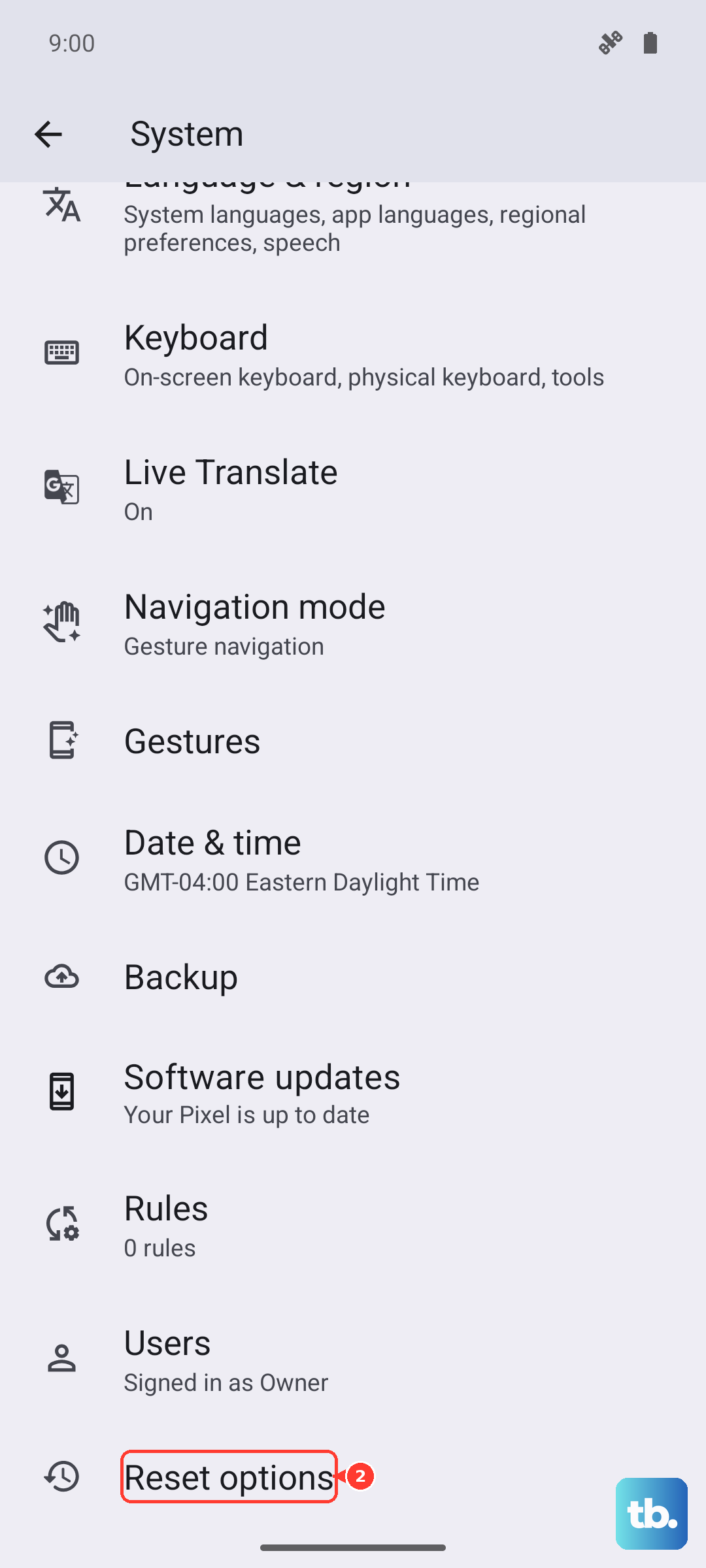
If the system section in Settings > Storage is unusually large, like over 15GB, it's usually a software glitch or stuck update files. Start with a simple restart by holding the Power button for 30 seconds, or pressing Power + Volume Down for 10 to 15 seconds until the device reboots. If that doesn't shrink it down, back up your data and go to Settings > System > Reset options > Erase all data (factory reset) to install a fresh system image.
Let Google One Handle the Heavy Lifting
The Pixel 10a integrates tightly with Google One. Once you back up your photos, contacts, and app data, you can safely use the free up space features without worrying about losing anything. Google One also lets you clean up storage shared with Gmail and Drive, which the local storage tool won't touch. A 100 GB plan is cheap enough to remove emergency storage stress entirely, but the free tools will still handle the daily junk.