
A phone without service is basically a tiny, expensive camera. If your Google Pixel 10a is showing "No Service" or "Mobile Network Not Available," there are a few solid ways to get it back on the grid.
Start with a Force Restart
Start with the hardest reboot available. The Pixel 10a has a specific force restart command built just for this kind of lockup. Press and hold the Power button for 30 seconds, or press and hold Power + Volume Down for 10-15 seconds until the Google logo pops up.
This clears out temporary radio software glitches without deleting any data. It's the first thing I'd try.
Toggle Airplane Mode
Sometimes the radio just gets stuck. Swipe down twice to open Quick Settings and tap the Airplane Mode icon. Leave it for about 30 seconds, then tap it again to turn it off.
Let the phone hunt for towers for a minute. You'll usually see the signal bars come back within a few seconds.
Check your SIM Settings
The Pixel 10a uses both physical nano SIMs and eSIMs. Go to Settings > Network & internet > SIMs. Make sure your SIM is turned on.
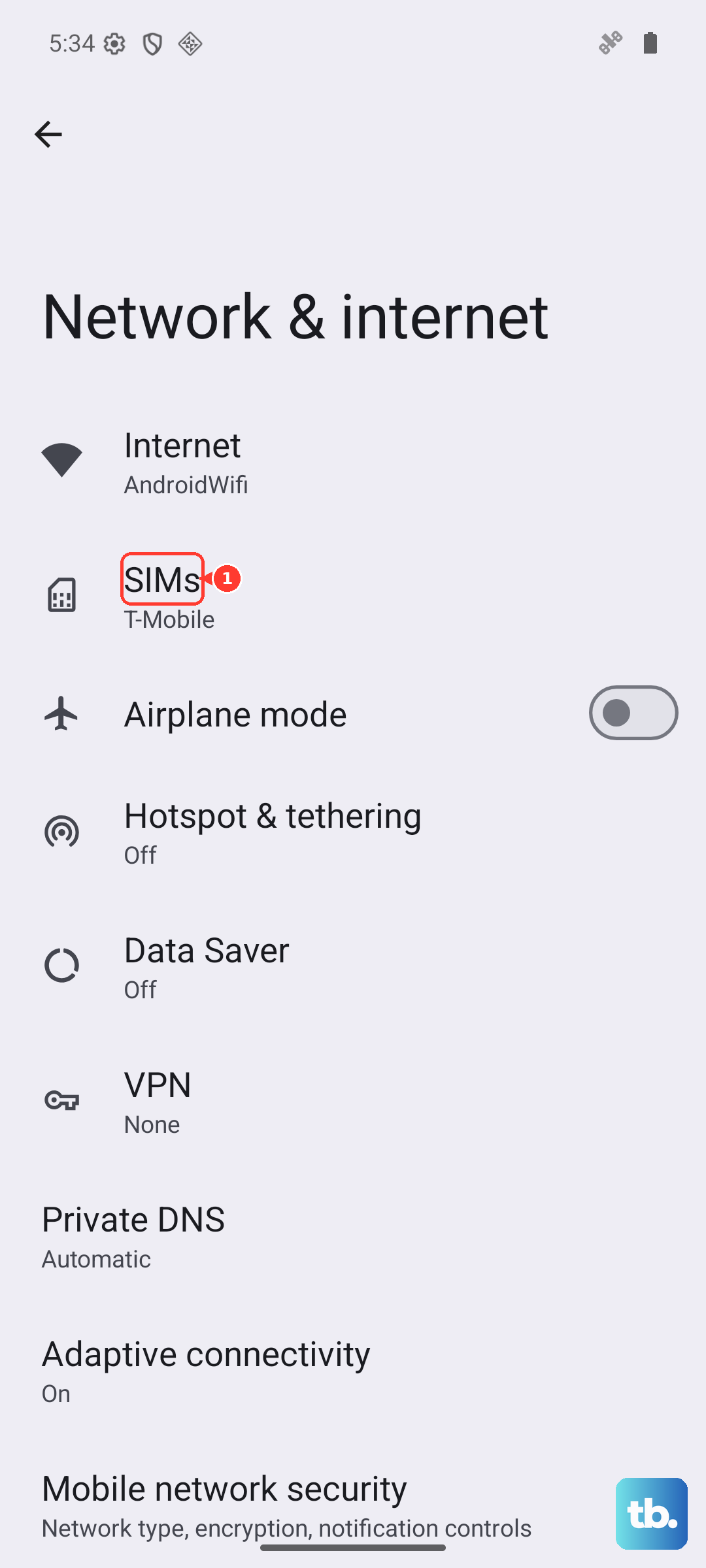
If you see "No SIM card," try reseating the physical tray or re-adding your eSIM profile. Your carrier can provide a new QR code if you need to set the eSIM up again.
Reset Mobile Network Settings
Android 16 keeps a lot of radio configurations that can get scrambled. Head to Settings > System > Reset > Reset Mobile Network Settings.
This will delete saved Wi-Fi networks and Bluetooth connections, but it wipes out any funky carrier data that might be blocking the signal. It won't touch your photos or apps.
Update Carrier Settings
Pixel phones often get small carrier updates behind the scenes. You can force a check by going to Settings > Network & internet > Carrier settings. Tap "Update" if it's available.
In my experience, this fixes weird "No Service" issues on Google Fi and Verizon pretty reliably.
Use the Hidden Radio Menu
There's a diagnostic menu buried in Android that lets you reset the radio directly. Open the Phone app and dial *#*#4636#*#*.
Tap "Phone information." Hit the three dots in the corner and select "Select radio band" then "Automatic." Go back and tap "Turn off radio," wait a few seconds, then tap "Turn on radio." Your phone will reconnect to the network fresh.
Install the Latest Android 16 Update
Software bugs happen. Go to Settings > System > Software update. If there's a patch waiting, install it.
Network connectivity fixes are common in these monthly updates. It's worth checking even if you think you're up to date.
Let the Phone Cool Down
The Pixel 10a can get warm, especially when charging or using the camera for a while. If it overheats, the modem may shut down to protect itself.
Let the phone cool down for 15 minutes, then try again. Avoid heavy use while charging, and don't leave it in direct sunlight.
Check for Network Outages
It's boring, but sometimes the problem isn't your phone. Check Downdetector or your carrier's status page.
If there's an outage in your area, you just have to wait it out. Nothing you do on your end will fix a tower issue.
Re-Add Your eSIM Profile
If you use an eSIM and nothing has worked, try removing and re-adding it. Go to Settings > Network & internet > SIMs > tap your eSIM > Erase.
Then scan the QR code from your carrier again to reactivate it. This forces the phone to establish a brand new connection to the network.