
You're trying to get your laptop online, but the Pixel 10a's hotspot just won't cooperate. Maybe it's not showing up, won't connect, or keeps dropping devices after a minute. Let's run through the fixes that usually get it working again.
Start With a Quick Toggle
Pull down the notification shade twice to open Quick Settings. Tap the Hotspot tile to turn it off, wait about 10 seconds, then tap it again to turn it on. This clears out any temporary glitch that might have stalled the hotspot service.
Force Restart the Pixel 10a
If a quick toggle didn't do it, a full restart will flush the phone's network stack and reload the modem firmware. Press and hold the Power button for about 30 seconds, or hold Power + Volume Down for 10-15 seconds until the device reboots. That hard reset is usually enough to kick a stuck hotspot back into action.
Make Sure Cellular Data Is On and Active
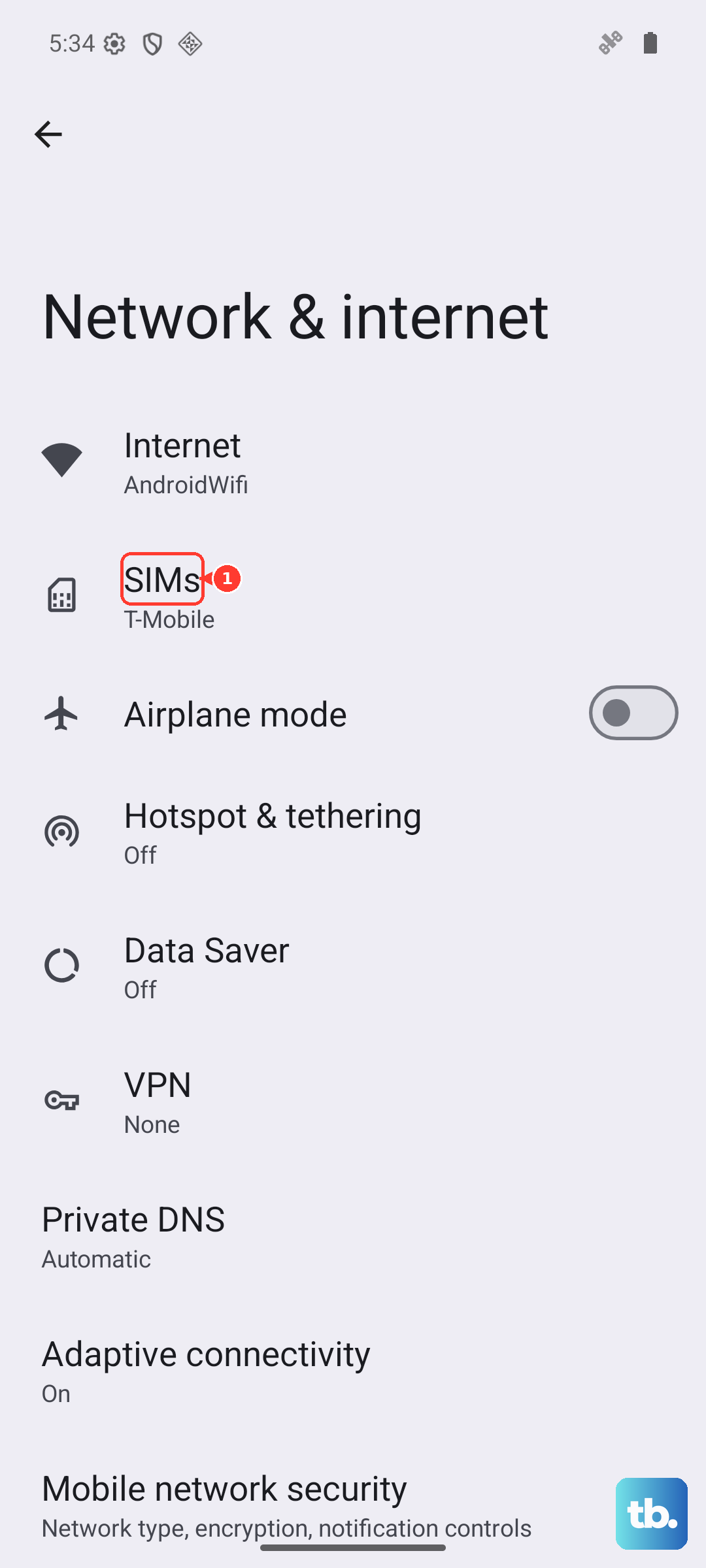
Personal Hotspot needs a working cellular data connection, plain and simple. Go to Settings > Network & Internet > SIMs and confirm Mobile data is turned on. If you're in a low-signal area or your data is capped or throttled, the hotspot won't work reliably.
Also double-check your carrier plan. Some plans in 2025 still restrict or outright block tethering. A quick call to your carrier or a glance at your account page will tell you if hotspot is included.
Is the APN Configured for Tethering?
This is a common Android culprit that's easy to overlook. Your APN (Access Point Name) needs a specific "dun" (dial-up networking) profile for the hotspot to function. Go to Settings > Network & Internet > SIMs > Access Point Names. Tap your current APN and scroll down to APN type. Make sure it includes dun alongside default,supl. If it's missing, add it, tap the three-dot menu, and hit Save.
A Network Settings Reset Cleans Up Stubborn Glitches
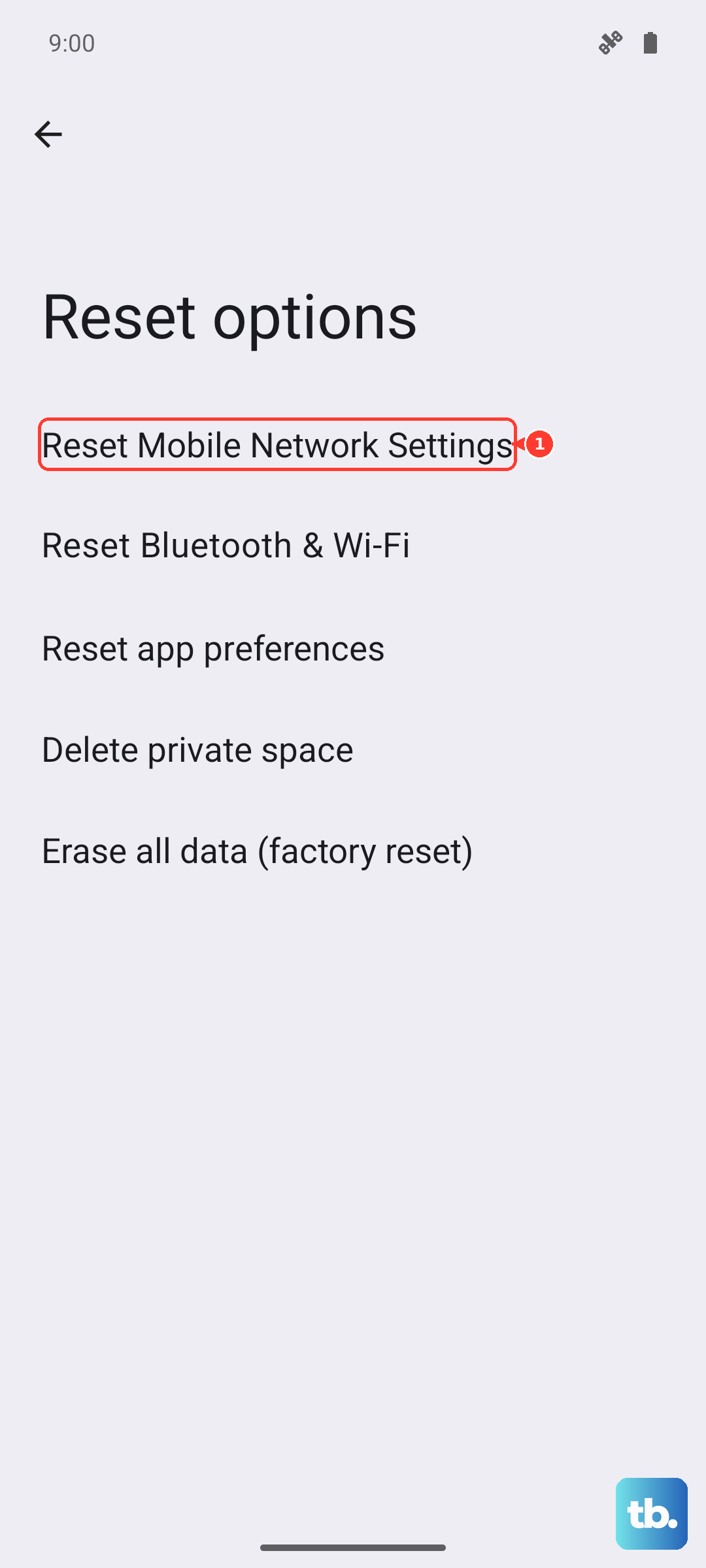
If your Pixel 10a has been through a few Android 16 betas or just accumulated some bad network data, a reset can help. Go to Settings > System > Reset options > Reset mobile network settings, then Reset Bluetooth & Wi-Fi. This wipes saved Wi-Fi networks and paired Bluetooth devices, but it leaves your photos, apps, and accounts alone. You will need to reconnect to Wi-Fi afterward.
Adjust the Hotspot Band or Password
Sometimes the client device just doesn't like the 5 GHz band, or the saved password got corrupted. On your Pixel, go to Settings > Network & Internet > Hotspot & tethering > Wi-Fi hotspot. Tap AP band and switch to 2.4 GHz, which offers better range and stability for older devices. While you're there, tap Password and set a simple new one. Hit Save and try connecting again.
Forget the Network on the Other Device
On your laptop, tablet, or whatever won't connect, go to its Wi-Fi settings and Forget the Pixel's hotspot network. Then scan for available networks, select your Pixel 10a, and enter the password fresh. Stale connection profiles on the client side cause a surprising number of "can't connect" issues.
USB and Bluetooth Tethering Are Reliable Alternatives
Wi-Fi hotspot isn't the only game in town. Plug your Pixel 10a into your laptop with a USB-C cable, then go to Settings > Network & Internet > Hotspot & tethering and switch on USB tethering. It's often more stable than Wi-Fi. Bluetooth tethering is another option for a low-bandwidth connection, just pair the devices first and enable Bluetooth tethering on the Pixel.
Check for an Android 16 System Update
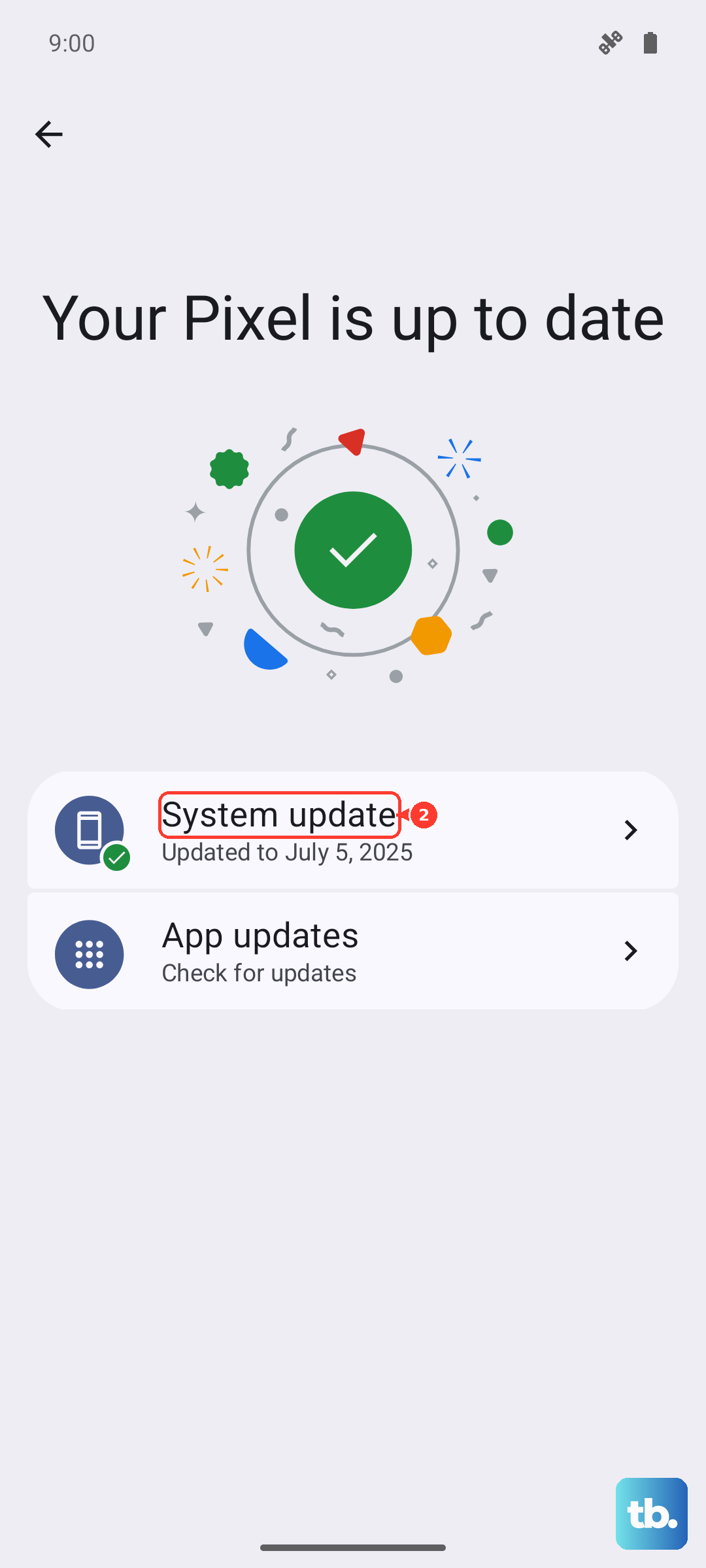
Hotspot bugs get squashed in software updates pretty regularly. Go to Settings > System > System update and check if there's a pending update for your Pixel 10a. If there is, install it. A known hotspot issue on early Android 16 builds was patched in a later release, so it's worth making sure you're running the latest version.
If the Phone Gets Too Hot, the Hotspot Shuts Down
Your Pixel 10a protects itself when it gets too hot, and one of the first things it does is disable the hotspot. If you've been charging with a 45W brick while tethering in a warm car, that's likely the issue. Let the phone cool down for ten minutes and try again. If you absolutely need hotspot while charging, a 10W Qi wireless pad generates less heat than the fast wired connection.