
Your Pixel 10a's GPS has gone rogue. Maybe it's showing your location miles off, or it just won't lock on at all. Here's what to do about it.
Toggle GPS and Restart
The fastest way to shake a glitchy GPS is to turn the location radio off and back on. Swipe down twice from the top of your screen, tap the Location icon to disable it, wait 15 seconds, then tap it again.
If that doesn't do it, a restart clears up temporary bugs. Press and hold the Power button for a couple seconds, then select Restart. Your Pixel 10a should be back up in about a minute.
Still no luck? Try a force restart. Press and hold the Power button for 30 seconds, or press and hold Power and Volume Down together for 10 to 15 seconds until the phone reboots. This works even if the screen is frozen.
Check Location Permissions
Sometimes an app can't see the GPS because it simply doesn't have permission. Go to Settings > Apps > Maps (or your navigation app) and tap Permissions. Make sure Location is set to "Allow all the time" or "Allow only while using the app," depending on your preference.
While you're there, double‑check that Location itself is turned on at the system level. Open Settings > Location and flip the switch to On.
Disable Battery Saver Mode
Battery Saver is a common culprit. It often kills GPS accuracy to extend battery life. Swipe down and tap the Battery Saver icon to turn it off, or go to Settings > Battery > Battery Saver and toggle it off.
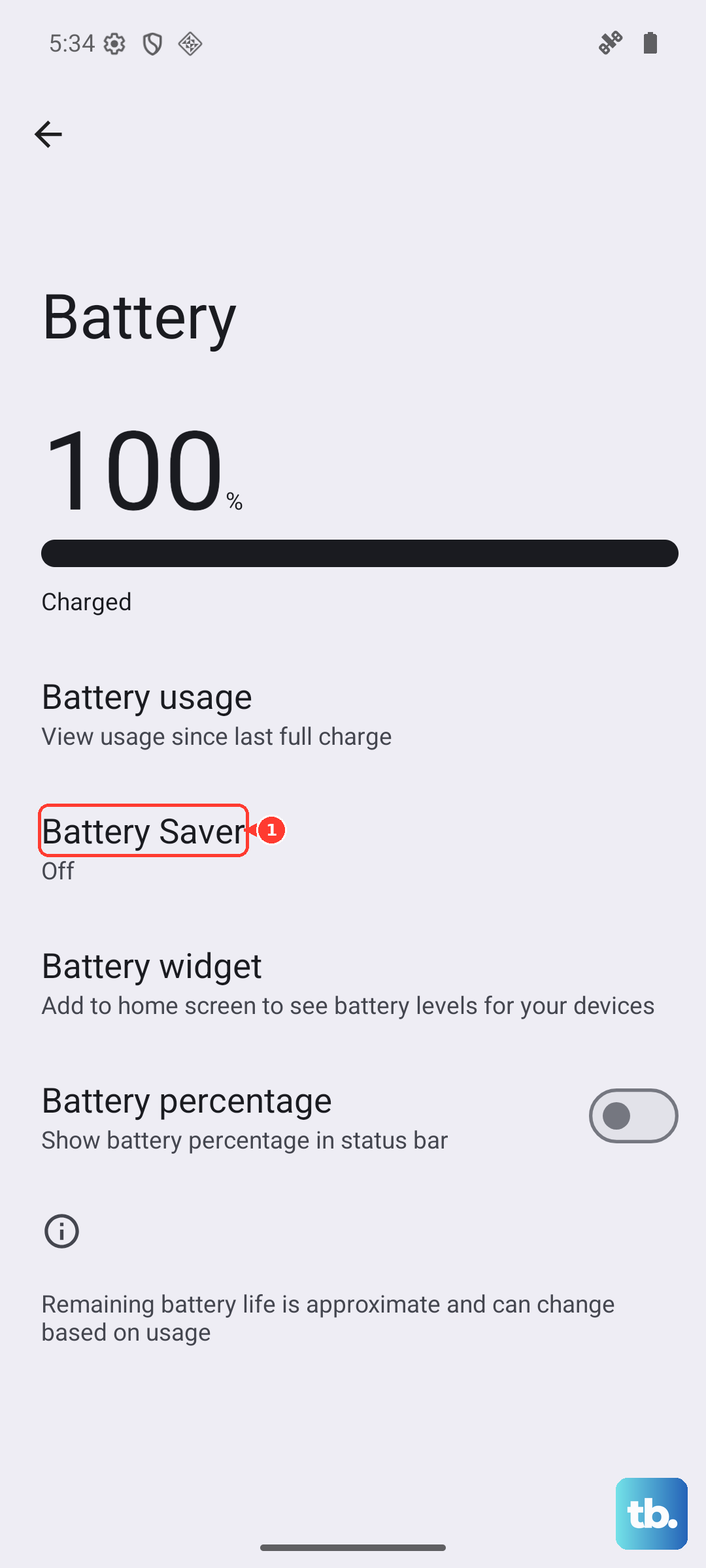
If you need to use GPS while saving juice, set Battery Saver to "Extreme" only when you don't need navigation.
Toggle Airplane Mode
Airplane mode resets all wireless connections in one shot, which can clear up a stubborn GPS hiccup. Swipe down and tap the Airplane icon. Wait 10 seconds, then tap it again to turn it off.
After the radios come back, try launching Google Maps and see if it locks onto your location.
Switch to High Accuracy Mode
Your Pixel 10a can use GPS, Wi‑Fi, and mobile networks together for the best location fix. Open Settings > Location > Location Services and select High Accuracy. This setting uses all available signals, so it's the most reliable for navigation.
If you had it on "Device Only" or "Battery Saving," switch to High Accuracy and test again.
Update Google Maps and System Software
An outdated app or Android 16 build can cause GPS hiccups. Open the Play Store, tap your profile icon, then tap Manage apps & device. Update Google Maps and any other navigation apps you use regularly.
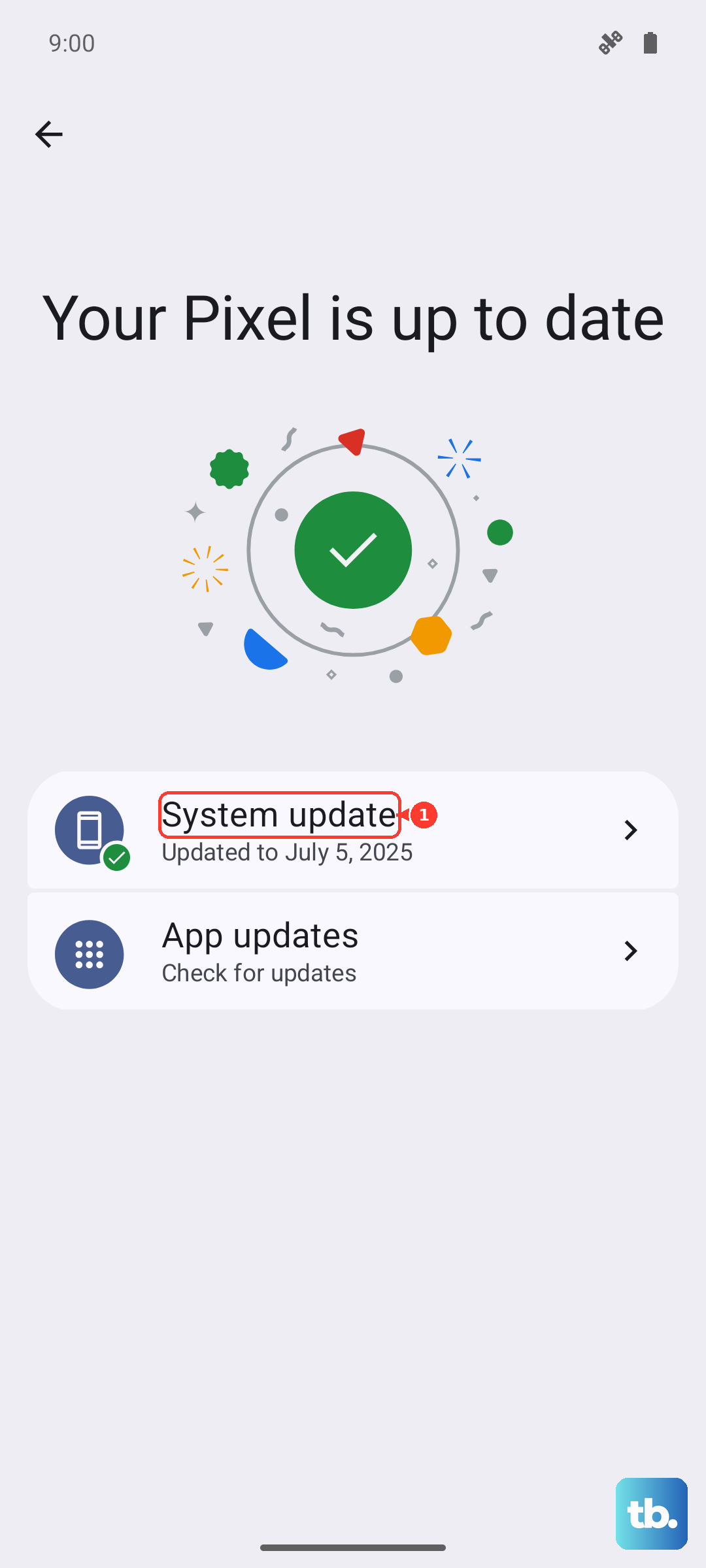
Also check for system updates by going to Settings > System > System update. Install anything that's pending and restart your phone.
Clear Google Maps Cache
Corrupted cache files inside Maps can throw off the GPS. Go to Settings > Apps > Maps > Storage & cache and tap Clear cache. This won't delete your saved places or history.
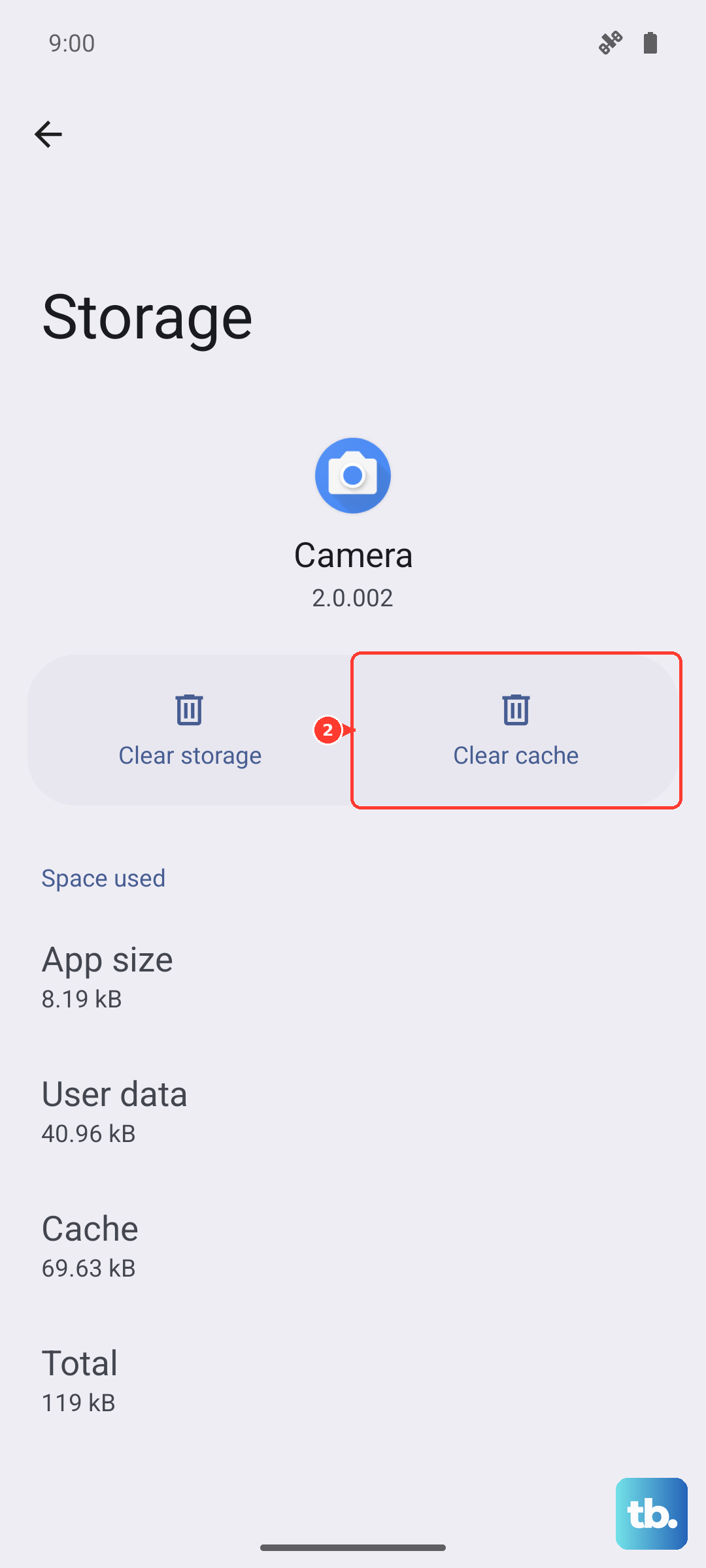
If the problem persists, tap Clear storage (or Clear data). That resets Maps to its factory state, so you'll need to sign in again, but it often fixes stubborn location bugs.
Remove Your Phone Case and Move Outdoors
Thick cases, especially those with metal or magnetic parts, can block GPS signals. Pop off your case and see if the lock improves. While you're at it, step outside with a clear view of the sky, tall buildings and heavy tree cover can weaken the signal.
If you're in a basement or underground parking garage, don't expect a fix. GPS needs line of sight to satellites.
Test GPS in Safe Mode
A misbehaving third‑party app could be interfering with location services. Booting into Safe Mode temporarily disables all downloaded apps. On your Pixel 10a, press and hold the Power button, then tap and hold the Power Off option until the Safe Mode prompt appears. Tap OK.
Once in Safe Mode, test the GPS in Maps. If it works perfectly, a third‑party app is the cause. Restart normally and uninstall recently installed apps one at a time to find the troublemaker.
Calibrate Your Compass
An uncalibrated compass can make the GPS appear inaccurate. Open Google Maps, hold your Pixel 10a and trace a figure‑8 motion in the air a few times. You'll see the blue dot narrow to a precise beam when it's calibrated.
You can also check the compass calibration in a GPS test app like GPS Status from the Play Store. If the app shows zero satellites, you may have a deeper hardware issue. If it connects but the fix is off, calibration often sorts it out.