
A frozen Google Pixel 10a that won't respond to taps or swipes can be alarming, especially if the screen is stuck on an app or the lock screen. Most freezes are temporary and fixable without losing your data or resorting to a factory reset.
Force Restart the Phone
This is the first thing to try when the screen is unresponsive. Press and hold the Power button for 30 seconds. If that doesn't work, press and hold Power + Volume Down together for 10-15 seconds until the device restarts. Keep holding even if nothing appears on the screen for a few seconds. The phone will reboot and you won't lose any data.
Give It a Few Minutes
A heavy process like an update, photo indexing, or a stuck app can make the Pixel seem frozen when it's actually still working. If the phone feels warm to the touch, that's a sign it's busy. Wait 5-10 minutes before force restarting to let it sort itself out.
Check the Battery and Charging
A nearly dead battery can make the phone unresponsive. Plug it into a 45W USB-C PPS charger and wait at least 15 minutes. If the phone doesn't respond, inspect the charging port for lint or debris. Gently clean it with a dry wooden toothpick or a can of compressed air. If wired charging still fails, try a Qi wireless charger as a backup. The Pixel 10a supports up to 10W wireless charging, which can get you enough power to restart.
Close the Frozen App
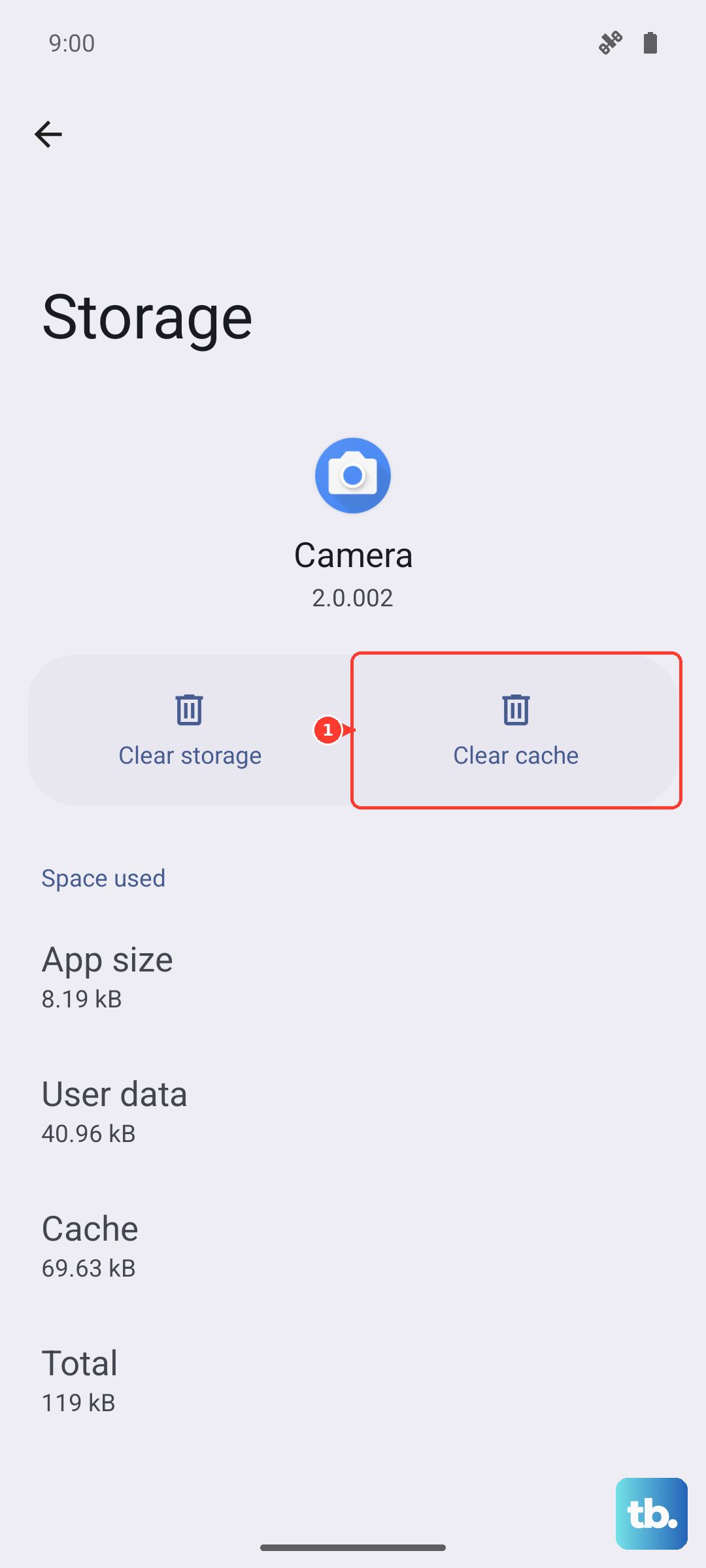
If only one app is frozen but you can still use other parts of the phone, swipe up from the bottom and hold to open the recent apps screen. Swipe left or right to find the frozen app, then swipe it up off the screen to close it. Reopen the app and see if it works. If it keeps freezing, check for an update in the Play Store or clear the app's cache in Settings > Apps > See all apps > [app name] > Storage & cache > Clear cache.
Boot into Safe Mode
Third-party apps sometimes cause system-wide freezes. To check, boot the Pixel into Safe Mode by pressing and holding the Power button, then long-pressing the Power off option on screen until you see the Safe Mode prompt. The phone will restart with only built-in apps. If the freezing stops, a downloaded app is likely the culprit. Uninstall recently installed apps one by one until the problem goes away.
Free Up Storage Space
When internal storage is critically low, the Pixel can slow down or freeze because the system has no room for temporary files. Go to Settings > Storage and see how much space you have. Aim for at least 2-3 GB free. Delete old photos, videos, or unused apps to free up space.
Update the Software
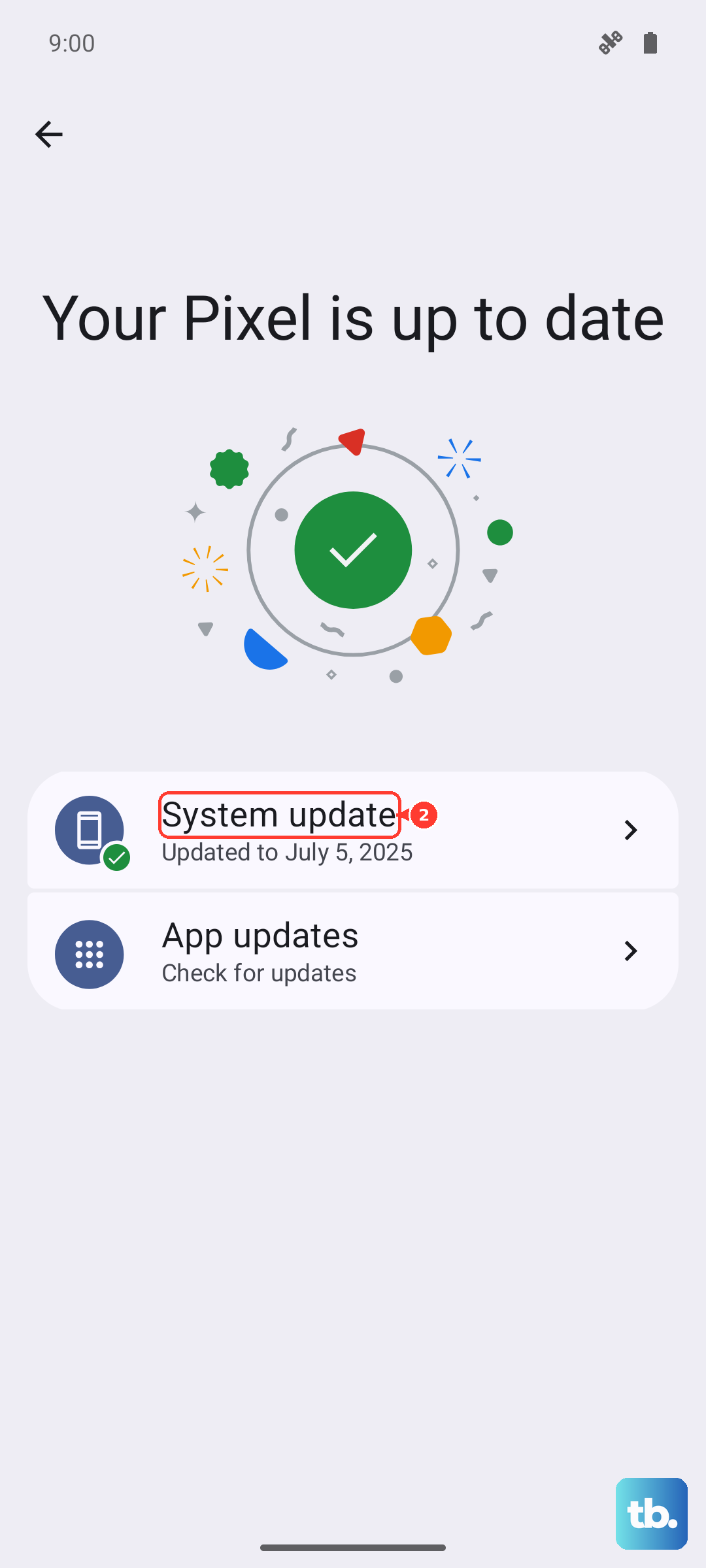
Software bugs can cause freezing. After the phone is responsive, go to Settings > System > System update and install any available update. If the phone freezes again during the update, connect it to a computer and use the Android Flash Tool or try updating via a recovery mode.
Reset App Preferences
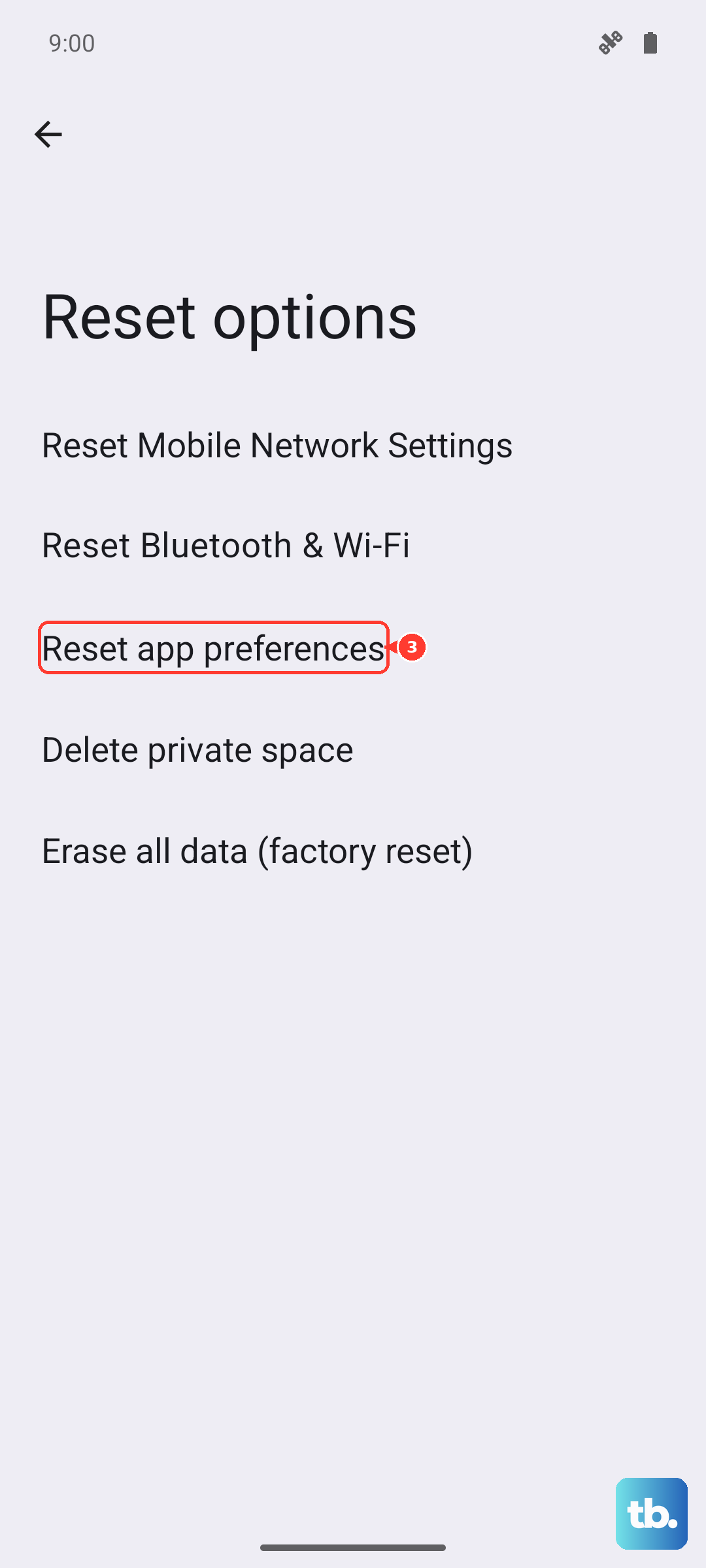
If freezing persists, corrupted app settings might be the issue. Go to Settings > System > Reset options > Reset app preferences. This won't delete your apps or data, but it will reset all app permissions and defaults. You'll need to re-grant permissions to apps afterward.
Let the Phone Cool Down
Overheating can cause the Pixel 10a to freeze as a protective measure. If the phone feels hot, remove the case and keep it out of direct sunlight. Let it cool for 15-20 minutes before trying to use it again. Avoid charging while the phone is hot, as that can slow down the cooling process.