Seeing your Google Pixel 10 freeze on the boot logo is a stressful moment. The screen lights up with the colorful "G," but then nothing else happens. This boot loop usually stems from a corrupted software update, a problematic app, or a system file that got scrambled. The good news is you can almost always fix it yourself.
Give It Time and Charge It
First, plug your Pixel 10 into the wall using its official 30W USB-C charger. A major Android 15 update can take a surprisingly long time to finalize after the initial reboot. The phone might be optimizing apps or finishing installation behind that static logo. Leave it plugged in and untouched for a solid 20 to 30 minutes before you do anything else.
Perform a Force Restart
If the logo is still stuck after a half-hour, you need to interrupt the boot cycle. Press and hold the Power button and the Volume Up button at the same time. Keep holding them for about 10 seconds until you see the screen go black and the Google logo reappear. This simple restart clears the phone's temporary memory and often boots you right into the home screen.
Use Google's supported recovery path
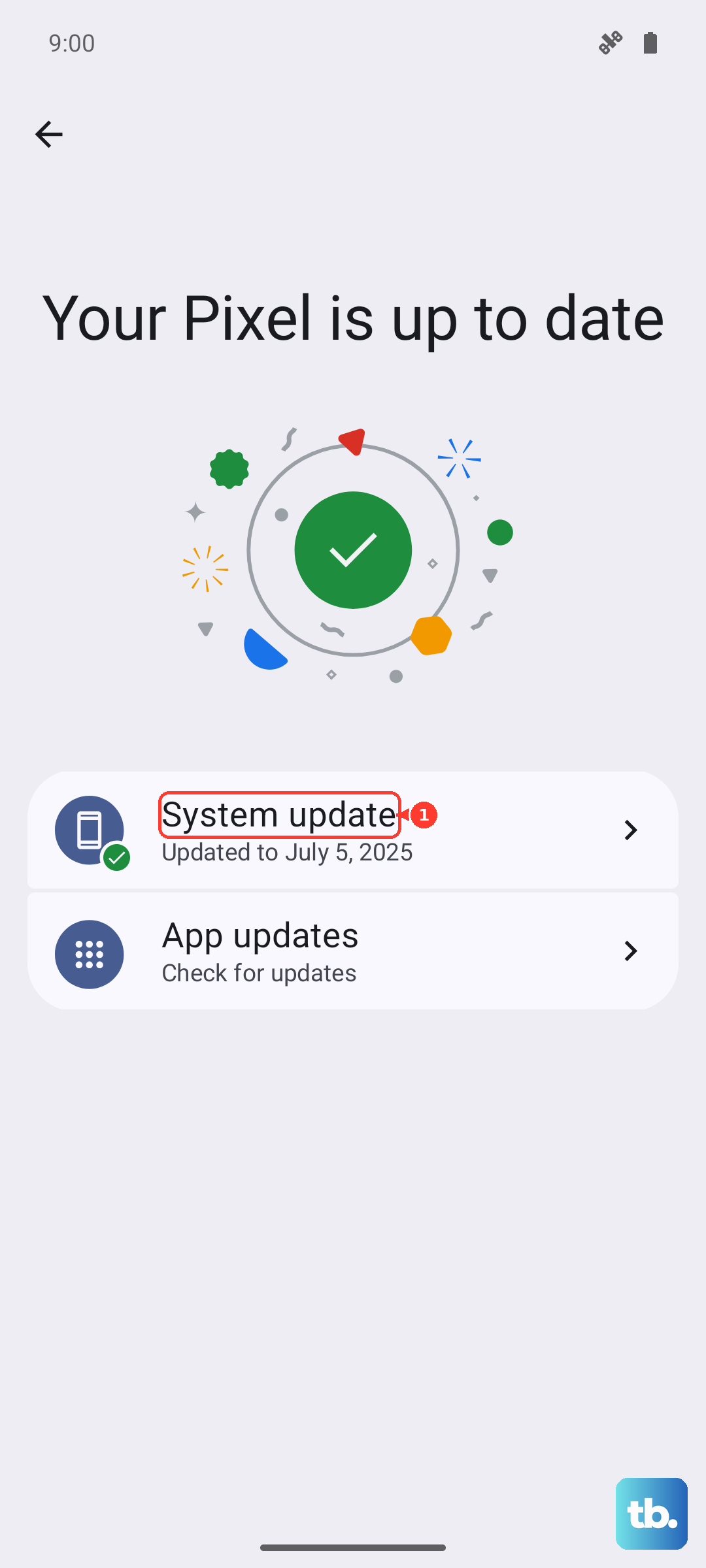
Skip the old recovery-cache wipe step on Pixel. If the phone can boot, restart it, check Settings > System > Software update, check Storage, and use Safe mode to test whether a downloaded app is causing the problem.
If the phone still will not boot, stays on the logo, or keeps restarting, Google's documented button-based recovery path is a factory reset from Fastboot/Recovery. That erases the phone, so use it only as a last resort after non-destructive steps and backups have been considered.
Try Safe Mode
If your phone boots after wiping the cache, but the problem happens again later, a third-party app is likely the culprit. To check, boot into Safe Mode. Turn the phone off, then turn it back on by holding the power button. As soon as you see the Google logo, press and hold the volume down button until the lock screen appears. You'll see "Safe mode" in the corner.
If the phone works fine in Safe Mode, you know a downloaded app is causing the crash. Start by uninstalling any apps you recently added or updated. Then restart normally to see if the problem is resolved.
Factory Reset from Recovery
Warning: This will erase all data on your phone. Only do this if you have a recent backup or have exhausted other options. From the Android recovery screen, use the volume buttons to highlight Wipe data/factory reset and select it. Confirm your choice on the next screen.
This process returns the phone to its original out-of-the-box software state. After it finishes, select Reboot system now. You'll go through the initial setup process again, where you can restore your data from a Google One backup.
Use Android Flash Tool (Web)
For a deeper software refresh without needing a computer with ADB installed, Google's official Android Flash Tool in your Chrome browser is a great option. On another device, go to the Android Flash Tool website. You'll need a USB-C cable and your Pixel 10 must be in Bootloader Mode.
To get there, power off the phone. Then hold Power and Volume Down until you see the Bootloader screen (a screen with Start, Power off, and other text). Connect it to your computer, follow the web tool's instructions, and flash a clean version of Android 15. This often fixes stubborn corruption that a factory reset can't.
Check for Physical Damage
While less common, physical damage can cause boot issues. If the phone has been dropped or exposed to liquid, it could affect the internal storage or motherboard. Inspect the USB-C port for any debris, lint, or signs of corrosion that could also interfere with the phone's operation.
Try charging with a different, high-quality USB-C cable and the official 30W power adapter. A faulty charger can sometimes cause unstable power during boot.
Ensure Adequate Storage for Updates
A failed update is a common trigger for this problem. If you get your phone working again, immediately check your storage. Go to Settings > Storage. Android updates need several gigabytes of free space to install cleanly.
I'd recommend keeping at least 10GB free before attempting a system update. Clear out old downloads, offload photos to Google Photos, or uninstall large apps you don't use. This prevents the update process from crashing mid-way and causing another boot loop.