You tap send on a photo and it just hangs there with a "Sending..." label, or worse, it bounces back as "Not sent." On a flagship like the Pixel 10 Pro XL, that usually points to a small software glitch or a network setting that got bumped. Here are the most effective ways to get your pictures flying out again.
Start with the quick stuff
Before diving into the deep settings, let's knock out the simple checks. First, make sure your mobile data is on. Swipe down to get to your Quick Settings and check that the mobile data icon isn't crossed out. If it's on and still not working, toggle Airplane mode on for about ten seconds, then off. This forces the radio to reconnect to the tower and can clear up a bad data path instantly.
Another quick win is checking your Date & Time. Open Settings > System > Date & Time and make sure "Use network-provided time" is toggled on. If the time is even slightly off, encrypted messaging protocols (which RCS relies on) can refuse to authenticate.
Check your Chat features (RCS) status
If you are sending to another Android user, the message thread probably uses RCS rather than old-school SMS/MMS. If the RCS connection is glitched out, photos will either get stuck or fall back to tiny, blurry MMS. Open Messages > Settings > RCS chats. Make sure it's on. If it's connected but acting up, try tapping "Auto-detect SIM status" and let it refresh. If that doesn't work, you can manually reset the RCS connection by switching it off, waiting a minute, and turning it back on.
For iPhones, your Pixel drops back to standard MMS. Make sure "Auto-download MMS for texts" is turned on in the same settings menu so it doesn't block incoming media.
The network drain: Data Saver and Data Roaming
Your phone has a "Data saver" mode. When Data Saver kicks in, it restricts background data, which can stop MMS and large RCS messages from sending until you are on Wi-Fi. Head to Settings > Network & internet > Data Saver and make sure it is off. This is a common culprit on new Pixel phones right out of the box.
If you are traveling abroad, check Settings > Network & internet > Data Roaming. You need to have that turned on for your specific SIM profile. Just be aware that it usually incurs carrier charges.
Force a clean slate for Messages and Carrier Services
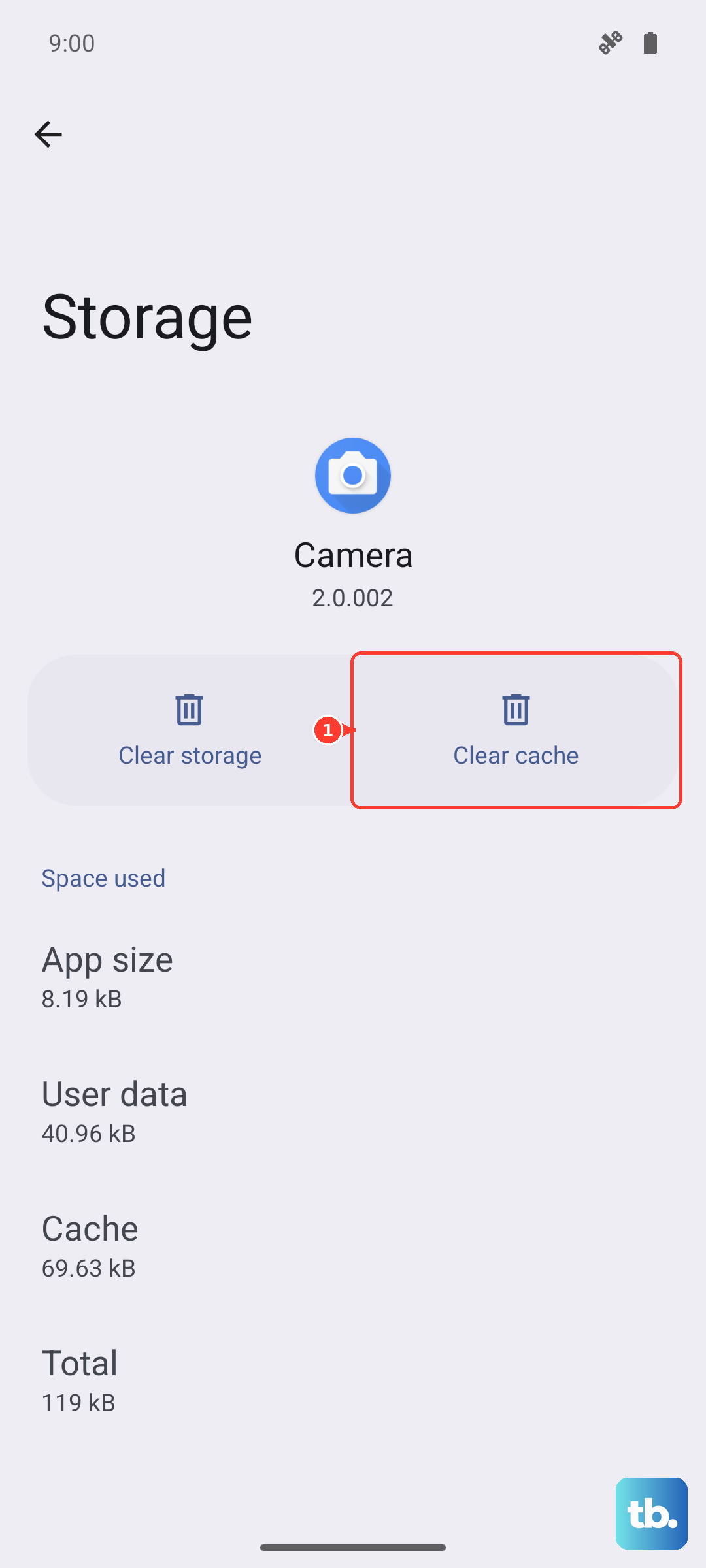
Stale data in the Messages app or the background "Carrier Services" app is a common culprit on Pixel phones. You don't have to re-pair anything, just flush the junk. Go to Settings > Apps > Messages > Storage & cache. Hit Clear cache (not clear storage). Do the same for Settings > Apps > Carrier Services > Storage & cache > Clear cache. A force stop on both of those screens afterwards never hurts. This wipes whatever bad config was stored without deleting your actual conversations.
If the phone is hot, let it cool down
Here is something specific to the Pixel 10 Pro XL: if the phone gets hot while charging or just during heavy use, the modem gets throttled. This can directly cause photo sending to fail because the radio essentially gives up. If you notice the back of the phone feeling warm, take off the case (it traps heat) and let it sit for a few minutes. Once it cools down, try sending the photo again. This has fixed the issue for a lot of users who thought their network was down.
Force restart your Pixel
Don't underestimate a hard reboot. A standard restart sometimes doesn't clear deeper radio cache issues. On the Pixel 10 Pro XL, press and hold the Volume up and Power buttons simultaneously for 10 seconds, then release when the device restarts. This is the hardware-level force restart. It often re-establishes a solid mobile data connection on the next boot and clears up temporary glitches that can block media downloads.
Update the system and carrier config
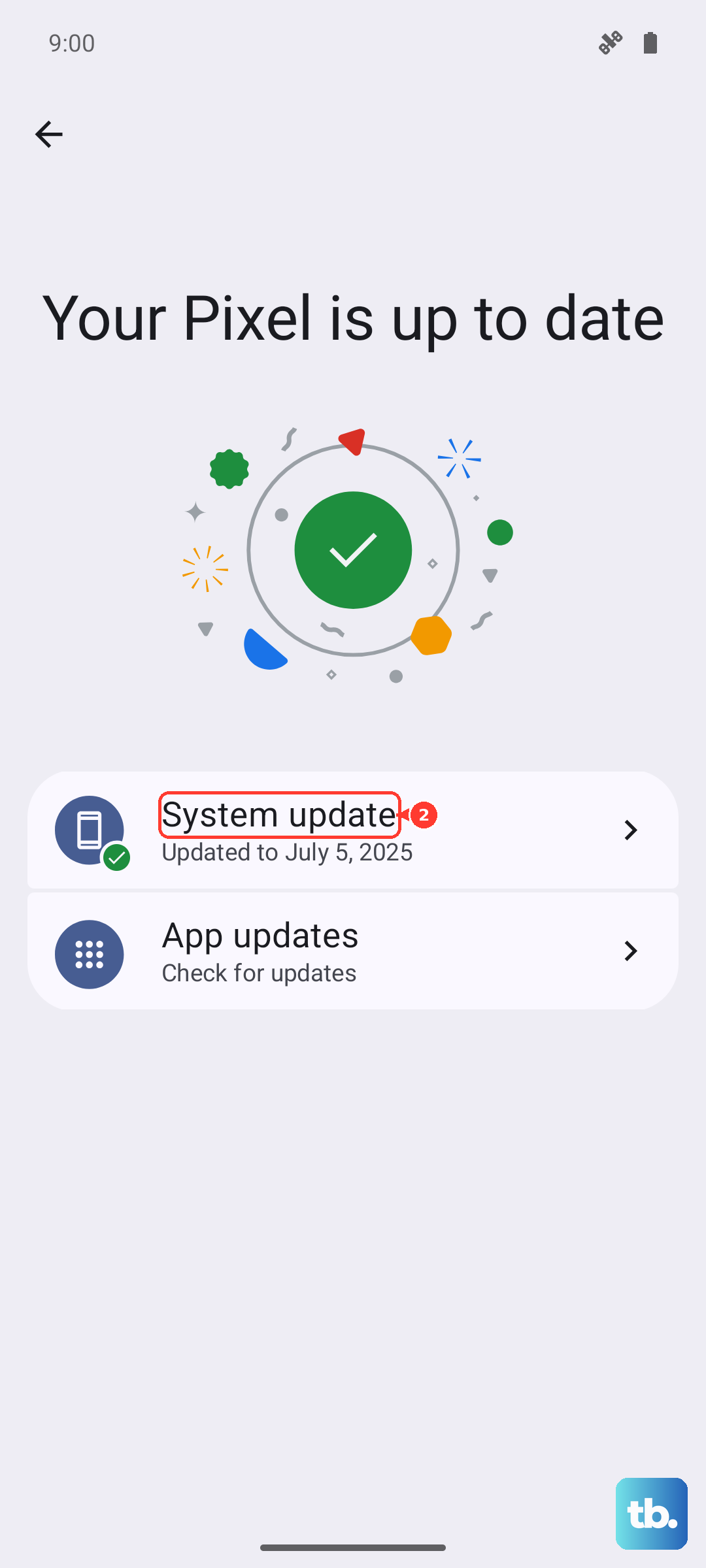
Google pushes out "Carrier Services" updates through the Play Store, and they directly impact how MMS and RCS behave on your network. Open the Play Store > Manage apps > Carrier Services > Update. While you are at it, check Settings > Security > System update and install any pending Android updates. Bug fixes for modem and radio issues are constantly rolling out for Android 16. A pending update is sometimes all that stands between you and a working MMS connection.
Reset network settings
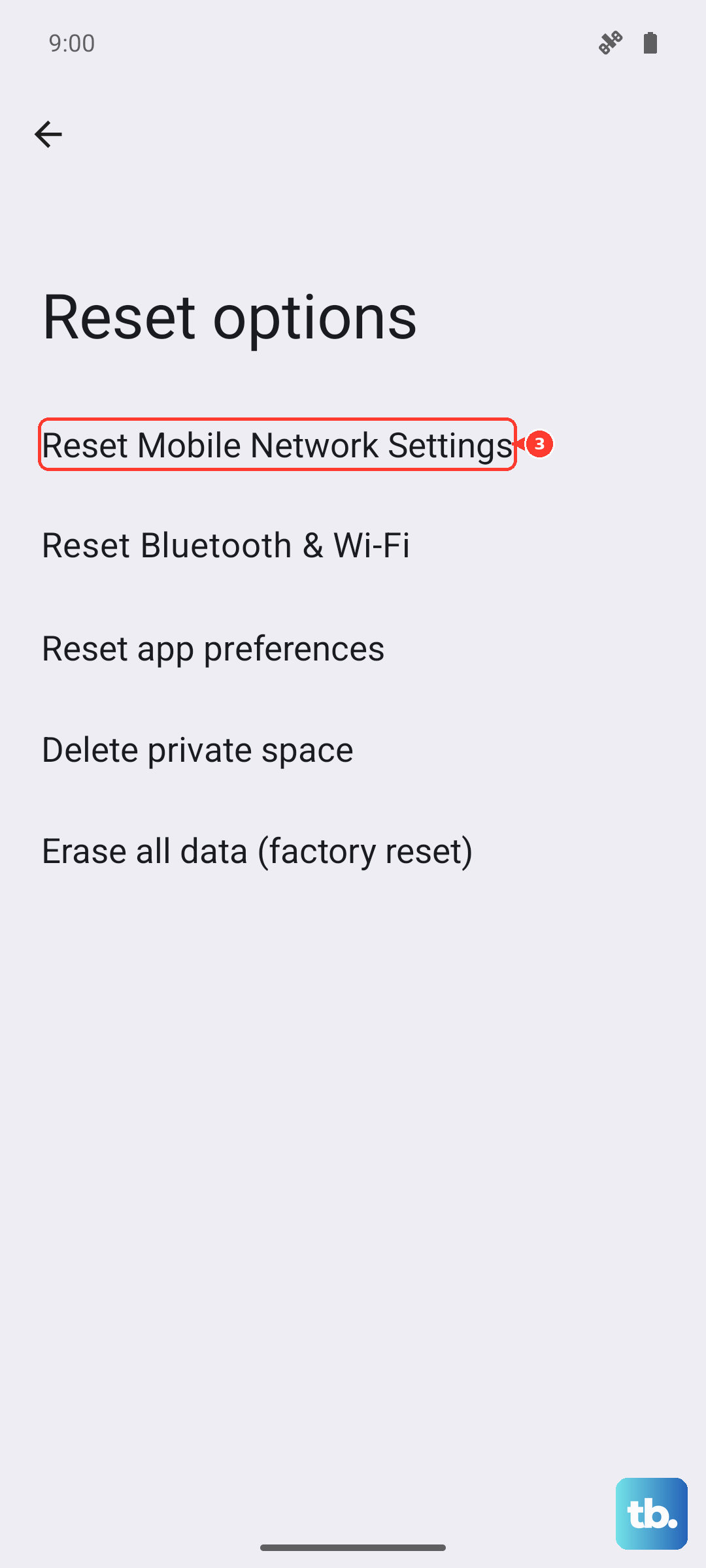
If nothing has worked yet, we need to wipe the network slate clean. This does not delete your photos or apps, but it will forget Wi-Fi networks and Bluetooth pairings. Go to Settings > System > Reset options > Reset mobile network settings, then Reset Bluetooth & Wi-Fi. It will ask for your PIN, then it will restart the radio stack. After it reboots, reconnect to your mobile network and try sending a test photo. This clears up 90% of persistent MMS and RCS issues on the Pixel line. After this step, your phone is essentially establishing a fresh connection with the carrier, and photos should start sending normally.