
When the hotspot on your Pixel 10 Pro XL stops working, every device around you suddenly feels useless. The hotspot might not show up, other devices might connect but have no internet, or the connection might drop every few minutes. These fixes cover the most common causes and should get you back online.
Toggle the Hotspot Off and Back On
Swipe down twice from the top of the screen to open Quick Settings. Tap the Hotspot tile to turn it off, wait about 15 seconds, then tap it again to turn it back on. This simple reset clears out temporary software glitches that can prevent the hotspot from broadcasting or accepting connections. I've seen this fix the issue instantly more often than you'd expect.
Restart the Phone
If toggling didn't do it, a full restart is the next step. Press and hold the Power button for up to 60 seconds, then release when the device begins to reboot and the G logo appears. On the Pixel 10 Pro XL, this is the force restart method and it works when the screen is unresponsive or the system is hung up on something. It clears cached network processes and gives the cellular radio a clean slate.
Is Your Mobile Data Actually Working?
The hotspot shares your phone's cellular connection, so if mobile data is off or spotty, the hotspot won't work either. Go to Settings > Network & internet > Internet and make sure mobile data is toggled on. If you see a weak signal bar, try moving to a different area. Also check that your carrier plan includes hotspot tethering, since some plans restrict or block it entirely.
Reset Network Settings
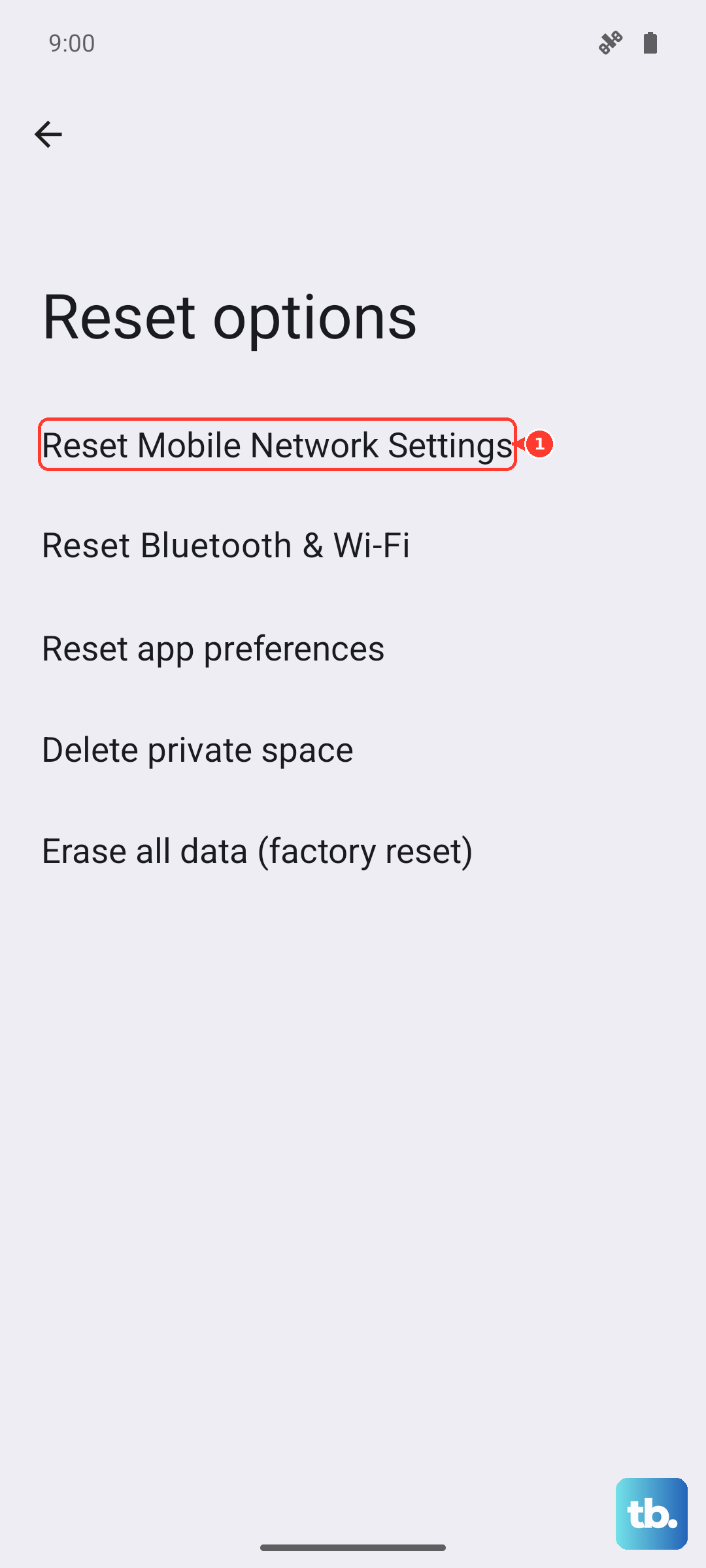
This is the nuclear option for persistent hotspot issues. Go to Settings > System > Reset options > Reset mobile network settings, then Reset Bluetooth & Wi-Fi. Confirm the action. This erases all saved Wi-Fi networks, Bluetooth pairings, and VPN configurations. You'll need to re-enter Wi-Fi passwords afterward, but it rebuilds the entire network stack from scratch. It's the most reliable fix for hotspot problems that resist everything else.
Update Carrier Settings and Firmware
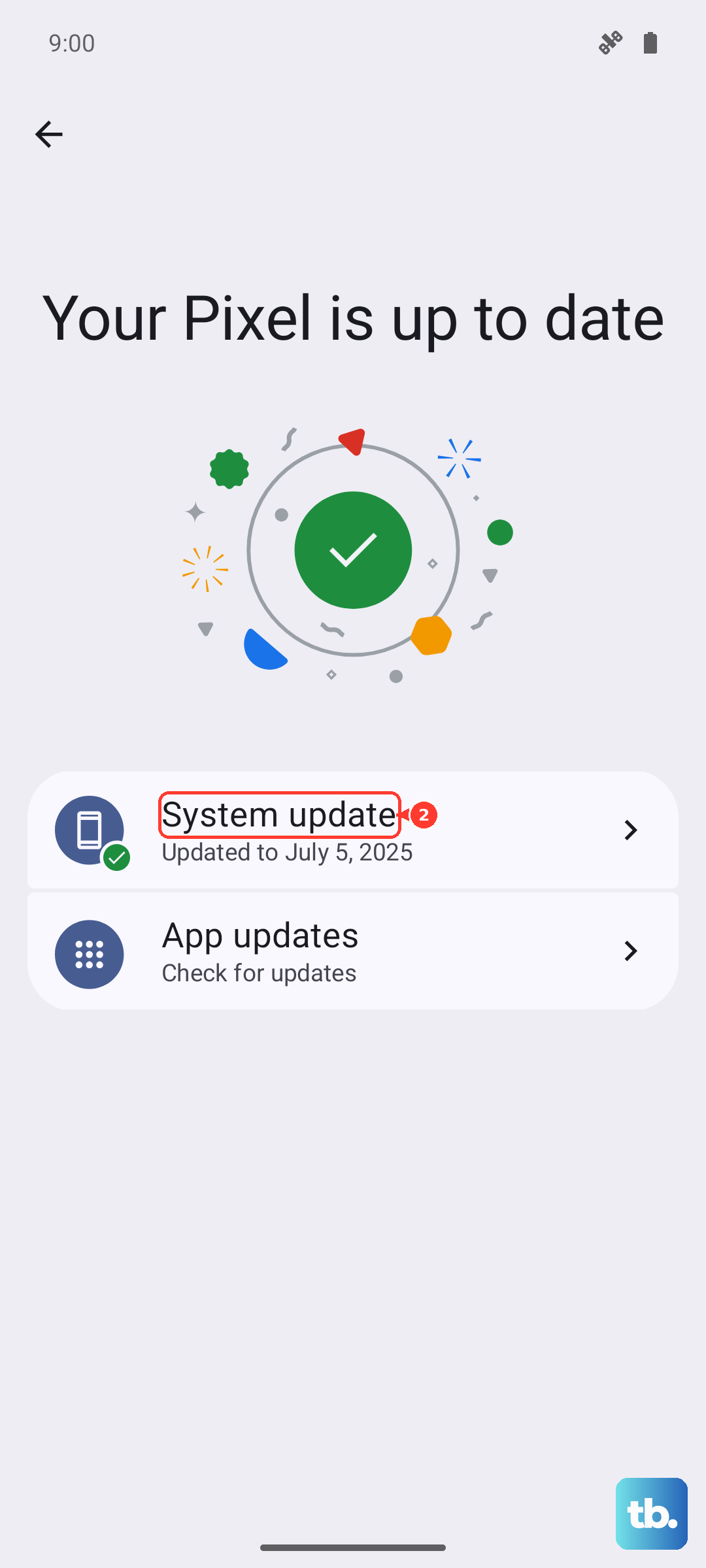
Carrier configuration updates can include hotspot-specific fixes. Go to Settings > Network & internet > Internet and tap the gear icon next to your carrier name. If there's a carrier settings update available, a prompt will appear. Also check for system updates at Settings > System > System update. Android 16 has addressed several tethering bugs in its release cycle, so keeping the phone current matters.
Forget the Hotspot Network on the Other Device
Sometimes the problem isn't the Pixel at all. On your laptop, tablet, or whatever device is trying to connect, go to its Wi-Fi settings and choose to forget or remove the Pixel's hotspot network. Then scan for available networks again and re-enter the password. A cached profile with bad authentication data can cause connection failures that look like a phone-side issue.
Change the Hotspot Password
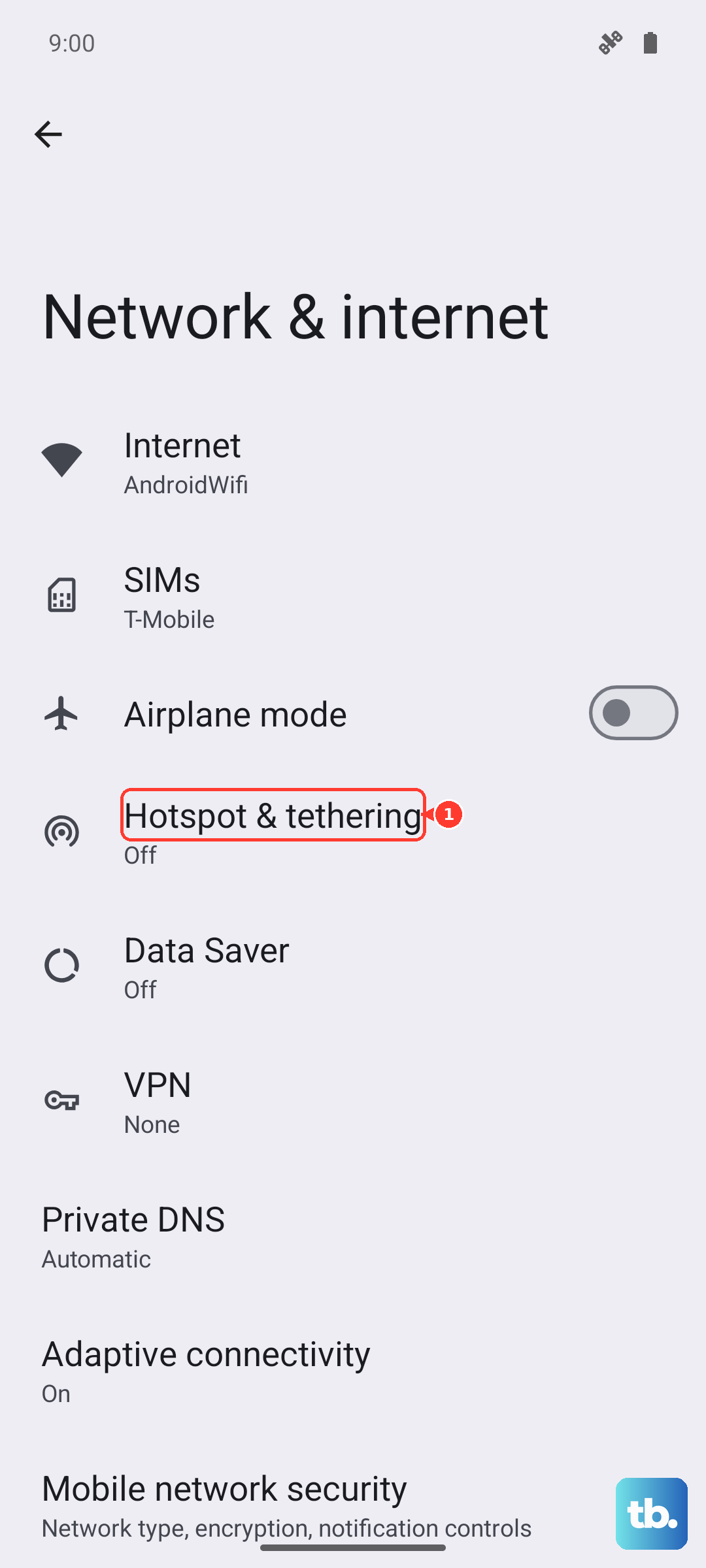
Go to Settings > Network & internet > Hotspot & tethering > Wi-Fi hotspot and tap the current password field. Enter a new password and tap Save. A fresh password forces every connecting device to undergo a new handshake, which can bypass whatever authentication hiccup was blocking the connection.
Try USB Tethering or Bluetooth Tethering as a Workaround
If you need internet right now and Wi-Fi hotspot is still acting up, connect the Pixel 10 Pro XL to your computer with a USB-C cable. Go to Settings > Network & internet > Hotspot & tethering and toggle on USB tethering. Your computer should detect it as a network connection almost immediately. Bluetooth tethering works too: pair the devices first, then enable Bluetooth tethering in the same menu. Both methods use a different radio than Wi-Fi, so they often work when the hotspot won't.
Check for Android 16 Updates Specifically
Hotspot bugs have been patched in multiple Android 16 updates. Open Settings > System > System update and tap Check for update. If there's one available, plugging in the phone to the 45W charger first is a good idea. Known issues with hotspot stability have been resolved in recent builds, and the update takes about 10 minutes to install.
Contact Your Carrier
If you've gone through everything and the hotspot still won't work, call your carrier. They may have hotspot disabled on your plan or an account-level restriction blocking tethering. Some carriers also use different APN settings for hotspot traffic, and they can push the correct configuration to your Pixel 10 Pro XL remotely. It's a quick call that can save you hours of frustration.