
You're staring at your Google Pixel 10 Pro, and the Wi-Fi icon just won't light up. It's a frustrating roadblock, especially on a brand-new phone. The good news is that Wi-Fi issues on Android 15 are almost always a software hiccup you can fix yourself in a few minutes.
Toggle Wi-Fi and Restart Your Pixel
Start with the simplest fix. Swipe down from the top of your screen twice to open the full Quick Settings panel. Tap the Wi-Fi icon to turn it off, wait a solid five seconds, then tap it again to turn it back on. This forces your Pixel to drop the current connection and re-scan for networks, which often clears up the problem instantly.
If that doesn't work, give your phone a full restart. Press and hold the Power button and Volume Up button together for about 10 seconds until you see the Google logo appear. This reboot clears out any temporary glitches in the system that might be interfering with the wireless radio.
Use Airplane Mode to Reset Radios
This trick is a classic for a reason. Turning on Airplane mode shuts down all wireless communications, Wi-Fi, cellular, and Bluetooth. After about 15 seconds, turn it off again. This forces every radio in your Pixel 10 Pro to reinitialize and reconnect from scratch, which can knock loose a stubborn connection problem.
Forget the Problem Network
Your phone might be holding onto corrupted login data for your network. To clear it, go to Settings > Network & internet > Internet. Tap the settings gear next to your Wi-Fi network's name and select Forget. Now, just tap on the network name again from the list and re-enter the password to reconnect.
I'd do this any time you get a new router or change your Wi-Fi password. Your Pixel will keep trying the old credentials and fail silently.
Check for Simple Mistakes
It sounds too basic, but it happens all the time. Make sure you're selecting the correct network name from the list, especially if you have a lot of nearby networks. When typing your password, remember it's case-sensitive. A quick double-check here can save you a lot of unnecessary troubleshooting.
Disable Adaptive Connectivity
Your Pixel 10 Pro has a feature called Adaptive Connectivity designed to save battery. It can sometimes be a little too aggressive, switching you to mobile data if it deems the Wi-Fi signal poor. You can turn this off to see if it's the culprit. Go to Settings > Network & internet > Adaptive connectivity and toggle it off.
Turn Off Battery Saver
When Battery Saver is active, it limits background activity to conserve power, which can include hampering your Wi-Fi connection. Swipe down to your Quick Settings and check if the battery saver icon is highlighted. If it is, tap it to turn it off. You can also go to Settings > Battery to disable it from there.
Install the Latest System Update
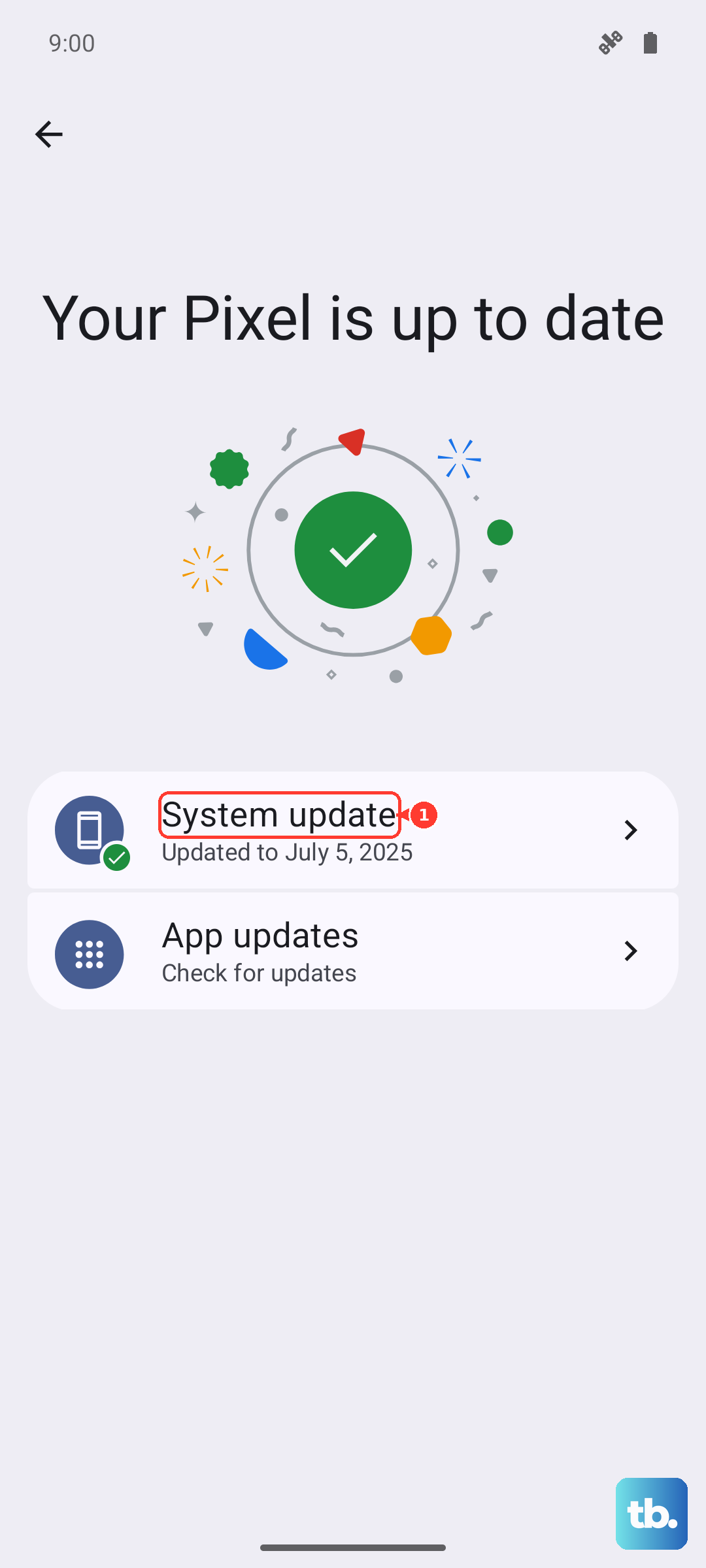
Google is constantly pushing updates that fix bugs, including connectivity issues. Make sure your Pixel 10 Pro is running the latest available version of Android. Go to Settings > System > System update and tap "Check for update." Install any available updates and restart your phone if prompted.
Verify Your Date and Time
An incorrect date or time can break Wi-Fi connectivity because security certificates won't validate properly. Your phone should handle this automatically, but it's worth verifying. Go to Settings > System > Date & time. Ensure that "Set time automatically" and "Set time zone automatically" are both switched on.
Reset Your Pixel's Network Settings
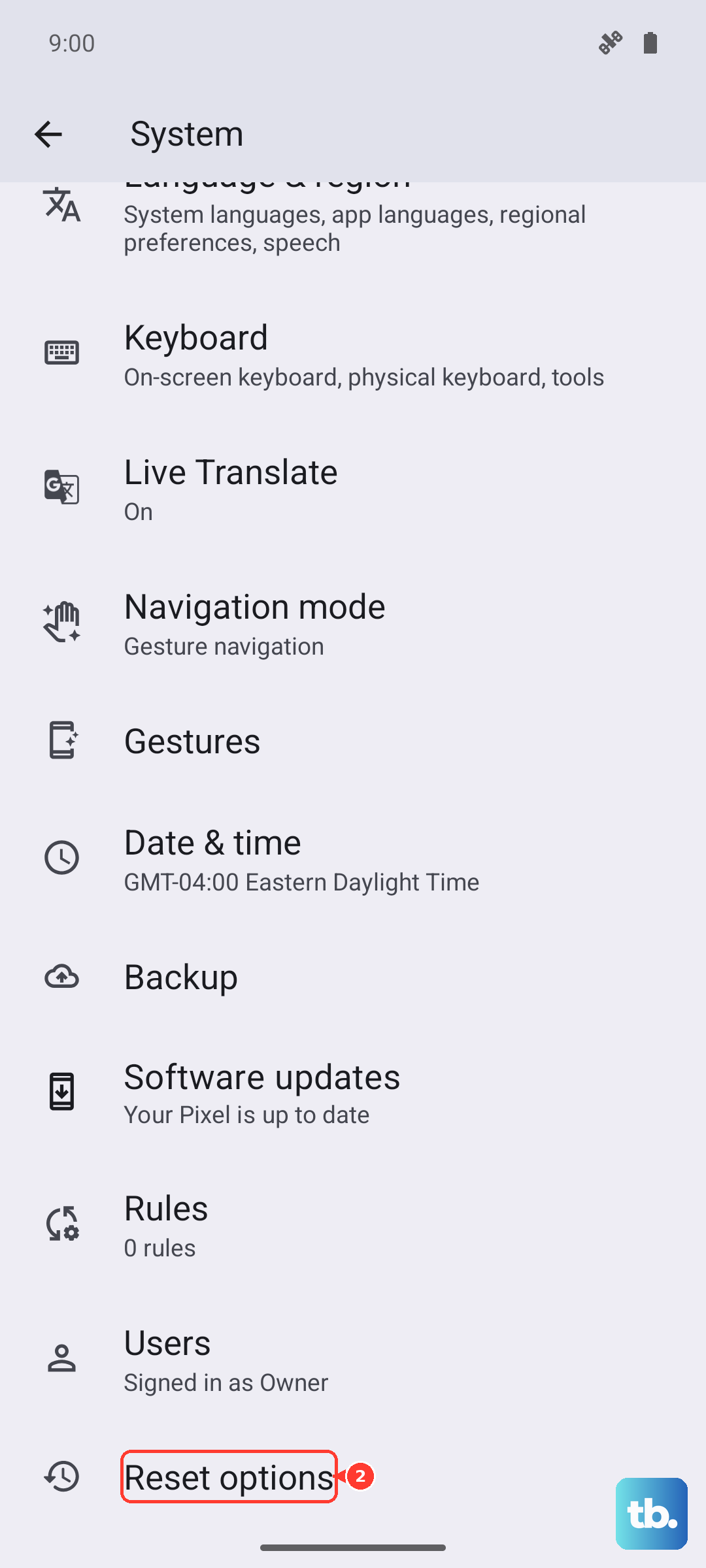
This is a more thorough step that resets all network-related configurations back to default. It will erase all saved Wi-Fi networks, Bluetooth pairings, and mobile network settings. To do this, navigate to Settings > System > Reset options. Tap Reset Wi-Fi, mobile & Bluetooth and confirm. After the reset, you'll need to reconnect to your Wi-Fi and re-pair any Bluetooth devices.
Test in Safe Mode
If a recently installed app is causing the conflict, Safe Mode will tell you. To boot your Pixel 10 Pro into Safe Mode, press and hold the Power button on the screen. When the "Power off" option appears, press and hold it until you see a prompt to reboot to Safe Mode. Tap "OK." If Wi-Fi works perfectly in Safe Mode, you know a third-party app is to blame. Start by removing any recent downloads, especially VPNs, ad blockers, or network tools.
Restart Your Internet Router
Don't forget that the issue might not be your phone at all. Unplug your router and modem from power for a full minute. This gives them time to fully clear their memory. Plug them back in and wait for all the lights to stabilize. If other devices in your home were also having trouble connecting, the router was almost certainly the problem.
While you're at it, it's a good idea to check if your router has a firmware update available through its admin page or app. An outdated router can have compatibility issues with newer phones.
Perform a Factory Reset
Consider this your absolute last resort. A factory reset will wipe your Pixel 10 Pro back to its original out-of-the-box state. You must back up all your data first. To proceed, go to Settings > System > Reset options > Erase all data (factory reset). If Wi-Fi still doesn't function after a complete factory reset, the issue is likely with the phone's hardware itself.