
Press and hold the Power button and Volume Up button together for about 10 seconds. Keep holding until you see the Google logo appear on the screen. This force restart is the quickest way to resolve a temporary software glitch that's freezing the touchscreen.
I'd start with this one every time. It doesn't erase any data and often gets things working again in seconds. If the screen is completely black and unresponsive, you might just feel a vibration when the restart kicks in.
Clean the Screen and Remove Any Screen Protector
Take a soft, lint-free cloth and wipe down the entire screen. Look for any smudges, moisture, or debris that could be interfering with the touch sensors. Pay special attention to the edges where oils from your hands tend to build up.
If you're using a screen protector, especially a thick glass or plastic one, try peeling it off temporarily. A poorly applied or low-quality protector can sometimes cause touch sensitivity issues, particularly on the curved edges of the Pixel 10 Pro.
Some tempered glass protectors aren't fully compatible with the phone's touch digitizer. After removing it, test the bare screen to see if responsiveness returns.
Check for Software Updates
Plug your Pixel 10 Pro into its charger and connect to Wi-Fi. Go to Settings > System > System update to check for any available downloads.
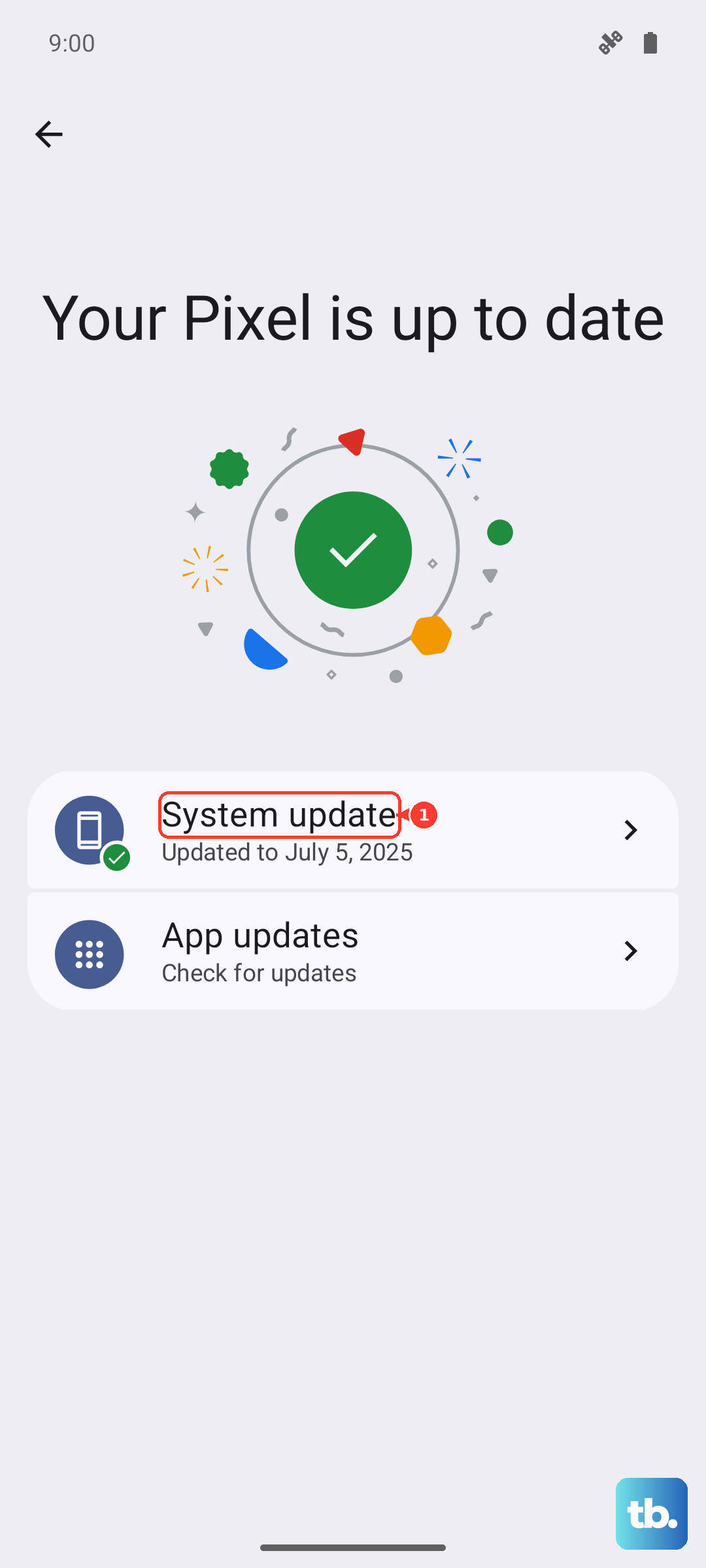
Google frequently releases patches that address performance and touchscreen bugs. Installing the latest Android 15 update can resolve conflicts introduced by older software or specific apps.
If you can't navigate the settings due to the touch issue, you can try updating using a computer with a USB-C cable. The process is more involved but can be a workaround.
Boot Into Safe Mode
First, press and hold the Power button and Volume Up button together until the power menu appears on screen. Then, tap and hold the "Power off" option until you see a prompt to reboot to Safe Mode. Tap "OK" to confirm.
This temporarily disables all third-party apps you've downloaded. If the touchscreen works perfectly in Safe Mode, you know a recently installed app is causing the problem.
To exit Safe Mode, just restart your phone normally. You can then start uninstalling apps one by one, beginning with the most recent downloads, to find the culprit.
Calibrate the Touchscreen
Google has a hidden diagnostic menu you can use to test and calibrate the touch sensors. Open your phone's dialer and enter *#*#2486#*#* to launch the "CQATest" menu.
Navigate through the tests using your volume buttons since the touchscreen might be faulty. Look for tests labeled "Touch" or "TP" and follow the on-screen instructions to draw patterns.
This can help recalibrate the digitizer. If the test fails completely, it points more toward a hardware problem with the screen itself.
Check for Physical or Liquid Damage
Inspect the screen closely for any new cracks, even hairline ones, especially near the edges. A damaged digitizer layer beneath the glass will cause dead zones or complete touch failure.
Look at the USB-C port and speaker grilles for signs of moisture or corrosion. The Pixel 10 Pro is water-resistant, but not immune to damage from spills or high humidity over time.
If you see a persistent moisture detection warning in your notification shade, that's a clear sign. Let the phone dry completely in a warm, dry place for at least 24 hours before trying it again.
Perform a Factory Reset
Since this will erase all your data, ensure you have a recent backup. If you can't use the touchscreen to navigate, you can initiate a reset using the hardware buttons.
Power off the phone completely. Then, press and hold the Power button and Volume Down button together. When the Android Recovery screen appears, use the volume buttons to highlight "Wipe data/factory reset" and press the Power button to select it.
This returns the phone to its original out-of-the-box software state. If a deep-seated software corruption was the cause, this should resolve the touchscreen issue after you set the phone up again.
Consider a Display Hardware Issue
If none of the software fixes work and the phone has no physical damage, the problem could be internal. A loose or faulty display cable connector can cause intermittent or total touch failure.
This is common after the phone has been dropped, even if there's no visible crack. The impact can jar connections loose inside the chassis.
In my experience, when a Pixel phone passes the hardware diagnostic tests but the screen still won't respond, it often comes down to a connection issue or a failing digitizer component that needs professional repair.