
Missing calls on your Google Pixel 10 Pro is a real headache. You're expecting it to ring, but it stays silent, leaving you with a list of missed notifications. The good news is this is almost always a simple setting or a minor software hiccup that you can fix yourself.
Check Your Phone's Sound Mode First
The quickest thing to check is your phone's sound profile. Swipe down from the top of your screen twice to open the full Quick Settings panel. Look for the bell icon. If it has a slash through it, your phone is set to vibrate or silent.
Tap the bell icon to cycle through the sound modes: Ring, Vibrate, and Silent. Make sure it's set to "Ring." You can also press the volume up button on the side of the phone to bring up the volume slider and ensure the ringtone volume is turned up.
Review Do Not Disturb and Focus Modes
Android 16's Modes, including Do Not Disturb, are a common culprit. When active, they can silence all calls except from your starred contacts. Pull down the Quick Settings shade and look for a moon icon or a tile labeled "Do Not Disturb" or a specific Focus like "Work."
If you see it's active, tap it to turn it off. For a deeper check, go to Settings > Digital Wellbeing & parental controls > Focus mode. Here, you can see all your configured modes and make sure none are currently enabled or scheduled to turn on automatically.
Verify Your Ringtone and Volume Settings
Sometimes the selected ringtone file can become corrupted. It's worth switching to a different one to test. Head to Settings > Sound & vibration > Phone ringtone.
Choose a new default ringtone and have a friend call you to test it. While you're there, tap "Advanced" under sound settings and make sure the "Vibrate for calls" option is set to your preference. If it's set to "Never vibrate," you might miss calls in a noisy environment.
Disconnect Bluetooth Accessories
If your Pixel is connected to a Bluetooth device like headphones, a speaker, or your car, incoming call audio is often routed there. Your phone itself may not make a sound. Go to Settings > Connected devices and toggle Bluetooth off temporarily to test.
You can also check the connection details for specific devices. Tap the settings icon next to a device and look for call audio or media audio toggles. I've seen cases where a glitchy Bluetooth connection causes the phone to stay silent even if the headphones are off.
Check for Blocked Numbers and Call Screening
The Pixel's excellent call screening features can sometimes be too effective. Go to the Phone app, tap the three-dot menu in the top right, and select Settings > Blocked numbers. Make sure the person trying to reach you isn't on that list.
Also, check the call screening settings. In the Phone app settings, look under "Spam and Call Screen." If "See caller & spam ID" or "Call Screen" is set to automatically screen unknown callers, those calls won't ring through normally. You can adjust this to allow calls from your contacts to ring.
Ensure the Phone App Has Correct Permissions
This is an easy one to overlook. The Phone app needs notification permissions to alert you. Go to Settings > Apps > See all apps and find "Phone" in the list. Tap on it, then select Permissions.
Make sure "Notifications" are allowed. You can tap into Notification settings here to ensure the "Incoming calls" category is set to "Make sound and pop on screen." Sometimes an update can reset these permissions.
Restart Your Pixel 10 Pro
A simple restart clears out temporary glitches in the system that could be interfering with the ringer. Press and hold the power button until the power menu appears, then tap "Restart."
If the phone is unresponsive, you can force a restart. Press and hold the Power button and the Volume Up button together for about 10 seconds until you see the Google logo appear on the screen.
Update Your Software and Apps
Google frequently releases system updates that fix bugs, including audio and calling issues. Connect to Wi-Fi and go to Settings > System > System update to check for and install any available Android updates.
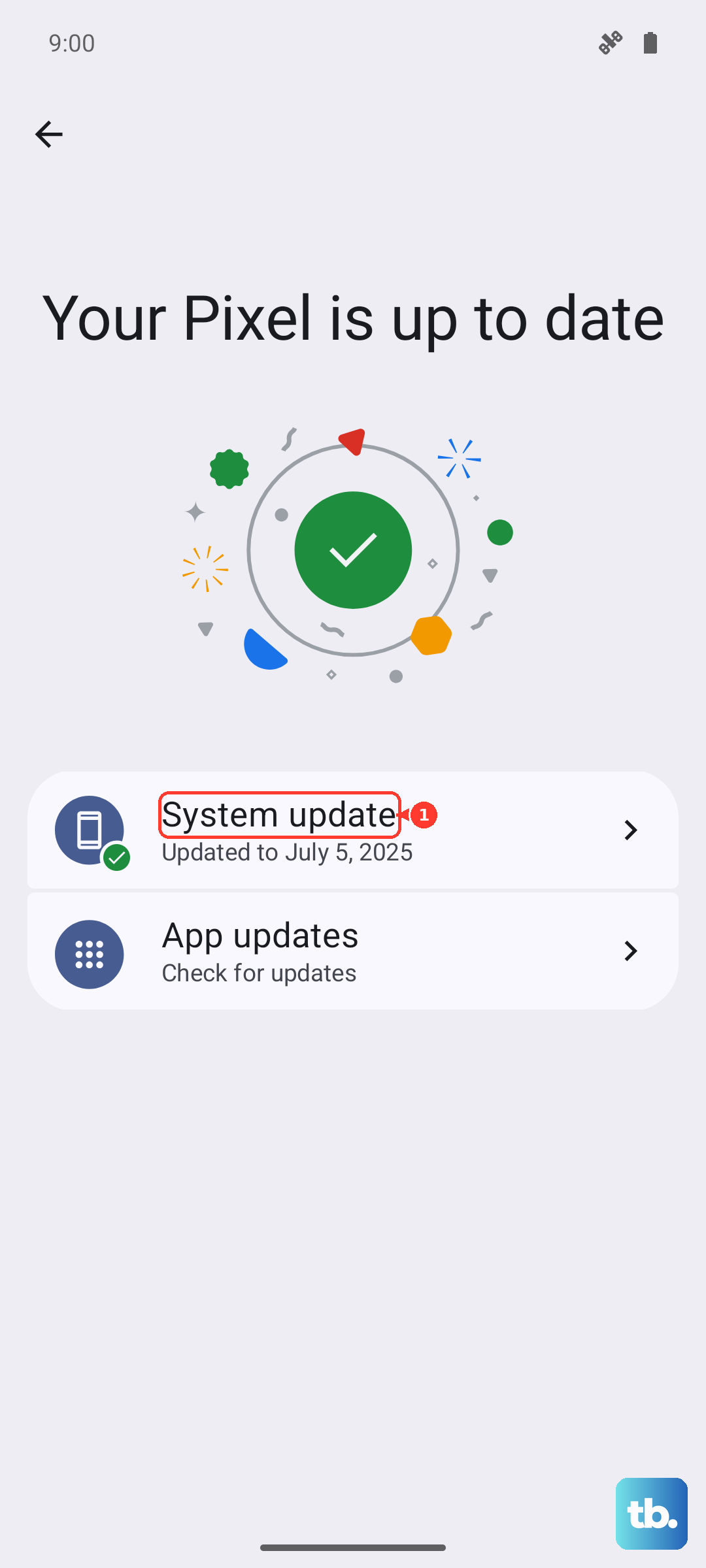
Don't forget the apps themselves. Open the Google Play Store, tap your profile icon, and go to Manage apps & device > Updates available. Update the Phone app and your carrier services app, as these are critical for call functionality.
Reset App Preferences or Network Settings
If the issue persists, try resetting app preferences. This won't delete any app data, but it will reset notification settings, default apps, and background data restrictions. Go to Settings > System > Reset options > Reset app preferences and confirm.
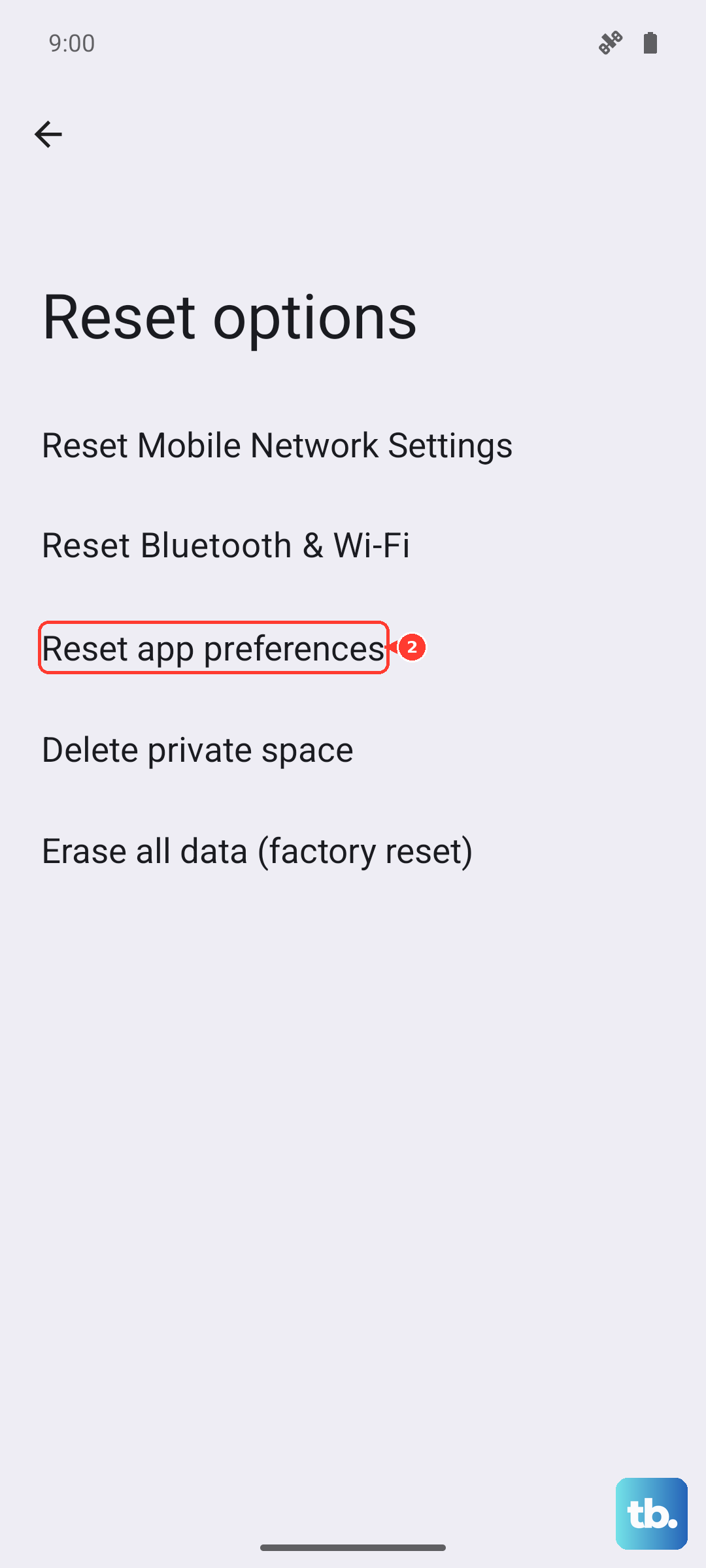
For issues that might be network-related, like calls dropping straight to voicemail, you can reset network settings. This will erase Wi-Fi passwords and Bluetooth pairings. Navigate to Settings > System > Reset options > Reset Wi-Fi, mobile & Bluetooth.
Check for Carrier-Specific Settings
It's worth contacting your mobile carrier to ensure there are no call forwarding services active on your line that you're unaware of. You can also check within your phone's settings. Go to the Phone app, tap the three-dot menu, select Settings > Calls > Calling accounts.
Tap on your carrier line and look for "Call forwarding," "Additional settings," or "Wi-Fi Calling." Ensure call forwarding is disabled and try toggling Wi-Fi Calling off and on, as this feature can sometimes cause conflicts with the standard cellular ringtone.