
When your Google Pixel 10 Pro stops ringing for incoming calls, it's a problem that needs fixing right away. This can happen for a bunch of reasons, from a simple setting you've accidentally toggled to a deeper network hiccup. I'd start with the quick checks below, as they resolve the issue more often than not.
First, pull down the notification shade twice to see your full Quick Settings panel. Make sure the airplane icon isn't highlighted. If it is, tap it to turn Airplane Mode off. While you're there, also tap the cellular data icon to turn it off and then back on. This refreshes your connection to the tower.
Next, give your Pixel a quick restart. Just press and hold the Power button and Volume Up button together for about ten seconds until you see the Google logo. This clears out any temporary software glitches that might be blocking calls. After it boots up, try having someone call you again.
Check Your Do Not Disturb and Focus Settings
Android 15 has some powerful tools to silence distractions, and sometimes they work a little too well. Swipe down and check if the Do Not Disturb icon in Quick Settings is active. If it is, tap it to turn it off.
For a deeper look, go into Settings > Notifications > Do Not Disturb. Here, you can see if any schedules are active. Also, check the "Allowed people" section to make sure calls aren't being restricted. Another spot to look is Settings > Digital Wellbeing & parental controls > Focus mode. If a Focus mode is running, it might be silencing your calls.
Review Call Blocking and Spam Protection
The Pixel's call screening and spam protection is great, but it can mistakenly filter wanted calls. Open your Phone app and tap the three-dot menu in the top right, then select Settings > Spam and Call Screen.
Look at the "Blocked numbers" list to see if a number you're expecting calls from is stuck there. You can also temporarily turn off "See caller & spam ID" to see if that's the culprit. Sometimes, overzealous spam filtering from your carrier can be the issue. You can check this in Phone app Settings > Caller ID & spam.
Investigate Network and SIM Card Issues
Poor signal is a classic reason for missed calls. Check the signal strength indicator in your status bar. If it's low, try moving to a different location or near a window. It's also worth checking if there's a known outage with your carrier, which you can often do through their website or app.
The SIM card itself can cause problems. Power off your Pixel 10 Pro, then use the SIM eject tool to pop out the tray. Carefully remove the SIM card, inspect it for any visible damage or dirt, and then reseat it firmly. Power the phone back on. If you have access to another phone, testing your SIM card in it can tell you if the problem is with the card or your Pixel.
Reset Your Network Settings
If calls are still not coming through, resetting your network settings can clear up any corrupted connection data. Go to Settings > System > Reset options. Tap on Reset Wi-Fi, mobile & Bluetooth.
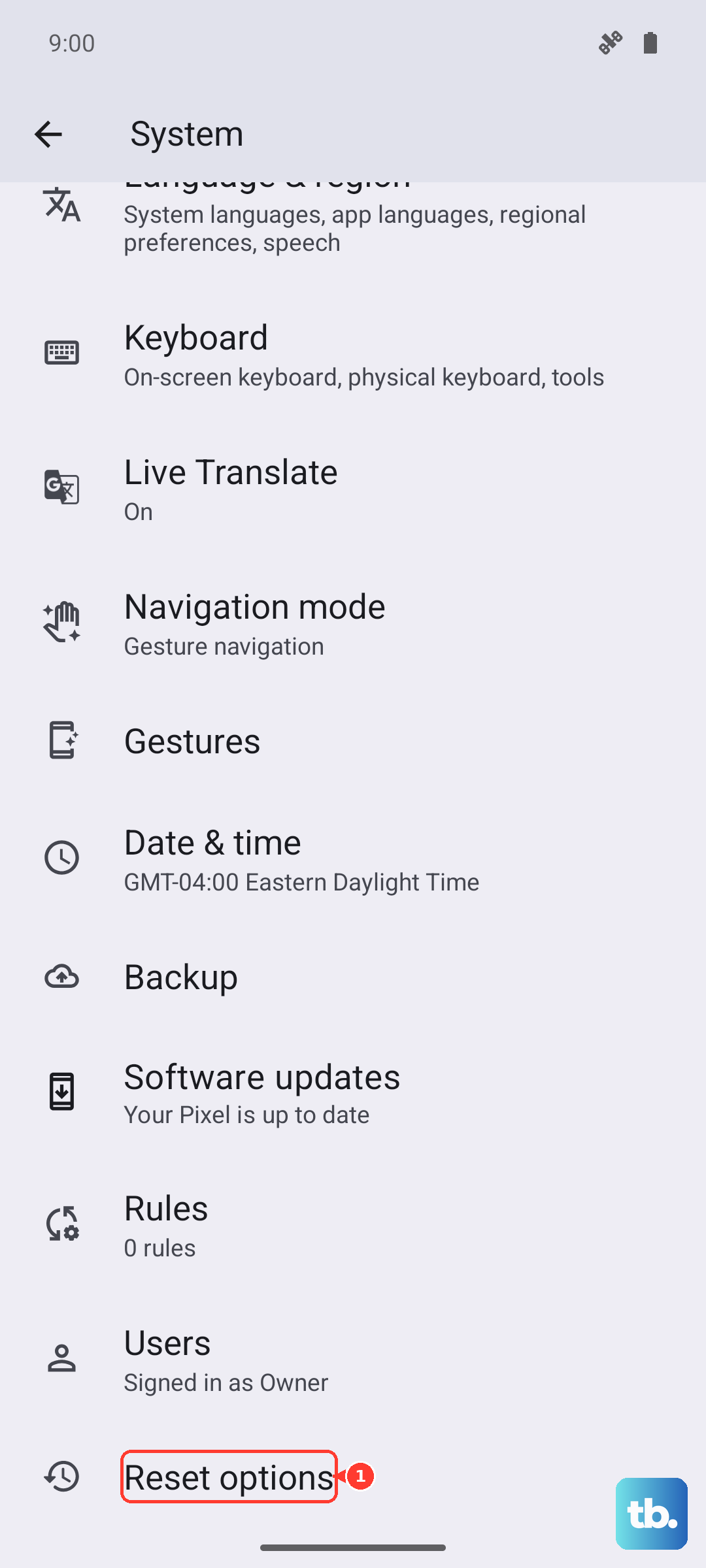
Remember, this will erase all saved Wi-Fi networks and passwords, unpair your Bluetooth devices, and reset your mobile network settings to default. It won't delete your personal files, but you'll need to reconnect to your Wi-Fi and devices afterward. This step often resolves persistent calling issues.
Update Your Software and Check the Phone App
Software bugs can interfere with calling functions. Make sure your Pixel is running the latest available version of Android. Go to Settings > System > System update and tap "Check for update." Install any available updates, as they frequently contain bug fixes.
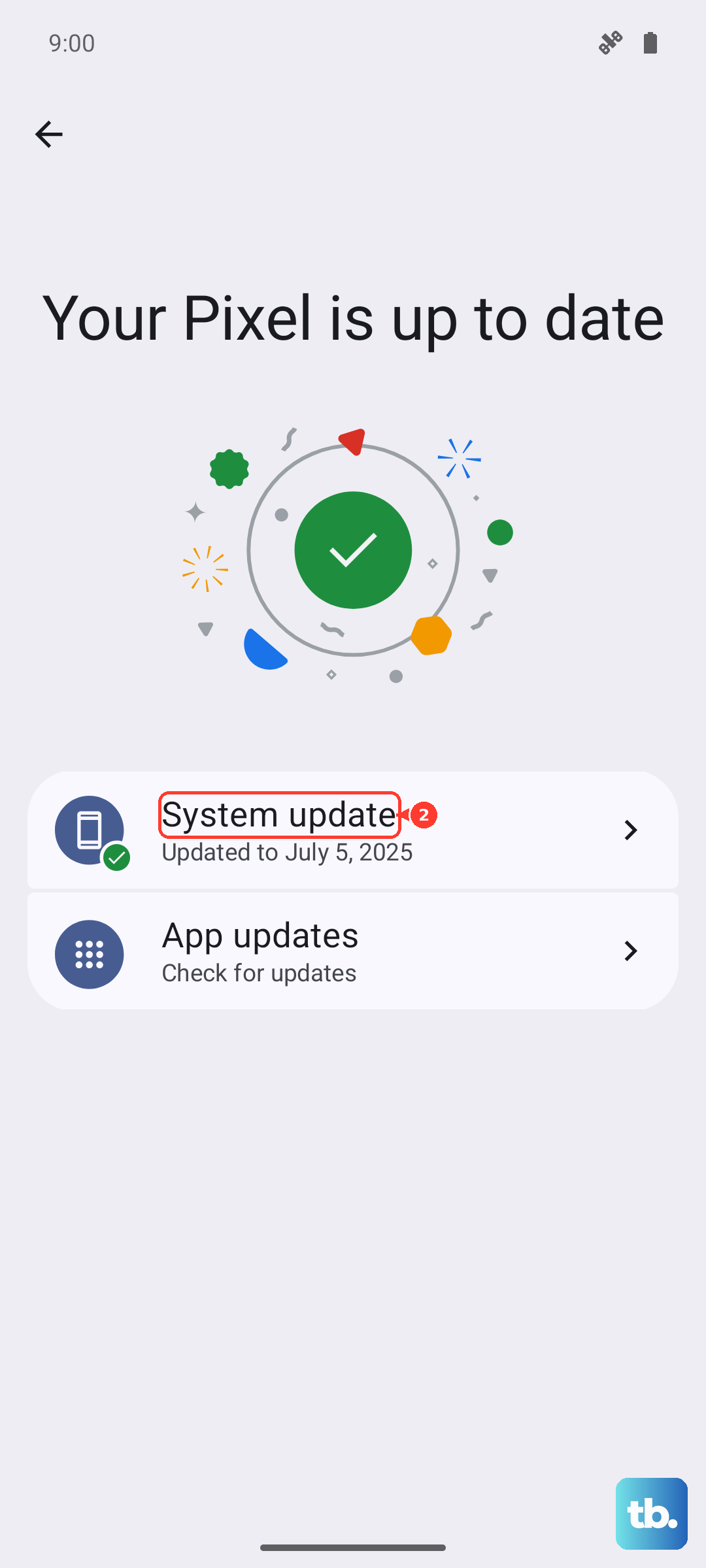
Also, ensure your Phone app is up to date. Open the Google Play Store, tap your profile icon, and go to Manage apps & device > Updates available. See if the "Phone by Google" app has an update pending. If problems persist, you can clear the app's cache. Go to Settings > Apps > See all apps, find "Phone," then tap Storage & cache > Clear cache. This won't delete your call history.
Disable Conflicting Apps and Features
Sometimes, a third-party app you've installed can take control of calling functions or cause conflicts. Think about any apps related to calling, dialers, sound profiles, or firewalls that you've installed recently. Try booting your Pixel into Safe Mode to see if the problem goes away.
To do this, press and hold the Power button on screen, then tap and hold the "Power off" option until you see the Safe Mode prompt. If incoming calls work fine in Safe Mode, a downloaded app is likely the cause. You'll need to uninstall apps one by one to find the offender.