
If your Google Pixel 10 isn't buzzing, chiming, or showing alerts on the lock screen, you're definitely missing important stuff. It's a common hiccup with Android 16, but the good news is it's usually something you can fix yourself in a few minutes.
I'd start with the simplest fix first. Just restart your Pixel 10. Press and hold the power button, then tap "Restart" on the screen. This clears out any temporary glitches in the system that might be blocking notifications. It's the quickest thing to try and often does the trick.
Check Your Focus and Do Not Disturb Modes
Android 16 has some pretty granular focus controls. Open your Quick Settings by swiping down from the top of the screen twice. Look for icons like a crescent moon or a "Do Not Disturb" label. If any are active, tap them to turn them off.
You should also dive into the settings. Go to Settings > Notifications > Do Not Disturb. Make sure it's toggled off, and review any schedules or rules that might be silencing your phone automatically.
Review App-Specific Notification Settings
Sometimes the problem isn't with the phone, but with how a specific app is set up. Open Settings > Apps and select the app that's not notifying you, like Gmail or Messages.
Tap on "Notifications." Here, make sure the toggle at the top is on. Then, check the categories below. For an app like Gmail, you might need to ensure "New mail" notifications are enabled and set to "Make sound and pop on screen."
Ensure Background Data and Battery Optimization Aren't Blocking Apps
To save battery, Android can restrict what apps do in the background. Go to Settings > Apps and select your problem app again. Tap on "Mobile data & Wi-Fi."
Make sure "Background data" is allowed. Next, go back and tap "Battery." Set the battery restriction to "Unrestricted." This tells your Pixel 10 to let that app run normally so it can fetch new alerts.
Clear the Cache for the Problem App
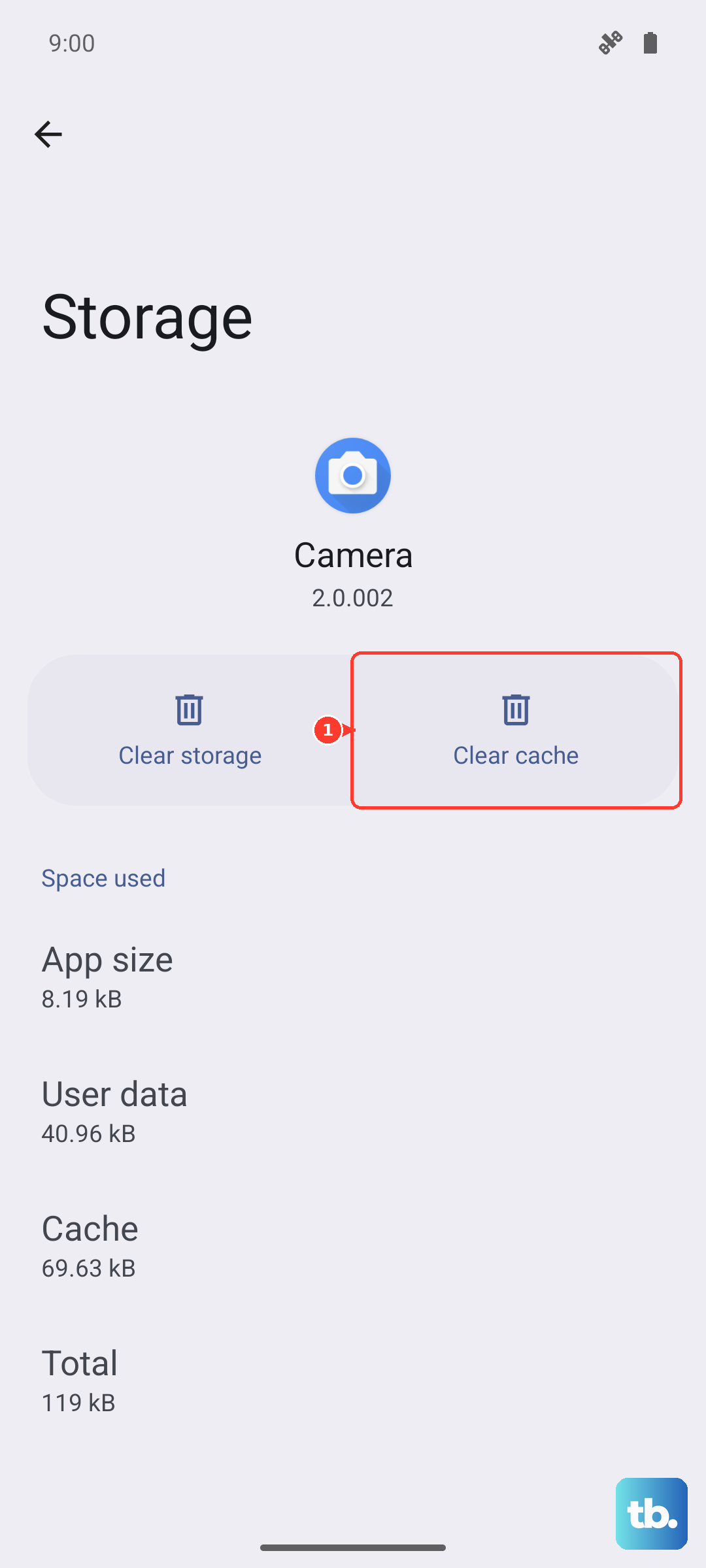
Corrupted temporary files can break an app's notification function. For the app that's acting up, go to Settings > Apps, select it, then tap "Storage & cache."
Tap "Clear cache." This doesn't delete any of your personal data, like emails or messages. It just cleans out the temporary junk. After doing this, force stop the app from its app info page, then open it again.
Check for Android and App Updates
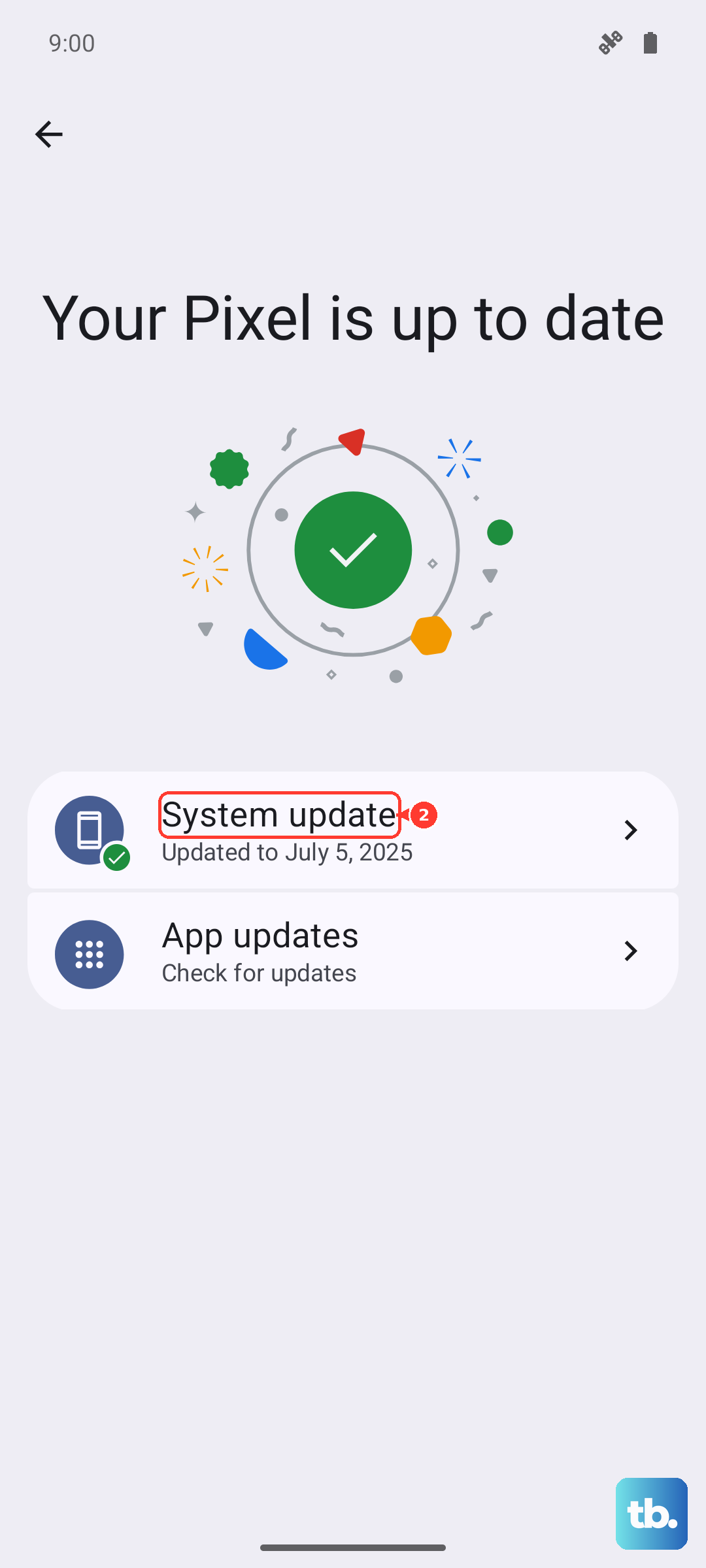
Outdated software is a classic cause for weird bugs. Head to Settings > System > System update to check for the latest Android 16 patch. Install it if available.
Then, open the Google Play Store, tap your profile icon, and go to "Manage apps & device." Under "Updates available," see if the problematic app has an update waiting. Installing updates often resolves notification issues.
Reset App Preferences (A Safe Reset)
This is a useful nuclear option for app settings that doesn't delete any of your data. It resets permissions, background restrictions, and notification settings for all apps back to their defaults.
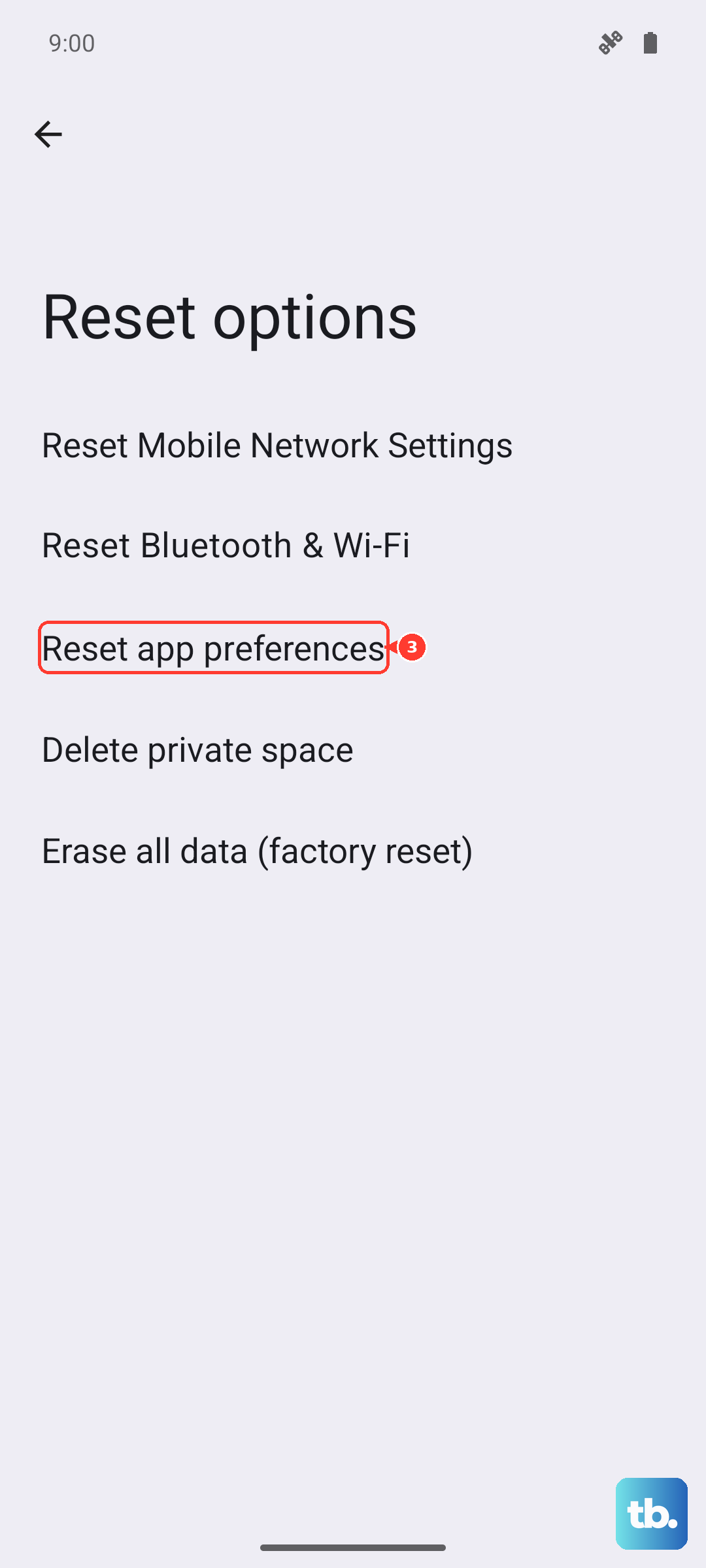
Go to Settings > System > Reset options. Tap "Reset app preferences" and confirm. You'll then need to re-allow notification permissions for your apps, but it can clear up conflicts causing the silence.
Inspect Notification Channels and Importance
Android uses a system called "channels" for notifications. For each app, you can fine-tune them. In the app's notification settings (Settings > Apps > [App Name] > Notifications), tap into each notification category.
Ensure the switch is on. Then, tap "Behavior" or "Importance" and set it to at least "Medium." This makes sure alerts make a sound and appear on your lock screen.
Disable Adaptive Notifications or Notification History
Pixel features designed to help can sometimes hide alerts. Go to Settings > Notifications > Notification history and make sure it's turned on. This lets you see if notifications are arriving but being silently logged.
Also, look for "Adaptive notifications" in the notification settings menu. Try turning this feature off to see if a less "smart" approach fixes your problem.
Force Stop and Relaunch System UI
The System UI is the part of Android that handles, well, the user interface, including notifications. You can give it a quick refresh. First, enable Developer Options by going to Settings > About phone and tapping "Build number" seven times.
Then, go back to the main Settings, enter "Developer options," and scroll down to find "Running services." Tap it, find "System UI" in the list, and tap "Stop." It will restart automatically. This can clear a stuck notification process.
Perform a Soft Reset on Your Pixel 10
If the phone feels a bit sluggish or unresponsive along with the notification issue, a soft reset can help. Press and hold the Power button and Volume Up button together for about 10 seconds until you see the Google logo appear, then release.
This forces the phone to reboot and can clear deeper system hiccups than a standard restart. It doesn't erase any of your files or settings.