
When a picture message gets stuck on your Google Pixel 10, it's usually a quick fix. The most common culprit is a mobile data hiccup. MMS, which is what your phone uses to send photos and videos in the standard messaging app, won't work over Wi-Fi alone.
First, swipe down from the top of your screen twice to open the Quick Settings panel. Make sure the mobile data icon is turned on. If you have a strong signal but the picture still won't send, try toggling Airplane mode on for a few seconds and then off again. This forces your phone to reconnect to the cellular network from scratch.
Verify Your Messages App Settings
Open the Google Messages app on your Pixel 10 and tap your profile picture in the top right corner. Go to Messages settings > Advanced. Here, you'll find a few key toggles. Ensure "Auto-download MMS" is enabled. If you're traveling, you might also want to turn on "Auto-download MMS when roaming," but be mindful of potential data charges.
Sometimes, the issue is specific to a single conversation, especially in a group chat. Open the problematic chat, tap the three-dot menu in the top right, and select Details. Look for a toggle that says "Only send SMS and MMS messages" and make sure it's switched on. This can bypass any RCS (Chat) features that might be failing for that particular contact.
Clear the Messages App Cache
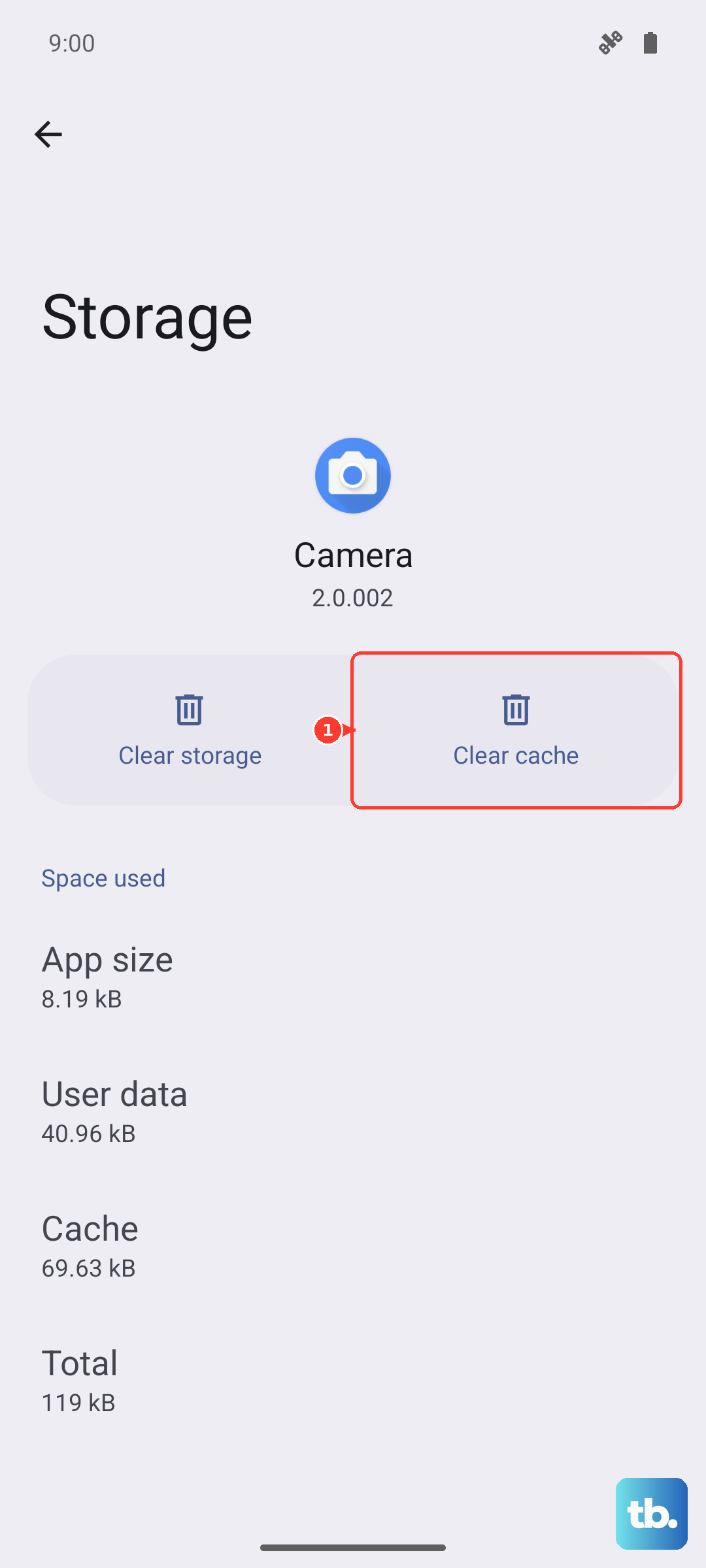
Temporary files can get corrupted and block MMS from sending. Clearing the cache is a safe first step that won't delete your conversations. Go to your phone's Settings > Apps > See all apps. Find and tap on "Messages."
Select Storage & cache and then tap Clear cache. Give it a moment, then try sending your picture message again. If the problem is really stubborn, you can tap "Clear storage" or "Manage space" > "Clear all data." Just be warned, this will erase your entire message history within the app, so only do this if you're okay with that loss or have a backup.
Check Your APN Configuration
Your Access Point Name (APN) is like a gateway address your phone uses to connect to your carrier's data and MMS services. If these settings are wrong, pictures won't go through. Go to Settings > Network & internet > Internet. Tap the settings gear next to your carrier's name.
Scroll down and tap Access Point Names. You should see a list, with one selected (usually indicated by a filled-in circle). Don't change anything here randomly. Instead, contact your carrier's support, they can give you the exact, correct APN settings to enter if yours look off. I've seen incorrect MMSC (Multimedia Messaging Service Center) addresses cause this more than anything else.
Perform a Network Settings Reset
This is a more thorough step that clears all your saved network information. It will forget your Wi-Fi passwords, Bluetooth pairings, and cellular network settings, then re-establish them fresh. It often resolves deeper MMS glitches.
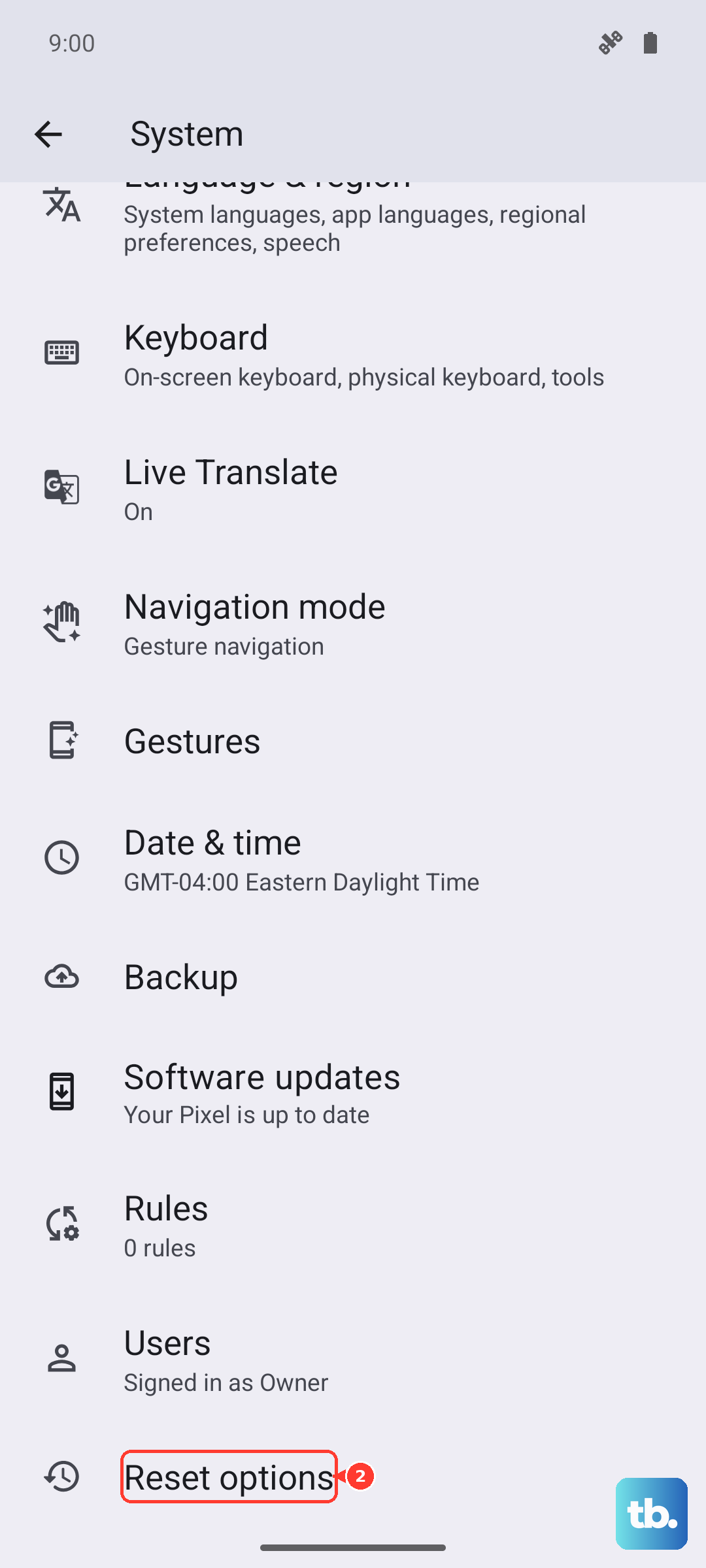
To do this, open Settings > System > Reset options. Tap on Reset Wi-Fi, mobile & Bluetooth and confirm. Your Pixel 10 will restart. After it boots up, you'll need to reconnect to your Wi-Fi networks and re-pair Bluetooth devices, but your MMS connection should be clean.
Ensure You Have Enough Storage
Your Pixel 10 needs a bit of free space to process and send multimedia messages. If your storage is critically full, it can fail silently. Go to Settings > Storage to check your available space.
Try to free up at least a few hundred megabytes. You can quickly clear space by deleting old downloaded files or offloading photos to Google Photos. Once you have some breathing room, attempt to send the picture message again.
Update Your Software and Carrier Services
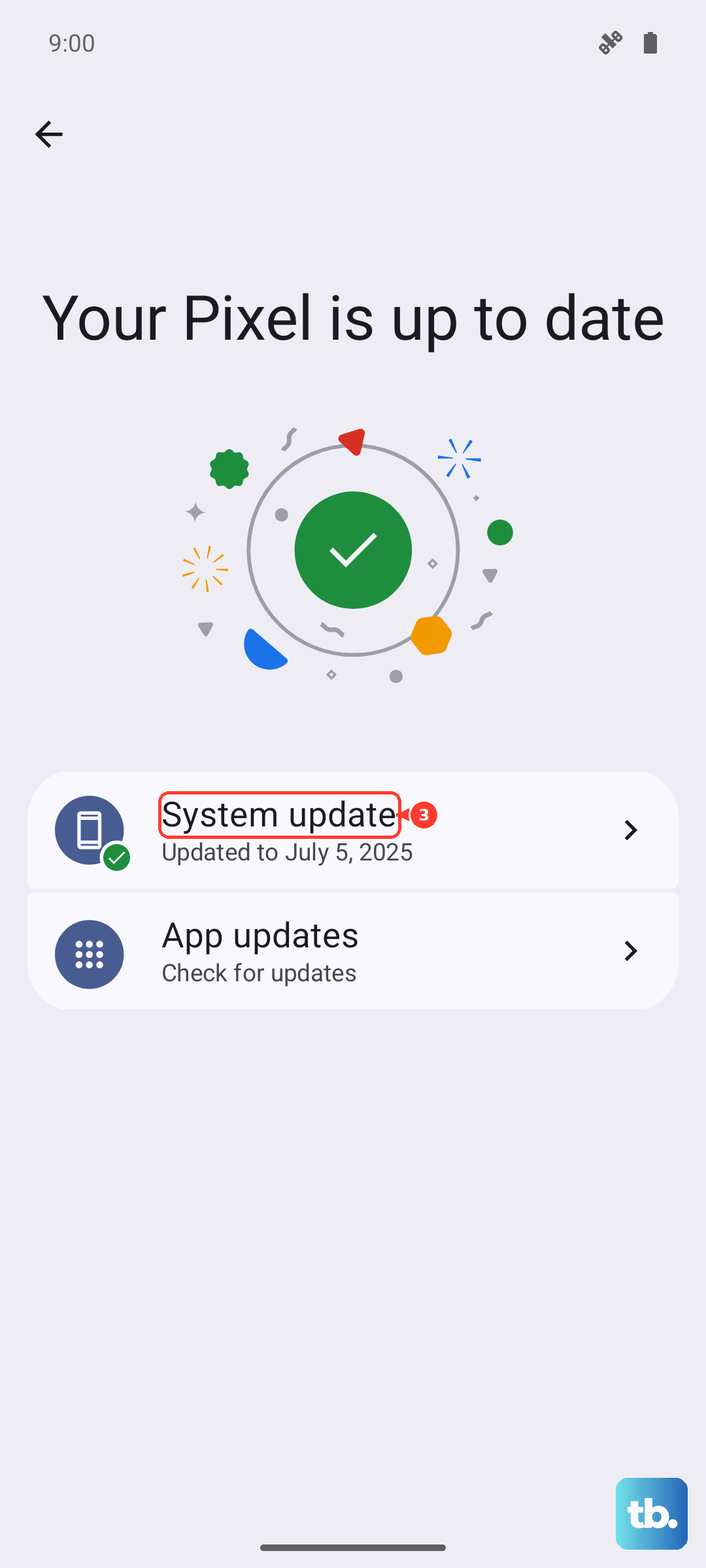
Outdated system software or carrier-specific services can lead to messaging bugs. Go to Settings > System > System update to check for the latest Android 15 update. Install it if available.
Also, open the Google Play Store, tap your profile picture, and go to Manage apps & device > Manage. Find "Carrier Services" in the list of installed apps and see if an update is pending. This app handles communication between your phone and your carrier's network, including MMS.
Try the Force Restart Method
If your phone is acting sluggish or the messaging app is frozen, a standard restart might not be enough. A force restart can clear out deeper system hiccups. On the Pixel 10, press and hold the Power button and the Volume Up button together for about 10 seconds.
Release the buttons when you see the Google logo appear on the screen. This is different from just holding the power button, and it's a useful trick for any unresponsive behavior.