When your Android phone refuses to download apps, it can feel like your device has suddenly stopped working. Apps are essential for everything from communication to productivity, so when downloads fail, it's frustrating. The good news is most download issues have simple solutions.
Let's walk through the most effective troubleshooting steps to get your apps downloading again.
Start With the Basics
Before diving into complex fixes, check these common culprits first:
Check your internet connection - Whether you're using Wi-Fi or mobile data, a stable connection is essential. Pull down your notification shade and verify your Wi-Fi or mobile data icon is active. If neither is enabled, turn on your connection.
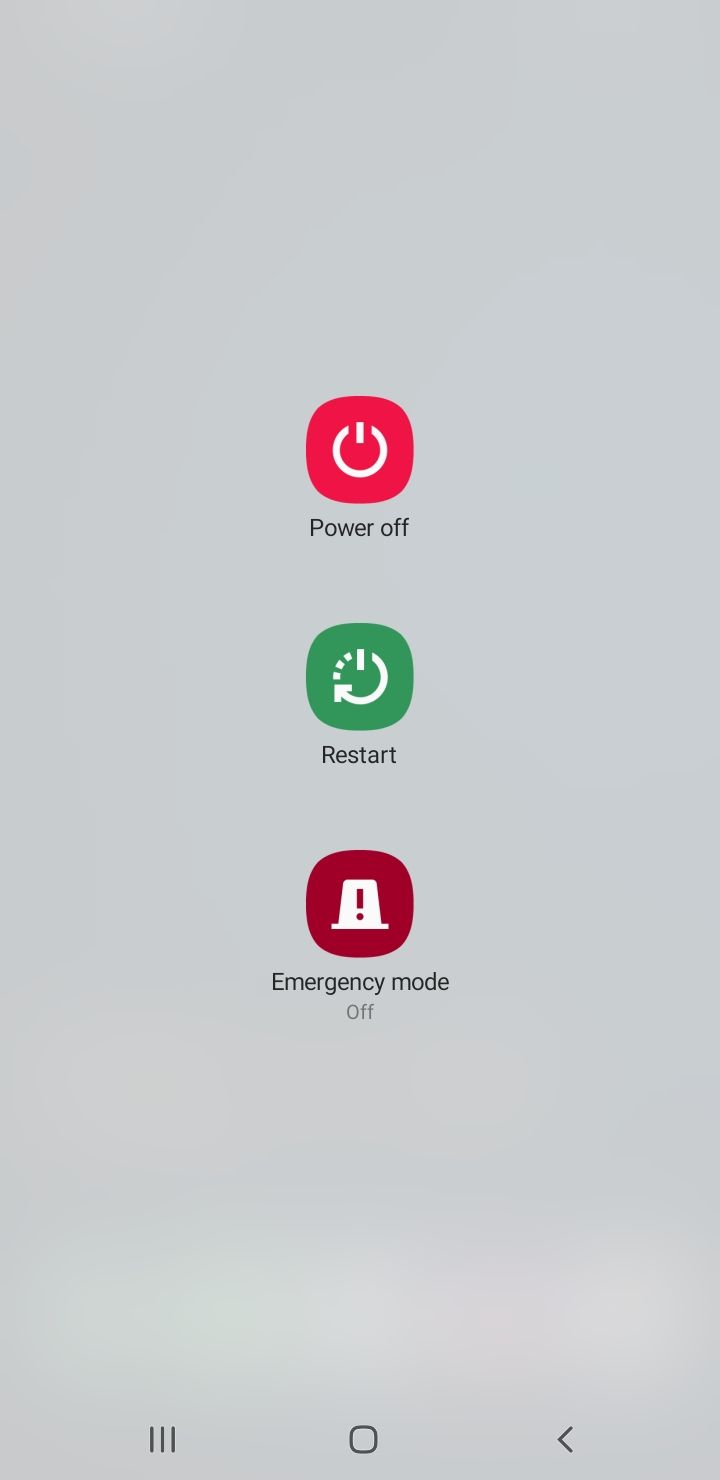
Restart your device - Sometimes a simple restart resolves temporary glitches. If you've downloaded apps successfully before and this is a new issue, restarting often fixes it without deeper troubleshooting.
Common Download Problems and Solutions
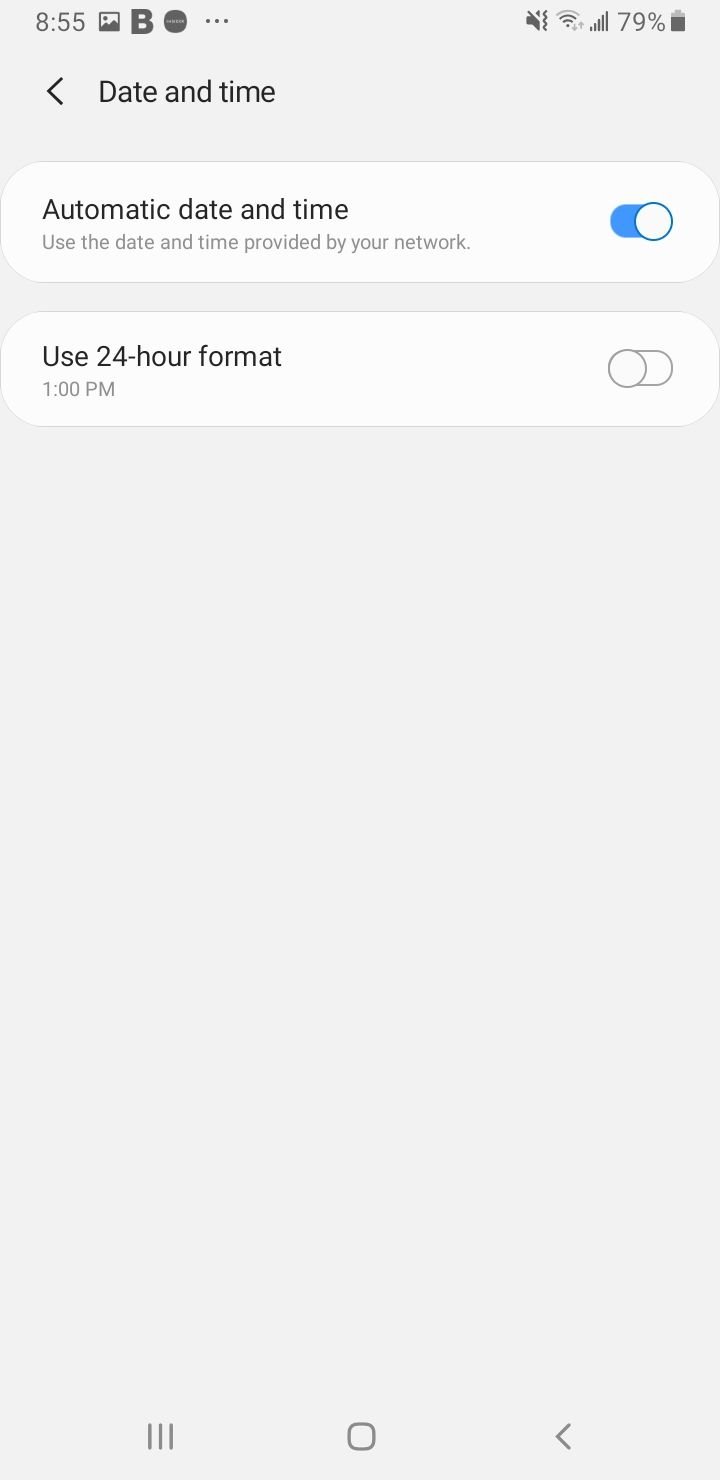
Fix Incorrect Date and Time Settings
Google servers check your device's time when you download apps. If the time is wrong, it can prevent downloads from working properly.
To fix date and time settings:
- 1.Go to Settings > General Management
- 2.Tap Date and Time
- 3.Enable "Automatic Date and Time"
- 4.If automatic is already on but downloads still fail, switch to manual and set the time accurately
Switch Between Wi-Fi and Mobile Data
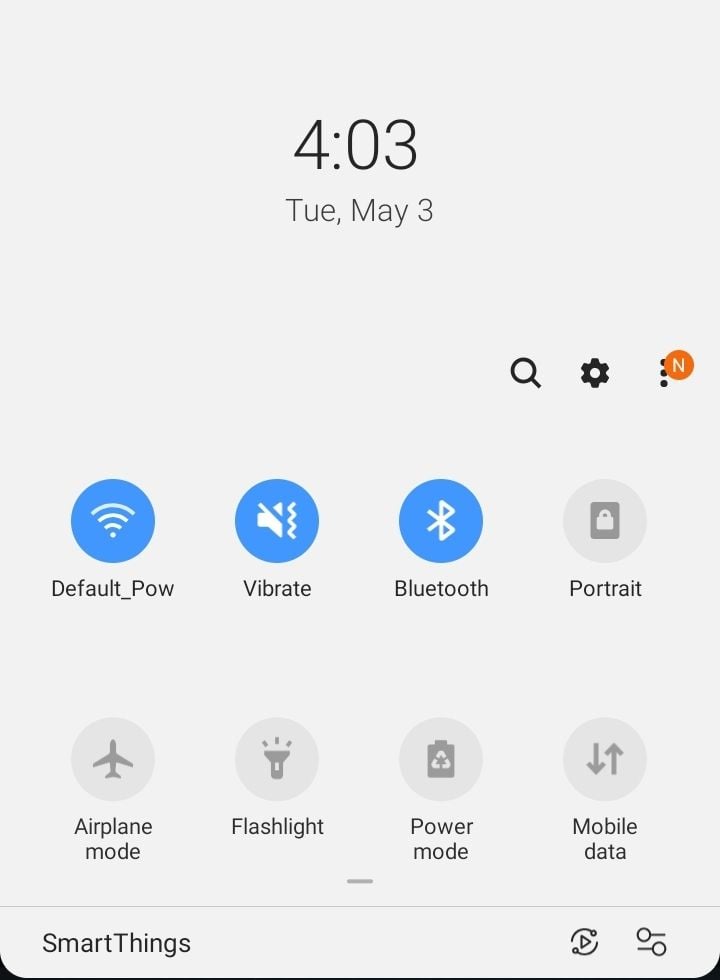
If you're using Wi-Fi and downloads fail, try switching to mobile data. Some Wi-Fi networks block port 5228, which Google Play uses for downloads.
To switch networks:
- 1.Pull down the notification shade
- 2.Tap the Wi-Fi icon to turn it off
- 3.Tap the mobile data icon to turn it on
- 4.Restart your device and try downloading again
Enable and Clear Download Manager
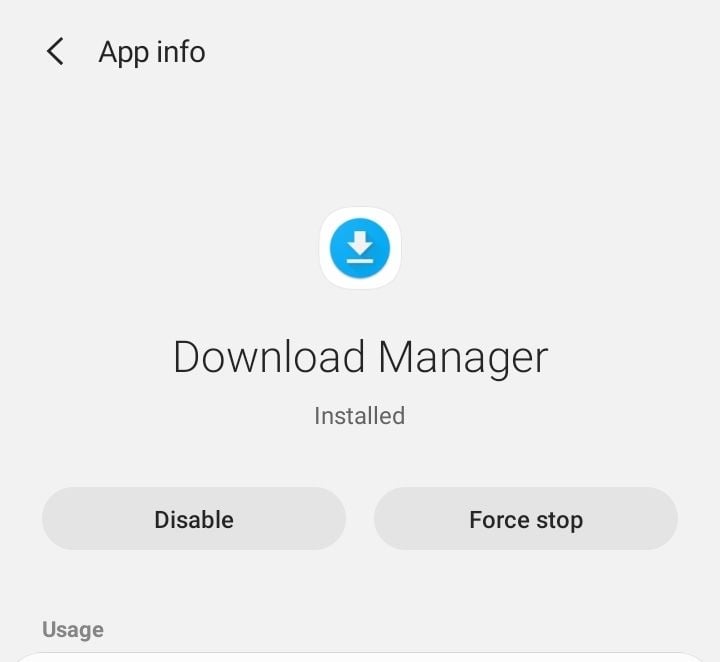
The Download Manager handles all app downloads on your device. Make sure it's enabled and clear any corrupted data.
To check Download Manager:
- 1.Go to Settings > Apps
- 2.Tap the three-dot menu > Show System Apps
- 3.Search for "Download Manager"
- 4.Tap Enable if it's disabled
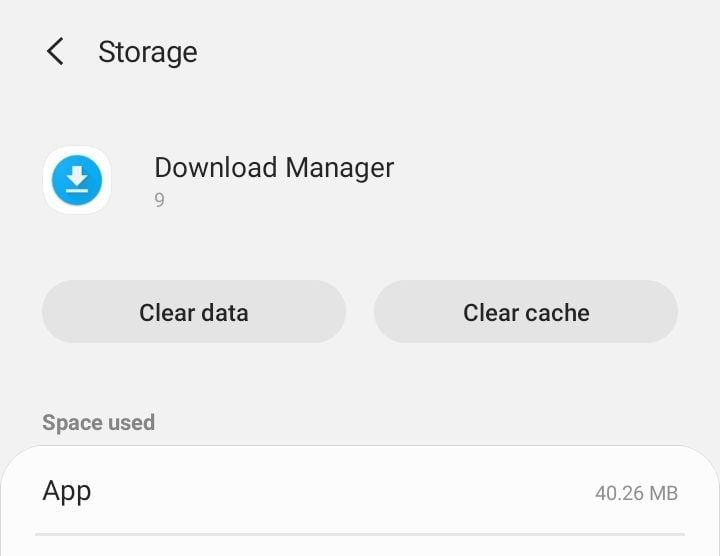
To clear Download Manager cache and data:
- 1.Follow the same steps to find Download Manager
- 2.Tap Storage
- 3.Tap Clear Cache and Clear Data
Clear Google Play Store Cache and Data
Corrupted cache files can prevent the Play Store from working properly.
To clear Play Store cache:
- 1.Go to Settings > Apps
- 2.Find Google Play Store
- 3.Tap Storage
- 4.Tap Clear Cache
If that doesn't work, clear the data too:
- 1.Go back to Storage settings
- 2.Tap Clear Data
- 3.Confirm the warning message
- 4.Restart your device
Clear Google Play Services Cache and Data
Google Play Services handles communication between apps and your device. Problems here can affect downloads.
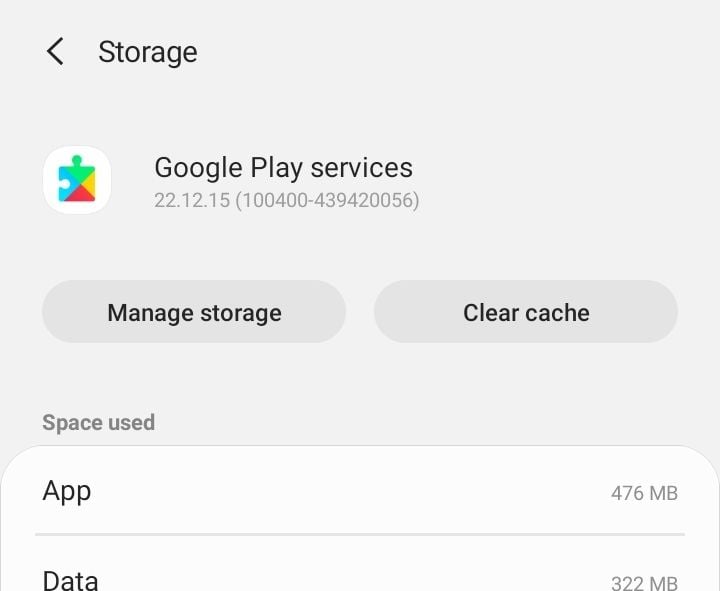
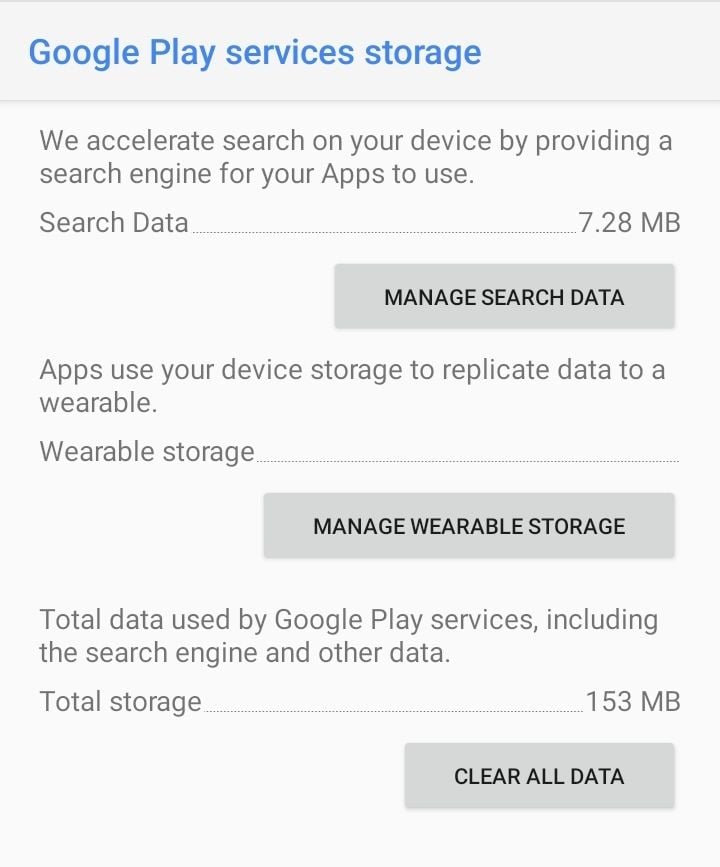
To clear Google Play Services:
- 1.Go to Settings > Apps
- 2.Find Google Play Services
- 3.Tap Storage
- 4.Tap Clear Cache
- 5.Tap Manage Storage > Clear All Data
Refresh Data Sync Settings
Sometimes refreshing your account sync can resolve download issues.
To refresh sync settings:
- 1.Go to Settings > Accounts
- 2.Select your Google Account
- 3.Tap Sync Account
- 4.
 Click to expand
 - 5.Tap the three-dot menu > Cancel sync
- 6.Wait 30 seconds, then enable sync again

Check App Permissions
Google Play Services needs proper permissions to function correctly.
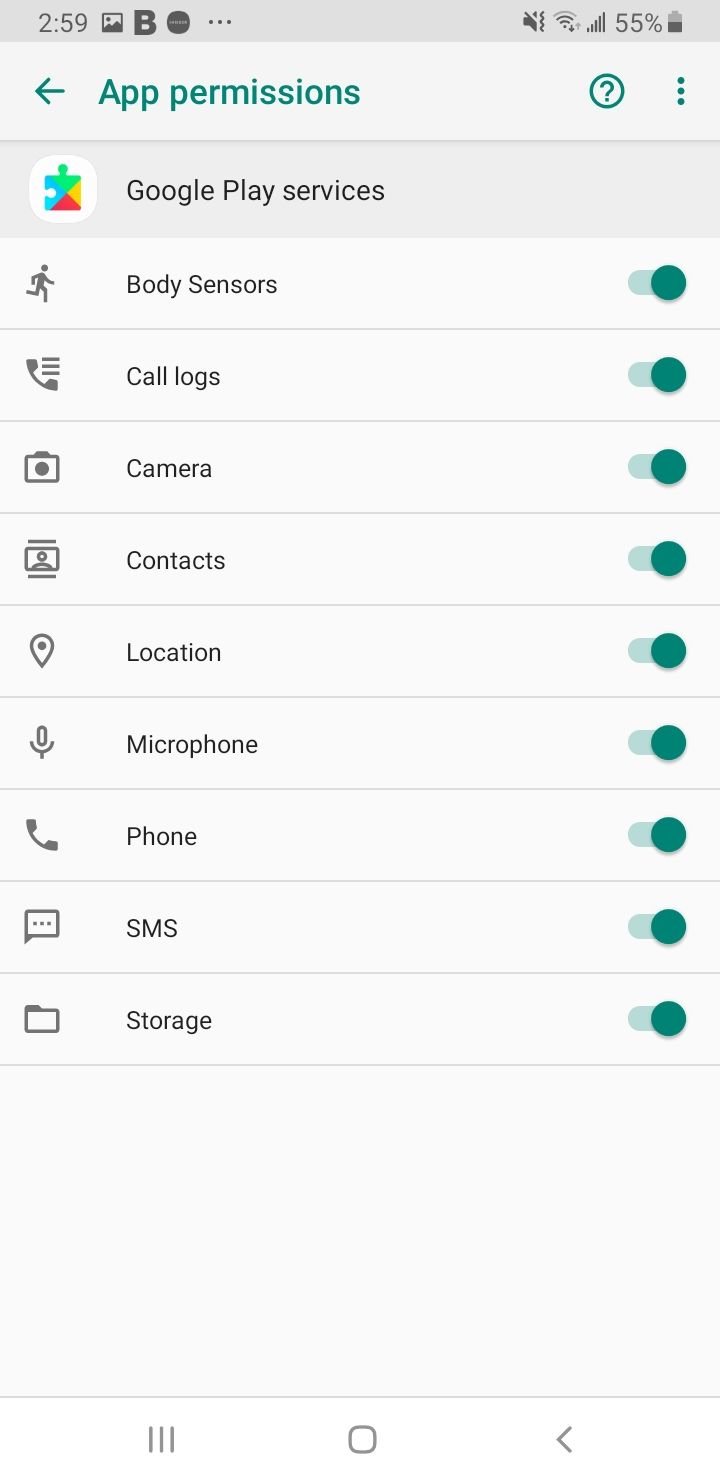
To check permissions:
- 1.Go to Settings > Apps
- 2.Find Google Play Services
- 3.Tap Permissions
- 4.Ensure Storage permission is enabled
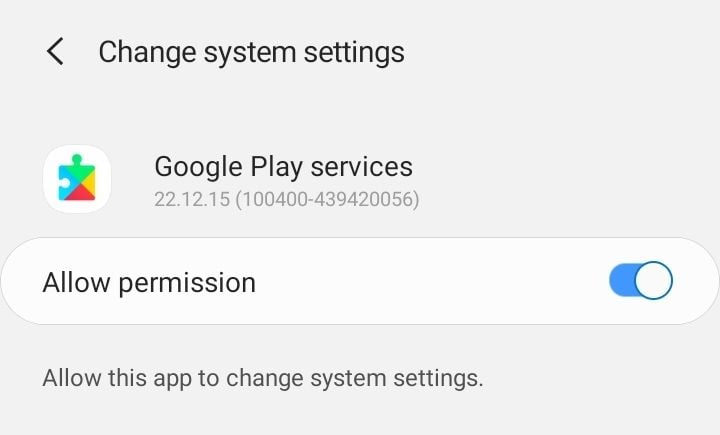
To check system settings permissions:
- 1.Go to Settings > Apps
- 2.Find Google Play Services
- 3.Tap "Change system settings"
- 4.Ensure "Allow permission" is enabled
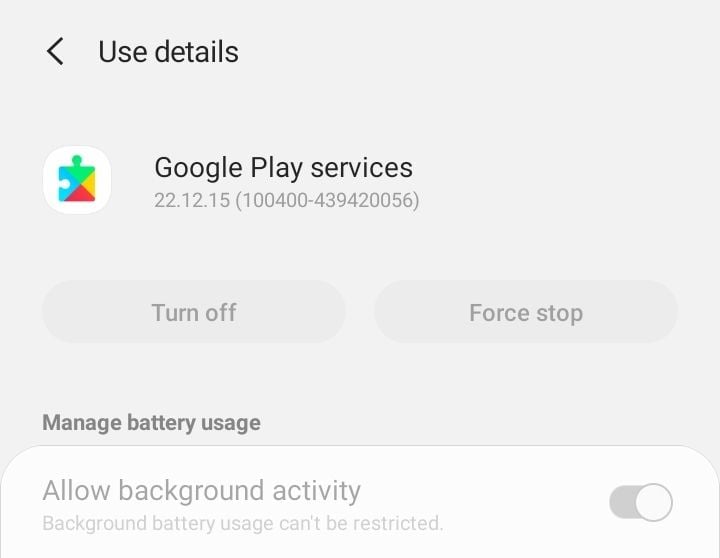
Force Stop Google Play Services
If Google Play Services is stuck, force stopping it can help.
To force stop:
- 1.Go to Settings > Apps
- 2.Find Google Play Services
- 3.Tap Force Stop
Update Your Device Software
Outdated software can cause compatibility issues with app downloads.
To check for updates:
- 1.Go to Settings > Software Update
- 2.Tap Check for Updates
- 3.Install any available updates
- 4.Your device will restart automatically
Reset Your Google Account
Sometimes removing and re-adding your Google account resolves persistent issues.
To reset your account:
- 1.Go to Settings > Accounts
- 2.Select your Google Account
- 3.Tap Remove Account
- 4.Go back to Accounts and tap Add Account
- 5.Re-add your Google account
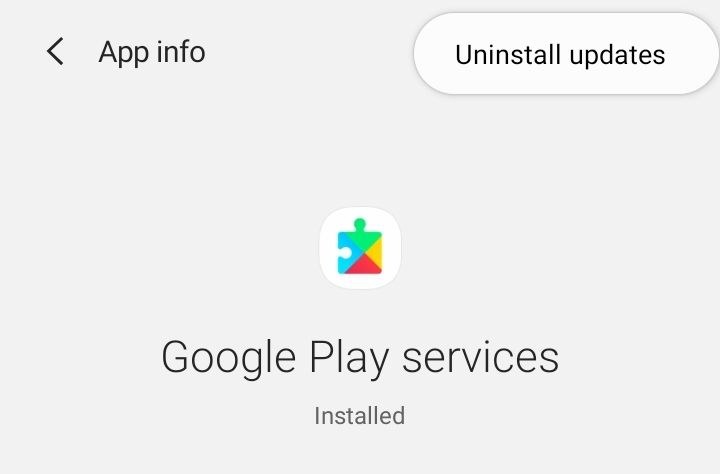
Uninstall Google Play Services Updates
If recent updates caused the problem, uninstalling them can help.
To uninstall updates:
- 1.Go to Settings > Apps
- 2.Find Google Play Services
- 3.Tap the three-dot menu
- 4.Tap "Uninstall Updates"
- 5.Restart your device
- 6.Go back and update Google Play Services
Dealing With Specific Error Messages
"Insufficient Space" Error
When you see this error, you need to free up storage space:
- 1.Delete unnecessary photos, videos, or files
- 2.Move files to your computer or cloud storage
- 3.Uninstall apps you no longer use
To uninstall apps:
- 1.Go to Settings > Apps
- 2.Tap the app you want to remove
- 3.Tap Uninstall
- 4.Confirm the action
Error DF-BPA-09 "Error Processing Purchase"
This error relates to Google Services Framework:
- 1.Go to Settings > Apps
- 2.Find Google Services Framework
- 3.Tap Storage > Clear Data
- 4.Tap OK to confirm
- 5.Try downloading again
Error 911
This error often relates to Wi-Fi connection issues:
- 1.Clear Google Play Services cache and data
- 2.Check if you're logged into a Wi-Fi network with web page authentication
- 3.Try a different Wi-Fi network
- 4.Switch to mobile data temporarily
Last Resort: Factory Reset
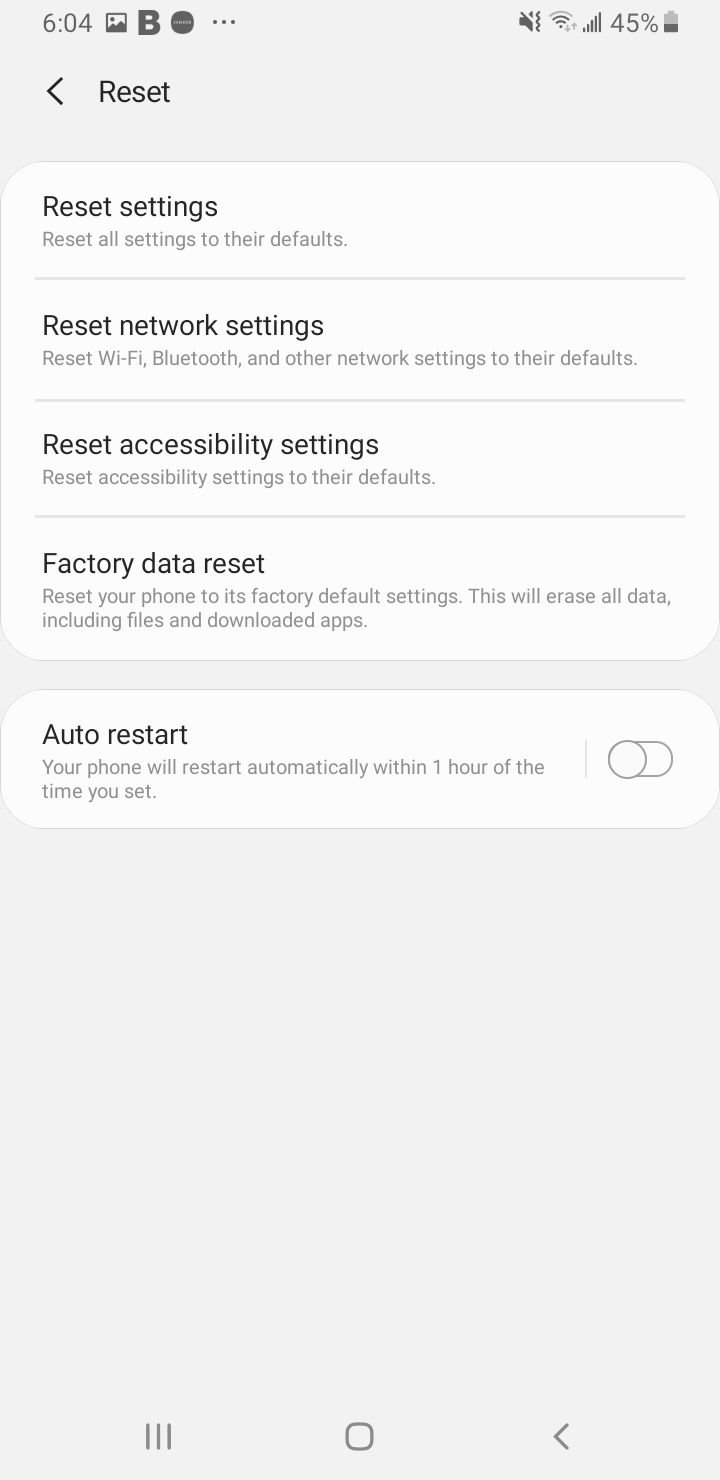
If nothing else works, a factory reset can resolve persistent issues. This erases all data and returns your device to its original settings.
Important: Back up your data before proceeding. You can use your Google account or a computer to create a backup.
To factory reset:
- 1.Go to Settings > General Management
- 2.Tap Reset > Factory Data Reset
- 3.Confirm the action
- 4.Your device will restart automatically
After the reset, go to the Play Store and check if downloads work properly. Start with essential apps and gradually rebuild your app collection.
Most download issues can be resolved with these troubleshooting steps. Start with the simplest solutions like checking your internet connection and restarting your device, then work through the more involved fixes if needed.