
When your Dell XPS 15 shows a "USB Device Not Recognized" error or simply doesn't detect a connected drive, mouse, or keyboard, it's a common but fixable hiccup. The cause is often a temporary driver glitch, a power setting, or a specific issue with the XPS 15's USB-C ports. I'd start by trying a different port.
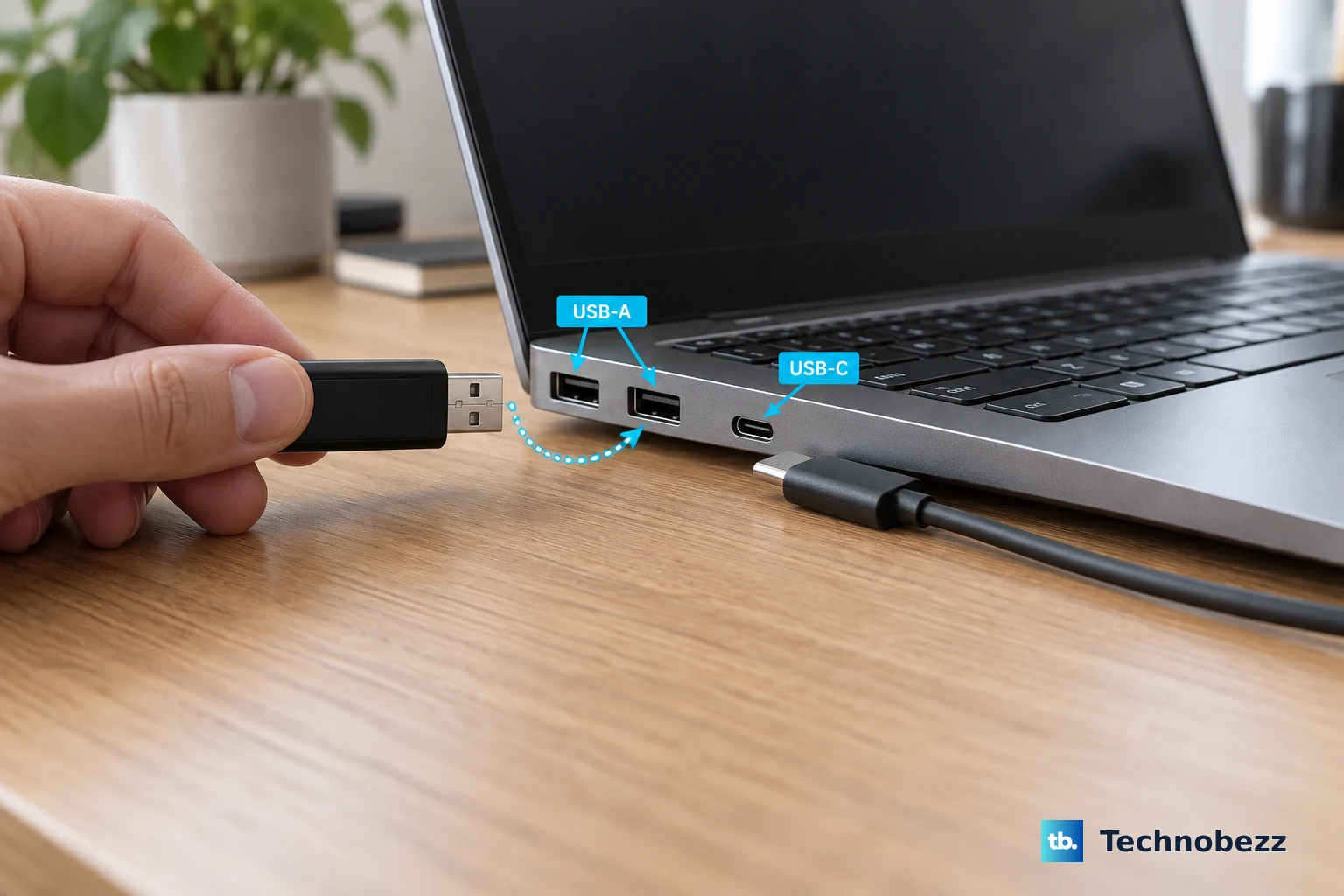
Try a Different USB Port on Your XPS 15
Unplug the device and connect it to another port. The XPS 15 typically has a mix of USB-C and USB-A ports. If the device works in a different port, the original one might have a physical issue or a driver problem specific to that controller. This is a quick way to rule out a single faulty port.
Perform a Full Restart
Completely shut down your laptop, wait a few seconds, and power it back on. Don't just put it to sleep. A full restart reloads the USB drivers and resets the controller, which can clear up temporary recognition errors. This simple step resolves a surprising number of these issues.
Test the Device on Another Computer
Plug the USB device into a different PC or laptop. If it isn't recognized there either, the problem is almost certainly with the device itself or its cable. If it works perfectly on another machine, you know the issue is isolated to your XPS 15's configuration.
Swap Out the Cable
For external drives, phones, or other cabled devices, try a different cable. Cables can fail internally, especially near the connectors. A cable might still deliver power for charging but have broken data lines, which would explain why a device isn't being detected for data transfer.
Update or Reinstall USB Drivers
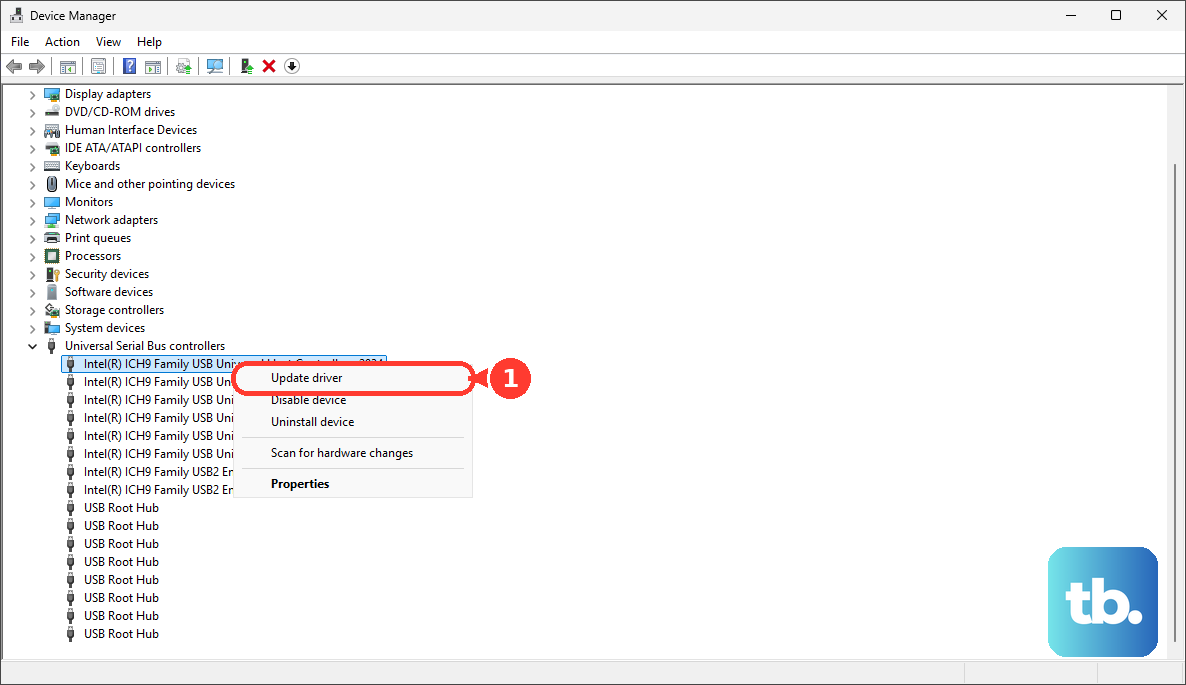
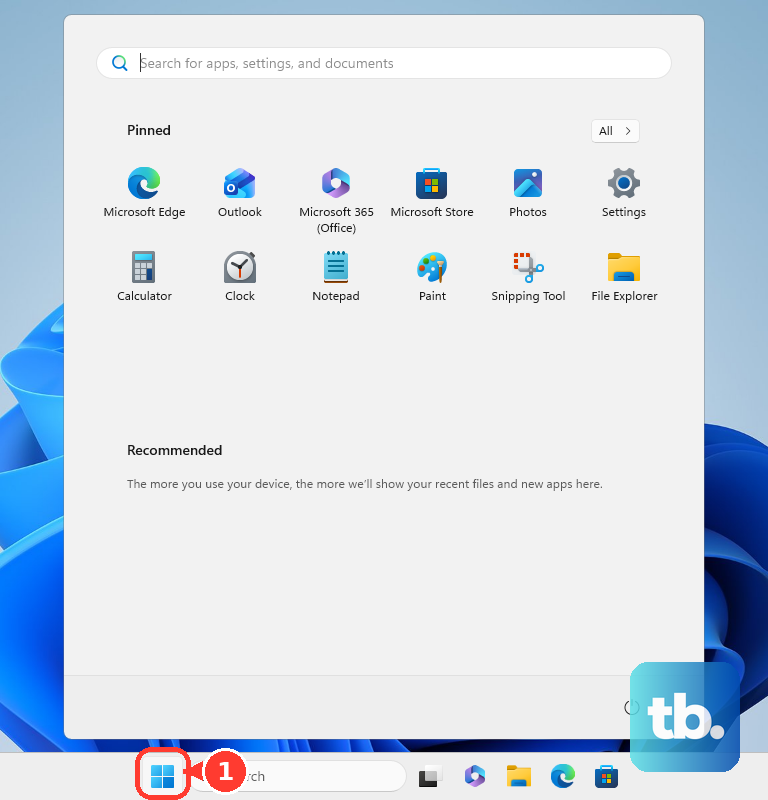
Press the Windows key, type "Device Manager," and open it. Expand the "Universal Serial Bus controllers" section. Look for any entries with a yellow exclamation mark. Right-click on them and choose "Update driver." You can also try right-clicking on the generic "USB Root Hub" entries and selecting "Uninstall device," then restarting your laptop to let Windows reinstall them fresh.
For a more thorough approach, use Dell's own tools. Open the Dell SupportAssist app and run a driver scan. It can find and install manufacturer-specific driver updates for your XPS 15's chipset and USB controllers, which sometimes work better than the generic Windows drivers.
Disable USB Selective Suspend
This power-saving feature can sometimes turn off USB ports prematurely. To disable it, go to Control Panel > Hardware and Sound > Power Options. Click "Change plan settings" next to your selected plan, then "Change advanced power settings." In the new window, expand "USB settings" and then "USB selective suspend setting." Set both "On battery" and "Plugged in" to Disabled.
Run the Windows Hardware Troubleshooter
Open the Start menu, type "cmd," right-click on Command Prompt, and select "Run as administrator." In the window, type the command msdt.exe -id DeviceDiagnostic and press Enter. This launches the built-in Hardware and Devices troubleshooter, which can automatically find and fix some common USB configuration problems.
Check for Windows and Optional Updates
Go to Settings > Windows Update and click "Check for updates." Install all available updates. After that, click "Advanced options" and then "Optional updates." Often, there are driver updates listed here that include stability fixes for hardware like USB controllers.
Use Dell's Built-in Diagnostics
Restart your XPS 15 and press the F12 key repeatedly as it boots to enter the one-time boot menu. Use the arrow keys to select "Diagnostics" and press Enter. This runs Dell's pre-boot hardware test, which can check the functionality of your USB ports and other components before Windows even loads.
Adjust Your Power and Thermal Settings
The XPS 15 is known for aggressive thermal management. If the system is hot and throttling, it can sometimes affect peripheral performance. Open the Dell Power Manager application (you can download it from the Microsoft Store if it's not installed). Try setting the thermal profile to "Optimized" or "Cool" instead of "Ultra Performance" to see if it improves USB stability during heavy loads.
Scan for Hardware Changes in Device Manager
With the problematic USB device plugged in, go back to Device Manager. Click on the "Action" menu at the top and select "Scan for hardware changes." This forces Windows to immediately re-check all buses and ports for new devices. It's a simple manual refresh that can jolt a non-responsive port back to life.